
Vet Practice · Vet Practice Billing
Set up wellness plans
In Vivetra: Vet Practice Billing › Wellness Plans
Define the wellness plans your practice offers: what each is called, how long a term runs, what it costs, and which services it covers. Only staff with permission to manage plans, normally the practice manager, can open this screen.
Open Vet Practice Billing › Wellness Plans in the menu.
Add a plan
Every plan needs a name and a Term length (months). Full-term price is the price of the whole term, not each instalment.
- Under Add a plan, enter the Plan name, for example "Puppy Wellness", and fill in the term length and price.
- Select Add plan.
The other fields are optional:
| Field | What it's for |
|---|---|
| Billed (outside Vivetra) | Annual, Monthly, Quarterly or Other. A description only. |
| Species | Leave on "Any species" unless the plan is for one species. Staff get a warning if they enroll a pet of another species. |
| Sort order | The order plans are listed in. |
| Client-facing description | A short summary for clients. |
| Internal note | Never shown to the client. |
A blank price saves as 0.
Add benefits to a plan
Every benefit is a service from your service catalog, so add the services there first (see Set up services and prices). A plan with no benefits covers nothing, and the screen warns you about any active plan that has none.
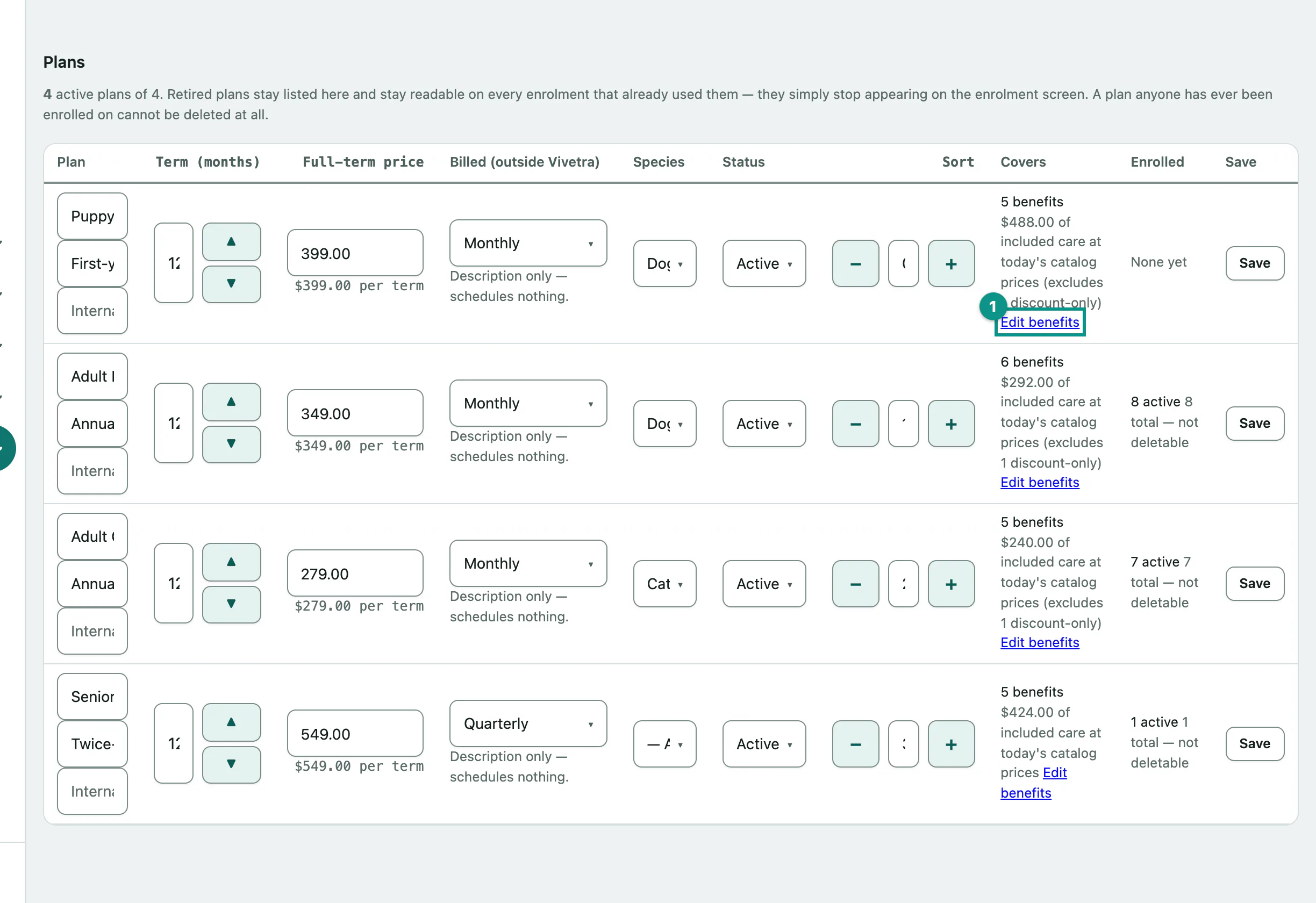
- In the Plans table, select Edit benefits on the plan.
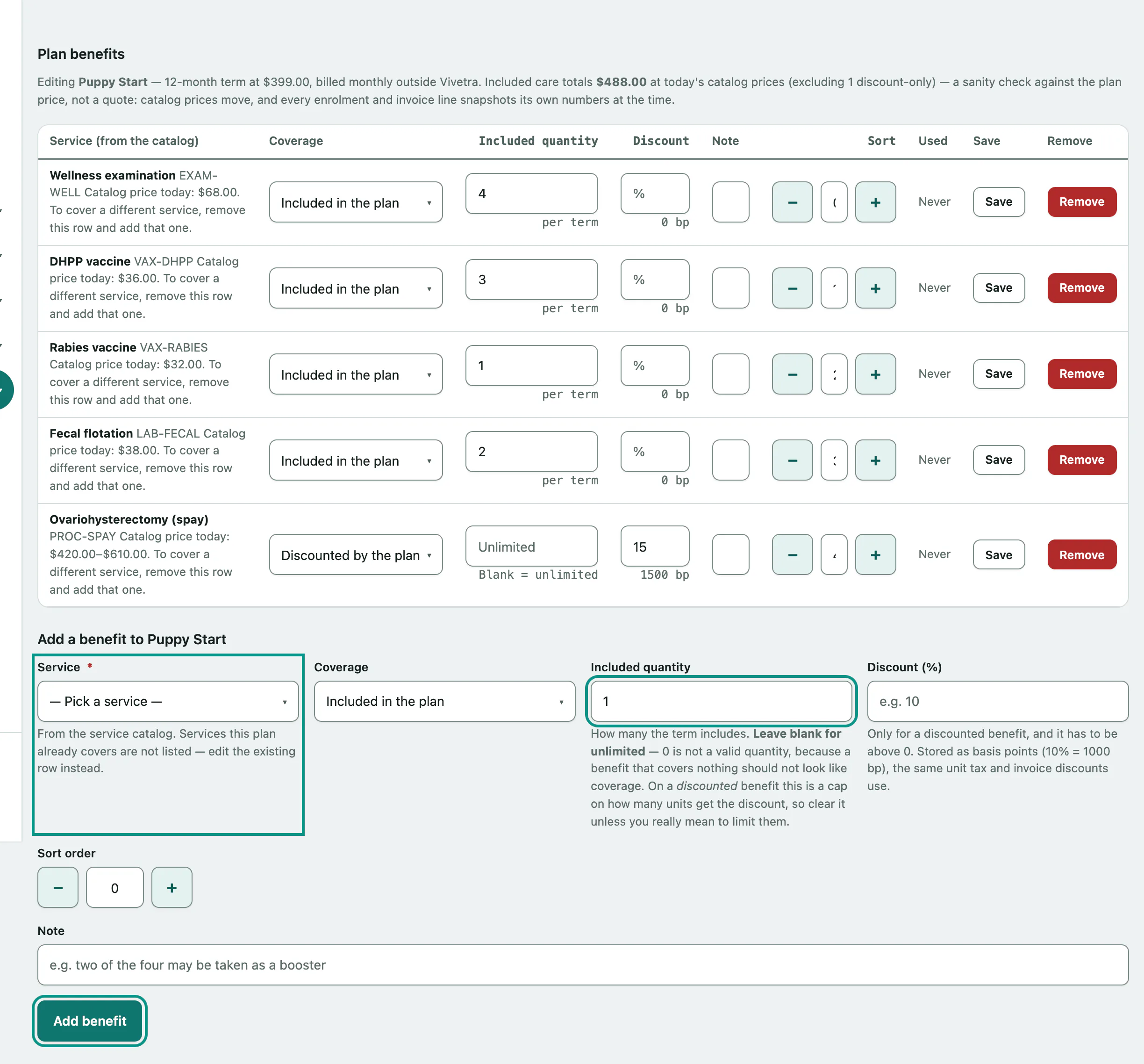
- Under Add a benefit to the plan, choose the Service.
- Choose the Coverage: Included in the plan or Discounted by the plan.
- For an included service, enter how many a term includes in Included quantity, or leave it blank for unlimited. For a discounted service, enter the Discount (%).
- Select Add benefit.
0 isn't a valid quantity. On a discounted benefit, Included quantity caps how many units get the discount, so leave it blank unless you mean to limit them. Services the plan already covers aren't offered again: edit the existing row instead.
Plan benefits shows what's covered and the total value of included care at today's catalog prices, as a check against the plan price. To change a benefit, edit its row and select Save. Remove takes it off the plan, but only until it's been used: once a pet has used it, the button is greyed out.
Change or retire a plan
Each plan's row in the Plans table can be edited in place. Change what you need and select Save on that row.
Changing a plan's price or term length only affects pets enrolled from then on. Pets already on the plan keep the price and term they signed up with.
To stop offering a plan, set its status to Retired and save. Retired plans stay in the list and on every pet already enrolled, but staff can't enroll new pets on them. A plan anyone has been enrolled on can't be deleted.
Clients can also ask to join an active plan from their portal. Those requests go to Wellness Plan Requests (see Enroll a pet on a wellness plan › Approve plan requests from the portal).