
Getting started
Your account and settings
In Vivetra: My Account
On this page
My Account, at the bottom of the menu, is where you change your own details. Nothing here affects anyone else.
Open My account
- Select My Account at the bottom of the menu.
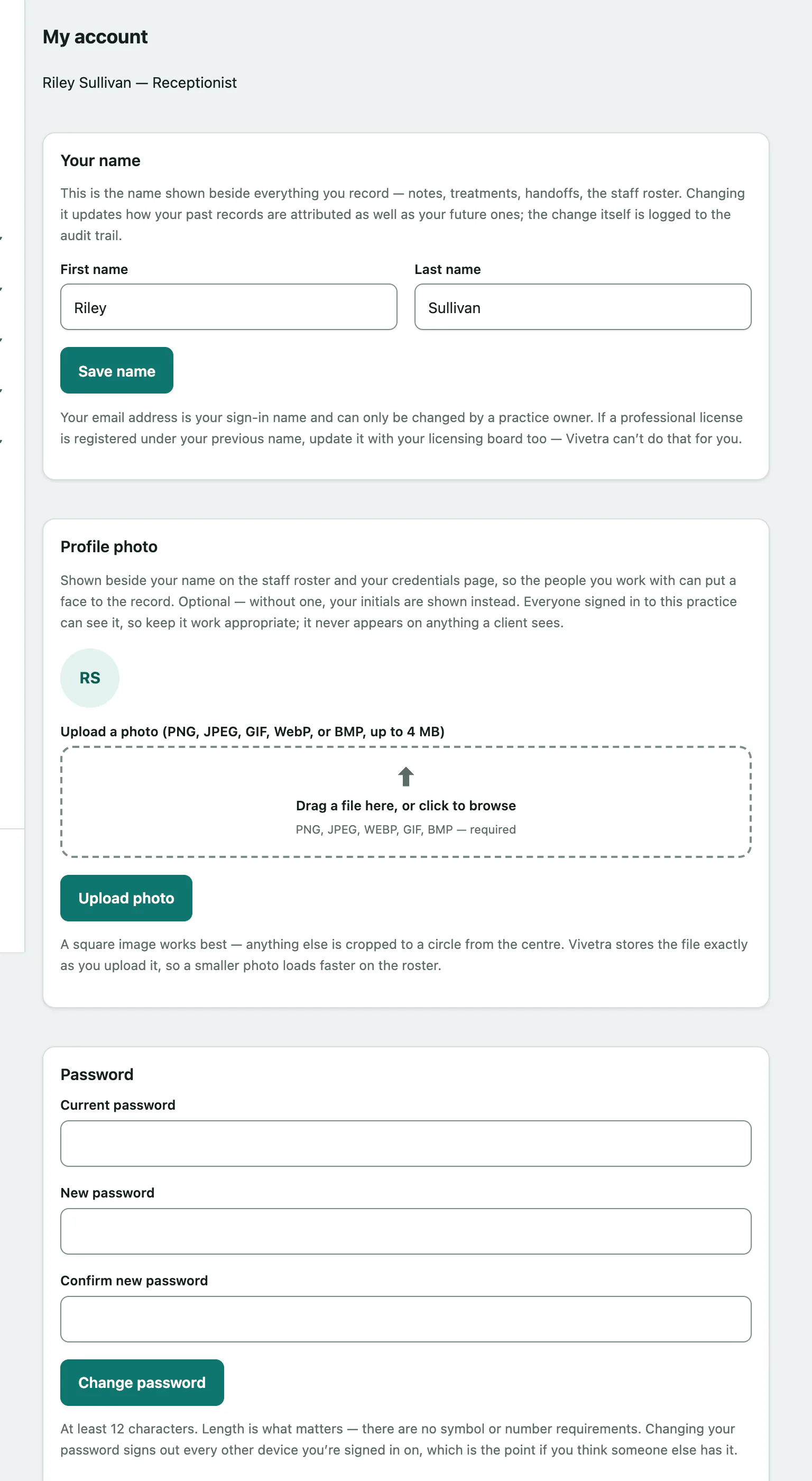
Your name and photo
Change your first and last name under Your name and select Save name.
Under Profile photo you can upload a PNG, JPEG, GIF, WebP or BMP image up to 4 MB, then select Upload photo. Once you have a photo you can replace or remove it there too.
Change your password
Under Password, enter your Current password, then your New password twice, and select Change password.
Signed-in devices
Left yourself signed in on a shared computer or a lost phone? Select Sign out all my other devices. You stay signed in on the device you're using, and your password doesn't change.
Two-factor authentication
Two-factor authentication shows whether you're enrolled and whether your role requires it. Select Set up two-factor authentication to start, and keep your recovery codes somewhere safe. You'll need them if you lose your phone (see Signing in › Two-factor verification).
Appearance
Choose a Theme: Light, Dark or Match my device. You can also pick an Accent color. Select Save appearance to keep it, or Reset accent to default to go back to your practice's colour.
Getting help
Contact support at the bottom of the page sends a message to the Vivetra team. For something that looks broken, the bug button in the menu is quicker (see Finding your way around › The menu).