
Boarding · Boarding Scheduling
Manage rooms, kennels and cleaning
In Vivetra: Boarding Scheduling › Rooms & Kennels · Boarding Scheduling › Assign Rooms
On this page
Rooms & Kennels shows every kennel, run or room and who's in it right now, or how full you are over a range of dates. Assign Rooms is where you put a guest in a unit, move them, and log cleanings.
Anyone can view the board. Assigning a unit needs kennel-assignment permission, and logging a cleaning needs cleaning-log permission; both are practice-manager permissions in a standard setup.
Units themselves are created under Admin › Locations & Rooms. Until one exists, the board is empty.
See who's where
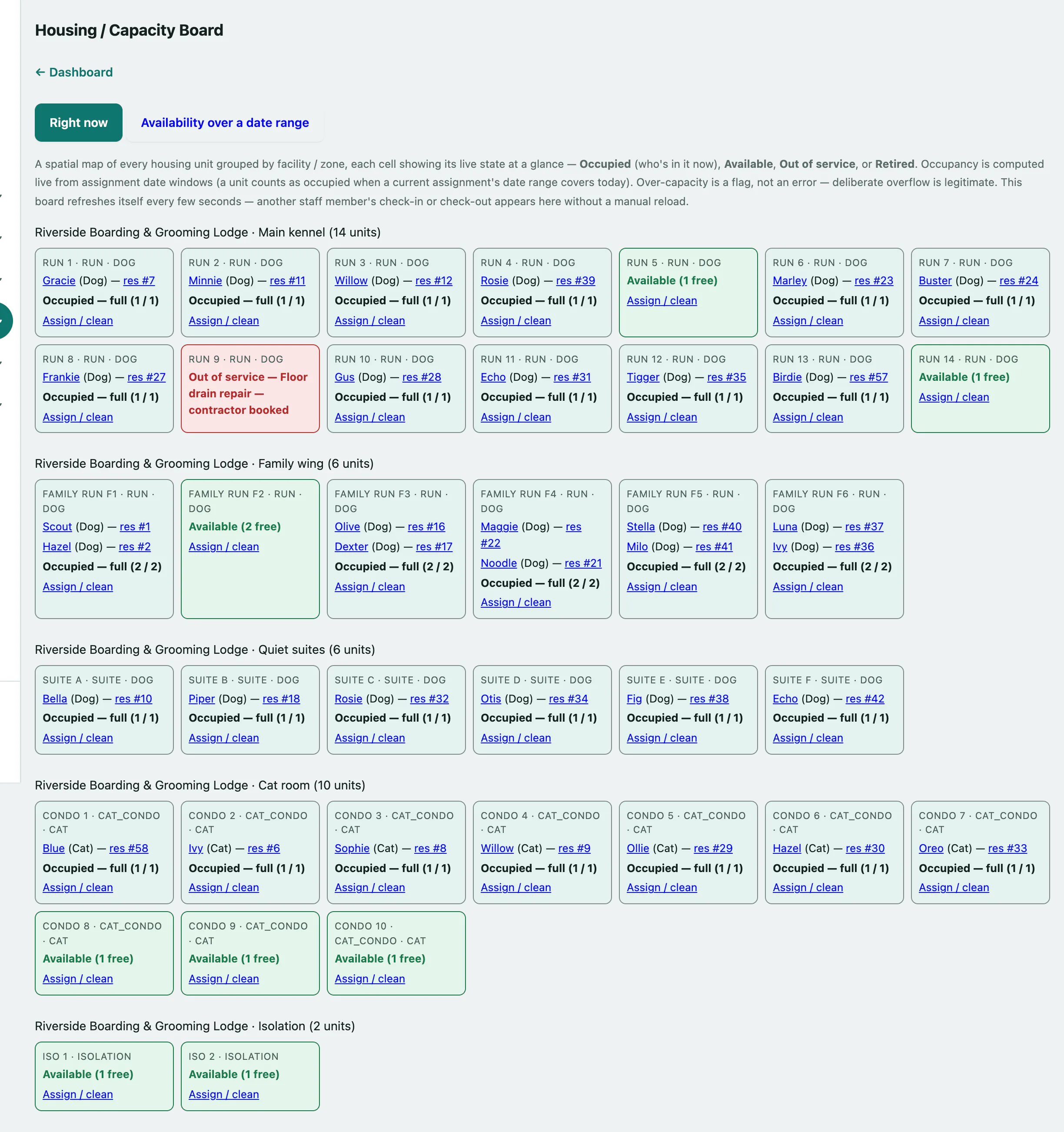
- In the menu, open Boarding Scheduling and select Rooms & Kennels.
- Select Right now for the live board.
Each unit shows its state: Occupied with the pet's name and reservation, Available, Out of service or Retired. A unit holding more animals than its capacity says OVER CAPACITY. That's a flag, not an error, because deliberate overflow happens. The board refreshes itself every few seconds, so other people's check-ins and check-outs appear without reloading.
Check availability for future dates
- Select Availability over a date range.
- Pick From and To, and optionally Break down by Unit type, Zone or Species.
- Select Show availability.
You get one column per day showing your bookable capacity and how much of it is already assigned. Units that are out of service or retired aren't counted.
Assign a unit to a stay
Open Assign Rooms from the reservation itself (select assign a unit in its Current housing row) so the screen knows which stay you mean. It shows the stay's details, its vaccination check and the pet's incident history first.
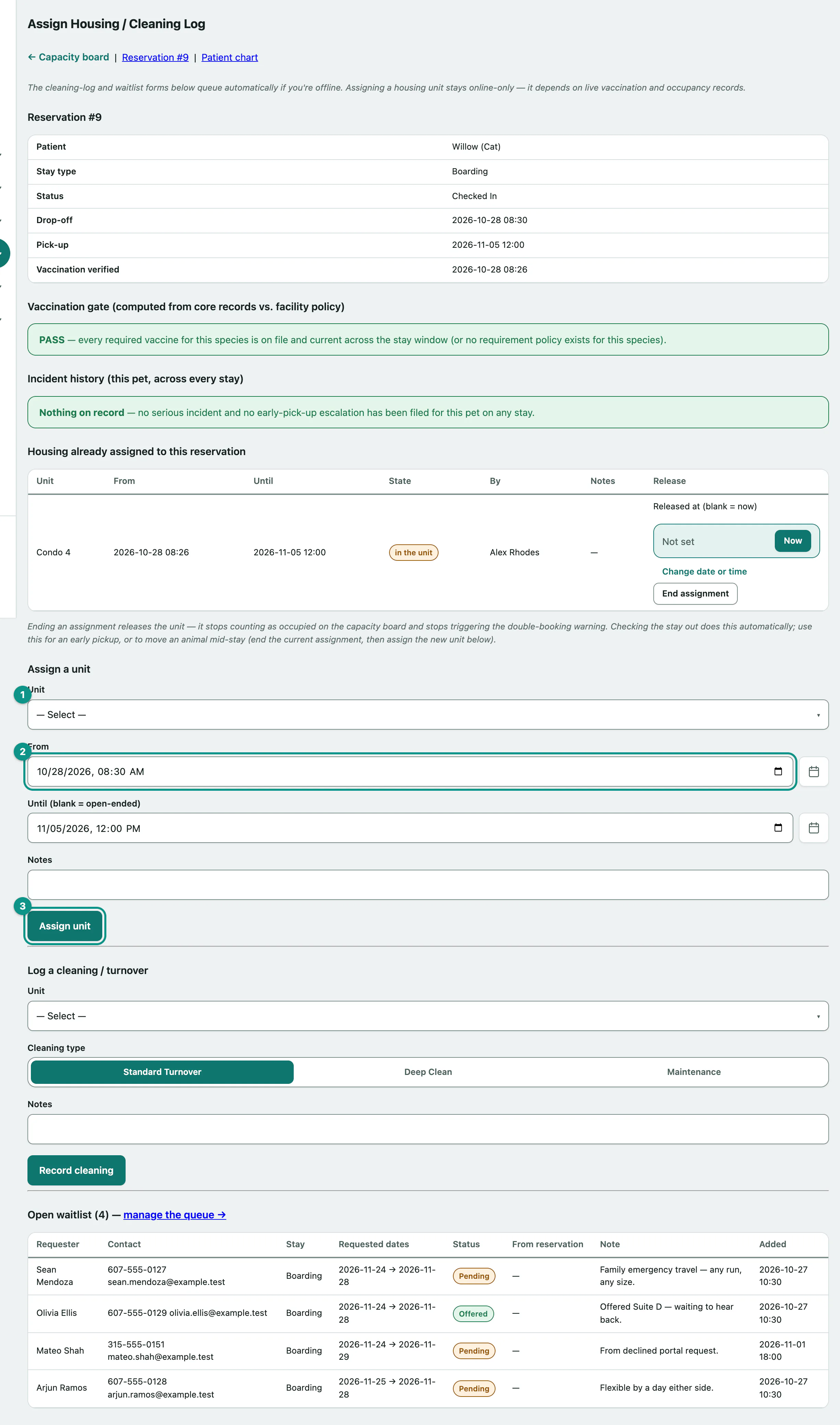
- Choose the Unit.
- Check From. Leave Until (blank = open-ended) empty if you don't know the end yet, and add any Notes.
- Select Assign unit.
If anything looks wrong, such as a double booking, a unit that's out of service, a species mismatch, a vaccination gap or a serious incident history, you'll see Review before assigning — the assignment was NOT recorded. These are warnings, not blocks. Tick I've reviewed the warning(s) above and want to assign anyway. and select Assign unit again.
Move a guest or release a unit early
Checking a stay out releases its unit automatically. For an early pick-up, or to move an animal mid-stay:
- Under Housing already assigned to this reservation, optionally enter Released at (blank = now).
- Select End assignment.
To move them, end the current assignment and then assign the new unit.
Log a cleaning
You can log a cleaning from any unit: select Assign / clean on its cell on the board, or open Assign Rooms from the menu.
- Under Log a cleaning / turnover, choose the Unit.
- Choose the Cleaning type: Standard Turnover, Deep Clean or Maintenance. Add Notes if needed.
- Select Record cleaning.
Opened from a unit's cell, the screen also lists Recent cleanings for this unit. Cleanings queue if you're offline and send when you reconnect; assigning a unit needs a live connection.