
Hospital
Build a treatment-plan estimate
In Vivetra: Hospital › Hospital Estimates
On this page
A treatment-plan estimate tells the owner what a course of treatment is likely to cost, as a low-to-high range. You build it as a draft, send it, record whether the owner approved or declined, and then turn an approved estimate into an invoice.
Creating and managing estimates needs invoicing access, which front desk staff, veterinarians and practice managers have.
Find an estimate
- Select Hospital Estimates in the Hospital menu. The Treatment-Plan Estimates screen opens.
- In All estimates, select Open next to the estimate.
The list shows each estimate's status, title, patient, guardian, price band and when it was created. An estimate with no owner on file is marked no owner.
Start a new estimate
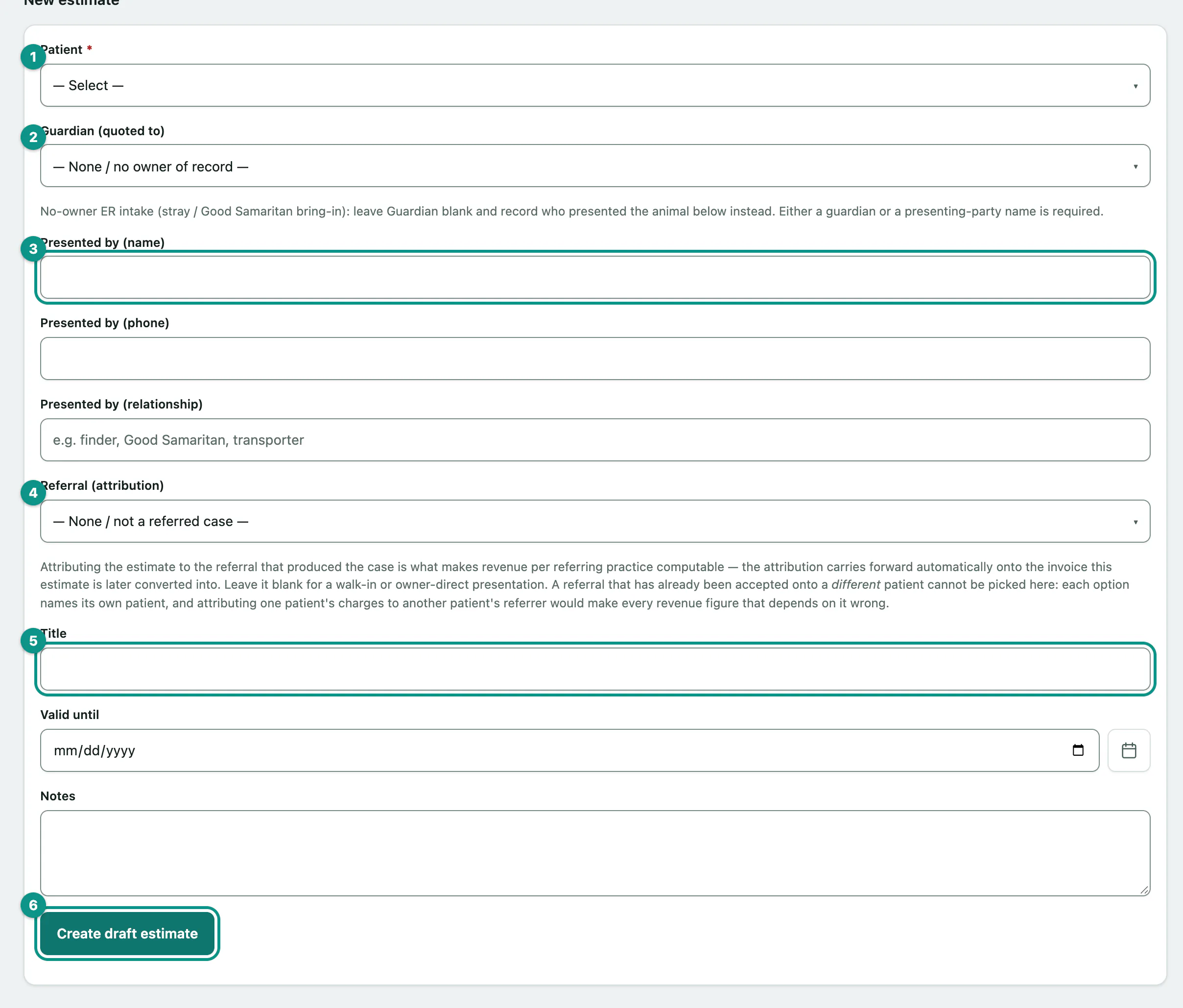
- Under New estimate, choose the Patient. You can type to search the list.
- Choose the Guardian (quoted to).
- If there's no owner, for example a stray brought in by a member of the public, leave the guardian blank and enter Presented by (name), with their phone and relationship. You need either a guardian or a presenting party.
- If the case came from a referral, choose it in Referral (attribution). It carries over to the invoice, so you can see revenue by referring practice.
- Enter a Title and a Valid until date.
- Select Create draft estimate.
Add line items
While the estimate is a draft, add a line for each part of the plan.
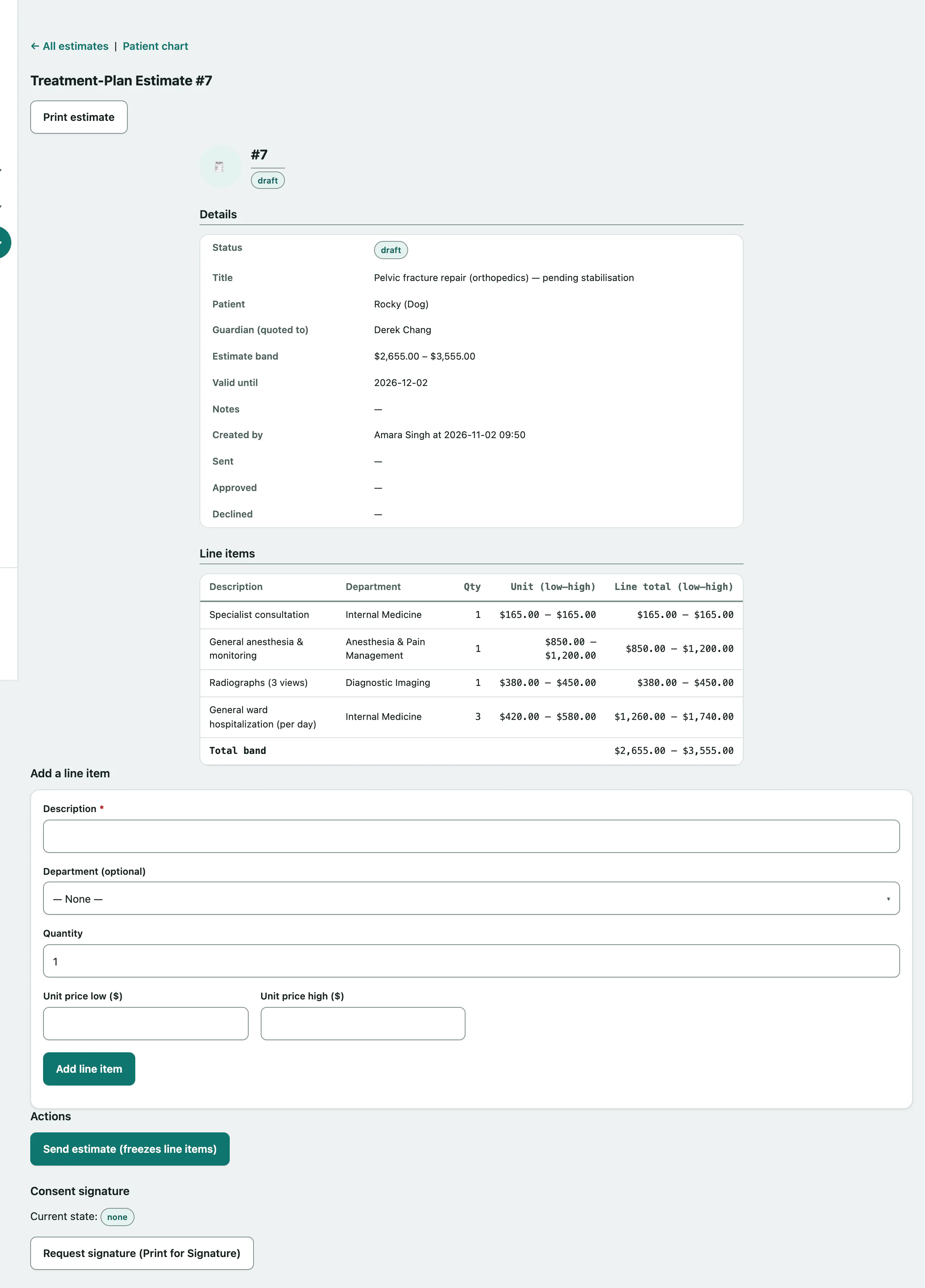
- Under Add a line item, enter the Description.
- Optionally choose the Department (optional) and change the Quantity.
- Enter Unit price low and Unit price high.
- Select Add line item.
Line items shows each line's low-to-high unit price and total, and the Total band for the whole estimate.
Send, approve or decline
- When the plan is complete, select Send estimate (freezes line items). It needs at least one line item.
Once sent, the line items can't be changed. The owner can see a sent estimate in their client portal and approve it there.
When the owner says yes:
- Select Approve.
When the owner says no:
- Under Decline, choose a Reason: Cost, Elected Euthanasia, Second Opinion or Other. A reason is required.
- Select Decline estimate.
You can add a Note (optional) with the reason.
Approved, declined and expired estimates are final. If an estimate is past its valid-until date, you'll see a warning to re-quote before approving or invoicing.
Turn an approved estimate into an invoice
- Under Convert to invoice, select Convert this estimate to an invoice.
This creates an invoice for the estimate's guardian, copying each line at its low price. If the real cost was higher, add charges to the invoice afterwards (see Bill a hospital stay). An estimate can only be converted once; afterwards the details link to the invoice.
Get the consent signed
Consent signature shows whether a signature is needed, awaited or signed.
- Select Request signature (Print for Signature), then print the estimate with Print estimate for the owner to sign.
- When the signed copy comes back, scan it and choose it in Returned signed document.
- Select Record signed scan.
To withdraw a request, select Cancel signature request.
Attach the real owner later
When an estimate was made without an owner and the owner is later identified, you can attach them, even if the estimate is already final.
- Under Claim guardian of record, choose an Existing guardian, or enter the new guardian's name, phone and email.
- Select Claim guardian.
The change is kept in Guardian-claim history.