
Boarding
Send automatic messages and mass alerts
In Vivetra: Boarding › Automatic Messages · Boarding › Send Mass Alert
On this page
Vivetra sends boarding and grooming clients a set of automatic, one-way messages, such as booking confirmations, reminders and ready-for-pickup notices. Automatic Messages shows what goes out and when, and holds your after-hours reply. Send Mass Alert sends one announcement, like a weather closure, to a whole group of clients at once.
Clients can't reply to any of these messages, so there's no inbox to watch.
See what goes out automatically
- In the menu, open Boarding and select Automatic Messages.
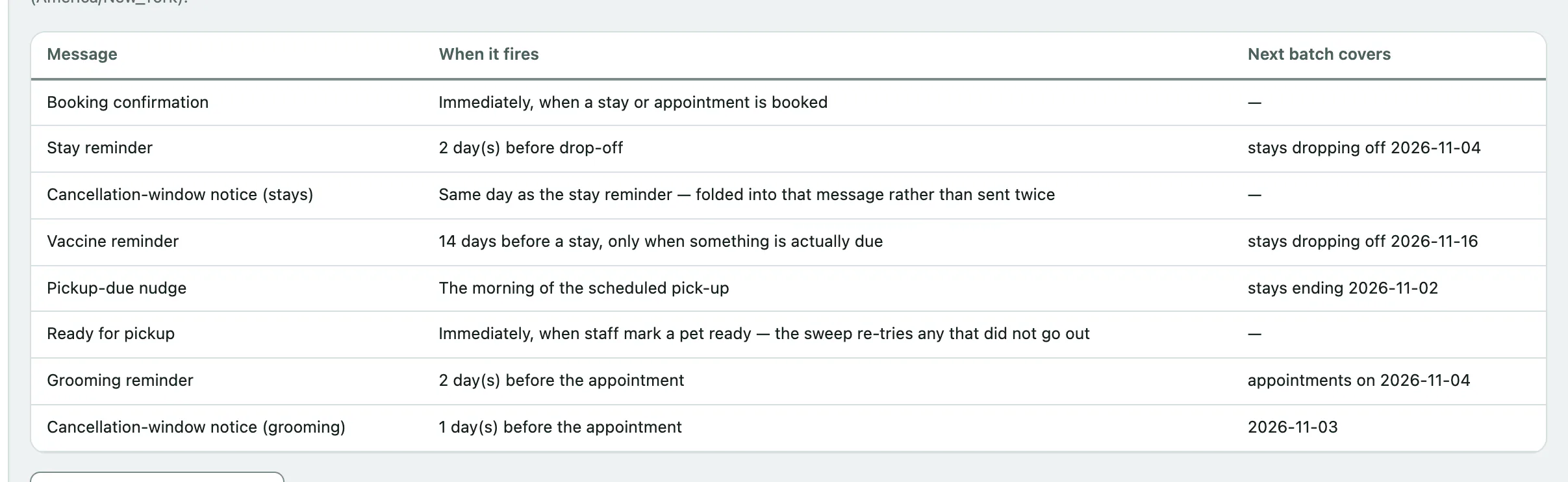
What goes out, and when lists each message, when it fires and which stays or appointments the next batch covers:
| Message | When it fires |
|---|---|
| Booking confirmation | As soon as a stay or appointment is booked. |
| Stay reminder | A set number of days before drop-off. |
| Cancellation-window notice (stays) | A set number of days before drop-off, or folded into the stay reminder if it's the same day. |
| Vaccine reminder | Before a stay, only when a vaccine is actually due. |
| Pickup-due nudge | The morning of the scheduled pick-up. |
| Ready for pickup | As soon as staff mark a pet ready. |
| Grooming reminder | A set number of days before the appointment. |
| Cancellation-window notice (grooming) | A set number of days before the appointment, or folded into the grooming reminder. |
The number of days comes from your cancellation policies on Boarding Rates & Policy (see Set boarding rates, policies and add-ons).
Reminders normally go out overnight. Staff who can manage facilities also see Send today's batch now, which sends today's messages straight away. It's safe to press twice; anything already sent is skipped.
Check what was sent
Delivery log lists the last 100 attempted deliveries for boarding and grooming, with the address used and the result. A failed row usually means email or text delivery isn't set up yet, not that anything is wrong with the booking.
Set an after-hours reply
When a client does something in their account while you're closed, such as requesting a booking or uploading a vaccine record, the receipt they get can include an after-hours note saying when someone will look at it. It only works once your opening hours are set; the screen shows them and warns you if they're missing.
Changing these settings needs facility-management permission. Without it you can see them but not change them.
- Tick Send an after-hours note.
- Write the Message.
- Fill in If it cannot wait, such as an on-call number. The note can't be switched on without it.
- Select Save after-hours settings.
You can also choose to send it by Email, Text message or both, tick Also on days you are closed all day, and set Most notes to one person per day. One is almost always right.
Send a mass alert
Use Send Mass Alert for facility news that's the same for everyone: a closure, an outage, a holiday cutoff. Never use it for anything about one pet, one stay or one bill. Only staff who can manage facilities see it, usually the practice manager.
Every announcement ends with the If it cannot wait line from your after-hours settings, so owners know how to reach you.
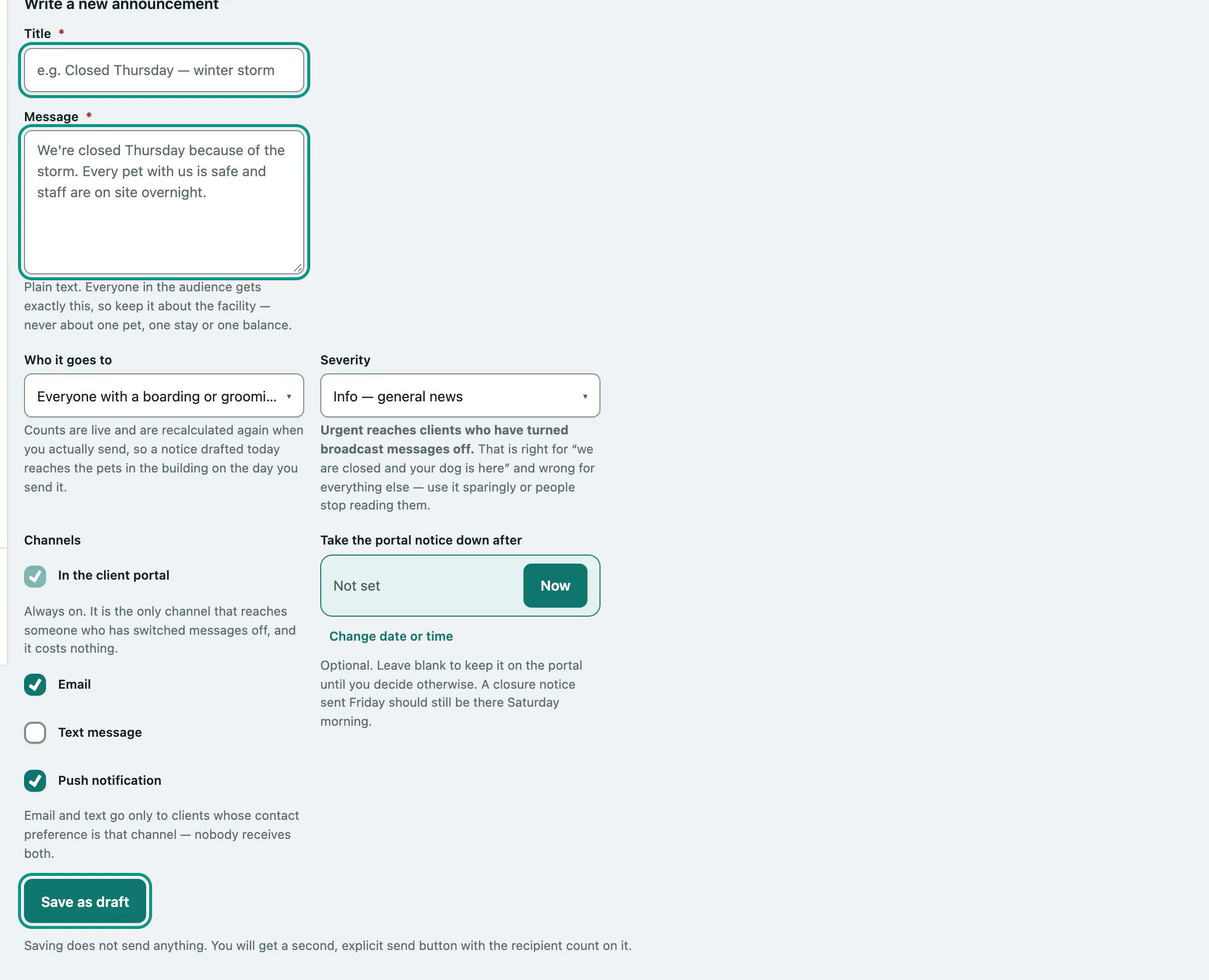
- In the menu, open Boarding and select Send Mass Alert.
- Under Write a new announcement, enter a Title.
- Write the Message. It's plain text.
- Choose Who it goes to. Each option shows how many people it reaches right now.
- Choose the Severity.
- Select Save as draft. Nothing is sent yet.
- Under Announcements, check the draft and select Send to … recipients.
The audience is counted again when you send, so the people it reaches are the ones who match on the day you send it. Select Cancel draft instead if you change your mind.
Audiences
- Everyone with a boarding or grooming record
- Owners of pets currently in the building
- Owners with a stay booked in the next 14 days
- Clients with a grooming appointment in the next 14 days
- Anyone with an unpaid invoice
Channels
The announcement always appears in the client portal. Email and Push notification are ticked by default and Text message isn't. Email and text only go to clients whose contact preference is that channel, so nobody gets both. Use Take the portal notice down after to remove the portal notice at a set time; leave it blank to keep it up.
After sending, the Outcome column shows how many were delivered, failed or skipped. See every recipient lists each delivery; a skip of opted_out means the client turned these off, and no_address means there's no email or phone on file. A sent announcement stays on the record.