
Equine
Record a pre-purchase exam
On this page
A pre-purchase exam (PPE) records what a vet found when examining a horse for a prospective buyer. It records findings only. There's no pass or fail and no buy or don't-buy recommendation; that's the buyer's decision.
Recording exams needs the clinical-authorship permission, which vets have by default.
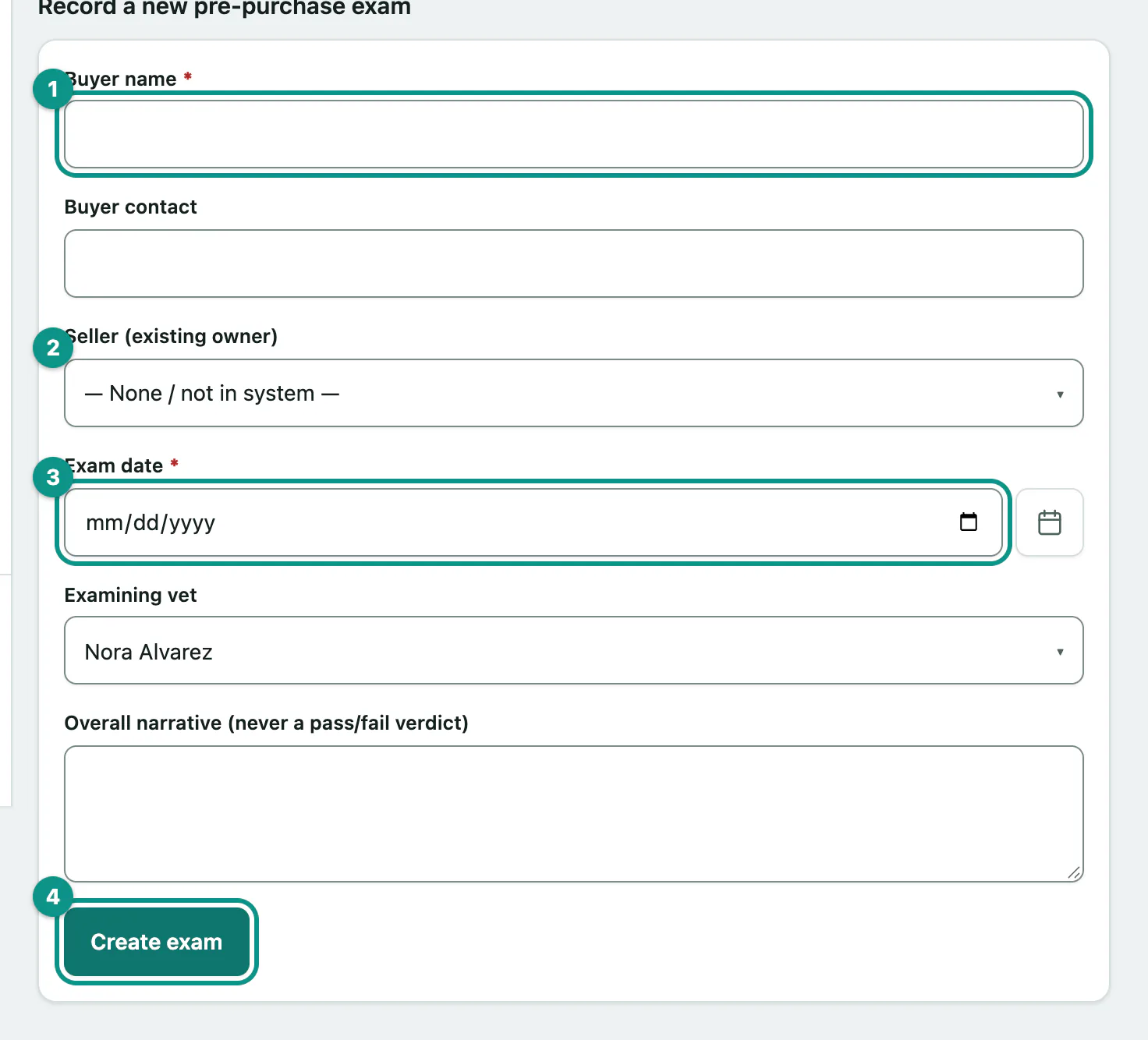
Start an exam
- On the horse's record, select Pre-purchase exams (see Work with a horse's record).
- Under Record a new pre-purchase exam, enter the Buyer name and Buyer contact.
- If the seller is already an owner on file, choose them in Seller (existing owner).
- Enter the Exam date and check the Examining vet. It starts as you.
- Select Create exam. The exam opens so you can add its tests.
Use Overall narrative (never a pass/fail verdict) for your overall summary of the findings.
Record each test
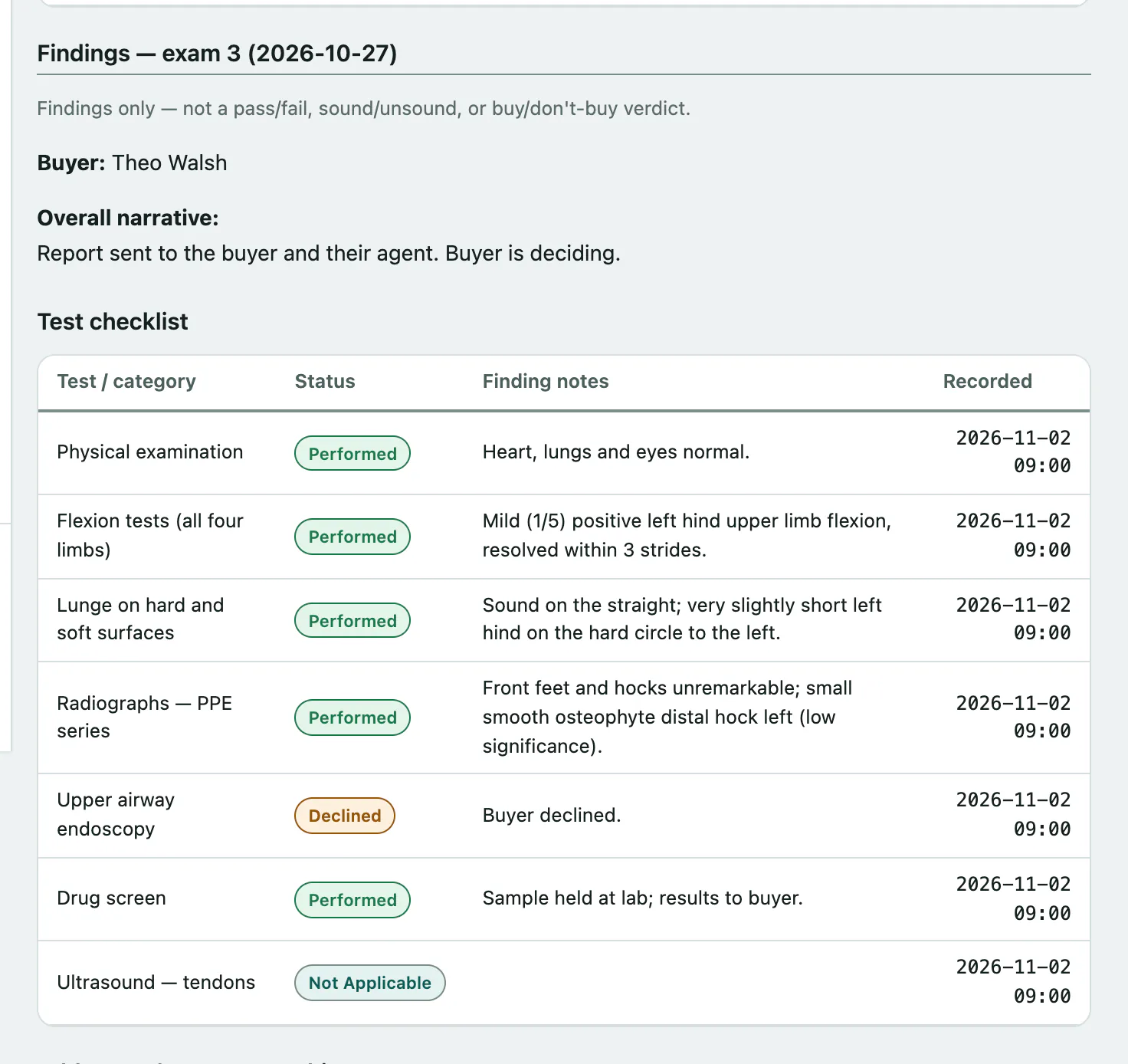
An exam is built from a checklist of tests or categories, such as flexion tests or radiographs.
- Open the exam from Exams on record with View findings.
- Under Add a test / category to this exam, enter the Test / category.
- Choose the Status: Performed, Declined or Not Applicable. If the buyer turned down a test you recommended, record it as Declined. Write what you found in Finding notes.
- Select Add test item.
Print the findings
With an exam open, select Print these findings to print the findings and test checklist for the buyer.