
Client portal · Signing in & your account
Change your password and two-factor sign-in
On this page
Account settings is where you change your portal password and turn two-factor sign-in on or off. To get there, select Password & security next to "Signed in as" and your name at the top of your portal home page. On Your details there's also a Change your password or set up two-step sign-in button.
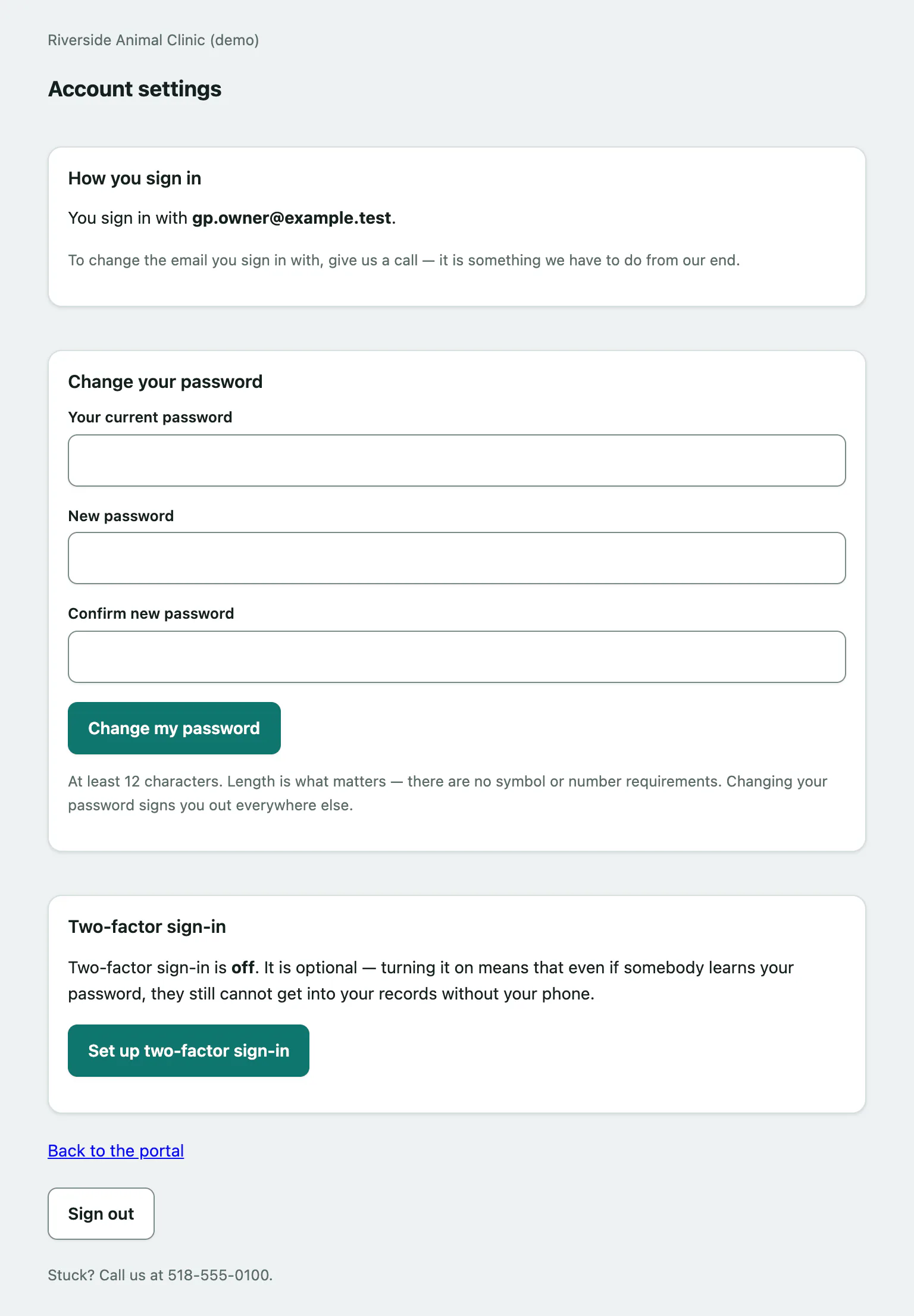
Under How you sign in you can see the email address you sign in with. You can't change it yourself; call the practice and they'll change it from their end.
Change your password
Under Change your password:
- Enter Your current password.
- Enter the new one in New password.
- Enter it again in Confirm new password.
- Select Change my password.
Passwords need at least 12 characters. Length is what matters; there are no symbol or number rules. Changing your password signs you out everywhere else you were signed in.
Turn on two-factor sign-in
Two-factor sign-in is optional. With it on, someone who learns your password still can't get into your records without your phone. You'll need an authenticator app, such as Google Authenticator, Authy, 1Password or the one built into your phone.
- Under Two-factor sign-in, select Set up two-factor sign-in. The Set up two-factor sign-in screen shows a QR code.
In your authenticator app, scan the QR code. If you can't scan it, type in the secret shown under it instead. Then:
- Enter the 6-digit code your app now shows in Authenticator code.
- Select Confirm and turn on.
From then on you're asked for a code each time you sign in (see Sign in to the client portal › Enter your two-factor code).
Switch to a different authenticator
Got a new phone? Under Two-factor sign-in, select Set up a different authenticator and follow the same steps. You'll also need to enter your Current password. It replaces your current authenticator and gives you a new set of recovery codes.
Replace your recovery codes
Lost your codes, or think someone else has seen them? Under Replace your recovery codes:
- Enter Your current password.
- Select Make new recovery codes.
Your old codes stop working straight away. Save the new ones; they're only shown once.
Turn two-factor sign-in off
Under Turn two-factor sign-in off:
- Enter Your current password.
- Select Turn it off.
You'll only need your password to sign in from then on. You can turn it back on whenever you like.
Sign out
Select Sign out at the bottom of Account settings. Back to the portal takes you back to your portal home page.