
Livestock
Bill a farm client
In Vivetra: Livestock › Livestock Invoices
On this page
Livestock invoices bill one farm client for one operation. You create a draft, add line items, then take payment or mark it paid. Invoices can also be started from a herd health contract or a breeding soundness exam.
By default, veterinarians, front-desk coordinators and practice managers can create invoices and add lines. Front-desk coordinators and practice managers can take payment and mark invoices paid, and practice managers can record credits and refunds.
Create an invoice
- Select Livestock Invoices in the Livestock menu.
- Under Create an invoice, choose the Billed farm client.
- Choose the Operation. It must belong to the client you chose; each operation in the list shows its client number.
- If the bill is for a farm call, choose it in Farm call (optional — the stop this bill came from).
- Select Create draft invoice.
To open an invoice later, select View on its row under All invoices.
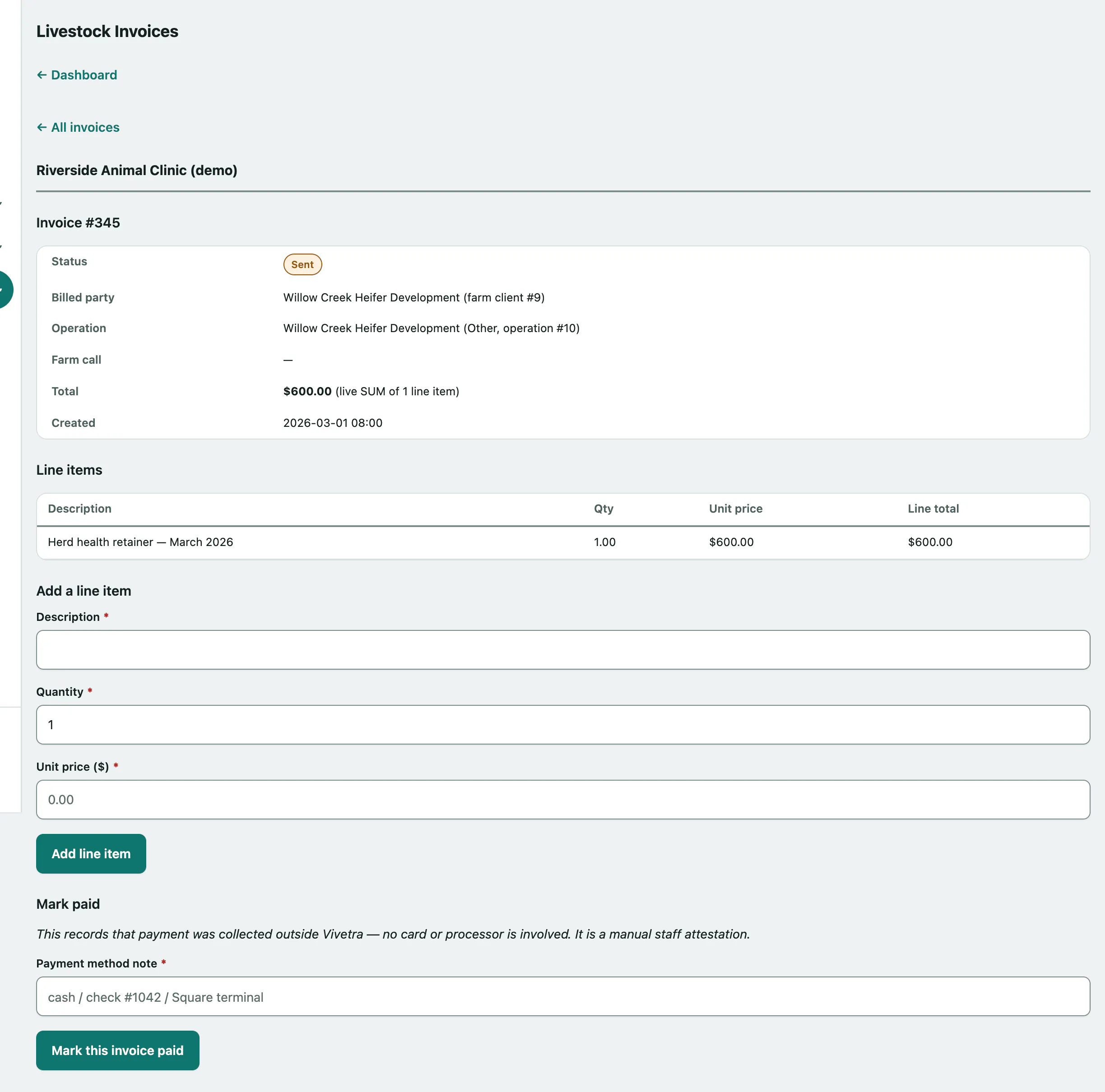
Add a line item
You can add lines while an invoice is a draft or sent.
- Enter a Description.
- Enter the Quantity.
- Enter the Unit price. There's no fee schedule; the price is always yours to set.
- Select Add line item.
The invoice total is the sum of its lines.
Bill a preg-check session
If the operation has closed preg-check sessions that haven't been billed, a Pregnancy-check session (optional) list appears above the description. Choose the session and enter a unit price. If you leave the description and quantity blank, they're filled in as "Pregnancy exam — N head" using the number of animals examined. Each session can be billed once.
Take a card payment
If your practice has connected Stripe, Collect payment appears on draft and sent invoices. The money goes straight to your practice's Stripe account, and the invoice only changes once the payment succeeds.
- Card, entered here: select Collect card payment, enter the card in Stripe's form, then select the Charge button.
- Payment link: select Create payment link, then Copy link and send it to the client. They pay on Stripe's own page. Select Check if the client paid to update the invoice.
Mark an invoice paid
For cash, a check or a card terminal outside Vivetra:
- Under Mark paid (or Mark paid another way), enter a Payment method note, such as "check #1042".
- Select Mark this invoice paid.
Refund a Stripe payment
On a paid invoice that was paid through Stripe:
- Under Issue a Stripe refund, check the Amount. It starts at the full total; lower it for a partial refund.
- Select Issue refund.
You can choose a Reason first. This moves real money back to the client's card.
Record a credit or refund made outside Vivetra
Practice managers can note a credit or refund on a paid invoice. The invoice stays paid at its original amount, and the page shows how much is still available to credit.
- Under Record a credit or refund, choose the Kind: Refund (money returned) or Credit (toward a future balance).
- Enter the Amount and the Reason.
- Select Record credit/refund note.
For a refund, add a Method note (how a refund was returned) before saving. Leave it blank for an account credit.
Notes are listed under Credit & refund notes with a running total.