
Boarding · Boarding Billing
Set boarding rates, policies and add-ons
In Vivetra: Boarding Billing › Boarding Rates & Policy · Boarding Billing › Boarding Add-Ons
On this page
Boarding Rates & Policy holds what a night or a daycare day costs, your peak periods, and your cancellation rules. Boarding Add-Ons holds the extras a stay can have, like an extra walk or a bath before pick-up. Invoices use the rates to work out a stay's charges (see Bill a boarding stay).
Only staff who can manage boarding settings see these screens, usually the practice manager.
Add a rate
A stay is priced by the most specific rate that matches it. A rate naming both the unit type and the species beats one naming only the unit type, which beats one naming only the species, which beats a catch-all. Ties go to the lowest sort order.
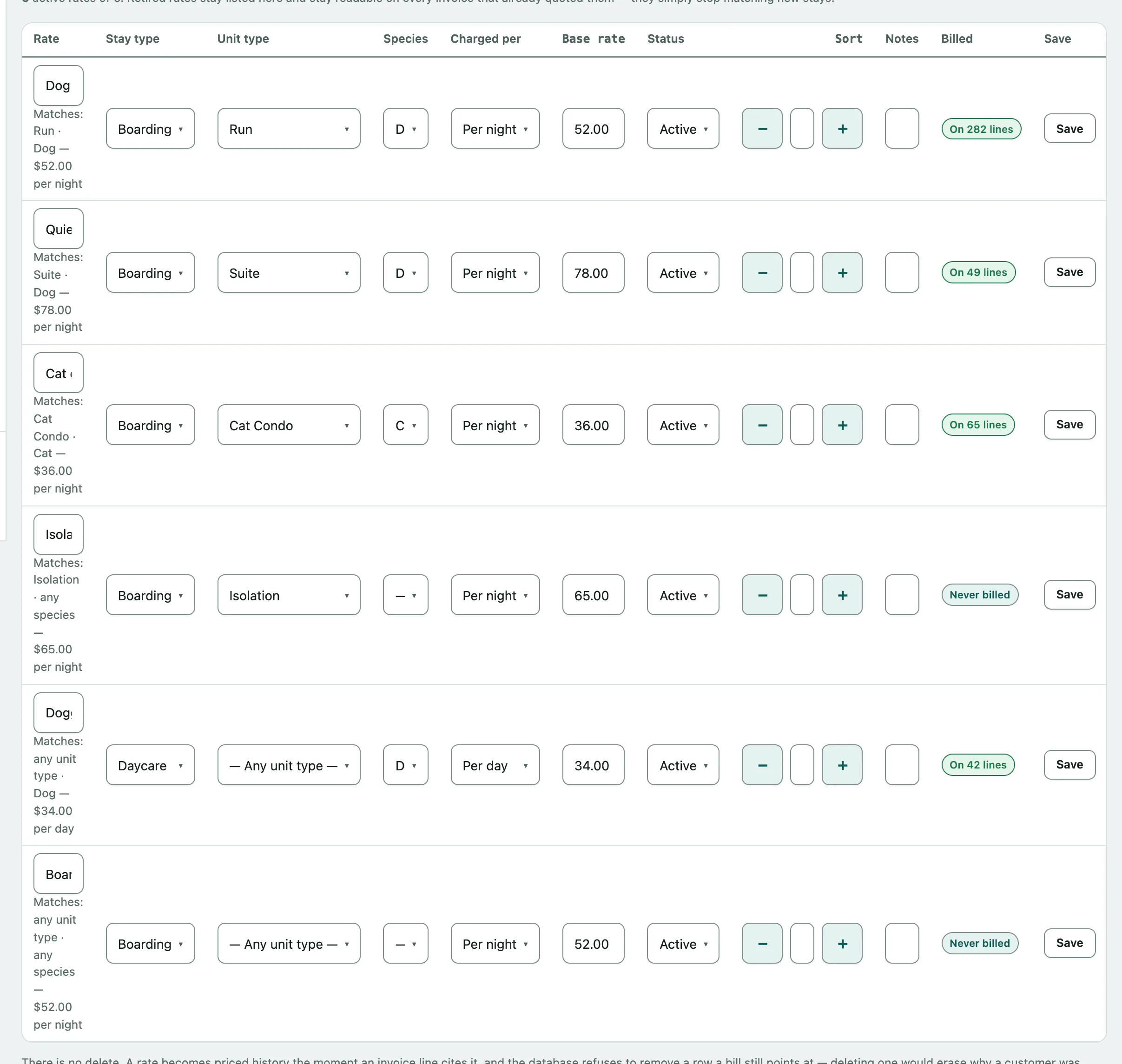
- In the menu, open Boarding Billing and select Boarding Rates & Policy.
- Under Add a rate, enter the Rate name. It becomes the invoice line's description.
- Choose the Stay type: Boarding or Daycare.
- Choose what it's Charged per: Per night for a boarding stay, or Per day for daycare.
- Enter the Base rate.
- Select Add rate.
Leave Unit type on — Any unit type — and Species on — Any species — for a rate that applies to everything, or narrow either one. To change a rate, edit its row in the Rate card and select Save. Set Status to Retired to stop a rate matching new stays.
If two active rates claim the same stays, a warning tells you which one actually prices them, so you can retire the other.
Add a peak period
A peak period is a named range of dates, like Thanksgiving week. It's used twice: by peak price overrides, and by the peak half of the cancellation policy.
- Under Add a peak period, enter a Name.
- Pick the First day and Last day. Both are included.
- Select Add peak period.
Peak periods can overlap, such as a July 4th weekend inside Summer. On overlapping dates the highest Priority wins, and a warning names which period governs.
Change prices during a peak period
A peak period changes no prices on its own. Add an override to do that. Each override is either a flat price or a percentage surcharge, never both.
- Under Add an override, choose the Peak period.
- Choose which rate it Applies to, or leave it on — Every rate —.
- Enter a Flat price, or a percentage in …or surcharge (%).
- Select Add override.
An override for one specific rate beats an every-rate override for that rate.
Set the cancellation policy
The Cancellation policy has two tiers. A stay whose drop-off date falls in an active peak period uses Peak; every other stay uses Off-peak.
- Under Off-peak, enter the Notice required (hours), and the Late-cancel fee and No-show fee if you charge them.
- Under Peak, do the same, starting with Notice required (hours).
- Under Both tiers, set the Reminder lead time (hours) and choose whether the policy Applies to daycare bookings?
- Select Save cancellation policy.
A blank fee means no fee is configured, which isn't the same as a fee of zero. Until you save, the boxes show the shipped defaults and no policy is in effect.
These fees are settings, not charges. A late cancellation or no-show adds a fee line to the invoice for staff to accept or waive, and nothing charges a card automatically.
Add an add-on
Add-ons are what the desk attaches to a stay and what clients can tick in the online booking form.
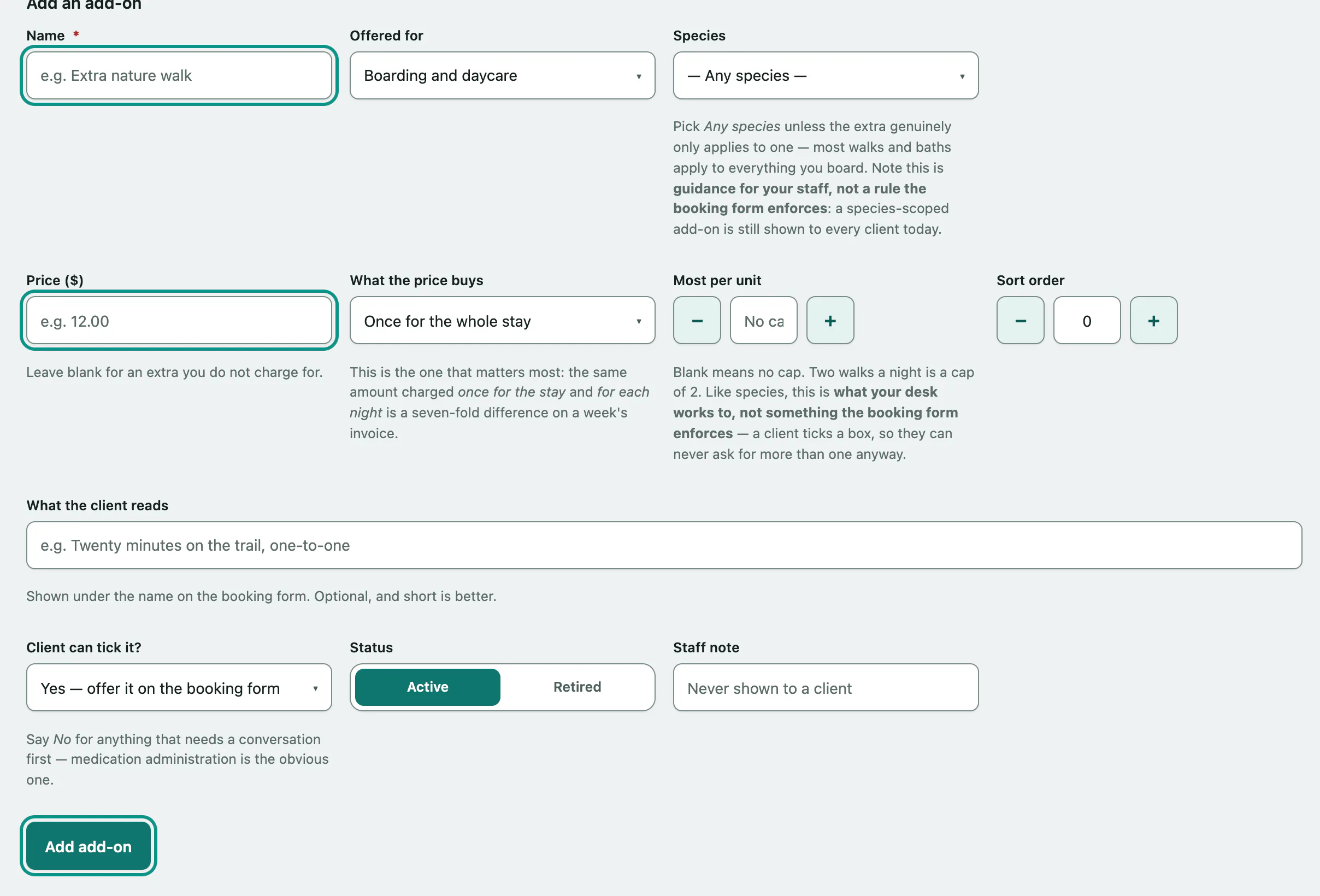
- In the menu, open Boarding Billing and select Boarding Add-Ons.
- Under Add an add-on, enter a Name.
- Choose what it's Offered for: Boarding and daycare, Boarding stays only or Daycare days only.
- Enter the Price, or leave it blank for a free extra.
- Choose What the price buys: Once for the whole stay, For each night, For each day or Each time it happens.
- Choose whether the Client can tick it?
- Select Add add-on.
What the client reads is a short description shown on the booking form. Species and Most per unit are guidance for your staff only; the booking form doesn't enforce them. Choose No — only staff can add it for anything that needs a conversation first, like medication administration. It's still active and billable, clients just can't pick it themselves.
There's no delete. To stop offering an add-on, set its Status to Retired in the list and select Save. The On stays column shows how many reservations use it.