
Shelter
Publish adoptable listings
In Vivetra: Shelter › Adoption Listings
On this page
A listing is the public-facing write-up for an animal you're ready to adopt out: its name, a headline, a description, the adoption fee and what it's like with dogs, cats and children. You write it once per intake, then publish it when the animal is available.
Anyone signed in can see Adoption Listings. Creating, editing and publishing listings needs the listing permission, which the practice manager has.
Create a listing
Each intake can have one listing. New listings start as an unpublished draft, so nothing goes public until you choose to publish it.
- Select Adoption Listings in the Shelter menu.
- Under Create a listing, choose the animal in Intake / animal. Only intakes that don't have a listing yet are offered.
- Fill in the copy, starting with the Public name (see the table below). Every field except the intake is optional.
- Select Create listing (unpublished draft). You'll see "Listing created (unpublished draft)."
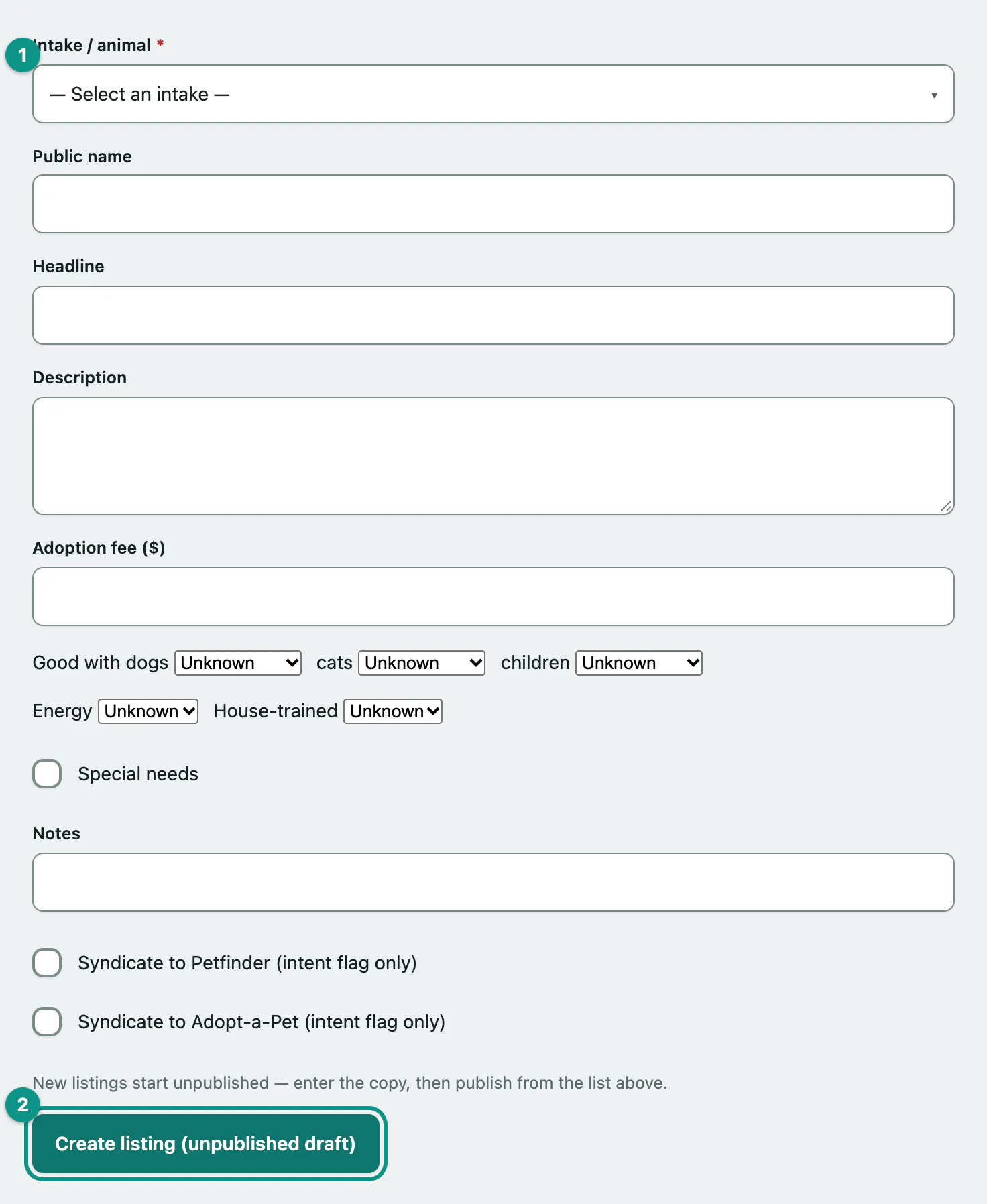
| Field | What to put there |
|---|---|
| Public name | The name adopters will see. Leave it blank to use the animal's record name. |
| Headline | A short line, up to 160 characters. |
| Description | The full write-up. |
| Adoption fee ($) | A plain amount such as 150 or 150.00. Leave it blank if there's no fee set. |
| Good with dogs, cats, children | Unknown, Yes, No or With Caution. |
| Energy | Unknown, Low, Moderate or High. |
| House-trained | Unknown, Yes, No or Partial. |
| Special needs and Notes | Tick the box and describe the care the animal needs. |
| Syndicate to Petfinder (intent flag only), Syndicate to Adopt-a-Pet (intent flag only) | Marks the listing for the adoption listing feed (see below). |
Publish or unpublish a listing
Each listing card under Current listings shows Unpublished (draft) or PUBLISHED (adoptable). Published listings are listed first, 12 cards to a page.
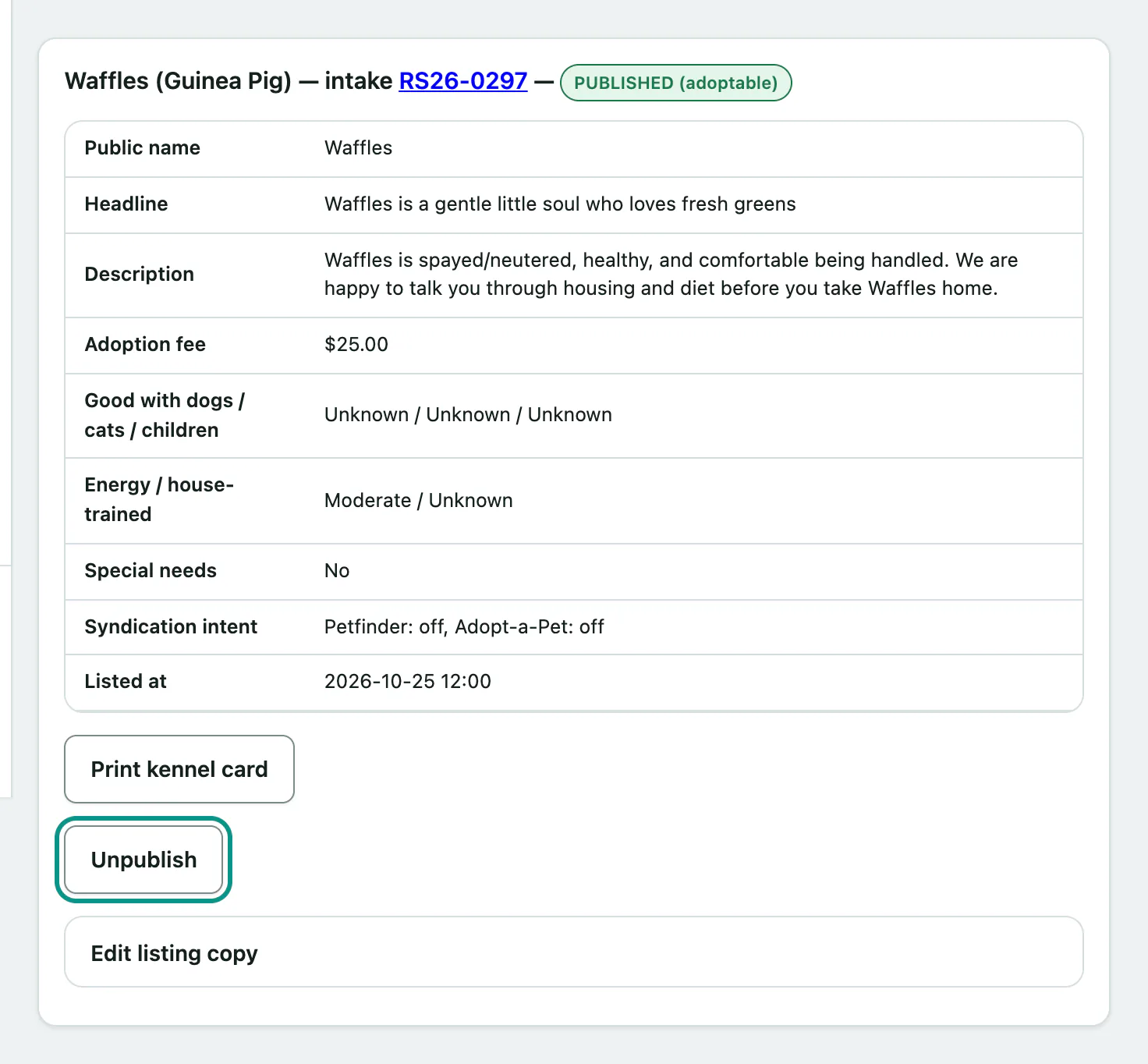
- Find the animal's card under Current listings.
- Select Publish (make adoptable). You'll see "Listing published — now adoptable."
To take it down, select Unpublish on the same card. The copy is kept, so you can publish it again later.
Published listings are the animals shown on your public "Animals looking for a home" page, if you've turned that page on (see Put adoptable animals and donations on your website).
Edit a listing
Publishing and editing are separate on purpose: changing the copy never publishes or unpublishes the animal.
- On the animal's card, select Edit listing copy.
- Change the Description or any other field.
- Select Save copy. You'll see "Listing copy updated."
The adoption listing feed
Adoption listing feed previews the published listings you've marked for Petfinder or Adopt-a-Pet, with the reference each one has for that site and when the feed was last generated.
- Select Generate feed at the end of the feed preview.
Each animal gets a reference the first time it's included, and keeps it, so generating again updates the same entries rather than creating duplicates.
Print a kennel card
Every listing card has Print kennel card, which opens a printable card for the animal's kennel. Anyone signed in can use it, not just people who can edit listings.