
Client portal · Boarding
Check what's available
In Vivetra: What's available
What's available shows how much room the facility has, day by day, and lets you check whether a grooming slot is free. It's live but it moves: nothing is held until you send a request and the facility confirms it.
If the page says We don't publish our availability online, your facility has switched this off. Call them instead.
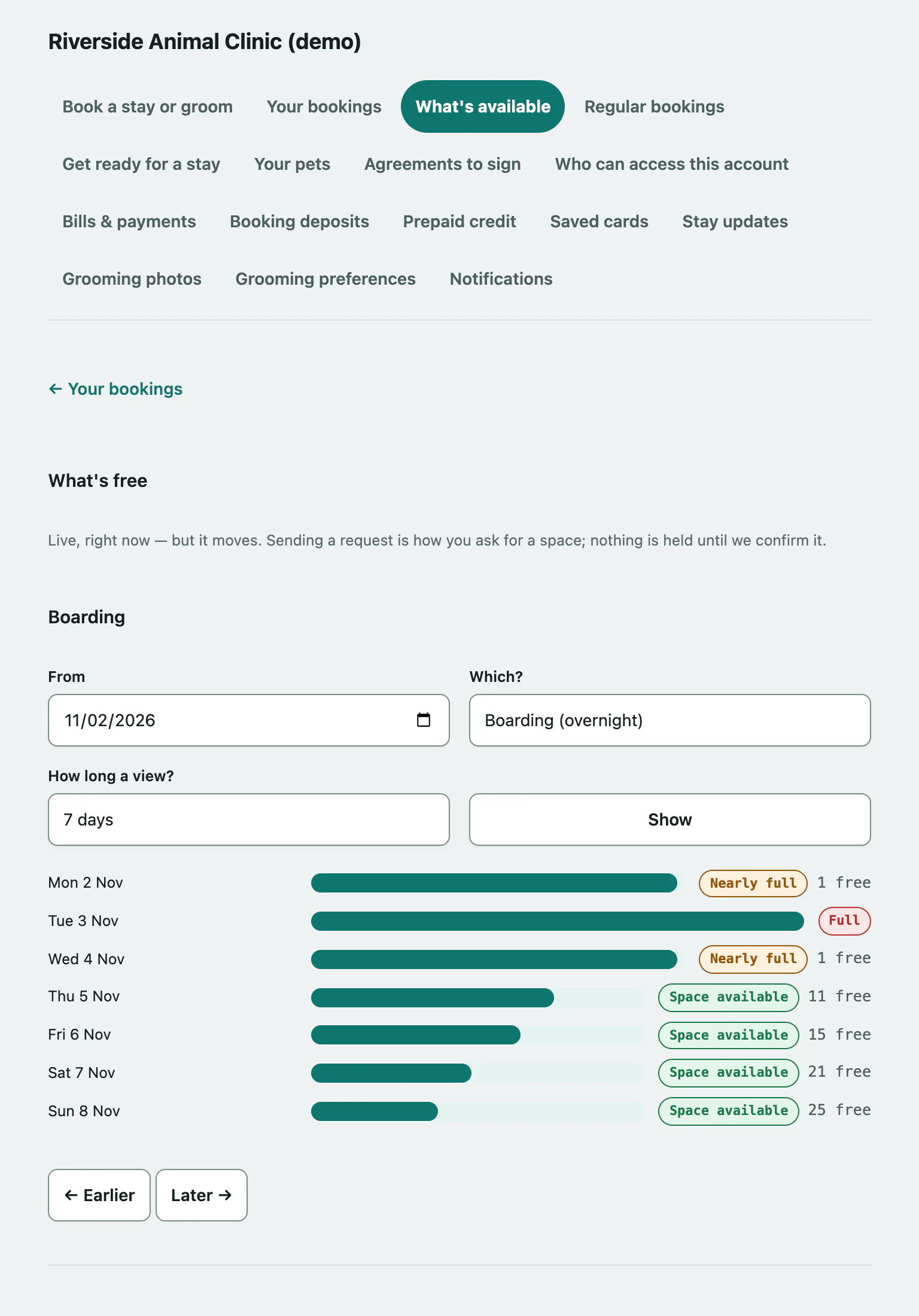
Check boarding or daycare space
- Select What's available in the portal menu. The next 21 days of boarding are shown.
- Choose a start date in From.
- In Which?, choose Boarding (overnight) or Daycare (same day). You can also pick How long a view?: 7, 14, 21 or 42 days.
- Select Show.
Each day shows a bar and a label. Use Earlier and Later to move through the calendar.
| Label | What it means |
|---|---|
| Space available | There's room. The number shows how many spaces are free. |
| Nearly full | Only a few spaces left. |
| Full | No space that day. You can still send a request. |
| Not bookable | The facility isn't taking online bookings that day. A message below the calendar explains why. |
| Ask us | Call the facility to check. |
Check a grooming slot
Grooming depends on how long the service takes and who's working, so you check one slot at a time.
- Under Grooming, enter a Date & time. Choose Roughly how long? and, if you have a favourite groomer, Anyone in particular?.
- Select Check this slot.
If That slot looks free. appears, select Request this groom to book it. If the slot is taken, try another time, or choose Anyone instead of a particular groomer. You can still select Ask anyway and the facility will offer you the nearest thing they have.
Opening hours
If your facility has set its hours, When we're open lists each day's opening times and the drop-off and pick-up windows.
When you've found a date, select Book something to go to Book a stay or a groom.