
Boarding · Boarding Billing
Sell and track prepaid credit
In Vivetra: Boarding Billing › Prepaid Package Prices · Boarding Billing › Client Prepaid Balances
Prepaid credit is value a client buys up front and spends later: either a credit balance, like $200 of credit for $180, or a number of visits, like ten daycare days. Prepaid Package Prices is what you sell, and Client Prepaid Balances shows what each household holds.
Only staff who can manage boarding settings change the packages. Staff with billing permission can look up balances; adding, removing or voiding credit is for managers.
Add a package
- In the menu, open Boarding Billing and select Prepaid Package Prices.
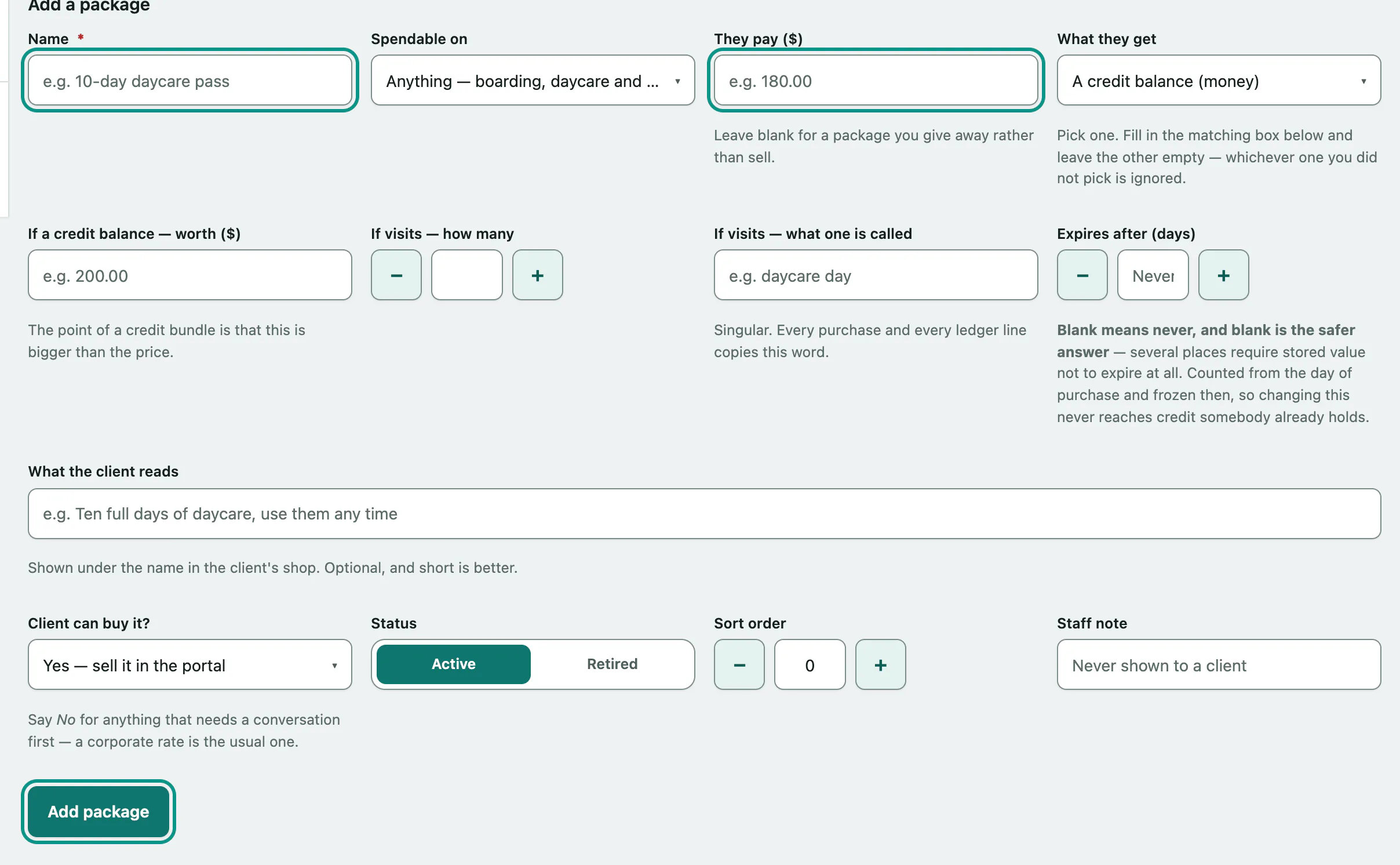
- Under Add a package, enter a Name.
- Choose what it's Spendable on: Anything — boarding, daycare and grooming, Boarding stays only, Daycare only or Grooming only.
- Enter what They pay. Leave it blank for a package you give away.
- Choose What they get: A credit balance (money) or A number of visits (units). Then fill in only the matching box: If a credit balance — worth, or If visits — how many and If visits — what one is called (for example "daycare day").
- Choose whether the Client can buy it? Yes — sell it in the portal puts it in the client portal's credit shop; No — desk only keeps it for the counter.
- Select Add package.
Expires after (days) is optional. Blank means never, which is the safer answer, since some places don't allow stored value to expire. What the client reads is a short description shown in the shop.
For a credit balance, the list shows how much the client gets free, or warns if it costs more than it gives.
Look up a client's credit
- In the menu, open Boarding Billing and select Client Prepaid Balances.
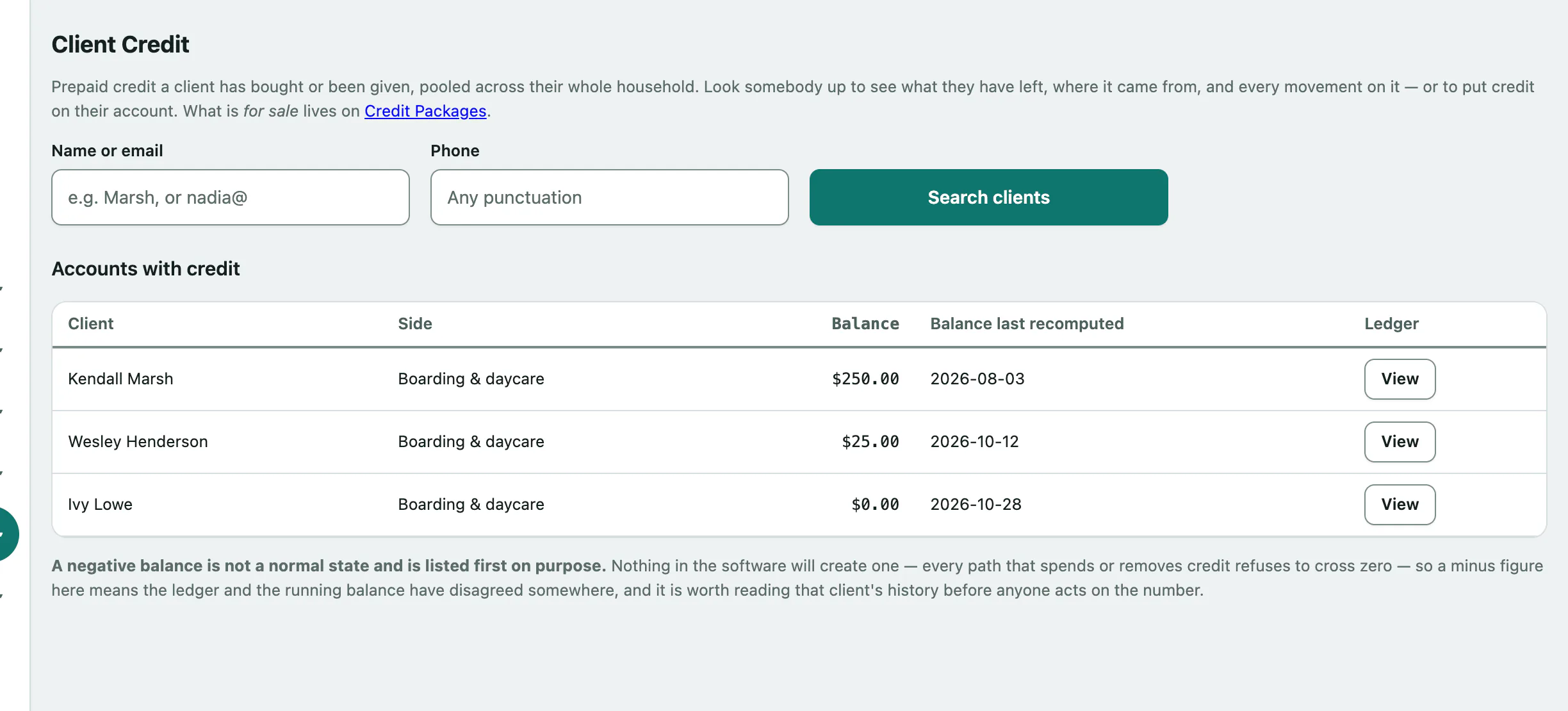
- Enter part of a Name or email, or a Phone number.
- Select Search clients, then View ledger (or Open for a client with no account yet).
Without a search, the screen lists Accounts with credit. Credit is pooled across the whole household, and each account shows whether it's on the Boarding & daycare or Grooming side.
A client's page shows the Credit balance, Where the credit came from (each purchase or grant, what's left and when it expires) and Every movement, the full ledger. Nothing in the ledger is ever edited or deleted; a mistake is corrected with a new line. A blank Who means the client did it themselves in the portal.
Add or remove credit
This records that you gave the household value or took some back. It never charges or refunds a card; a real refund is done on the invoice (see Bill a boarding stay › Refunds and credits on a paid invoice).
- On the client's page, under Move credit on this account, choose What this is: Goodwill grant — add credit the client did not pay for, Correction — add credit back or Correction — remove credit.
- Enter the Amount.
- Enter a Reason. It's required and appears on the client's own statement, so write it for whoever has to explain it later.
- Select Post this movement.
Expires on (only when adding credit) is optional; blank means it never expires. You can't take credit below zero. If you try to remove more than the account holds, you're told what's actually there.
Void a purchase or grant
To undo a grant made in error or a package that was charged back, void that lot. In its row under Where the credit came from, enter a reason and select Void, then confirm. The lot stays on the record marked voided, and whatever it still held comes off the balance.