
Boarding · Grooming
Bill a grooming appointment
In Vivetra: Grooming › Invoices
On this page
Invoices under Grooming is where you bill grooming clients: create a draft, add the services, mark it sent, take payment, and correct it afterwards with a credit note.
Front desk can create invoices, add lines and mark them sent. Marking an invoice paid, voiding it and recording credit notes are separate permissions that practice managers have.
Create a draft invoice
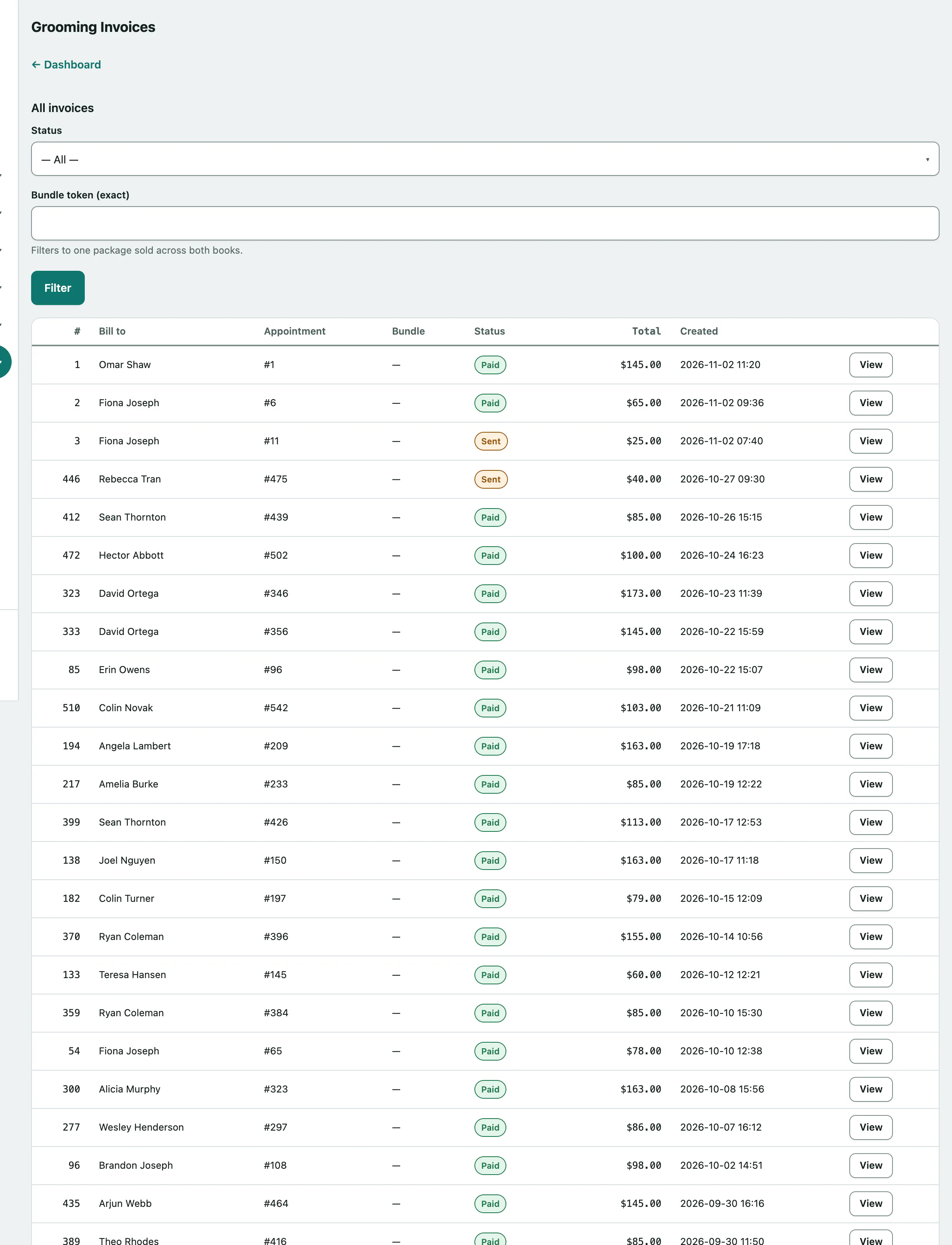
- In the menu, open Grooming and select Invoices.
- Under Create a draft invoice, choose who to Bill to (grooming client).
- Choose the Linked appointment (optional — leave as none for an incidental charge). It must belong to the client you chose.
- Select Create draft invoice.
If the appointment was booked as part of a package with a boarding stay, the invoice is linked to that bundle automatically.
Add line items
- On the invoice, under Add a line item, choose the Charge type: Service, Package, Addon, Product, Tip, No Show Fee, Late Cancel Fee or Other.
- For a Service line, choose the Service (service lines only); for a Package line, the Package (package lines only). Leave the description or unit price blank to use the catalog's own. Set the Quantity and, for commission or tips, who it was Performed by (commission / tip attribution).
- Select Add line item.
The running total updates as you go. You can add lines while the invoice is a draft or sent, and Remove them while it's still a draft.
Send and get paid
When the bill has gone to the client, select Mark invoice sent. This only stamps the sent date; it doesn't email anything.
If your practice takes card payments through Vivetra, Collect payment gives you two ways to be paid:
- Collect card payment lets you enter the client's card on this screen.
- Create payment link makes a link you send the client so they pay on Stripe's own page. Check if the client paid refreshes its status.
The invoice is marked paid only once the payment succeeds.
To record a payment taken any other way:
- Under Mark paid another way (or Mark paid), enter a Payment method note, such as "Visa ending 4242, external terminal".
- Select Mark invoice paid.
If prepaid credit was already applied, the screen shows how much the client still owes. If they paid the full total some other way, tick the box to return the credit to their account (see Sell and track prepaid credit).
Void an invoice
A draft or sent invoice that was never paid can be voided. Select Void invoice and confirm. Any prepaid credit held on it goes back to the household.
Correct a paid invoice
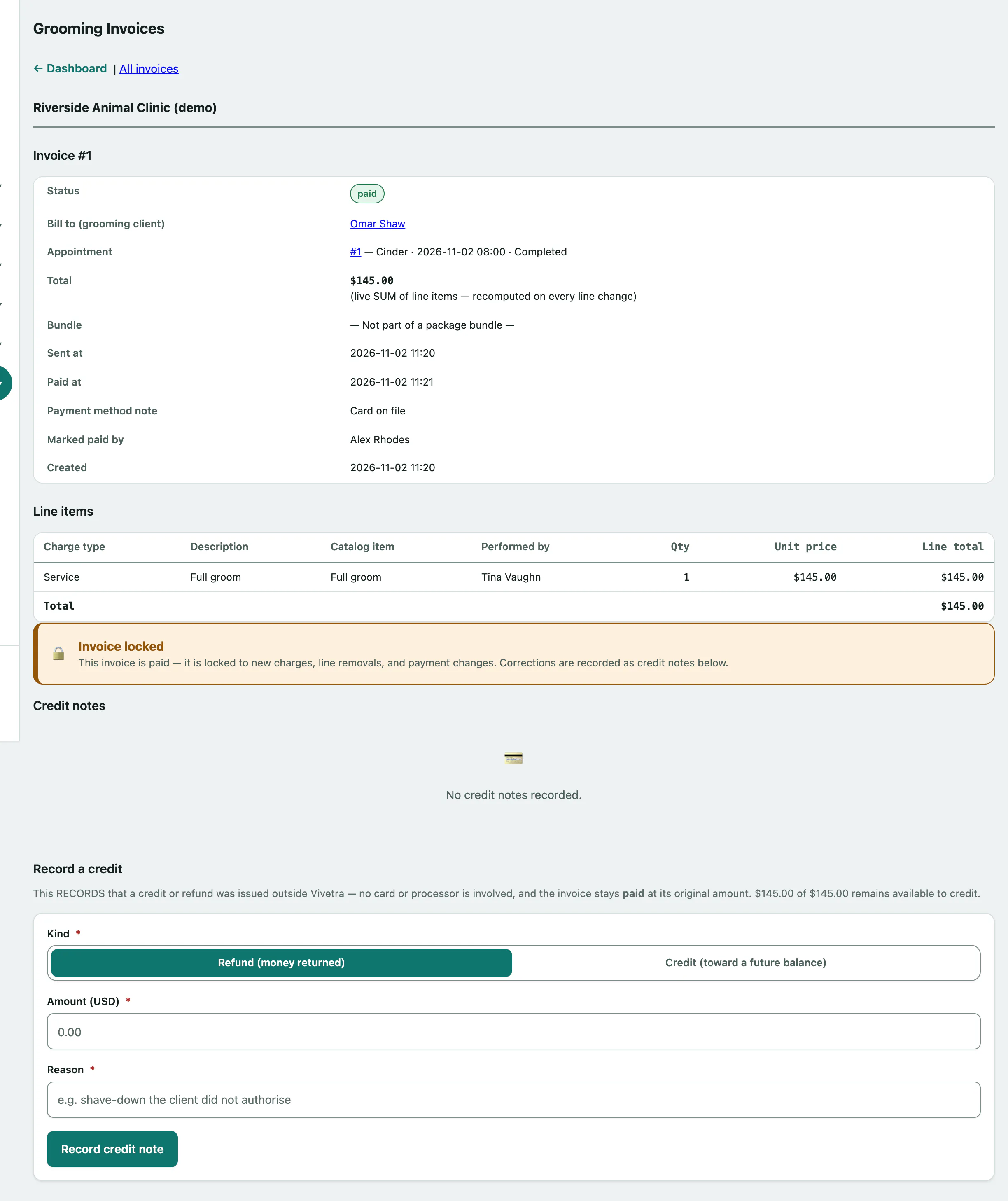
A paid invoice is locked. To record a refund or credit you gave outside Vivetra:
- Under Record a credit, choose the Kind: Refund (money returned) or Credit (toward a future balance), and enter the Amount and Reason.
- Select Record credit note.
The invoice stays paid at its original amount; the credit notes are listed under it. If the client paid by card through Vivetra, Issue a Stripe refund sends real money back to their card instead.
Find an invoice
The All invoices list can be filtered by Status (Draft, Sent, Paid, Void). Select View to open one. A client's open invoices also show on their record (see Manage grooming clients).