
Client portal · Vet Practice
Pay a bill
In Vivetra: Bills & payments
On this page
Bills & payments lists every bill the practice has sent you, and lets you pay an unpaid one online by card.
Pay a bill online
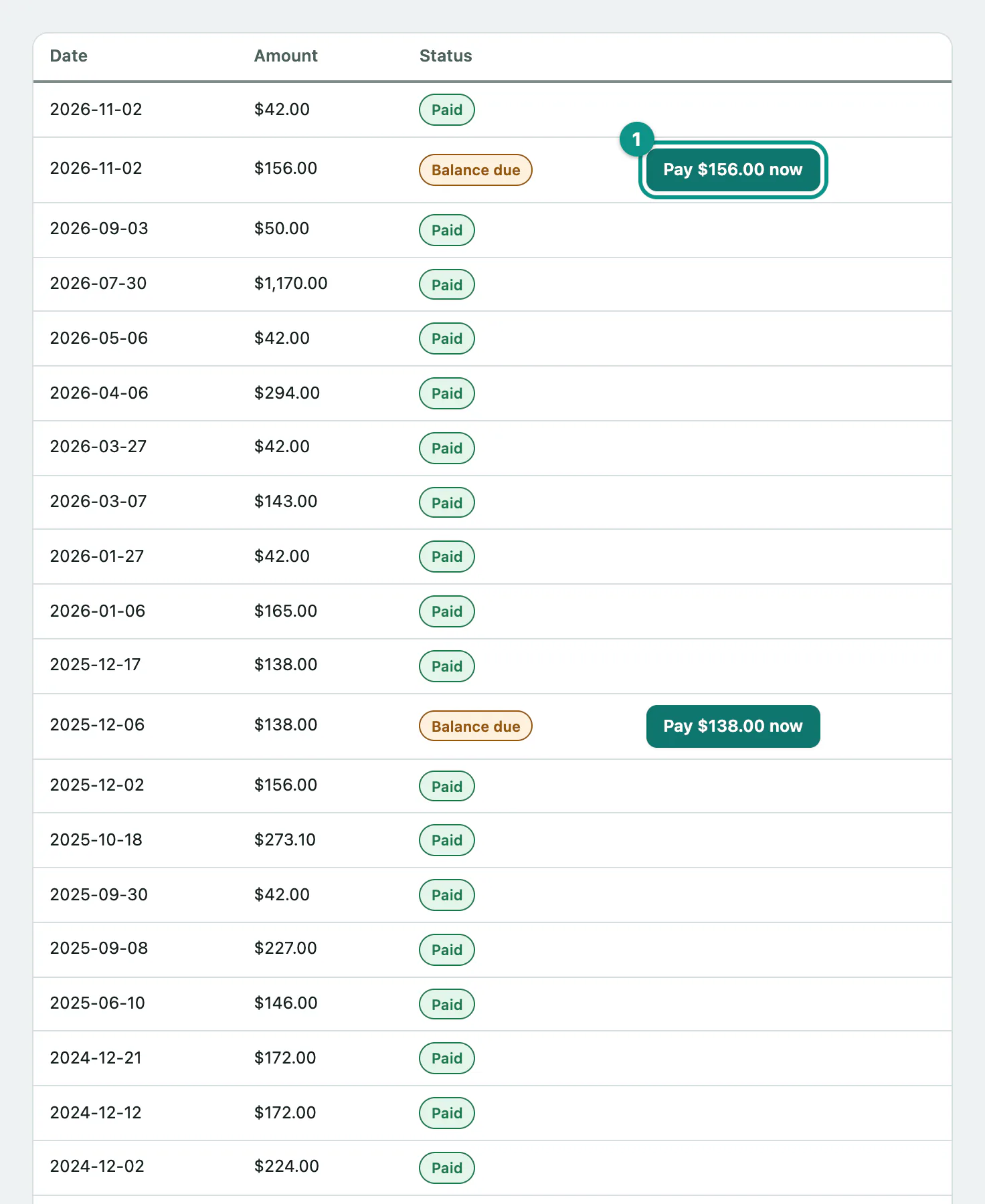
- Select Bills & payments in the portal menu. Each bill shows its date, amount and status: Balance due or Paid.
- Next to a bill marked Balance due, select the pay button, for example Pay $138.00 now. It shows the bill's amount.
You're taken to a secure card payment page. Enter your card details there and confirm the payment. When the payment goes through, you come back to Bills & payments and the bill shows Paid.
You always pay the full balance of a bill. You can't pay part of it online. If you'd like to spread the cost, call the practice.
If a bill still shows Balance due after you've paid
If you paid but left the payment page before it finished, the bill may still say Balance due. Once you've started paying a bill, an extra button appears next to it. Select Already paid? Check status next to it, and the portal checks with the payment provider and updates the bill.
Messages you might see
| Message | What it means |
|---|---|
| That invoice is already paid or is no longer payable. | It's been paid already, or the practice has changed it. Refresh the page. |
| This practice has no online payment address configured yet — please call us. | Online payment isn't set up at your practice yet. Call to pay. |
| We couldn't start online payment right now — please try again later or call us. | The payment page couldn't be opened. Try again later. |
| Too many attempts — please wait a few minutes and try again, or call us. | Wait a few minutes before trying again. |