
Hospital
Manage owners
In Vivetra: Hospital › Owners
On this page
Owners is the hospital's list of the people responsible for its patients, called guardians on screen. Each guardian record holds contact details, the patients they're linked to, and their client portal access.
Anyone can look up a guardian. Adding, editing and linking patients needs owner-records access, which front desk staff, veterinarians and practice managers have.
Find a guardian
- Select Owners in the Hospital menu. The Guardians screen opens.
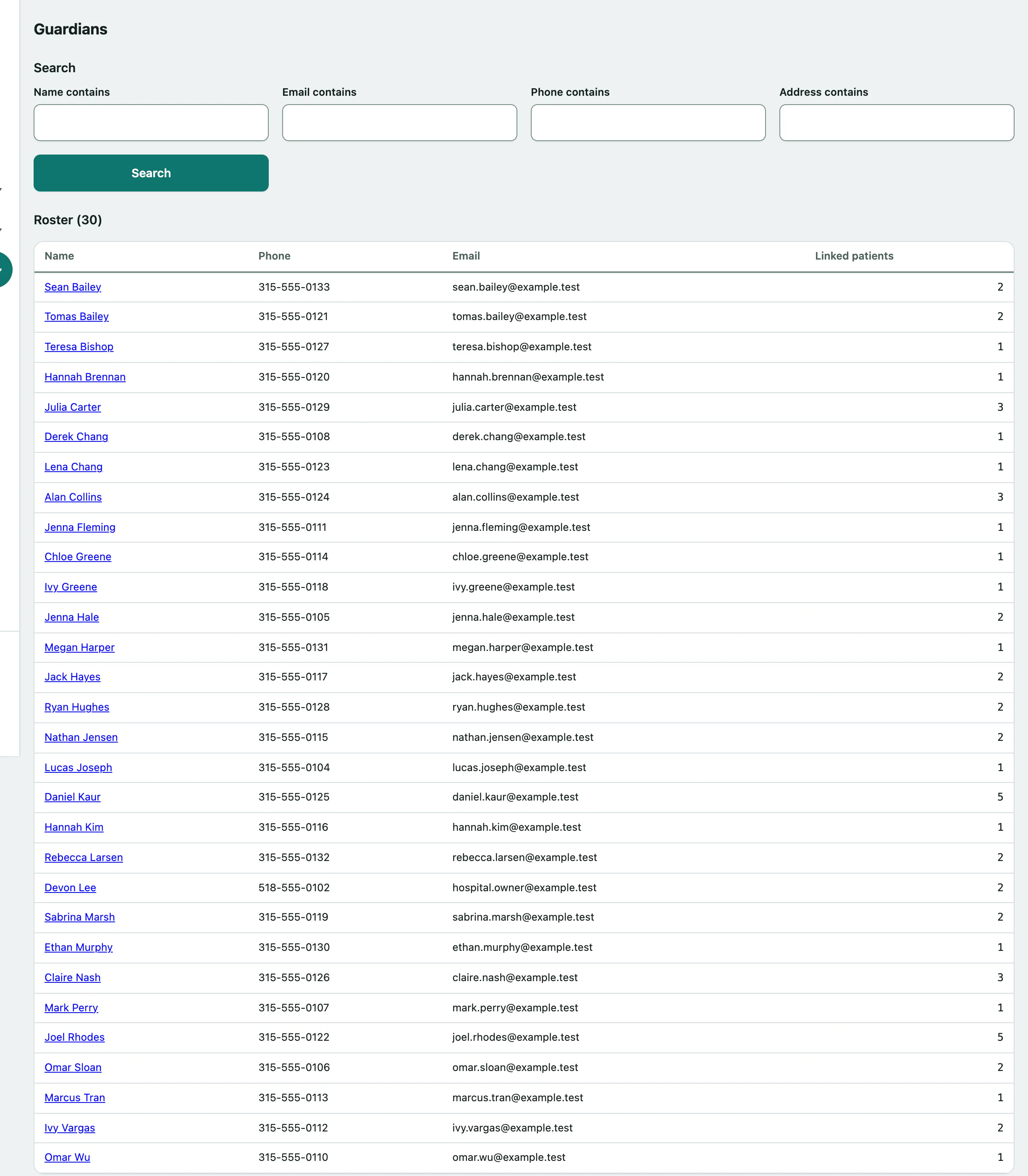
- Type in Name contains. Matching guardians are suggested as you type. You can also search by Email contains, Phone contains or Address contains.
- Select Search, then select a name in the Roster to open the record.
The roster shows each guardian's phone, email and how many patients they're linked to. A caution pill marks a guardian with a caution flag. Select Clear to go back to the full list.
Add a guardian
- Under Add a guardian, enter the First name and Last name. Both are required.
- Enter a Phone and Email.
- Select Add guardian.
If the person is already known elsewhere in Vivetra (for example, they're also a client of your general practice), enter their id in Linked core-person id (optional — a known/repeat human, e.g. also a vet-practice client). You can look up their id under Records in the people list.
Link a patient to a guardian
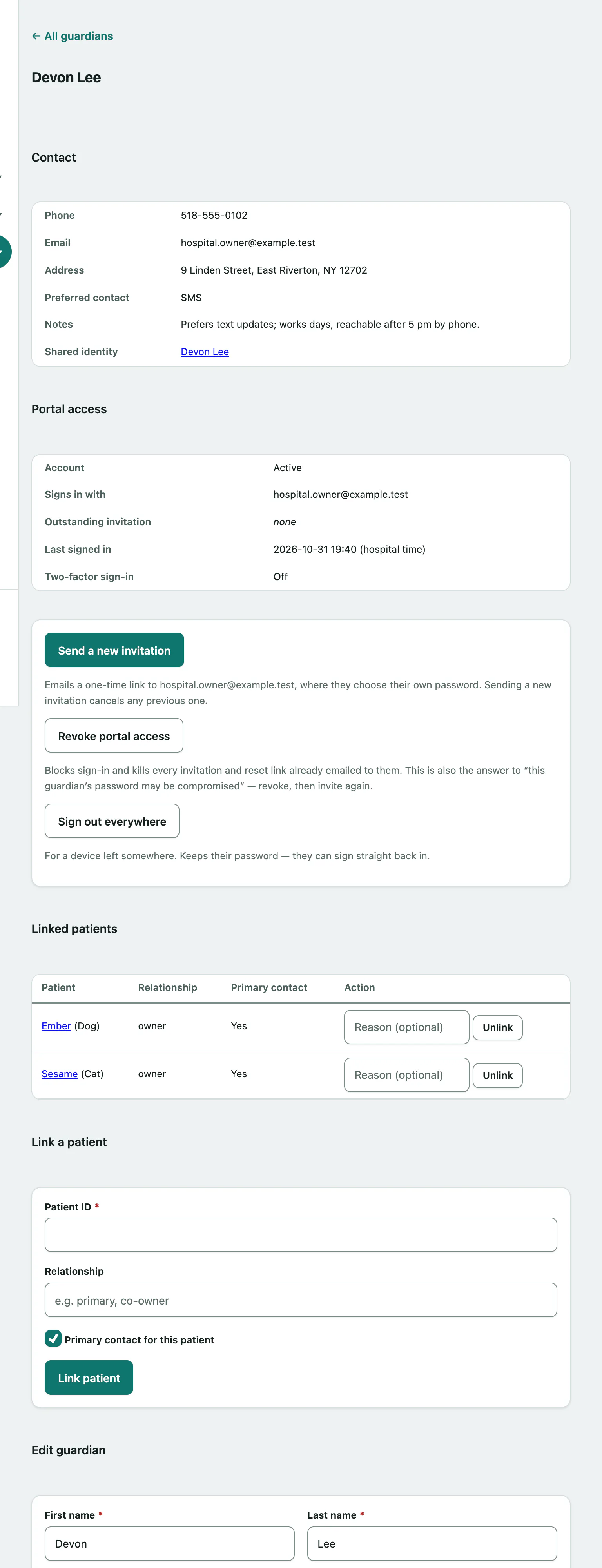
Open the guardian's record. Linked patients lists their patients, the relationship and whether they're the primary contact.
- Under Link a patient, enter the Patient ID.
- Optionally enter the Relationship, such as "co-owner". Leave Primary contact for this patient ticked if they are.
- Select Link patient.
To end a link, type an optional reason next to the patient and select Unlink.
Edit a guardian
Under Edit guardian on their record, change the name, phone, email, address, Preferred contact or notes. Then:
- Select Save guardian.
Tick Caution flag (staff-safety / front-desk awareness) and add Caution notes if staff need a heads-up. The caution shows at the top of the guardian's record and next to their name in the owner contact log.
Give a guardian portal access
Portal access shows whether the guardian has a client portal account, the email they sign in with, any outstanding invitation, when they last signed in and whether two-factor sign-in is on. Managing access is for front desk staff and practice managers.
The guardian needs a valid email address on file, because it's what they sign in with. Then:
- Select Invite to the portal. If they already have an account or invitation, the button says Send a new invitation.
They're emailed a one-time link to choose their own password. The link expires in seven days, and sending a new invitation cancels the old one. The link is also shown on screen once, so you can read it to them if the email doesn't arrive.
| Button | What it does |
|---|---|
| Revoke portal access | Blocks sign-in and cancels any invitation or reset link already sent. Use it if their password may be compromised, then invite them again. |
| Restore portal access | Lets a revoked guardian sign in again with their old password. |
| Sign out everywhere | Signs them out on every device. Their password stays the same. |
| Clear sign-in lockout | Shown when they're locked out after too many failed sign-ins. |