
Livestock
Print and send a preg-check report
On this page
The pregnancy-check report is the desk copy of a preg-check session: the same report the producer was handed at the chute, for the practice's file, for printing, and for sending to anyone who wasn't there. It's rebuilt from the session's live entries every time you open it, so it always matches the record.
Open a report
- Select Operations in the Livestock menu.
- On the operation's row, select animals & lots.
- Under Pregnancy checks, select Report on the session's row.
From a chute-side session you can also select Report & re-send at the top.
If the session is still open, a warning says more entries may still arrive from the device. Close the session once the last animal is through (see Run a preg check at the chute › Close the session).
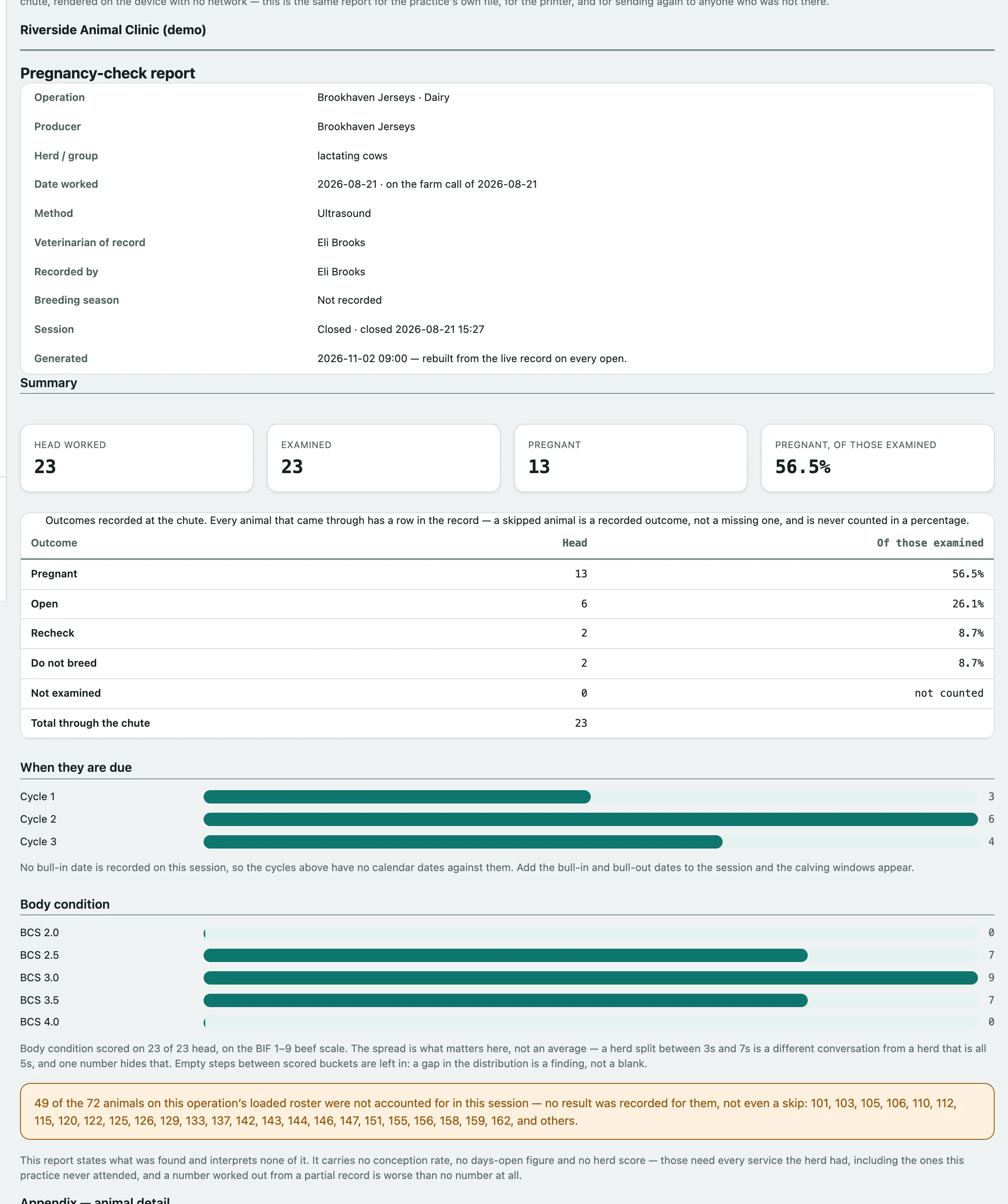
What's in it
| Section | What it shows |
|---|---|
| Header | Operation, producer, herd, date worked, method, veterinarian of record and breeding season. |
| Summary | Head worked, Examined, Pregnant and Pregnant, of those examined, plus the outcome counts. |
| When they are due | Pregnant animals by 21-day cycle, with bred and due dates when a bull-in date was recorded. |
| Body condition | Body condition scores, if any were recorded. |
| Notes from the session | The session notes. |
| Appendix — animal detail | Every tagged animal in chute order. An untagged tally has no appendix; the counts are the whole record. |
Percentages are of animals actually examined. Skipped animals are counted separately, and undone entries are left out of every number. The report states what was found and doesn't calculate a conception rate or herd score.
Print it
- Select Print / save as PDF.
The print leaves out the screen controls and the delivery section.
Send it again
Sending this report lists every delivery already requested, with its status, attempts and any error.
- Under Send it again, choose Send by: Email or Text message.
- Check To. It's filled in from the producer's contact details; change it to send the report to someone else, such as a partner or lender.
- Select Queue this delivery.
The report is queued rather than sent on the spot, so a request made with no signal still goes out later.