
Records & admin · Admin
Change your practice's settings
In Vivetra: Admin › Organization Settings
On this page
Organization Settings holds the details that apply to your whole practice: its name and address, time zone, tax rate, logo and colours, and what everyone sees on the sign-in screen. Only practice owners see it in the menu.
Update your practice details
- Select Admin › Organization Settings in the menu.
- Under Identity, check the Organization name, phone and email.
- Under Address, fill in the address and choose the Country.
- Check the Timezone (IANA zone name), for example America/New_York. Every time Vivetra shows depends on it.
- Under Invoice tax, enter the Default tax rate (%) and its Tax label, such as Sales tax or VAT.
- Select Save settings at the bottom of Identity.
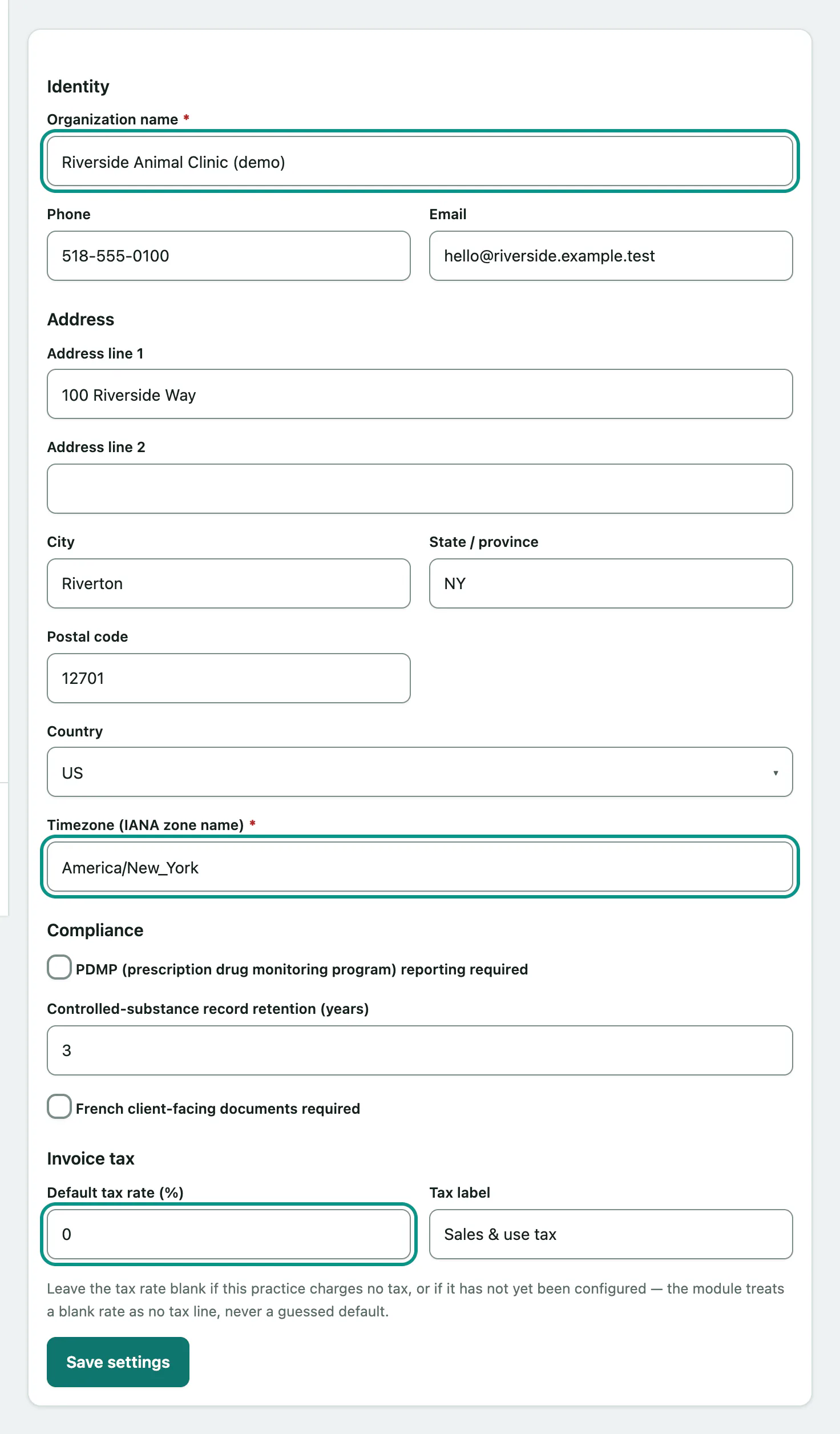
Leave the tax rate blank if you don't charge tax. Invoices then have no tax line; Vivetra never guesses a rate.
Compliance holds PDMP (prescription drug monitoring program) reporting required, Controlled-substance record retention (years) and French client-facing documents required. They're saved with the same button. To see the rules that apply to you, see Check state rules and compliance.
Add your logo and colour
Under Branding:
- Choose your logo in Upload a logo. PNG, JPEG, GIF, WebP, SVG or BMP, up to 4 MB.
- Select Upload logo. Once there's a logo, the buttons say Replace logo and Remove logo.
- Pick an Accent color and select Save accent color.
The accent is what every staff member sees unless they choose their own on My account (see Your account and settings › Appearance). Reset accent to default goes back to Vivetra's colour.
Put a message on the sign-in screen
For a holiday closure or an emergency number, add a short message that everyone sees before signing in.
- Under Sign-in screen, type it in Sign-in notice. Up to 280 characters.
- Select Save notice.
Clear the box and save to go back to the usual tagline.
Set the dashboard new staff start with
Default dashboard for new staff sets the dashboard cards a staff member sees until they arrange their own. Add, remove and reorder cards, then:
- Select Save default dashboard.
Anyone who has already arranged their own dashboard keeps it. Reset to system default clears your practice default.