
Equine
Find or add a horse owner
In Vivetra: Equine › Owners
On this page
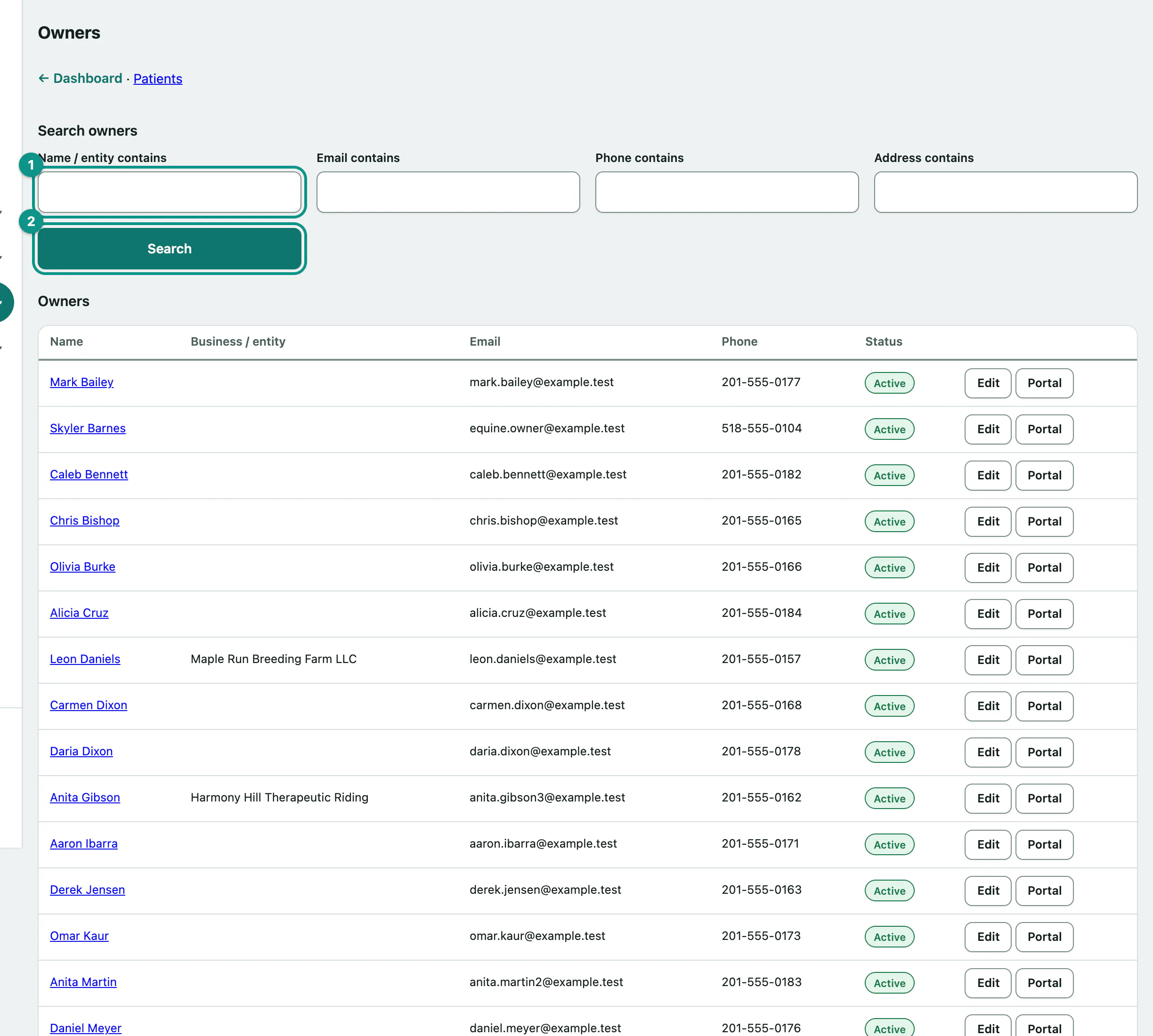
Owners is the list of everyone who owns a horse your practice looks after. Search it before you add someone, so the same person doesn't end up on file twice.
Search for an owner
- Select Owners in the Equine menu.
- Type part of a name or business into Name / entity contains. Matching owners are suggested as you type.
- Select Search.
You can also search by Email contains, Phone contains or Address contains, on their own or together. Phone searches ignore spaces, dashes and brackets. Select Clear to see everyone again.
Open an owner's record
- In the list, select the owner in the Name column.
The record shows their contact details, their Portal access status and Horses owned: every ownership share they hold, with the percentage, whether they're the Managing partner, which syndicate it's through, and whether the share is Current or Ended. Select View horse to open a horse.
Add an owner
The Add an owner form is at the foot of the Owners page. You need the ownership-management permission to see it. Front desk, vets and practice managers have it by default.
- Enter the First name and Last name. Both are required.
- Choose their Preferred contact: Email, SMS, Phone or None.
- Select Create owner.
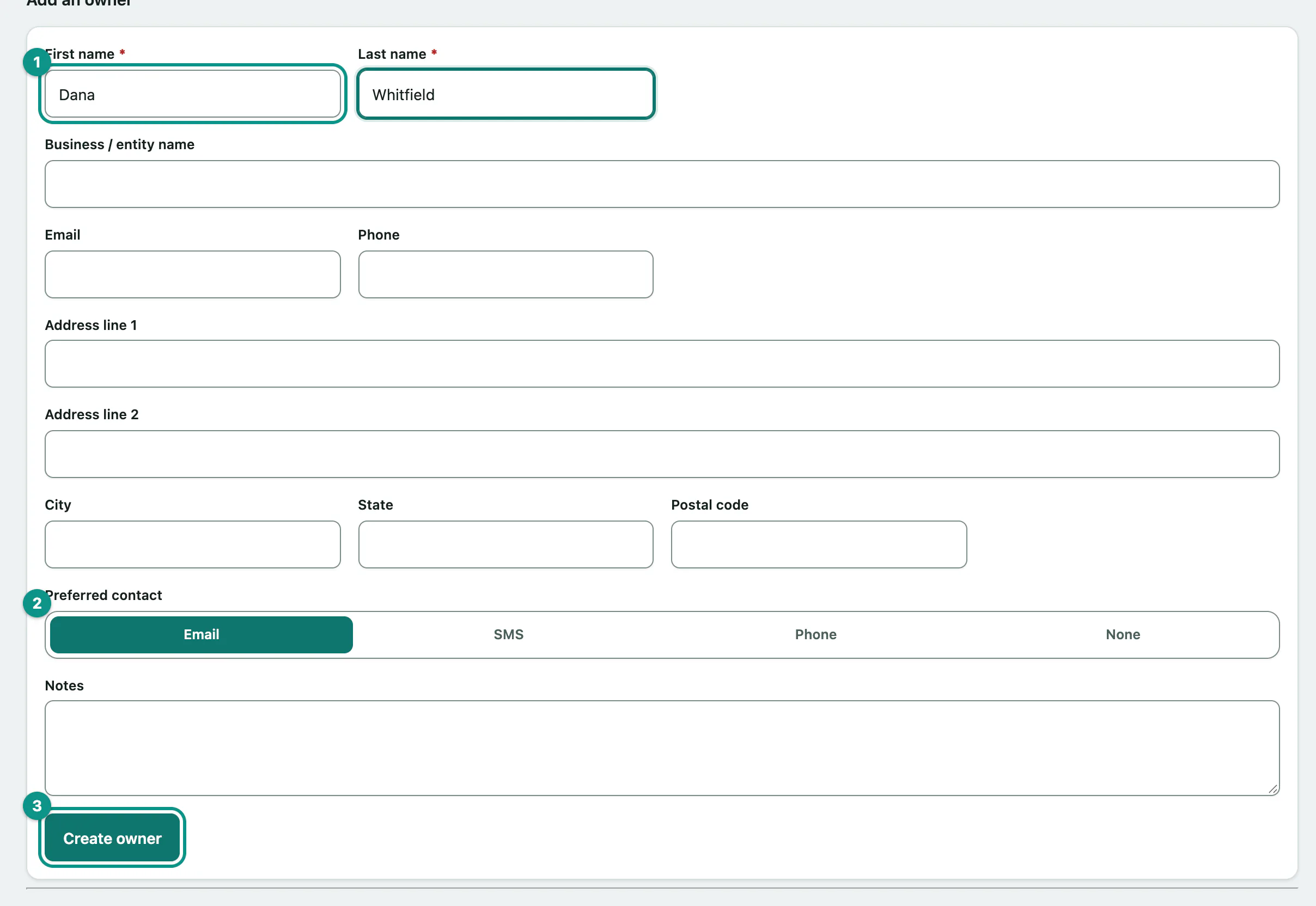
Fill in their email, phone and address too. If the horse is owned through a business, put that in Business / entity name.
To give the owner a horse, record an ownership share on the horse's record (see Work with a horse's record › Ownership shares).
Edit an owner
- Select Edit on the owner's row, or Edit owner on their record. The form fills with their details and becomes Edit owner.
- Make your changes and select Save changes.
Give an owner portal access
The client portal lets an owner see their horses, records and bills online. Front desk and practice managers can manage it.
- Select Portal on the owner's row, or Manage portal access on their record. The Portal access panel opens.
- Select Invite to the portal. Vivetra emails the owner a one-time link where they choose their own password.
The link works once and expires in seven days. If the email doesn't arrive, the panel shows the link once under Invitation link — shown once, so you can read it out or copy it. Select Send a new invitation to send another; it cancels the old one.
If the panel says No invitation can be sent yet., the reason is shown next to it, such as the owner having no email address on file.
Other portal actions
| Button | What it does |
|---|---|
| {{ui:Revoke portal access | owners.portal-revoke}} |
| Restore portal access | Shown after revoking. They sign in with the password they already had. |
| {{ui:Sign out everywhere | owners.portal-end-sessions}} |
| Clear sign-in lockout | Shown when they're locked out after too many wrong passwords. |