
Equine
Create an invoice and record payment
In Vivetra: Equine › Equine Invoices
On this page
Equine invoices bill one party for work on one horse: either an individual owner or an ownership group. Who can be billed, and their share, are worked out from the horse's records on the day the work was done.
Front desk, vets and practice managers can create invoices. Front desk and practice managers can take payment. Only practice managers can record credit notes.
Find an invoice
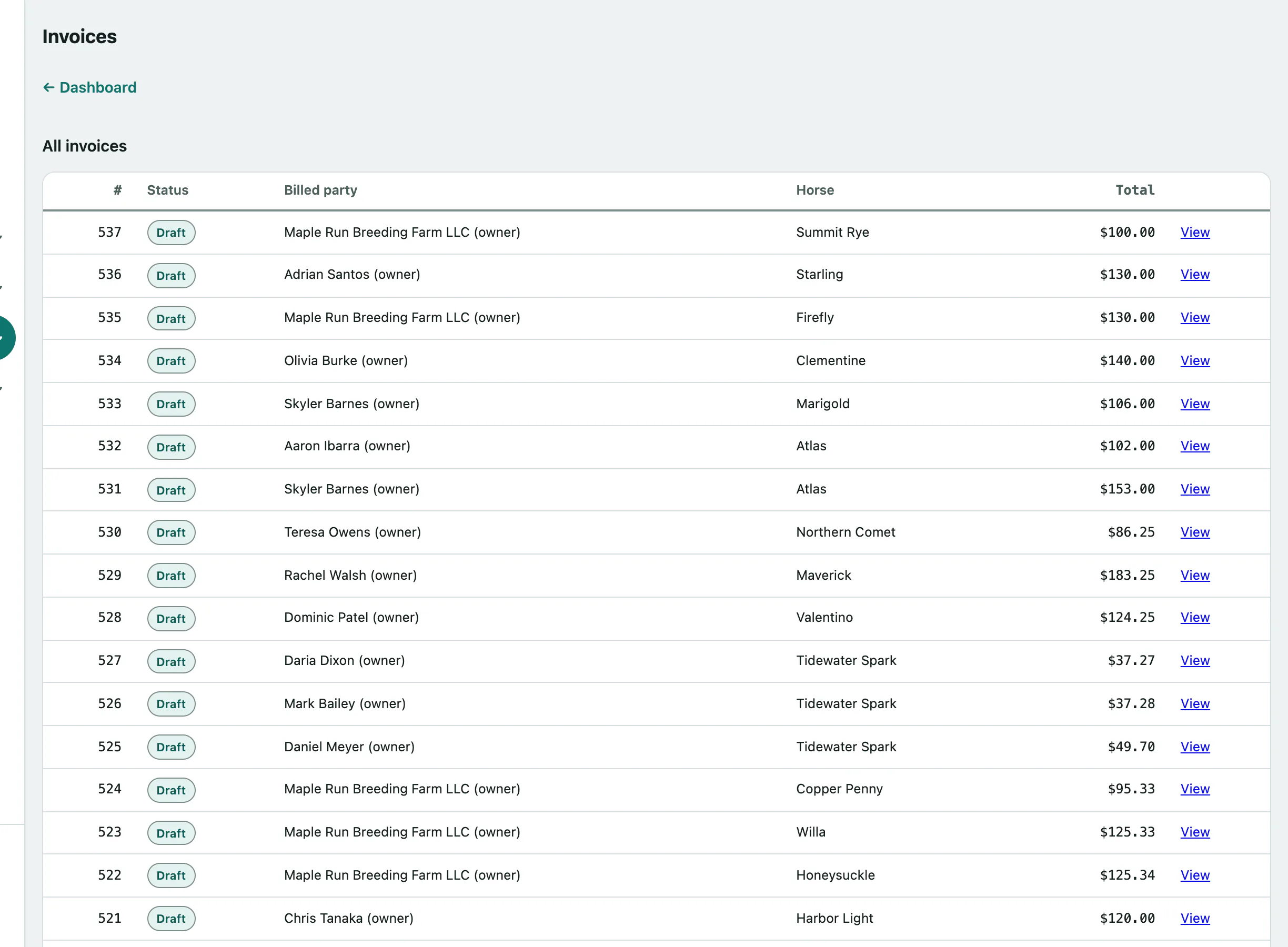
Select Equine Invoices in the Equine menu. All invoices lists them newest first, 50 to a page, with their status: Draft, Sent, Paid or Void. Select View to open one.
Create an invoice
Creating an invoice is two steps, under Create an invoice on the Invoices page.
Step 1: the horse and the service date
- Select Equine Invoices in the menu.
- Choose the Horse (patient).
- Enter the Service date: the day the work was done, not today. It can't be in the future.
- Select Load this horse's billable parties.
The service date matters. If a horse has been sold or leased since the visit, Vivetra still offers the people who held it on that day.
Step 2: the payer and the amounts
Under Payer (choose exactly one), pick either Individual owner or Syndicate owner-group.
- To bill one person, select Individual owner and choose them in the list under it. Owners with a share on the service date are listed first with their percentage, followed by any lessee responsible for vet bills.
- Or, to bill a syndicate, select Syndicate owner-group and choose the group.
- If the work was done on a farm call, choose it in Farm call (optional — the stop this bill came from).
- Select Create draft invoice. You'll see Invoice created.
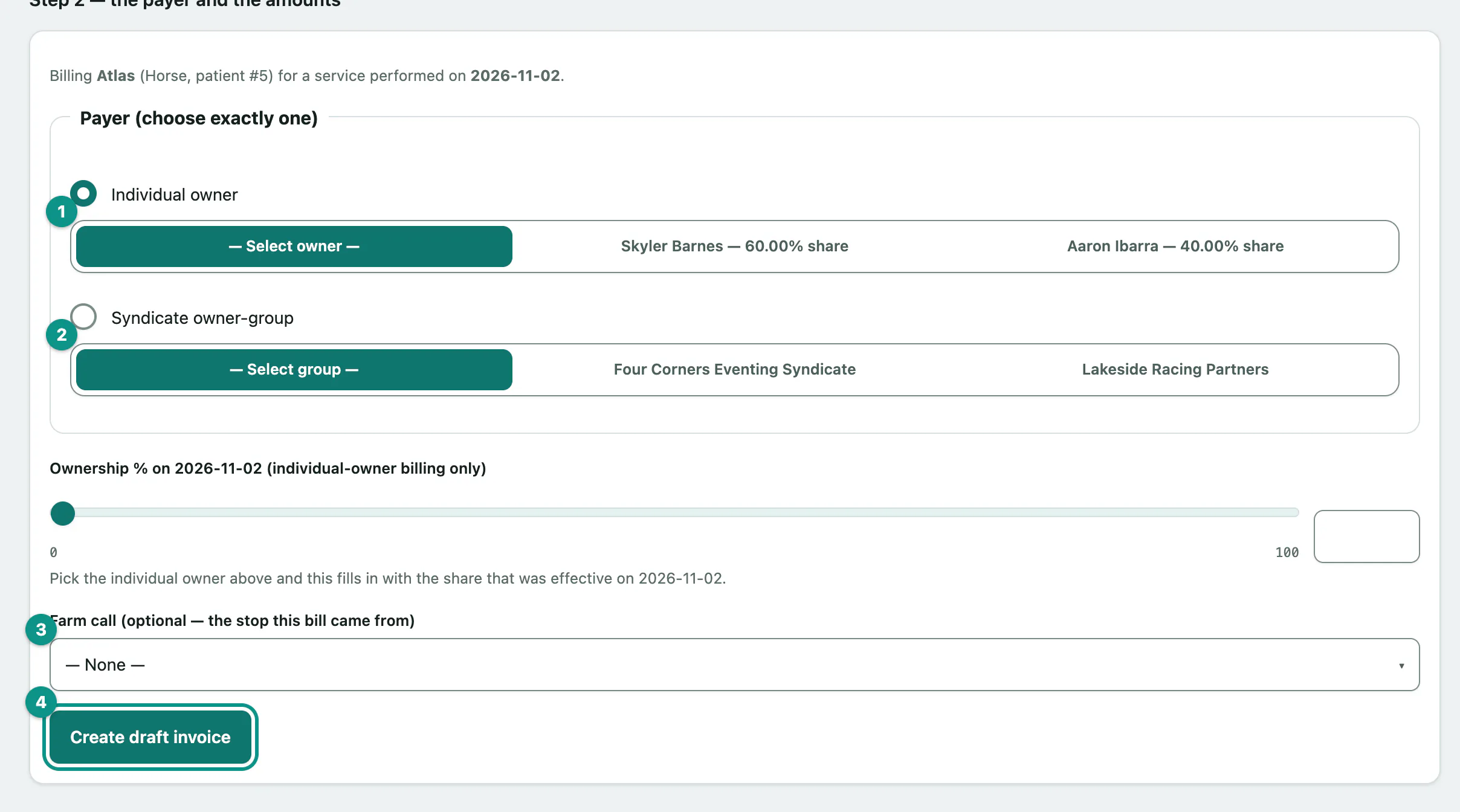
For an individual owner, Ownership % is filled in from their share on the service date. Check it before you create the invoice.
For a horse shared between co-owners, create one invoice per owner, each with their own percentage.
When you pick a farm call, the invoice gets its portion of that stop's travel fee as a line item automatically (see Schedule a farm call › The travel fee).
Add line items
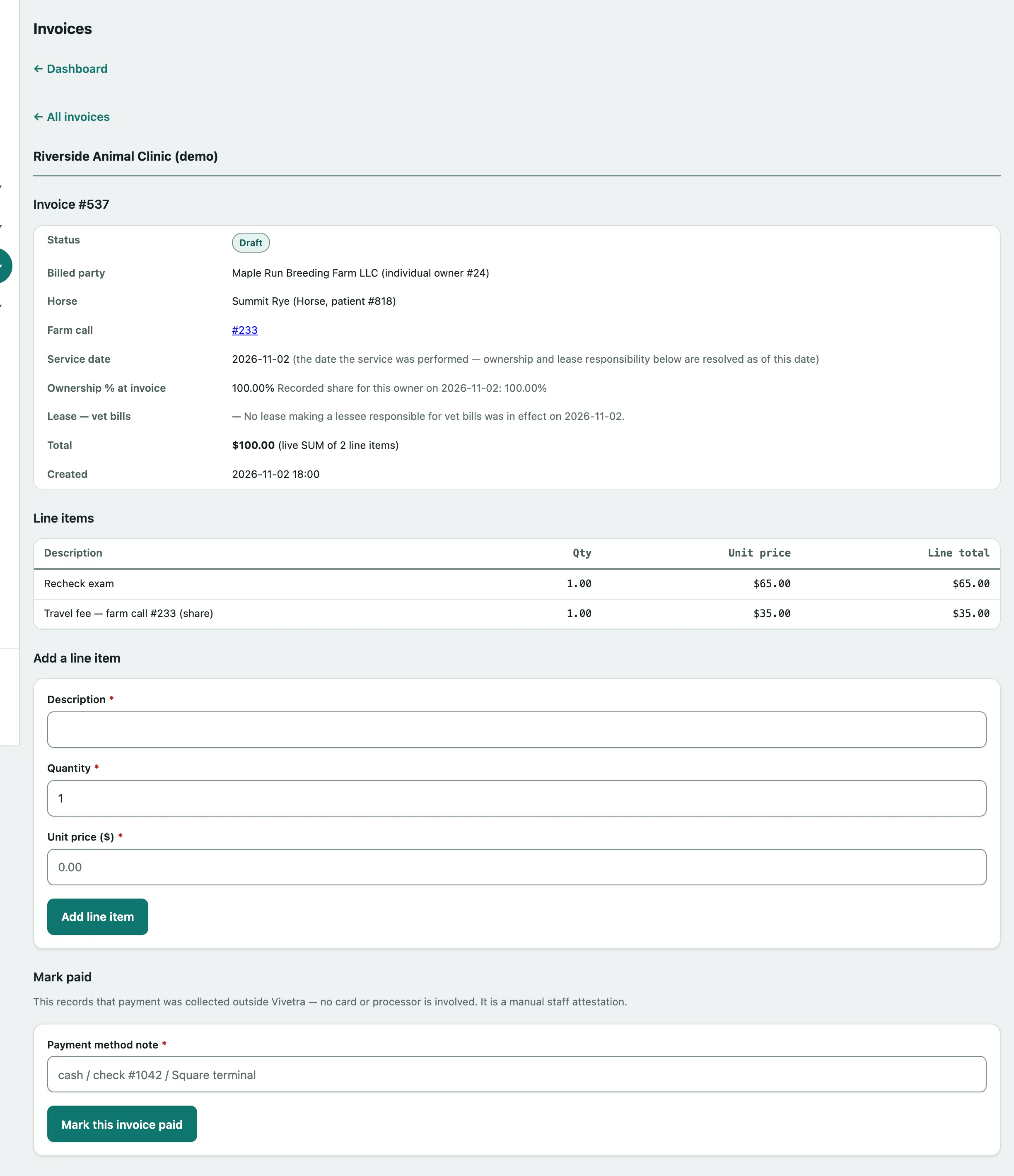
A new invoice is a draft. Open it with View and add the work done.
- Under Add a line item, enter the Description.
- Enter the Quantity and the Unit price.
- Select Add line item. The total updates.
Take payment
How you can take payment depends on whether your practice has card payments set up.
If it does, Collect payment offers two ways:
- Collect card payment opens a card form for a card the owner reads to you or hands you. Enter it and select the Charge button.
- Create payment link makes a link you send to the owner so they can pay themselves. Select Copy link to copy it, and later Check if the owner paid.
The invoice is only marked paid once the card payment actually goes through.
If the owner paid by cash, check or another way:
- Under Mark paid another way (or Mark paid), enter a Payment method note, such as cash or check #1042.
- Select Mark this invoice paid.
Refunds and credits
On a paid invoice:
- Front desk and practice managers can use Issue a Stripe refund for an invoice paid by card through Vivetra. This sends real money back to the owner's card. The amount starts as the full total; lower it for a partial refund. Select Issue refund.
- Practice managers can use Record a credit or refund to note a credit or refund given outside Vivetra. Choose the Kind (Refund (money returned) or Credit (toward a future balance)), the amount and a Reason, then select Record credit/refund note.
A credit note doesn't change the invoice. It stays paid at its original amount, and the notes are listed under Credit & refund notes. You can't credit more than the invoice total.