
Livestock
Set up farm clients, operations and premises
In Vivetra: Livestock › Operations
On this page
Every livestock record hangs off three things: the farm client (the person or business you bill), the operation (a production unit that client runs, like a dairy or a feedlot) and the premises (a physical site that operation uses). Set these up first, then add lots and animals under them.
All three live on one screen, Livestock › Operations.
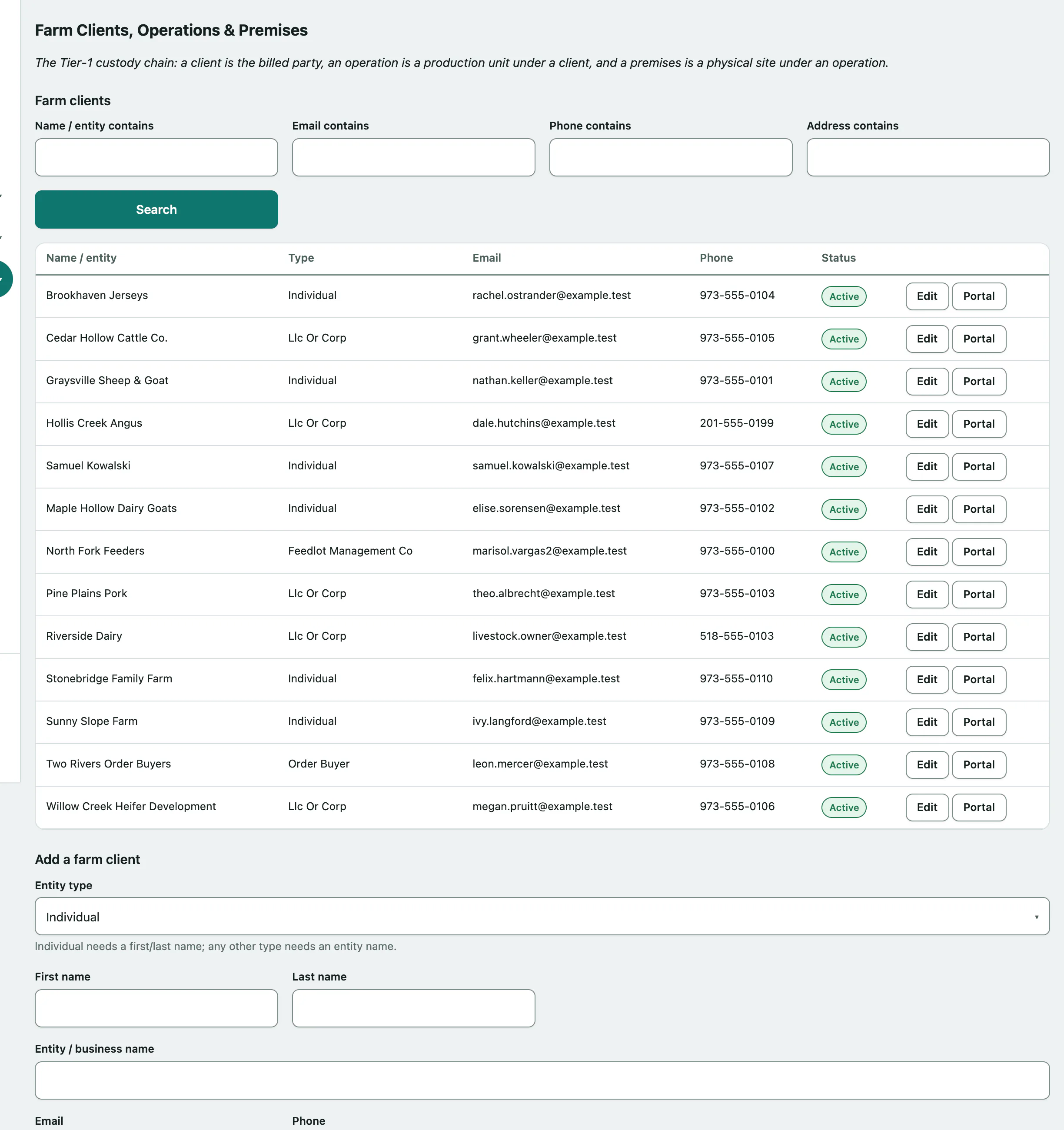
Find a farm client
- Select Operations in the Livestock menu.
- Type part of a name in Name / entity contains and select Search. You can also search by email, phone or address.
Select Clear to show everyone again. The list stops at 500 clients, so search if you can't see who you want.
Add a farm client
- Under Add a farm client, choose the Entity type: Individual, Llc Or Corp, Feedlot Management Co, Order Buyer or Other.
- For an individual, enter a First name and Last name. For any other type, enter the Entity / business name.
- Select Create farm client.
Add an email, phone, address and Preferred contact before saving if you have them. You'll need an email to invite them to the portal.
To change a client later, select Edit on their row, make your changes and select Save changes.
Add an operation
An operation always belongs to one farm client, so add the client first.
- Under Add an operation, choose the Farm client.
- Enter the Operation name.
- Choose the Operation type: Dairy, Cow Calf, Feedlot, Swine, Poultry, Mixed or Other.
- Select Create operation.
Add a premises
A premises is a physical site under an operation. One operation can have several.
- Under Add a premises, choose the Operation.
- Enter the Premises name.
- If the site has a USDA premises ID, enter it in Premises ID number (USDA PIN — attaches to the location).
- Add the address, then select Create premises.
You need at least one premises before you can write a feed directive (see Write a veterinary feed directive) or tie a farm call to a location (see Plan a livestock farm call).
Open an operation
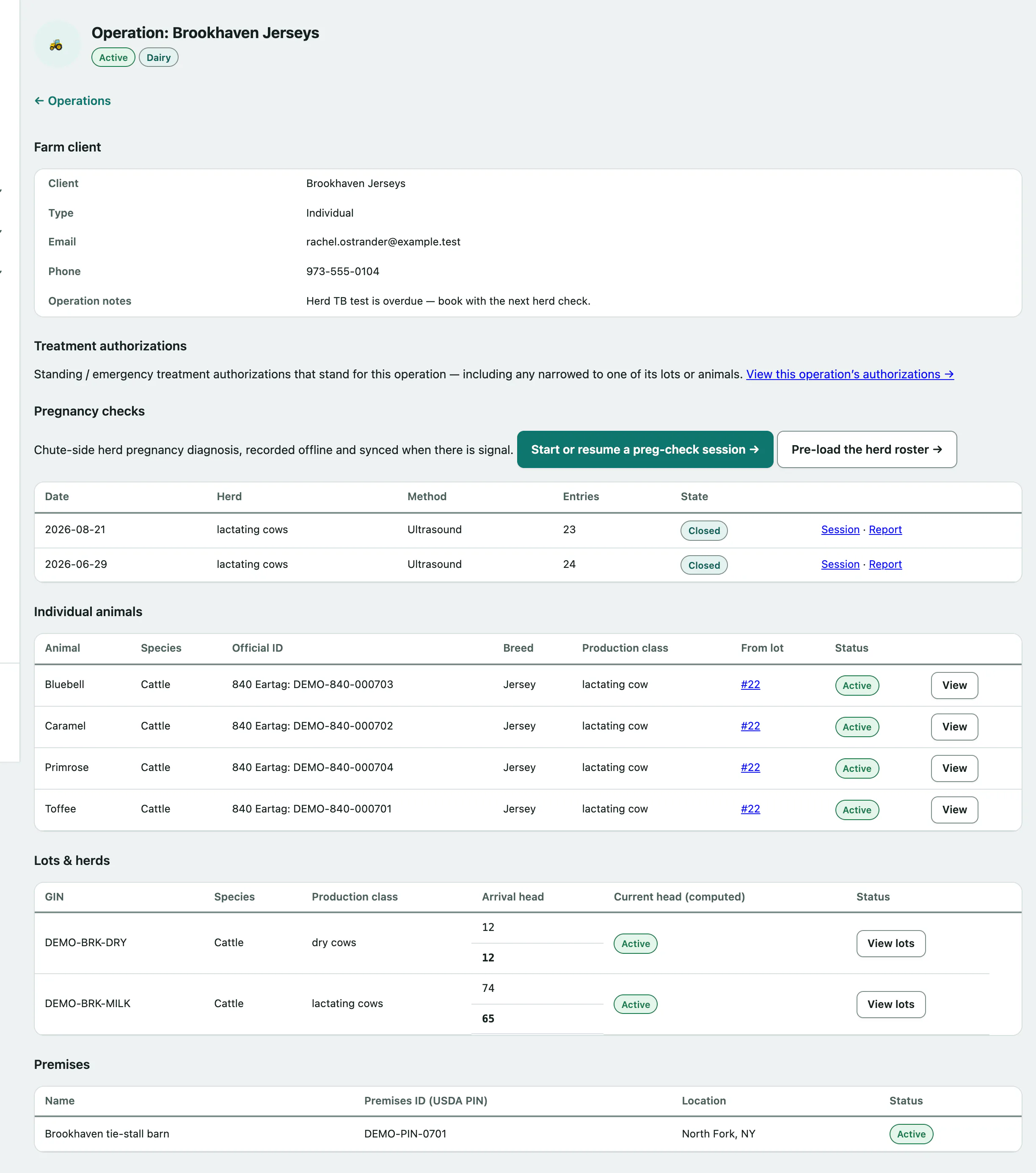
In the Operations list, select animals & lots on a row. The operation's page brings everything about it together:
- Farm client: who it's billed to and how to reach them.
- Treatment authorizations: a link to the authorizations that stand for this operation (see Record a treatment authorization).
- Pregnancy checks: start or resume a preg-check session, pre-load a herd roster, and open past sessions and their reports (see Run a preg check at the chute).
- Individual animals: animals tracked one by one. Select View to open one (see Track an individual animal).
- Lots & herds: groups of animals managed as one unit (see Manage animal lots).
- Premises: the sites registered to it.
The same row also has links to the operation's authorizations and contracts.
Give a producer portal access
Producers can see their own herd records, withdrawal dates and treatments in the client portal. By default, front-desk coordinators and practice managers can send the invitation.
A portal account signs in one named person, so the farm client needs a first and last name and an email address on file. A business-type client can't be invited as it stands: add the contact person's name to the record, or invite them from their own farm-client record.
- Select Portal on the client's row. The Portal access panel opens.
- Select Invite to the portal.
Vivetra emails them a one-time link to choose their own password. The link works once and expires in seven days. The panel also shows it once under Invitation link — shown once, so you can read it to them if the email doesn't arrive. If they've already been invited, the button reads Send a new invitation, and sending one cancels the old link.
The panel shows the account's status, the email they sign in with, when they last signed in and whether two-factor sign-in is on. From there you can also:
- Revoke portal access: blocks sign-in and cancels any invitation or reset link already sent. If you think their password is compromised, revoke, then invite again.
- Sign out everywhere: signs them out of every device but keeps their password.
- Clear sign-in lockout: shown when they've been locked out after too many attempts.
- Restore portal access: shown after a revoke. They sign in with the password they already had.
Working without signal
The client, operation and premises forms keep working when you lose signal on a farm. Changes you save are queued on the device and sync when you reconnect. If someone else changed the same record in the meantime, Vivetra shows a sync conflict and asks you to choose Keep my version (overwrite server) or Discard my changes.