
Hospital
Keep an anesthesia record
On this page
The anesthesia record is the sheet for a procedure under anesthesia during a hospital stay: the procedure and ASA status, the key times from premedication to recovery, a timeline of events, and the vitals you read off the monitor. A stay can have more than one anesthesia record, one per procedure.
Veterinarians can do everything here. Recording events and vitals needs flowsheet charting access; creating a record and editing its plan needs clinical authoring or ordering access. Without either you see the record read-only.
Open the anesthesia record
Open it from the stay's Flowsheet (Anesthesia record →), or from the End Stay screen:
- Select Anesthesia record at the top of the stay's End Stay screen.
- Under Anesthetic events on this stay, select Open next to the procedure. Its sheet opens below the list.
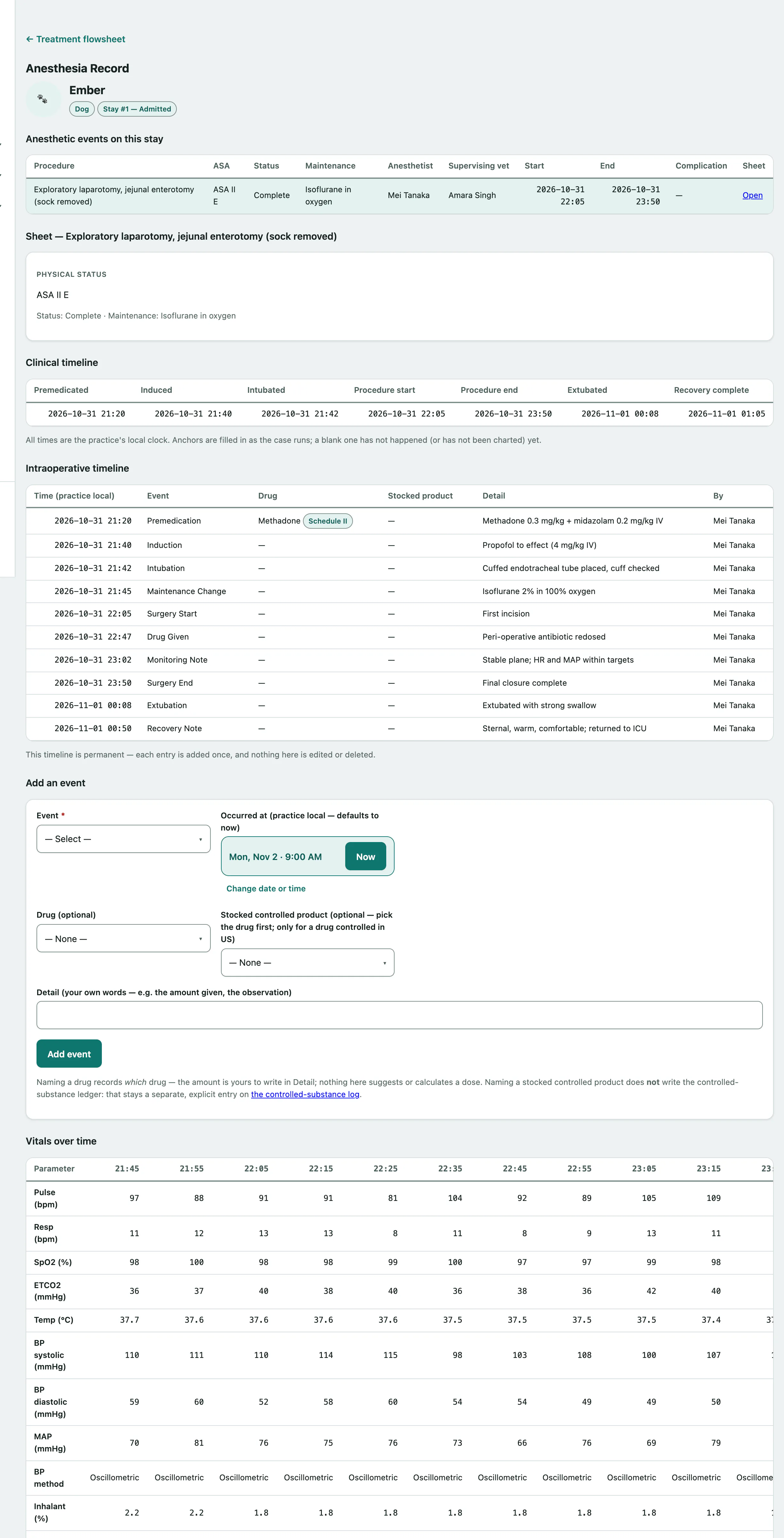
Each row in the list shows the procedure, ASA status, record status, maintenance agent, anesthetist, supervising vet, start and end times, and whether there was a complication.
Start a new anesthesia record
- Under Start a new anesthesia record, enter the Procedure, for example "exploratory laparotomy".
- Choose the ASA physical status, from ASA I to ASA V, and tick Emergency modifier (E) if it applies.
- Select Create anesthesia record.
You can also fill in the anesthetist, supervising veterinarian, Maintenance agent, Anesthesia consent attestation and Notes before you create it.
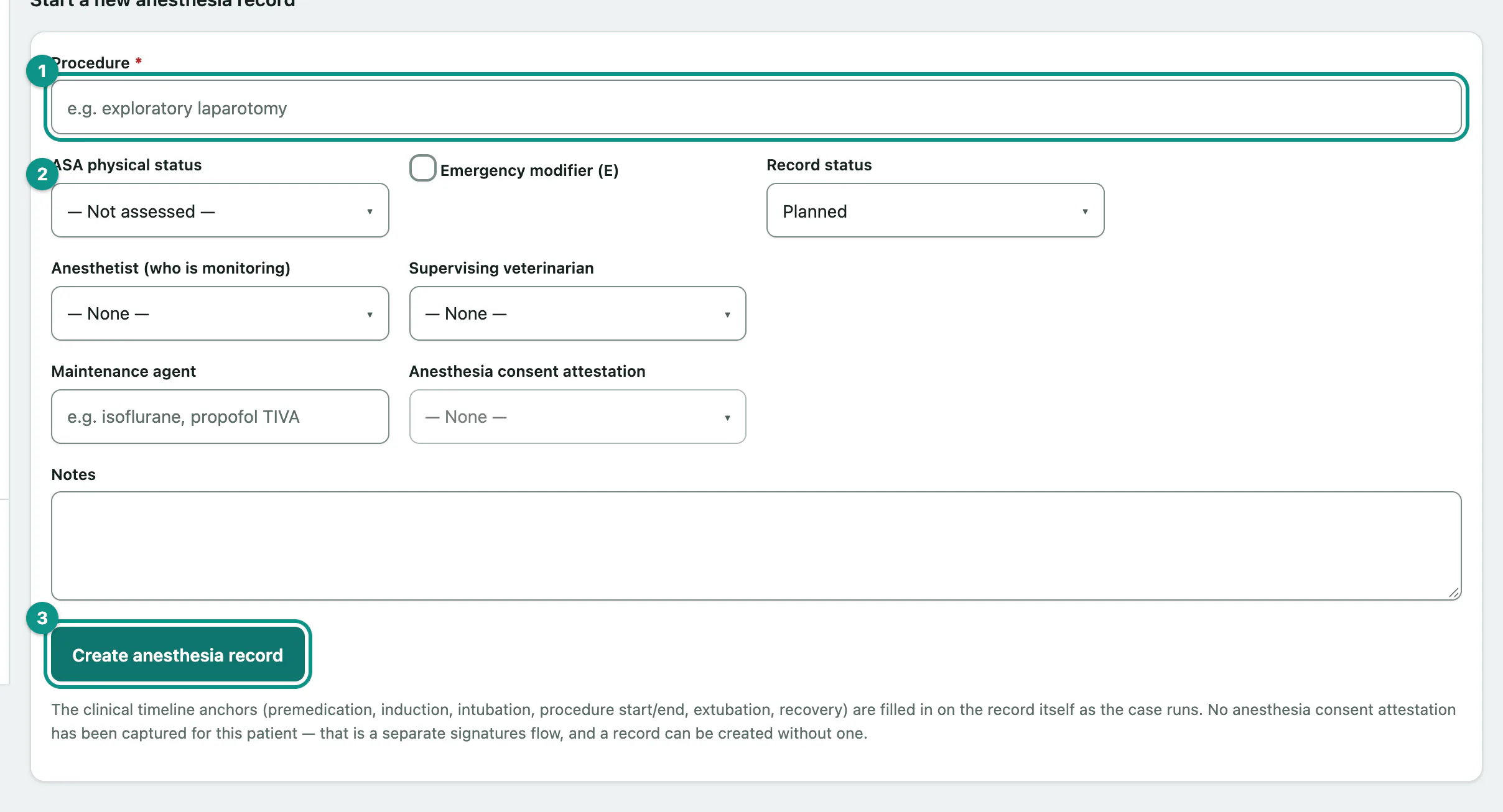
Creating the record posts an update to the owner's portal saying a procedure has been scheduled. The procedure description itself isn't shared with the owner.
You can create a record without a consent attestation. Consent is captured separately through signatures.
Chart during the procedure
The Sheet shows the physical status, a Clinical timeline of key times, the Intraoperative timeline of events, and Vitals over time as a grid with one column per reading.
Add an event
- Under Add an event, choose the Event, such as Premedication, Induction, Drug Given, Fluid Bolus or Complication.
- Check Occurred at (practice local — defaults to now), and choose a Drug (optional) if one was given.
- In Detail (your own words — e.g. the amount given, the observation), write what happened.
- Select Add event.
Naming a drug only records which drug it was; write the amount in the detail. Naming a stocked controlled product doesn't make a controlled-substance register entry. Record that separately in the controlled-substance log.
Events are permanent. They can't be edited or deleted.
Record vitals
- Under Record vitals, enter the readings you took, such as Pulse (bpm), Respiration (bpm), SpO2 (%), ETCO2 (mmHg), blood pressure and Temperature (°C).
- Check Recorded at (practice local — defaults to now).
- Select Record vitals.
Leave anything you didn't measure blank. A blank is honest; a zero isn't. These readings also appear on the stay's flowsheet.
Update the plan and key times
Under Anesthesia plan & record you can edit the procedure, ASA status, anesthetist and supervisor, and fill in the key times as the case runs: Premedicated, Induced, Intubated, Procedure start, Procedure end, Extubated and Recovery complete. Fill in the times that have happened, then:
- Set the Record status: Planned, In Progress, Recovery, Complete or Aborted.
- Select Save anesthesia record.
When you first fill in Procedure start or Procedure end, the owner's portal is updated to say the procedure has started or is complete. Correcting a time later doesn't send another update.