
Vet Practice
Manage a booked appointment
On this page
Each appointment has its own screen where you check the patient in, confirm, start the visit, reschedule, cancel or record a deposit. Open it from the Schedule by selecting the appointment and then Open full record → (see Book an appointment).
What the screen shows
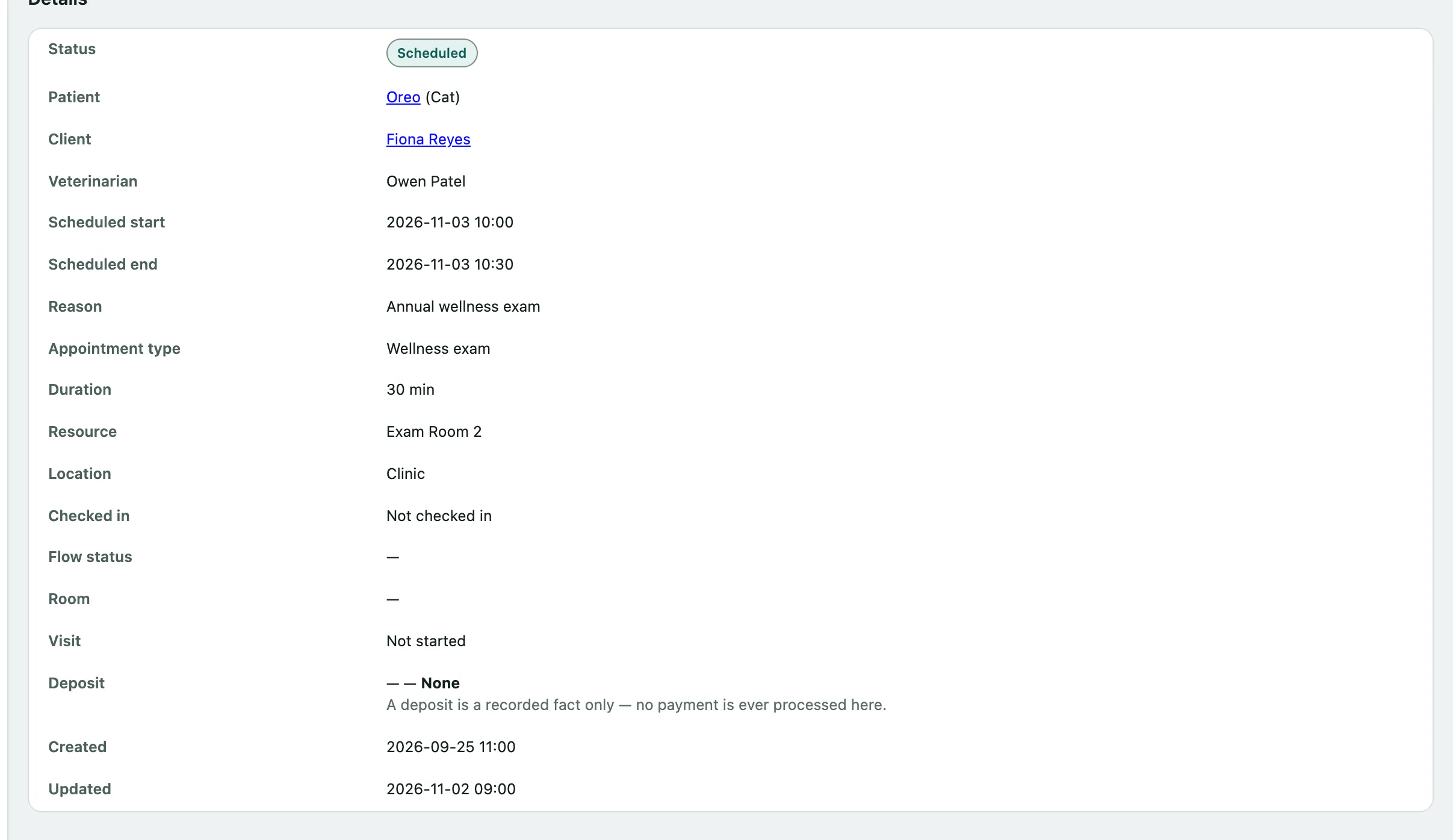
Details lists the status, patient, client, vet, start and end times, reason, appointment type, room or equipment (Resource), location and whether the patient has checked in.
Under the status you'll see who confirmed it. Confirmed by the client on means the client used their own confirm link. Marked confirmed by staff — the client has not confirmed this themselves. means someone at the practice confirmed it for them.
If the client checked in from the client portal, Checked in says The client tapped “I'm here” in the portal. and shows any note they left about where to find them.
Two more sections appear only when there's something to show:
- What the owner told us holds the client's answers to the pre-visit questions in the portal: why they're coming in, current medications, appetite, drinking and concerns. These are the owner's own words and aren't part of the medical record. The client can't see a reply here, so call them if something needs answering.
- Client confirmation history lists every time the client's confirm link was used, including attempts that didn't go through. Those clients saw a page asking them to call the practice.
Move an appointment along
The buttons under Actions change with the appointment's status, so you only see the ones that apply.

- When the patient arrives, select Check in (arrived).
- If the client has confirmed by phone, select Confirm. This only shows while the appointment is scheduled.
- When the vet is ready, select Start visit (creates the encounter, sets in progress). The appointment becomes in progress.
- Write up the visit from SOAP note, and send the owner home with Discharge (see Write discharge instructions).
- When everything's done, select Mark completed.
If the patient never turns up, select Mark no-show instead. You can do this while the appointment is scheduled or confirmed.
Reschedule
You can reschedule while the appointment is scheduled or confirmed and the visit hasn't started.
- Under Reschedule, set the New start date and time.
- Set the New end date and time.
- Select Reschedule.
If the vet or the room is already booked at the new time, or the vet isn't working then, you'll see a warning listing the clashes. Change the time, or select Reschedule anyway to go ahead.
If the client had already confirmed, rescheduling sets the appointment back to scheduled and clears their confirmation. They're asked to confirm again with their next reminder.
Cancel
- Under Cancel, choose a Reason: Client Cancelled, No Show, Rescheduled, Deceased or Other. You can't cancel without one.
- Select Cancel appointment.
Fill a freed slot from the waitlist
When you cancel or mark a no-show on an appointment that hasn't happened yet, the screen says This slot is now free. and Fill this freed slot from the waitlist lists pending waitlist requests that could take it. These are requests for the same appointment type (or none given) wanting a time within 7 days of the slot (or any time), most urgent first.
Call the person on the request first.
- Select Offer this slot next to their request. It's marked as offered so the rest of the team can see.
- Select open the request in the message that appears, and book it from the waitlist (see Use the appointment waitlist). The booking form there is already filled in with this slot's times.
Nothing is booked or held, and no one is messaged, until you book it from the waitlist.
Record a deposit
The deposit section is a written record only. Vivetra never takes a card payment here, and you should never type card details into the note.
- In Amount, enter the deposit. Leave it blank if there's none.
- Choose its Status: None, Held, Applied, Forfeited or Refunded.
- In Note (how/when collected or returned — never card data), say how and when it was taken or returned.
- Select Save deposit record.
Who can make changes
Anyone signed in can view an appointment. Front desk staff, vets and practice managers can change it. If you don't see Actions, your role can't; ask your practice manager.