
Hospital
Manage referring practices and vets
In Vivetra: Hospital › Referring Contacts
Referring Contacts is your list of the practices and vets who send you cases. Add them here once, then pick them when you record a referral.
Anyone can see the list. Adding and editing needs referral-management access, which veterinarians and practice managers have.
- Select Referring Contacts in the Hospital menu.
The screen has two lists: Referring Practices, with phone, email, city, state and status, and Referring Veterinarians, with their practice, email, phone, licence number and status.
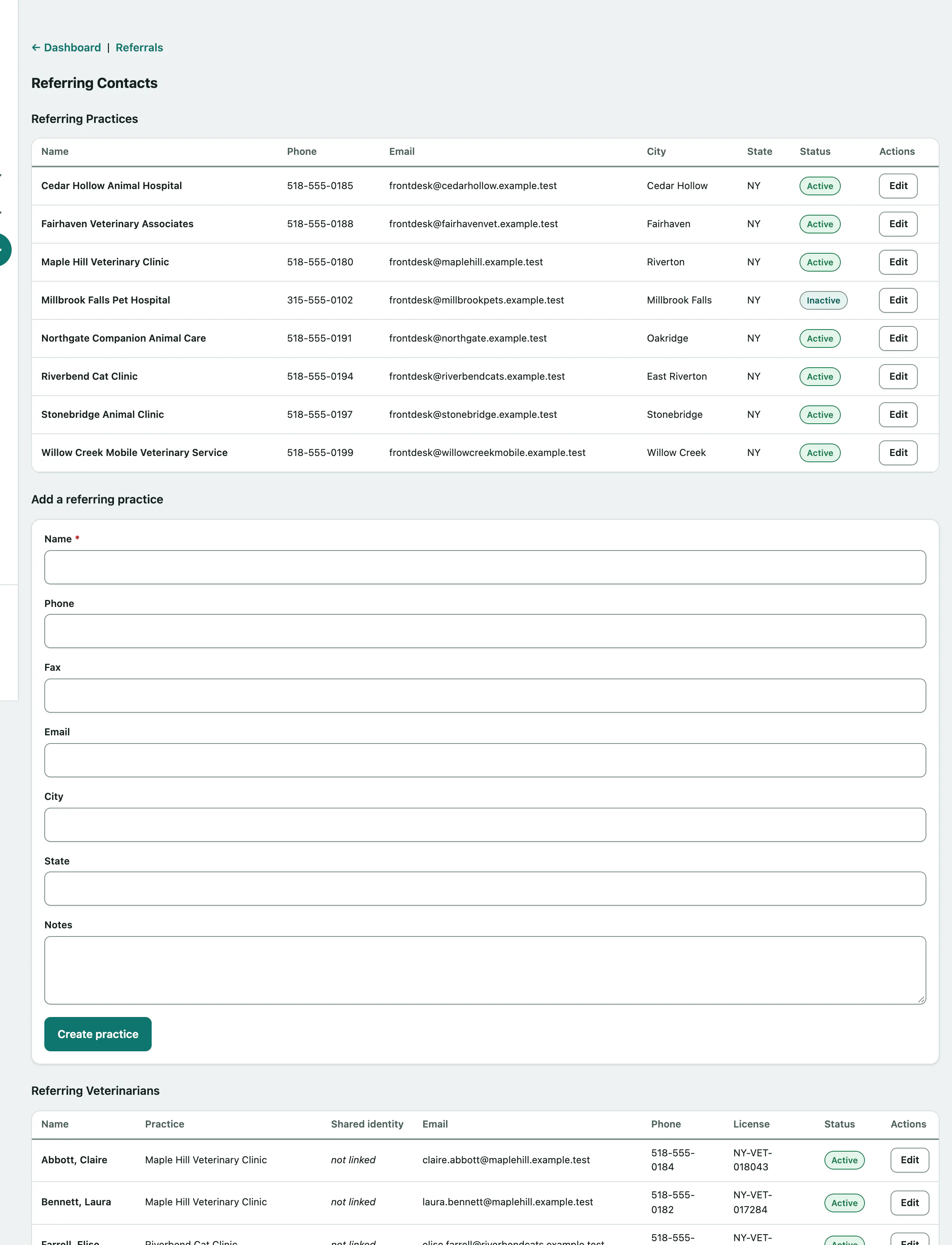
Add a referring practice
- Under Add a referring practice, enter the practice Name. It's required.
- Enter the Phone and Email.
- Select Create practice.
You can also record the Fax, City, state and Notes.
Edit a practice
Editing a practice also lets you name a liaison: the member of your staff who looks after that relationship.
- Select Edit next to the practice.
- Make your changes. Choose the Liaison (staff owner of this relationship) and add any Relationship notes.
- Select Save changes.
Untick Active for a practice that no longer refers to you.
Add a referring veterinarian
- Under Add a referring veterinarian, enter their First name and Last name.
- Choose their Practice.
- Enter their Email. Reports you send them, and portal links you choose to email, go to this address.
- Select Create veterinarian.
You can also record their Phone, License number and Notes. If the vet is also known elsewhere in Vivetra, for example as a client of your general practice, enter their id in Linked core-person id (optional — a known/repeat human, e.g. this rDVM is also a vet-practice client). The list shows them under Shared identity.
Edit a veterinarian
- Select Edit next to the vet and make your changes. Untick Active if they've stopped referring.
- Select Save changes.
Next, you can give a referring vet their own portal access to send referrals and read your reports (see Give referring vets portal access).