
Boarding · Boarding Billing
Bill a boarding stay
In Vivetra: Boarding Billing › Boarding Invoices
On this page
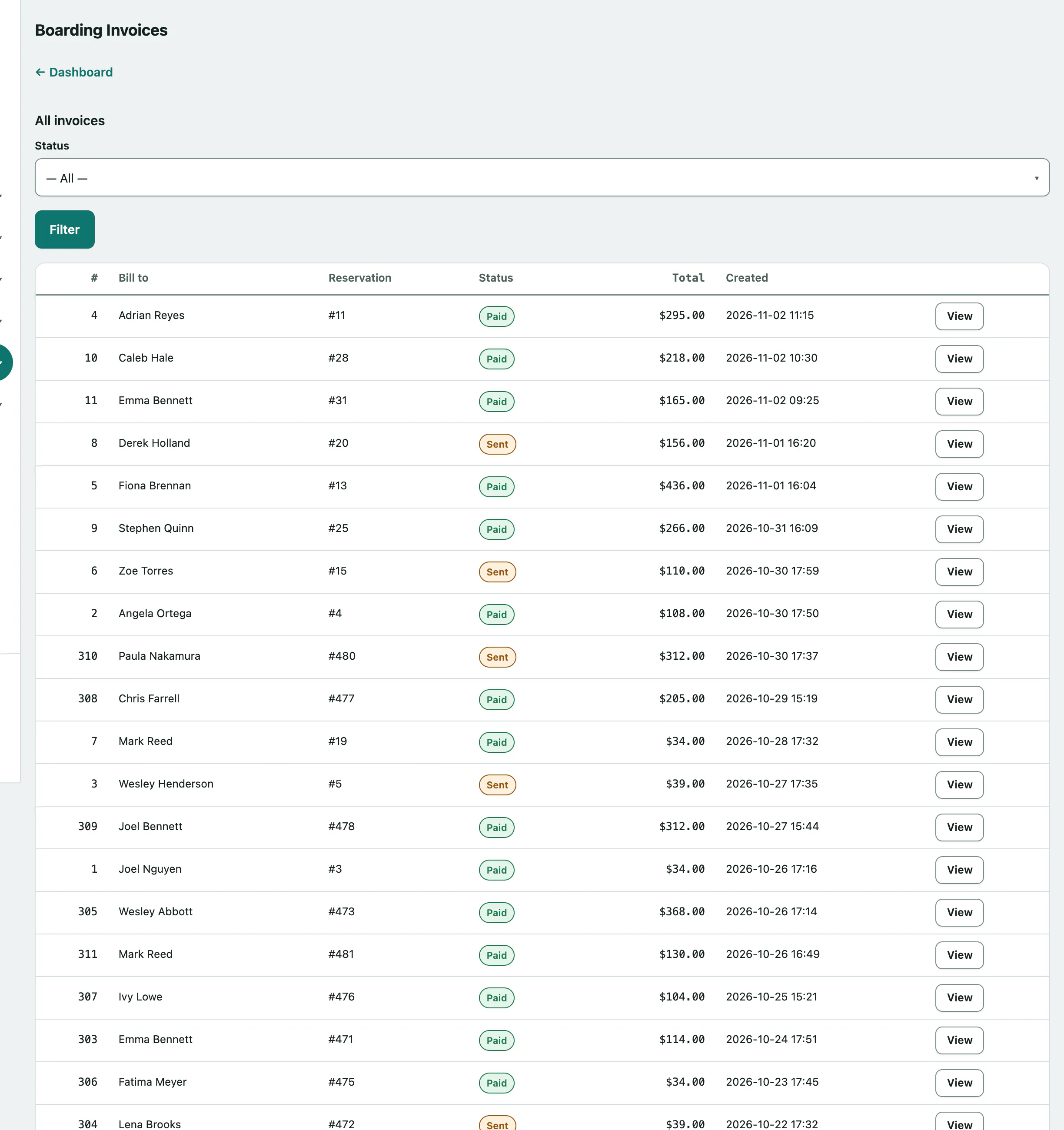
Boarding Invoices is where you bill a stay, take or record payment, and handle refunds. An invoice starts as a draft, goes out as sent, and ends paid or void.
You need billing permission to create invoices and add charges. Marking an invoice paid, voiding it and recording credits are practice-manager tasks.
Create a draft invoice
- In the menu, open Boarding Billing and select Boarding Invoices.
- Under Create a draft invoice, choose who to Bill to (guest owner).
- Choose the Linked reservation (optional — leave as none for a general account charge). It must belong to the owner you picked.
- Select Create draft invoice.
The new draft opens. An invoice with no reservation is an account charge, and you bill it by hand.
Add the charges
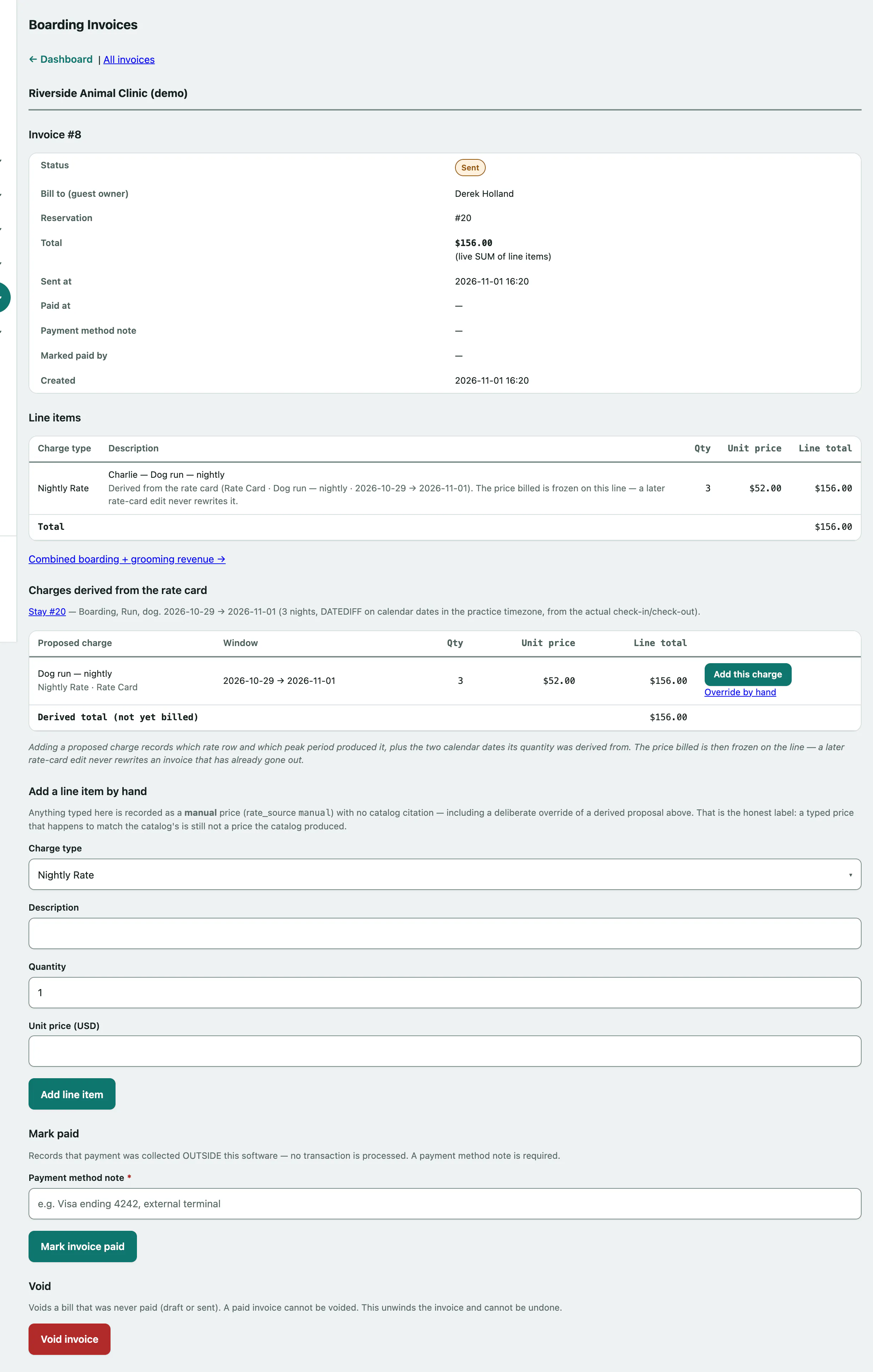
For an invoice linked to a stay, Charges derived from the rate card works out the nightly or daycare charge from your rates (see Set boarding rates, policies and add-ons). The night count uses the drop-off and pick-up calendar dates, and a stay that crosses a peak period shows one proposed line per window. Nothing is billed until you add it.
- Select Add this charge next to each proposed charge you want to bill.
If no rate matches the stay, you'll see a message saying so instead. Add a matching rate, or bill by hand.
To bill anything else, or to change a proposed price, use Add a line item by hand. Override by hand next to a proposed charge fills this form in for you.
- Choose the Charge type, then enter the Description, Quantity and Unit price.
- Select Add line item.
Send the invoice
When the bill has gone to the owner, record it so A/R aging has a sent date. Nothing is emailed from this button.
- Under Mark sent, select Mark invoice sent.
Take payment
If your practice is set up to take card payments, Collect payment offers two ways to charge through your Stripe account:
- Card, entered here: select Collect card payment and enter the card the owner reads to you or hands over.
- Payment link: select Create payment link, then Copy link and send it to the owner. Check if the guest owner paid refreshes the status.
The invoice only changes once the payment actually succeeds.
Record a payment taken another way
- Under Mark paid (or Mark paid another way if you take cards), enter a Payment method note, such as "Cash" or "Check #1050". It's required.
- Select Mark invoice paid.
This records the payment only; no money is processed. If prepaid credit is already applied, the note tells you how much the client still owes. Tick the box to return the credit to their account if they paid the full amount another way (see Sell and track prepaid credit).
Void an invoice
Only a draft or sent invoice can be voided, never a paid one.
- Under Void, select Void invoice and confirm.
Paid and void invoices show Invoice locked and take no new charges.
Refunds and credits on a paid invoice
If the invoice was paid by card through Stripe, Issue a Stripe refund sends real money back to the card. The Amount starts at the full total; lower it for a partial refund.
To record a refund or credit given outside Vivetra, use Record a credit or refund:
- Choose the Kind: Refund (money returned) or Credit (toward a future balance), and enter the Amount and Reason. Method note (how a refund was returned) is optional.
- Select Record credit/refund note.
The invoice stays paid at its original amount, and the note appears under Credit & refund notes.
Staff with financial-report access also see a link to combined boarding and grooming revenue on each invoice.