
Vet Practice · Vet Practice Scheduling
Use the appointment waitlist
In Vivetra: Vet Practice Scheduling › Appointment Waitlist
On this page
When the schedule is full, put the client on the Waitlist. When a slot opens up you can offer it to them and book it, and Vivetra shows you who's waiting each time an appointment is cancelled.
Open the waitlist
- Select Appointment Waitlist under Vet Practice Scheduling in the menu.
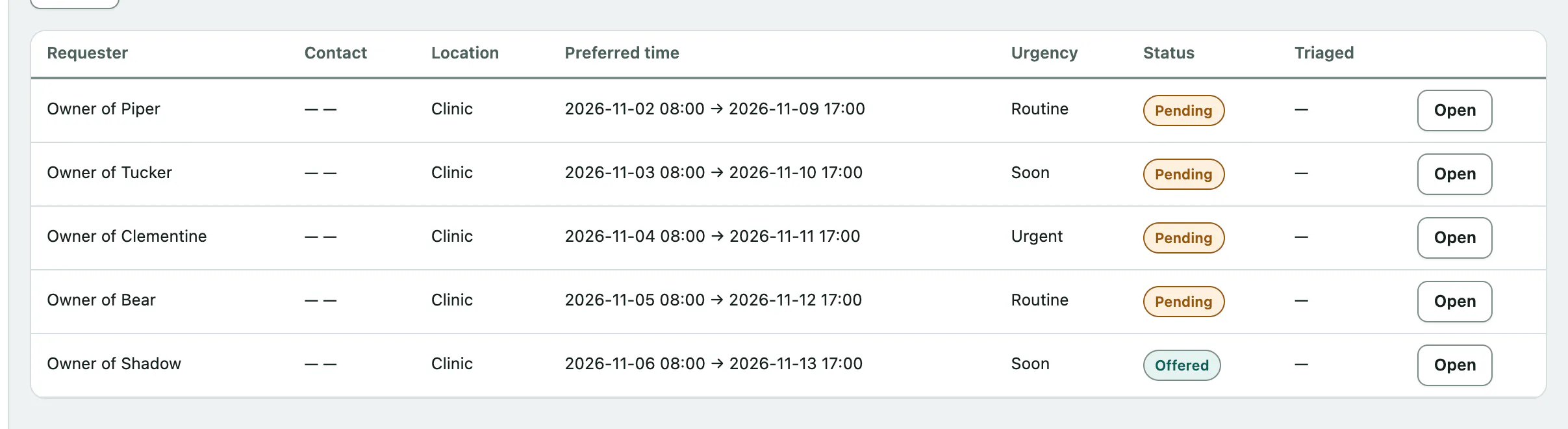
Requests shows the open requests (pending and offered) with each requester's contact details, location, preferred time, urgency, status and whether it's been triaged (✓). Use Status to see booked, declined or withdrawn requests instead.
Select Open on a row to see the request and act on it.
Add someone to the waitlist
Use Capture a new request, below the list, for a walk-in or phone request.
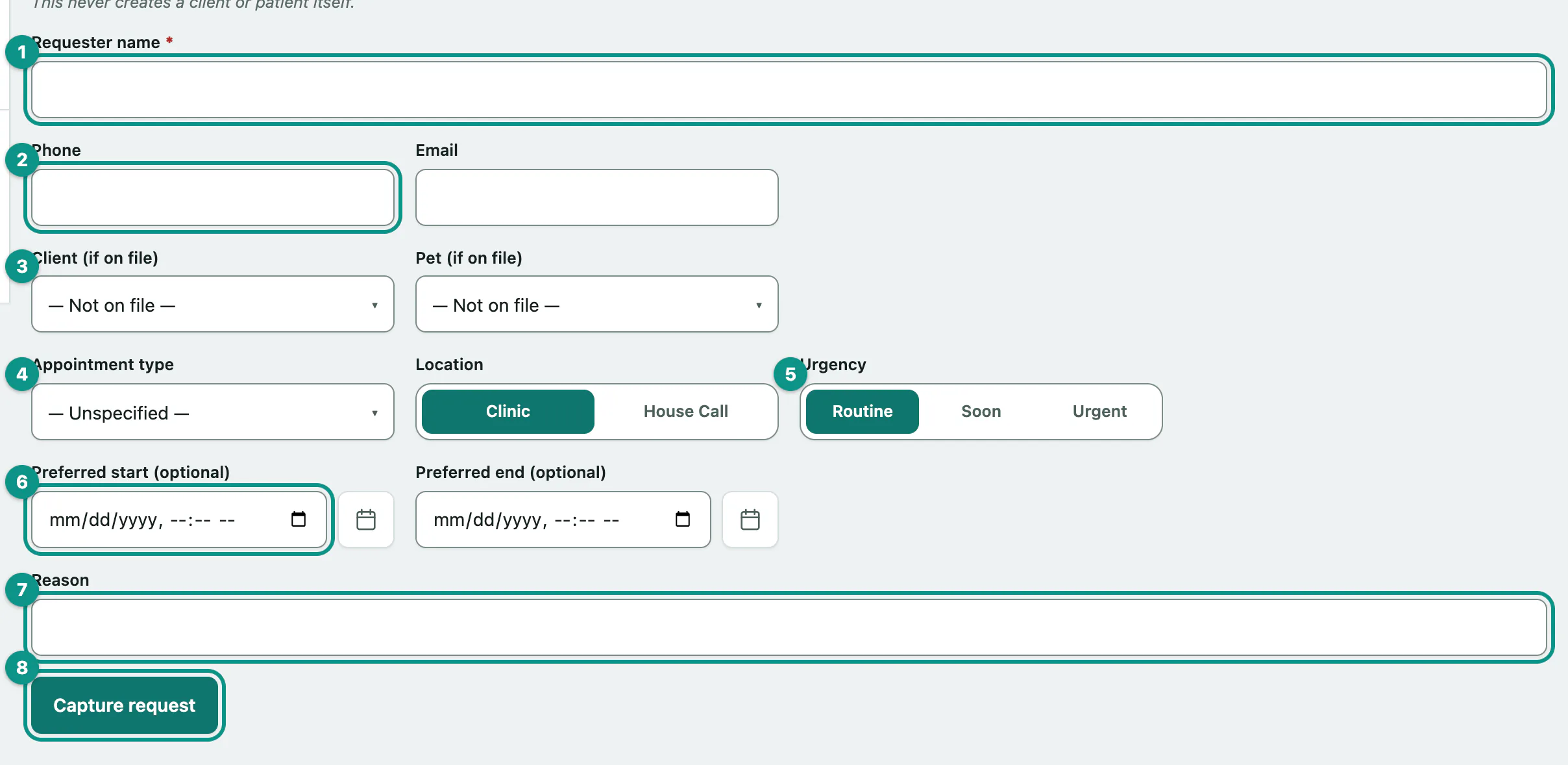
- Enter the Requester name.
- Enter their Phone or Email, so you can reach them.
- If they're already on file, choose them in Client (if on file) and their pet in Pet (if on file).
- Choose the Appointment type they need, if you know it.
- Set the Urgency: Routine, Soon or Urgent.
- If they want a particular time, fill in Preferred start (optional) and Preferred end (optional). Leave them blank for "call me when anything opens".
- Add a Reason.
- Select Capture request.
Capturing a request never creates an owner or pet record. Someone new can wait on the list by name and phone number, and you add their records before you book them (see Find or add an owner).
Work a request
The request's screen shows everything about it, including who added it and when.
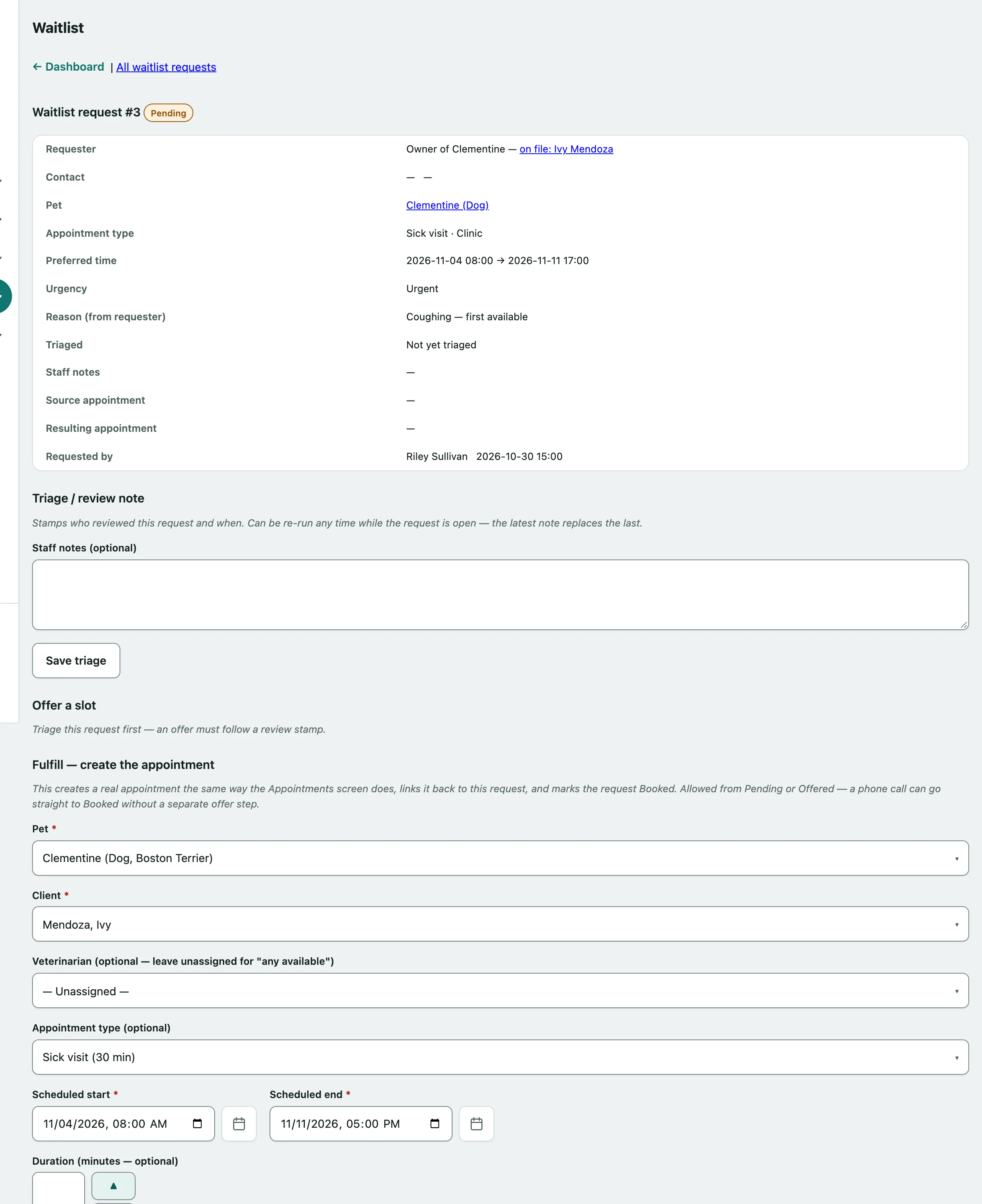
A request moves from pending to offered to booked. It can also be declined or withdrawn at any point. Booked, declined and withdrawn requests are locked.
Triage it
Triage records that someone has looked at the request.
- Add anything useful in Staff notes (optional).
- Select Save triage.
You can triage again while the request is open. The new note replaces the old one.
Offer a slot
Once a pending request has been triaged, select Mark offered after you've offered the client a time. This tells the team the client has been contacted. It doesn't book anything.
If the client turns the slot down but still wants to wait, select Back to pending. Offered requests aren't shown when a slot frees up, so this is what puts them back in line.
Book it
You can book straight from pending or offered. Booking creates a real appointment and marks the request booked. Under Fulfill — create the appointment:
- Choose the Pet.
- Choose the Client.
- Optionally choose a vet in Veterinarian (optional — leave unassigned for "any available").
- Check the Scheduled start and Scheduled end.
- Select Fulfill — create appointment.
The pet, client, type, location and reason are filled in from the request where it has them. The times are the request's preferred times, unless you came from a cancelled appointment (below), in which case they're that slot's times. You'll see View appointment → once it's booked.
Decline or withdraw it
- Decline (staff decision) when the practice won't book it.
- Mark withdrawn (requester backed out) when the client no longer needs it.
Each has an optional note.
When an appointment is cancelled
Cancelling a future appointment, or marking it a no-show, lists the pending waitlist requests that could take the slot on that appointment's screen (see Manage a booked appointment). Select Offer this slot there, then follow the link to the request. The request opens with a note saying which slot you're filling and the booking form filled in with that slot's times. All waitlist requests for this slot lists the other requests that suit it, and Whole waitlist goes back to everything. Nothing is held for anyone until you book.
Who can change the waitlist
Anyone signed in can view it. Front desk staff, vets and practice managers can add, triage, offer, book, decline and withdraw requests.