
Vet Practice
Record consents and attestations
On this page
Take a surgery, anesthesia or euthanasia consent for a visit, and record an emergency-treatment attestation when you had to treat without reaching the owner. Consent is captured on paper: you print it, the owner signs it, and you attach the scan.
Open the patient's chart and select Consents & attestations under Related records.
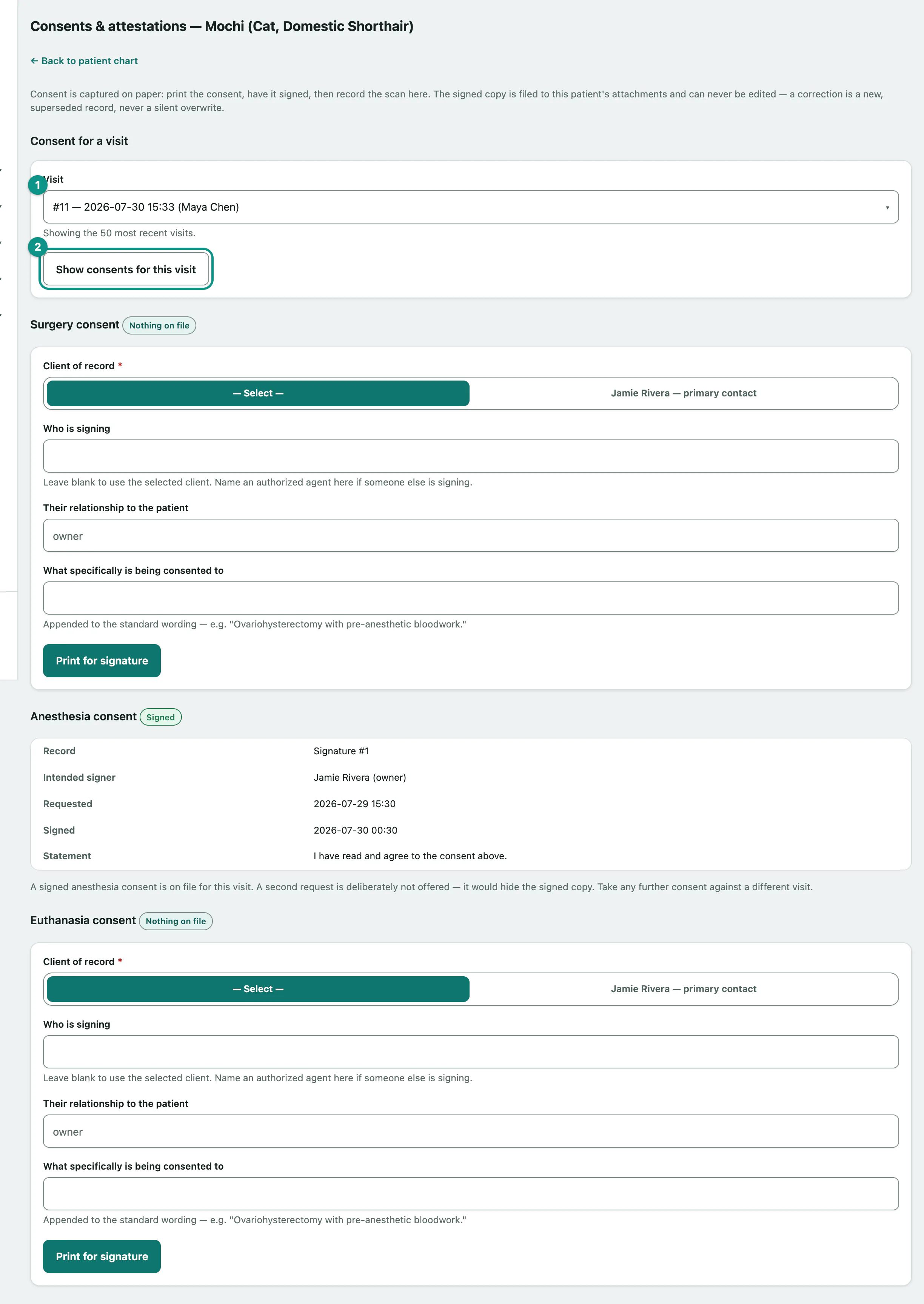
Anyone can see this screen and check what's on file. Only veterinarians can start, record or cancel a consent. Everyone else sees a note saying they have view-only access.
Take a consent for a visit
Surgery, anesthesia and euthanasia consents are always tied to a visit, so the visit has to be started first. If the patient has no visits yet, the screen says so.
- Choose the visit from Visit. The list shows the 50 most recent.
- Select Show consents for this visit.
The visit then shows a panel for each of Surgery consent, Anesthesia consent and Euthanasia consent, each with its status:
| Status | What it means |
|---|---|
| Nothing on file | No consent of that type for this visit. |
| Awaiting signature | Printed and waiting for the signed copy to come back. |
| Signed | The signed copy is filed. View and Download open it. |
| Request cancelled | The request was cancelled before it was signed. |
Print the consent
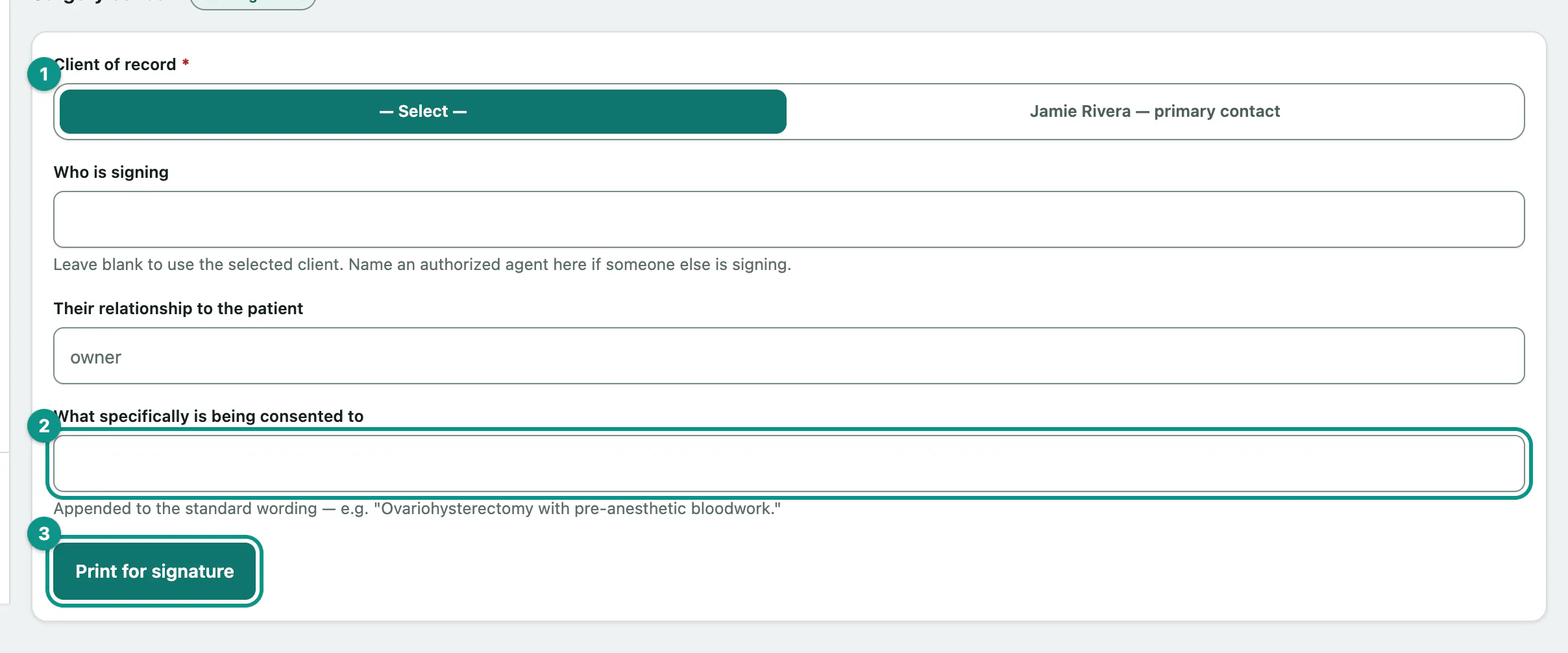
In the panel for the consent you need:
- Choose the Client of record the consent is being taken from.
- In What specifically is being consented to, describe the procedure, for example "Ovariohysterectomy with pre-anesthetic bloodwork". It's added to the standard wording.
- Select Print for signature.
- Select Open the printable consent.
- Select Print this consent.
Who is signing is optional: leave it blank and the selected client is used, or type an authorized agent's name if someone else is signing. Their relationship to the patient defaults to "owner".
The printed page has the patient, client, visit, the full statement being consented to, and lines for the signature, printed name and date.
Record the signed copy
When the signed page comes back, scan or photograph it, then in the same panel:
- Attach the file in Returned signed document. JPEG, PNG or PDF, under 25 MB.
- Select Record the signed consent.
If someone other than the intended signer signed, enter their name in Who actually signed (optional). Pick a staff member in Witnessed by (optional) if someone witnessed it. The signed copy is filed to the patient's attachments.
If the consent won't be signed after all, select Cancel this request instead. Nothing is filed.
You also can't start a new request while one is still Awaiting signature. Record or cancel that one first.
Record an emergency-treatment attestation
Use this when urgent treatment went ahead because you couldn't reach the owner. There's no owner signature: the attending vet attests, and the record of who you tried to call is the documentation. It isn't tied to a visit. Attending veterinarian is filled in with your name; change it if another vet is attesting.
- Under Record an emergency-treatment attestation, choose the Client who could not be reached.
- In Contact attempts, write who was called, at what times, and the outcome.
- Select Print attestation for signature.
The attestation appears in the table with a Print button. Once the vet has signed the printout, attach it in Signed attestation and select Record the signed attestation. Only one attestation per patient can be waiting for a signature at a time; Cancel this attestation request cancels it.
See everything on file
All consents on file at the bottom lists every consent and attestation for the patient, with the visit, status, signer, client, witness, who recorded it, and when it was signed. Copy opens the signed document.