
Boarding · Grooming
Manage grooming clients
In Vivetra: Grooming › Clients
On this page
Clients under Grooming lists everyone who brings a pet in for grooming. Each client's record holds their contact details, their pets, their standing grooming release, any per-pet price exceptions and handling needs, and their appointment, cancellation and invoice history.
Anyone can look clients up. Adding or editing a client needs grooming booking permission, which front desk and practice managers have.
Find a client
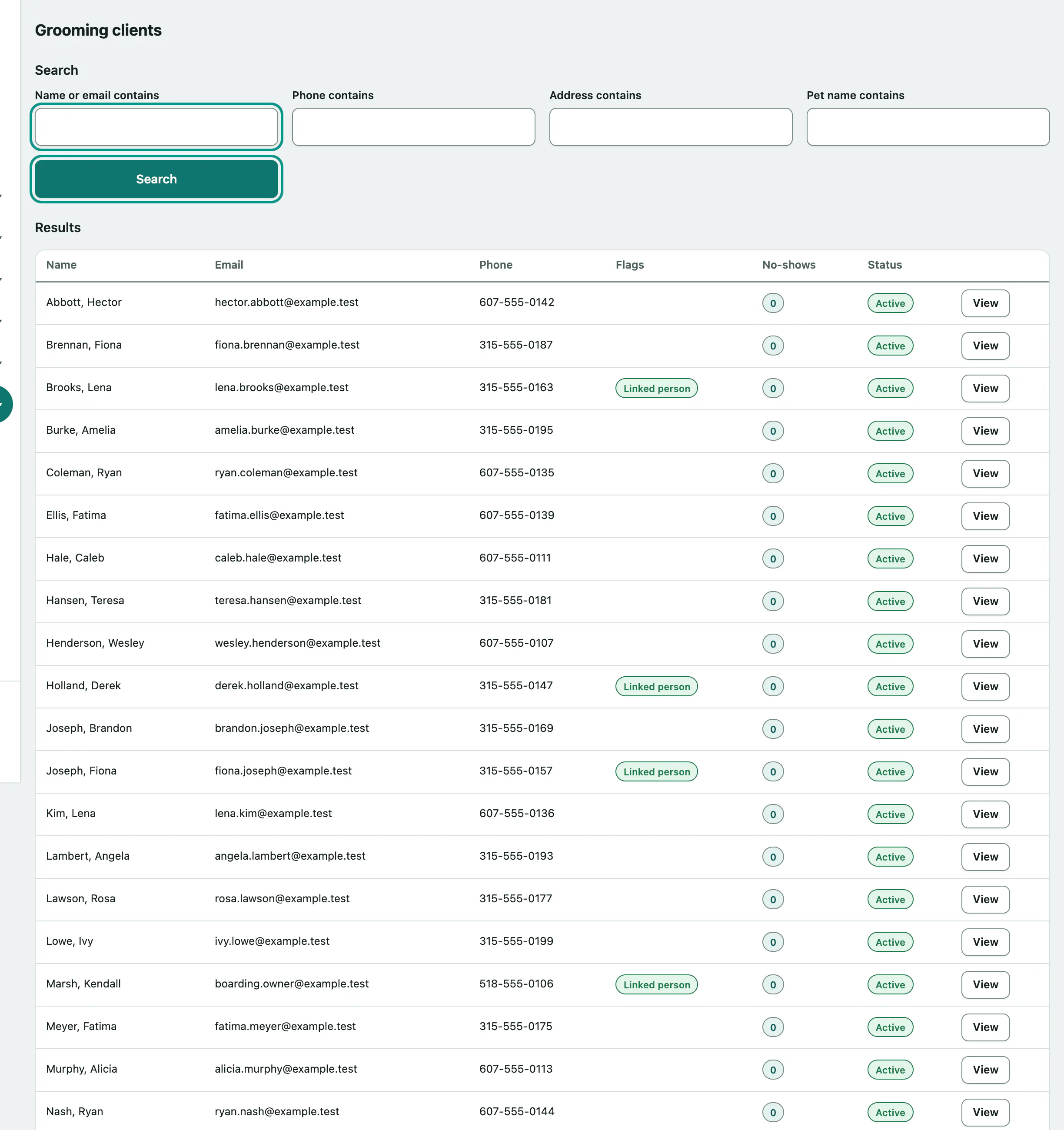
- In the menu, open Grooming and select Clients.
- Type in Name or email contains. You can also search by Phone contains, Address contains or Pet name contains.
- Select Search, then View on the client you want.
A Caution pill marks a client with a handling risk, and a banner at the top counts them. Linked person means the client is the same person as someone elsewhere in the practice, such as a boarding owner. The No-shows count turns amber, then red at three or more.
Add a client
If the client is already on file elsewhere in the practice, link them so they aren't duplicated.
- Under 1. Link to an existing person on file (optional), enter a name, email or phone in Find a person (name, email, or phone).
- Select Search people, then Use this person on the right match. The form below fills in from their record. If they're Already a client — open, open that record instead.
Then fill in the client's details:
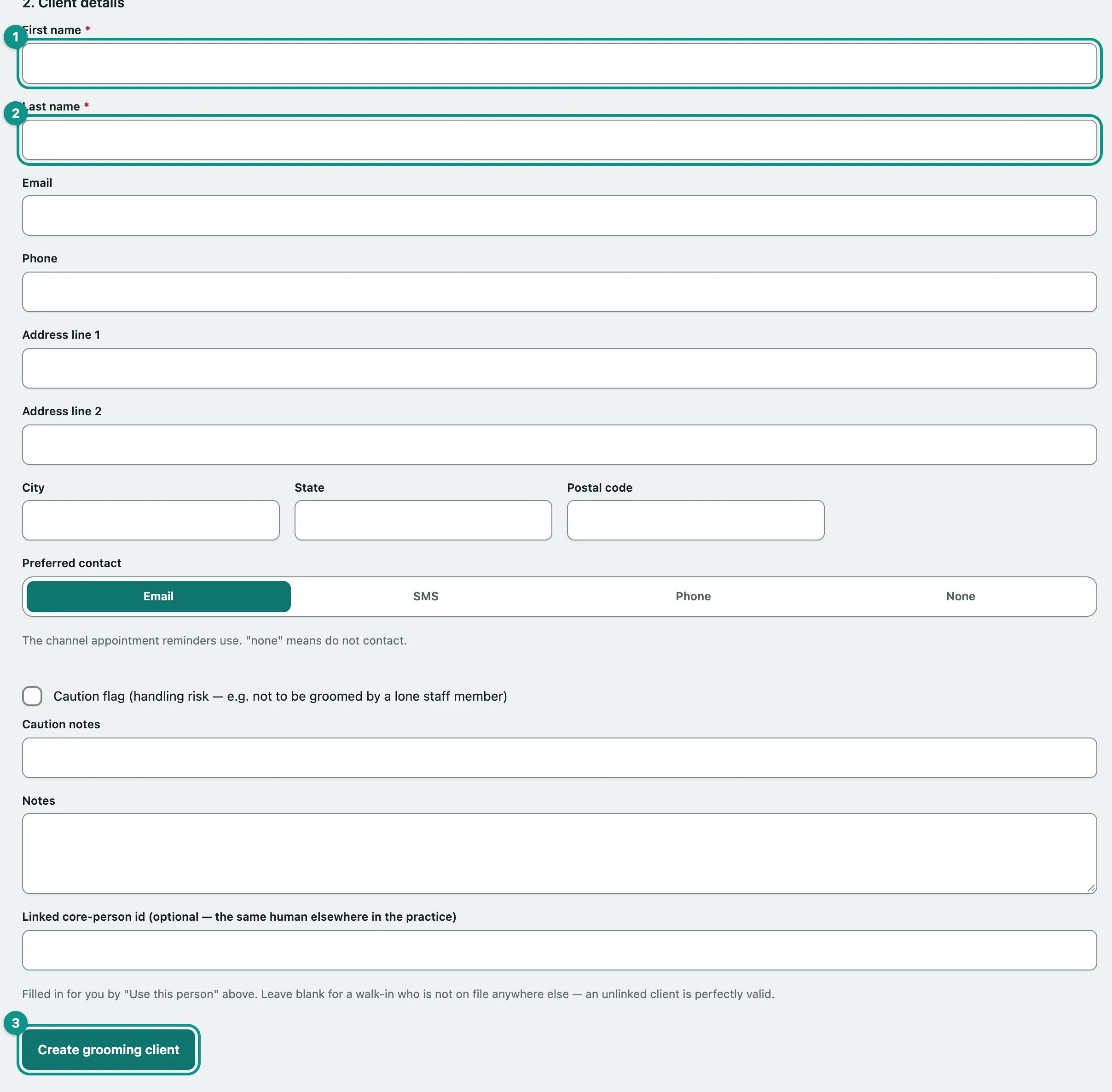
- Under 2. Client details, enter the First name.
- Enter the Last name. Email, phone, address, Preferred contact and notes are optional.
- Select Create grooming client.
Preferred contact is the channel appointment reminders use; None means don't contact them. Tick Caution flag (handling risk — e.g. not to be groomed by a lone staff member) and add Caution notes if the pet needs care handling.
A walk-in who isn't on file anywhere else can stay unlinked.
Link a pet
A client needs a pet linked before you can book them (see Book and run grooming appointments). The pet must already have a patient record.
Open the client and go to Link an existing pet.
- Choose the Pet. Pets of species your salon has services for are listed first, under Recommended (species this salon has services for).
- Select Link pet.
You can enter a Relationship, such as owner or co-owner, and untick Primary contact for this pet if they aren't. Unlink in the Pets table removes the link.
Take a general grooming release
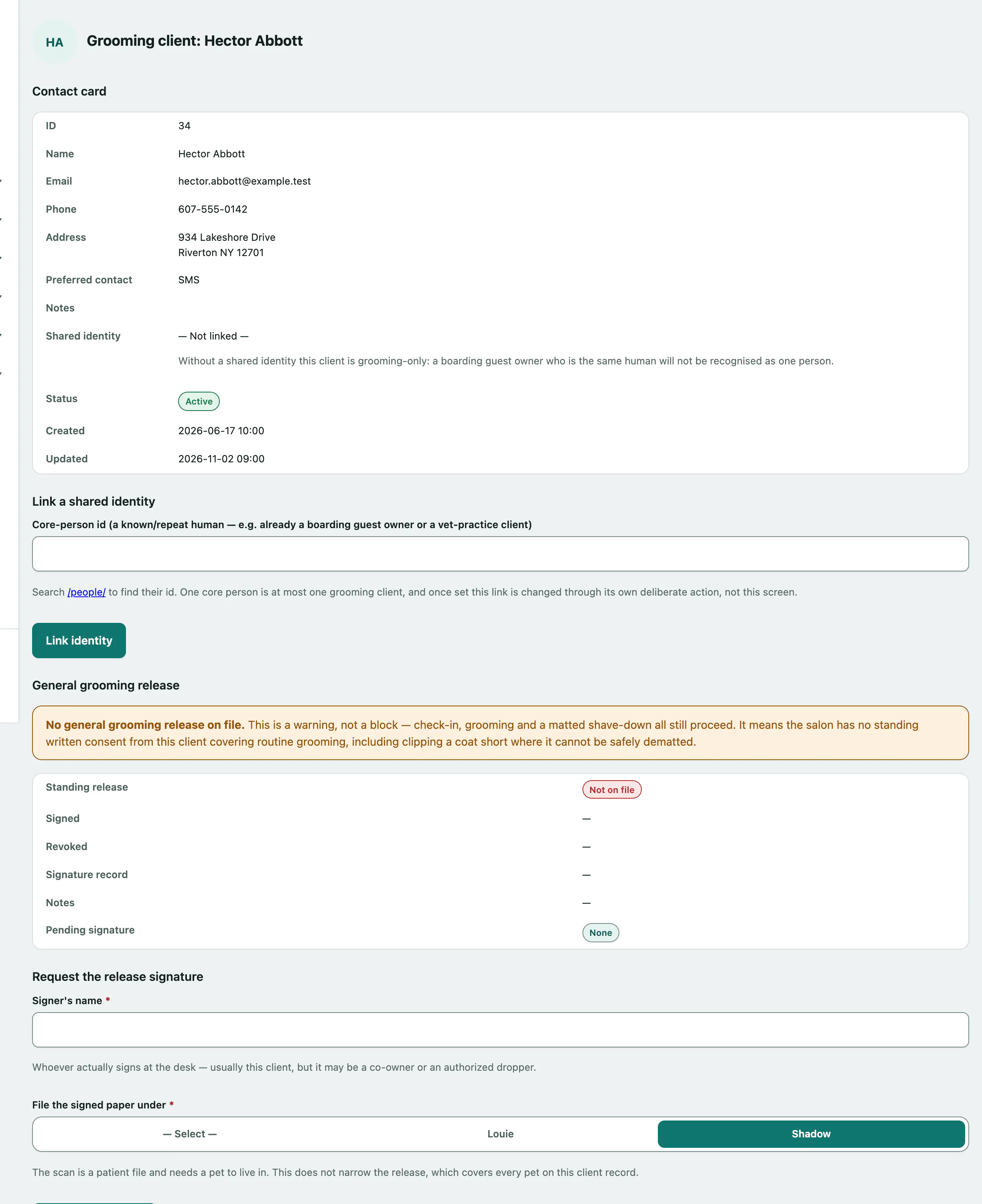
A standing general release is the client's written consent for routine grooming, including clipping a coat short when it can't be safely dematted. Without one you'll see No general grooming release on file. It's a warning, not a block.
- Under Request the release signature, enter the Signer's name and choose which pet to File the signed paper under. The release still covers every pet on the client.
- Select Print for signature and have the client sign the printout.
When the signed paper comes back, scan it and use Record the returned, signed release to upload it with Record signed release. Later you can Re-sign the release or Revoke release from the same section.
Handling needs and price exceptions
Under Per-pet exceptions and handling needs, each linked pet has its own card.
A handling need is something about the pet, like being a cat or an aggressive dog, that a groomer must be able to handle. When the pet is booked with a groomer who doesn't hold that capability, the booking warns (see Set up grooming stations and groomer shifts › Groomer capabilities).
- On the pet's card, pick or type the Handling need, and optionally add Notes.
- Select Add handling need.
An exception is a standing price or duration for this one pet that overrides the catalog's breed and size band. Setting one needs grooming-settings permission, usually the practice manager.
- On the pet's card, enter the Exception price, Exception duration (minutes) or both, and Why this pet is an exception.
- Select Save exception.
Edit contact details
At the bottom of the client's record, change anything under Edit contact details, then select Save changes.
The record also shows Upcoming appointments, Appointment history, the Cancellation and no-show record with your cancellation policy, and Open invoices (see Bill a grooming appointment).