
Client portal · Vet Practice
Update your details and contact preferences
In Vivetra: Your details
Your details is where you keep your contact details up to date and choose how the practice gets in touch. Changes take effect straight away.
Update your contact details
- Select Your details in the portal menu.
- Change any of Email address, Phone number, Address, Address line 2, City, your state or region, and Postal code.
- Choose How should we reach you?: Email, Text message, A phone call or Please don't contact me about routine things.
- Select Save my details.
You'll see Saved. If your pets are on more than one record at the practice, the change applies to all of them.
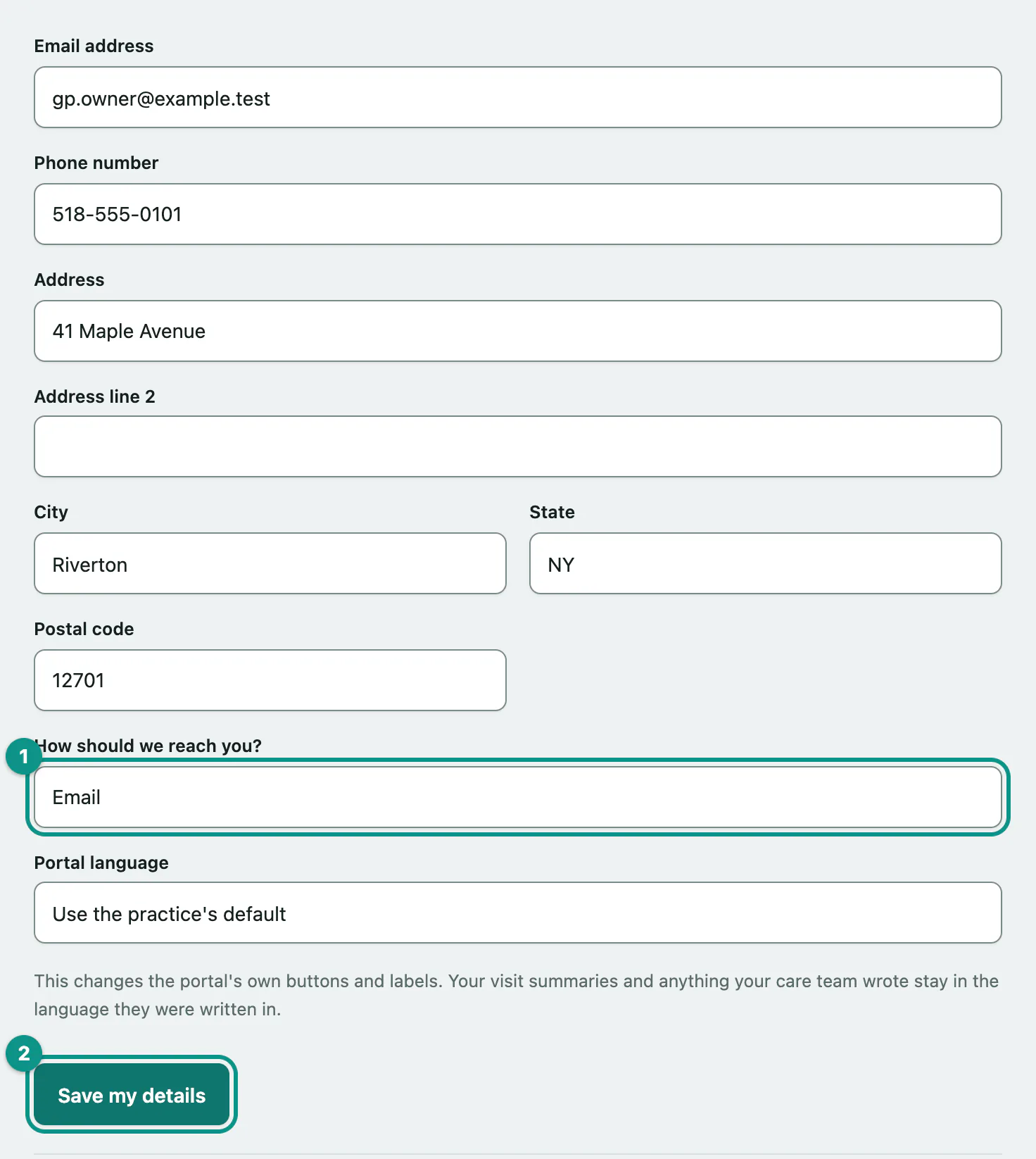
Portal language changes the portal's own buttons and labels. Visit summaries and anything your care team wrote stay in the language they were written in. Choose Use the practice's default to go back.
Choose which messages you get
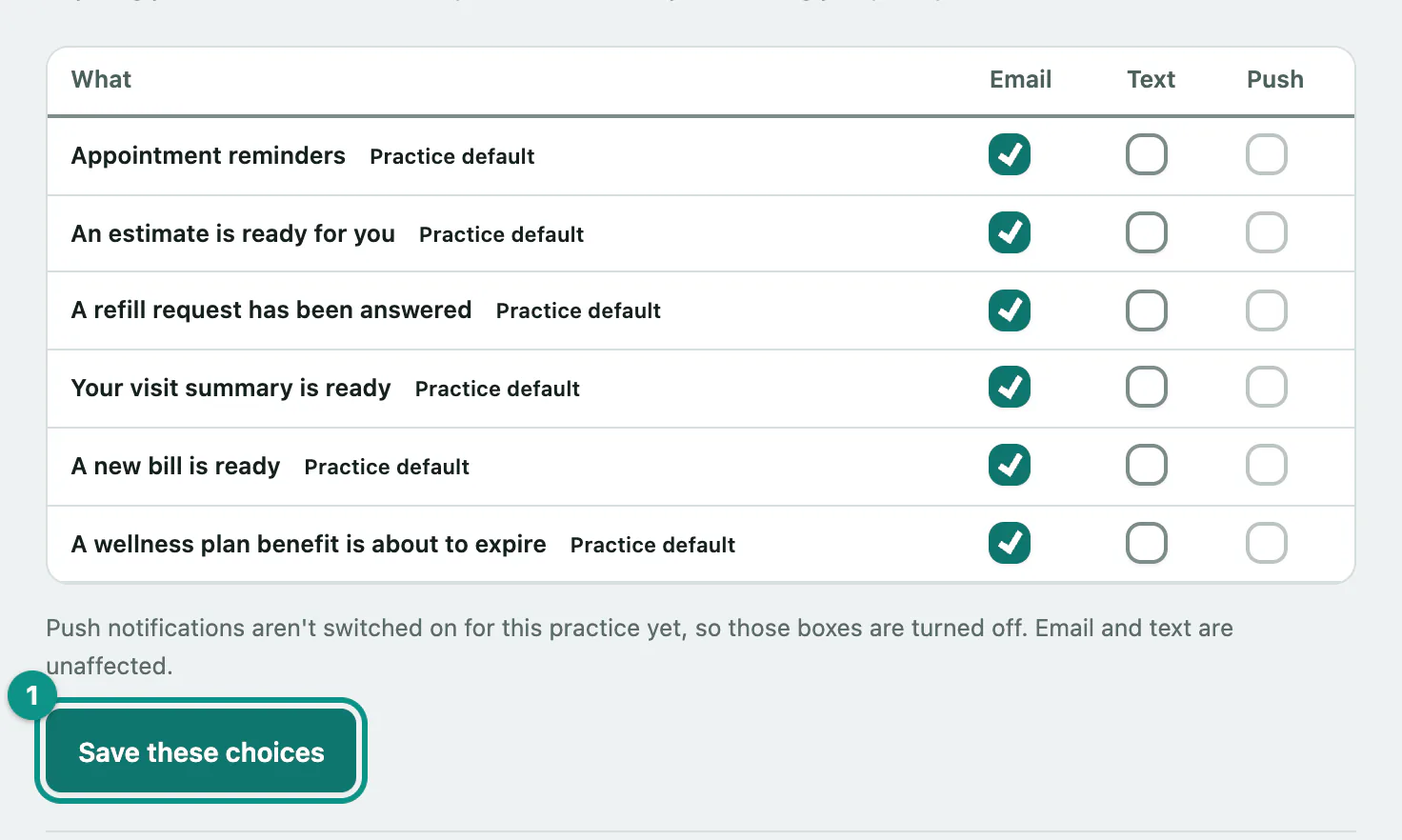
Under How you'd like to hear from us, tick Email, Text or Push for each kind of message:
- Appointment reminders
- An estimate is ready for you
- A refill request has been answered
- Your visit summary is ready
- A new bill is ready
- A wellness plan benefit is about to expire
- Under How you'd like to hear from us, tick or untick the boxes you want.
- Select Save these choices.
A row marked Practice default is one you haven't changed yet, so it follows the practice's usual way of reaching you.
Your sign-in email
The email you sign in with is separate from the contact email above, on purpose, so nobody can quietly redirect your account. To change your sign-in email, call the practice.
To change your password or set up two-step sign-in, select Change your password or set up two-step sign-in. See Change your password and two-factor sign-in.