
Vet Practice
Work with an owner's record
On this page
An owner's record holds their contact details, tags, portal account and the pets they're linked to. Anyone can view it. Changing it needs permission to edit owner records, which front desk staff and practice managers have; everyone else sees the same record without the forms.
To open a record, find the owner on Owners and select View (see Find or add an owner).
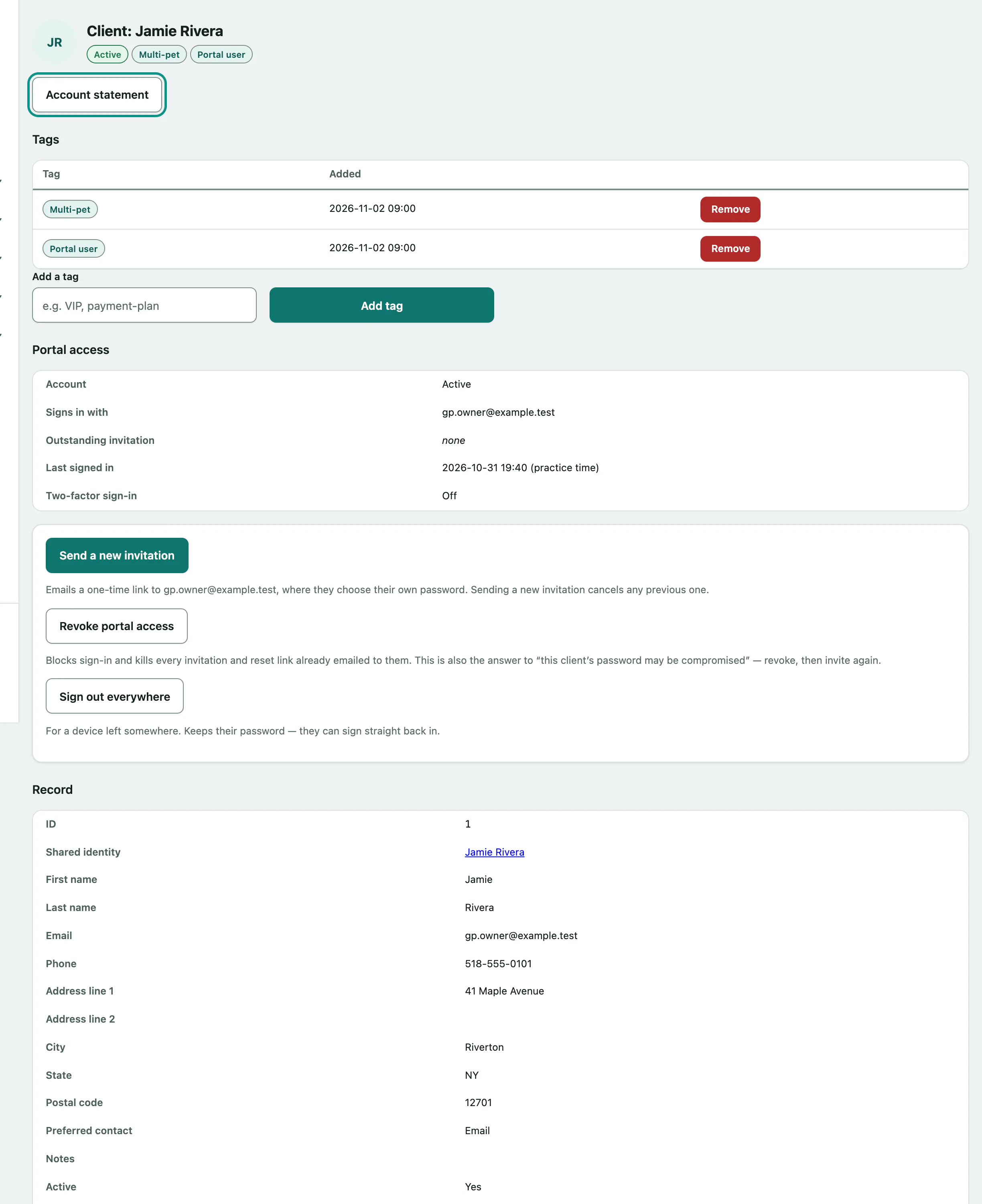
At the top
The heading shows the owner's name. Under it you'll see Active or Inactive, Caution flag if one is set, and the owner's tags.
Two warnings can appear here:
- Caution / safety flag. shows the caution notes staff wrote. With no notes it says This client is flagged — check with staff before booking.
- Prepayment suggested: appears when the owner has missed enough appointments to reach your practice's no-show threshold. It shows the count, plus the suggested deposit and any wording if your practice has set them. It only suggests: nothing is charged or held. The threshold and deposit are set in Set up appointment types and working hours.
Account statement opens a printable statement of the owner's invoices (see Print an account statement).
Tags
Tags are short labels for the whole team to see, like "VIP" or "payment-plan". They also show on the owner list.
- Type a tag in Add a tag, or pick one of the suggestions that appear.
- Select Add tag.
A tag can be up to 40 characters. Capitals don't make a new tag: "VIP" and "vip" count as the same one. To take a tag off, select Remove next to it in the table.
Portal access
Portal access shows whether the owner can sign in to your client portal:
| Account | Meaning |
|---|---|
| No portal account | They've never been invited. |
| Invited — not set up yet | An invitation is out but they haven't chosen a password. Outstanding invitation shows when it expires. |
| Active | They can sign in. Last signed in and Two-factor sign-in show how they use it. |
| Locked | Too many wrong passwords. It shows when the lock ends. |
| Revoked | Staff have blocked their sign-in. |
Front desk staff and practice managers can manage the account from here.
Invite an owner to the portal
The owner needs an active record and a valid email address on it.
- Select Invite to the portal. If they already have an account or an invitation, the button reads Send a new invitation.
Vivetra emails them a one-time link to set their own password. The link works once and expires in seven days, and sending a new invitation cancels the old one.
The link is also shown on screen under Invitation link — shown once. If the email didn't reach them, read it out or copy it now; it won't be shown again.
Other portal actions
| Button | What it does |
|---|---|
| Revoke portal access | Blocks sign-in and cancels any invitation or password reset link already emailed. Use it if you think their password has been stolen, then invite them again. |
| Restore portal access | Shown once access is revoked. They sign in with the password they already had. |
| Sign out everywhere | Signs them out on every device, for example a phone they've lost. Their password doesn't change. |
| Clear sign-in lockout | Shown while the account is locked. Lets them try again straight away. |
These still work on a deactivated owner, so you can shut off portal access when you deactivate someone.
Record details
Record lists everything on file, including the owner's ID. You'll need the ID to merge duplicates (see Merge duplicate owners). Shared identity links to the same person's entry in People when there is one.
Linked pets
Linked patients lists the owner's pets with species, relationship, whether this owner is the Primary contact, and whether the pet is Active or Deceased. View patient opens the pet's record.
If your role can enroll pets on wellness plans, a Wellness plan column shows each living pet's current plan, or No active plan. Select it to open that pet's plan screen (see Enroll a pet on a wellness plan).
Link a pet
Use this when a pet already on file belongs to this owner too, or a new owner has taken over a pet. You'll need the pet's ID number, shown as ID on the pet's record.
- Enter it in Patient ID.
- Optionally describe the Relationship, such as owner, co-owner or caretaker.
- Leave Primary contact for this patient ticked if this owner is the one to call about the pet, or untick it.
- Select Link patient.
To detach a pet from this owner, select Unlink on its row and confirm. The pet and its medical record stay; only the link to this owner goes.
Edit the owner's details
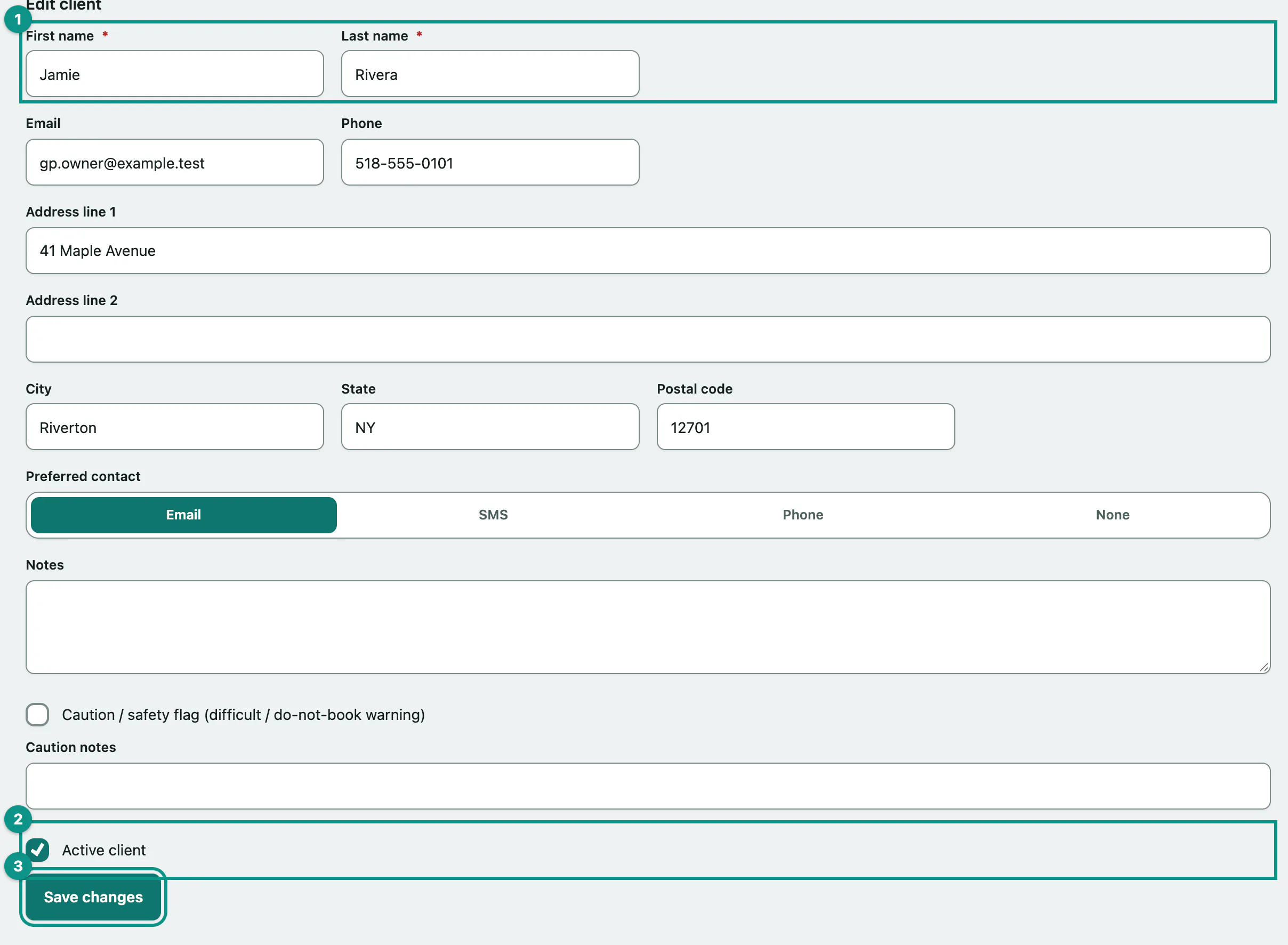
- Change what you need in the Edit client form. The fields are the same as when the owner was added, and first and last name are still required.
- To deactivate an owner who has left the practice, untick Active client. Tick it again to bring them back.
- Select Save changes.