
Hospital
Give referring vets portal access
In Vivetra: Hospital › Referring Vet Access
You can give a referring vet a private link to your referral portal. With it they can follow the cases they sent you and read the reports you've sent back, and, if you allow it, send you new referrals directly instead of phoning or faxing them in.
Only staff who can manage referral portal links see Referring Vet Access. By default that's the practice manager.
Create a portal link
The vet must be on your referring contacts list first (see Manage referring practices and vets).
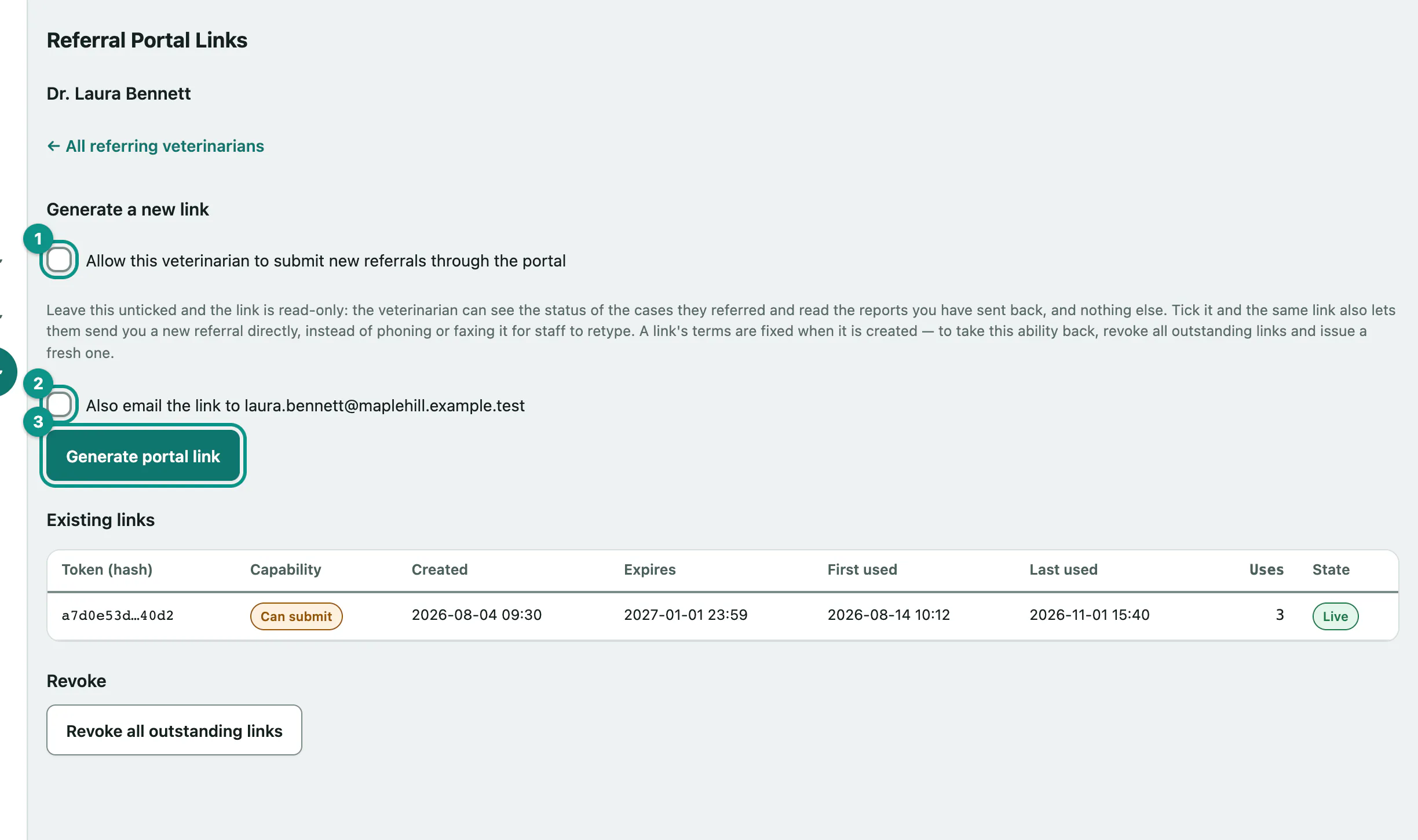
- Select Referring Vet Access in the Hospital menu. The Referral Portal Links screen opens.
- Under Pick a referring veterinarian, select Manage links next to the vet.
- To let them send you new cases, tick Allow this veterinarian to submit new referrals through the portal. Leave it unticked for a read-only link.
- To send it straight to them, tick Also email the link to followed by their address. This only appears when the vet has an email address on file.
- Select Generate portal link.
The New portal link created panel shows the link. Copy it now: it's shown only once and can't be retrieved later. A message tells you whether it was emailed. If it couldn't be, send it to the vet yourself.
Links are valid for 30 days. What a link can do is fixed when it's created: to take away a vet's ability to submit referrals, revoke their links and issue a new read-only one.
You can't issue links to a vet marked inactive. Reactivate them first.
See and revoke links
Existing links lists every link you've issued for the vet: whether it's Can submit or Read-only, when it was created, when it expires, when it was first and last used, how many times, and whether it's Live, Expired or Revoked.
- Select Revoke all outstanding links and confirm.
What the referring vet sees
The link opens a page that greets the vet by name. It needs no password, so ask them not to forward it.
- Your cases lists each case they referred to you with its status, when it was submitted, urgency and reason.
- Under each case, Reports shows the reports you've sent back (see Work a referral case › Send a report to the referring vet). They can select Open report PDF and Acknowledge receipt. Their acknowledgement shows on the referral in Vivetra.
- With a link that can submit, Refer a case lets them send a new case: patient details, owner contact, Reason for referral, History / clinical summary, urgency and Requested service. It arrives in your Referrals inbox under their name (see Take in a new referral).