
Boarding · Grooming
Book and run grooming appointments
In Vivetra: Grooming › Grooming Day Board · Grooming › My Schedule
On this page
The Grooming Day Board shows every groom booked for a day, one column per groomer. From it you book new grooms and open any appointment to check the pet in, start, finish, cancel or reschedule it.
Front desk and practice managers see the whole board. A groomer who can't see every groomer's book uses My Schedule instead (see Your own schedule).
Read the day board
- In the menu, open Grooming and select Grooming Day Board.
- Pick a Date. You can also filter by Status and Groomer.
- Select Show day.
The arrows under the form step a day back or forward, and Today comes back to today. By default the board shows open appointments; choose — Any status — to include cancelled and no-show ones.
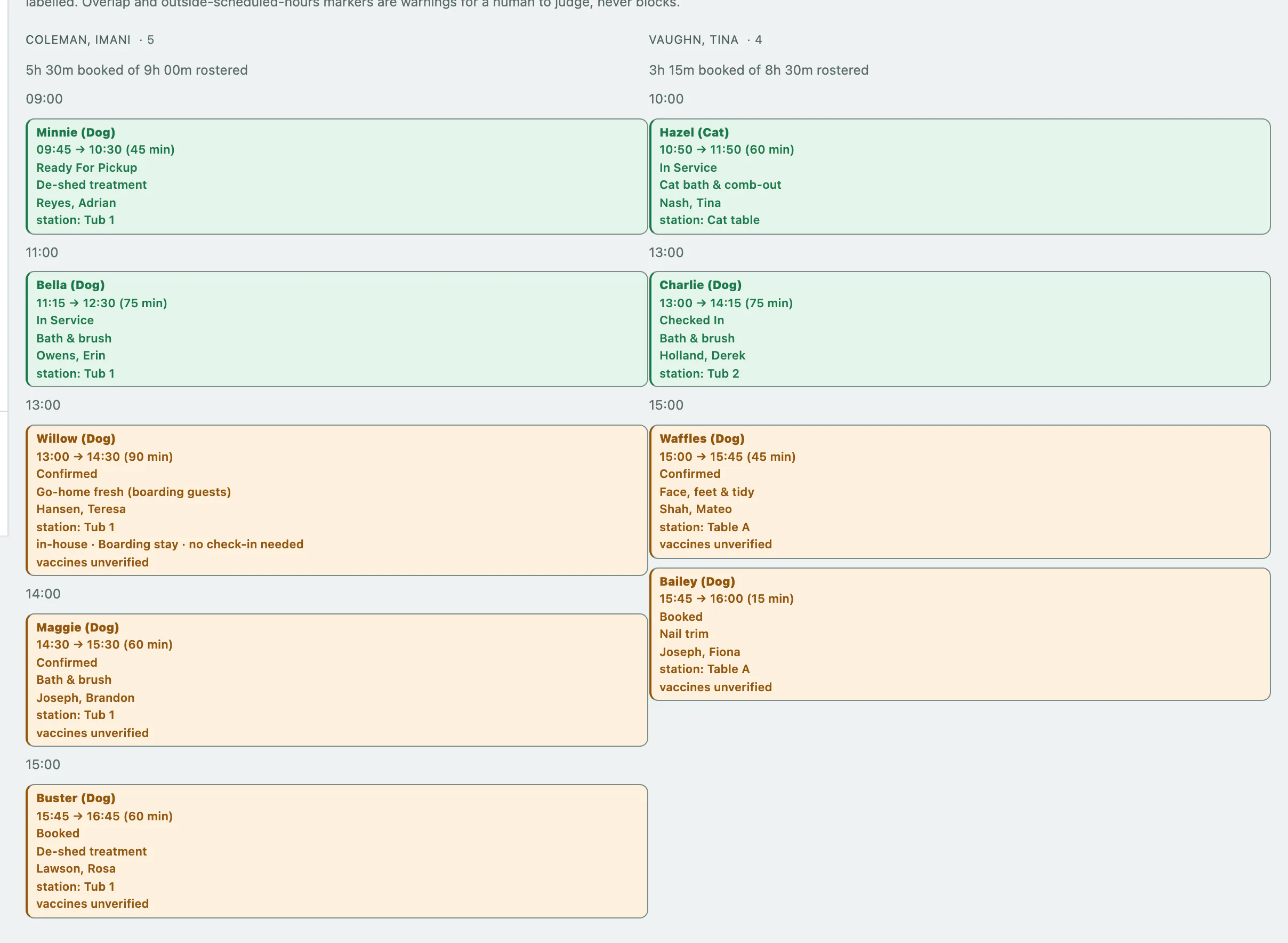
Each card shows the pet, time, status, services, client and station. A card may also say:
| Note on the card | Meaning |
|---|---|
| caution — see client file | The client has a handling caution. |
| vaccines unverified | The vaccination check hasn't been recorded yet. |
| vaccine gate overridden | Someone chose to groom despite a missing vaccine. |
| overlaps previous appointment | This groomer is double-booked. |
| outside scheduled hours / lands on a break / time off | The time clashes with the groomer's shifts (see Set up grooming stations and groomer shifts). |
| in-house | The pet is already boarding. |
These are warnings for you to judge. Nothing on the board blocks a booking.
Book a groom
This is for a client coming in just for the groom. To add a groom to a pet that's already boarding, open the stay and select Add grooming to this stay instead (see Check a guest in and out), so it's tied to the stay and needs no second drop-off.
The client must already be on file. If they aren't, add them on Manage grooming clients first.
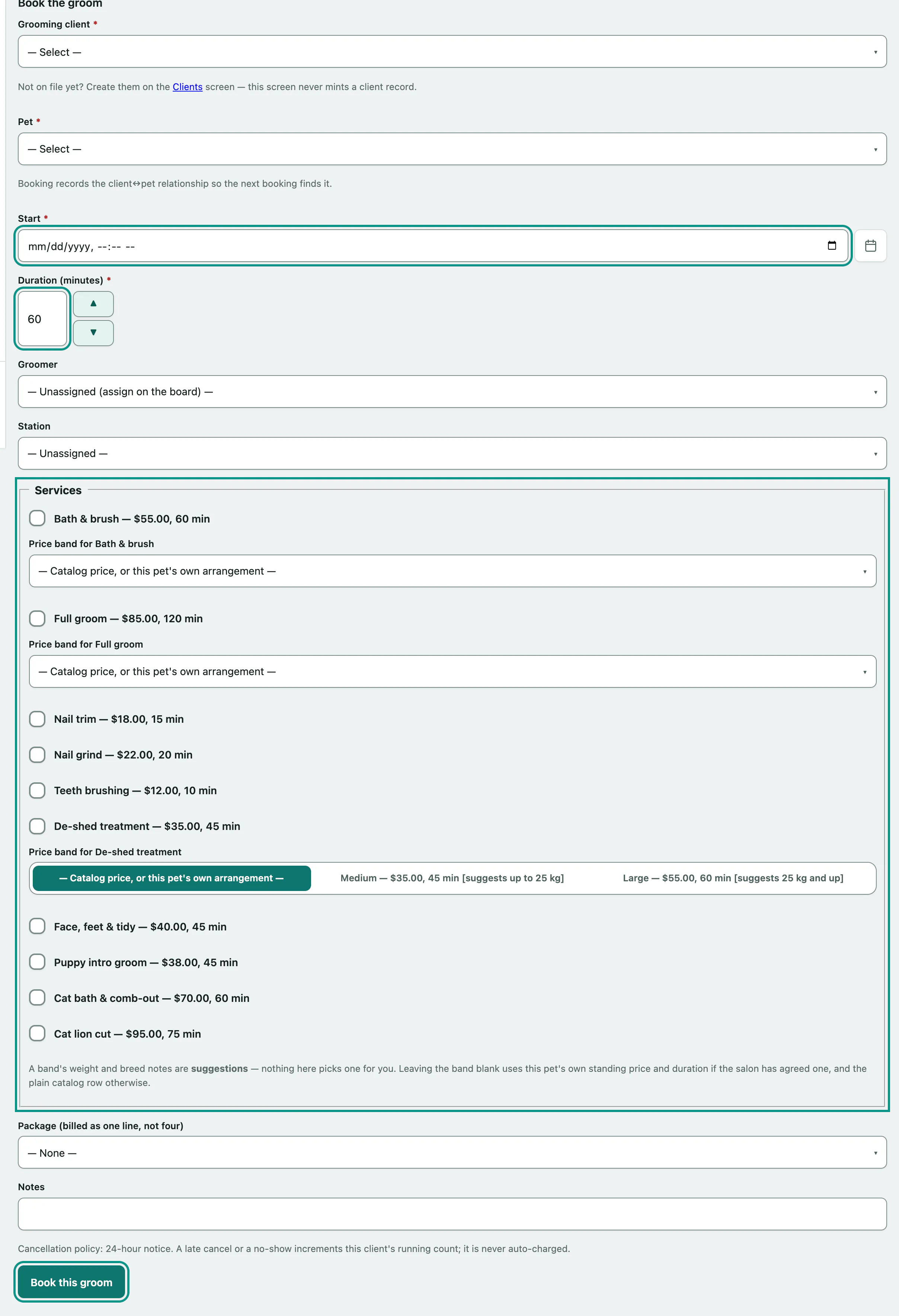
- On the day board, select Book a groom.
- Choose the Grooming client.
- Choose the Pet.
- Enter the Start date and time.
- Enter the Duration (minutes).
- Choose a Groomer, or leave it as — Unassigned (assign on the board) —. You can also pick a Station.
- Tick the Services you'll do. If a service has price bands, choose the band under it. You can add a Package (billed as one line, not four) and Notes too.
- Select Book this groom.
Prices are copied onto the appointment when you book, so a later price change doesn't alter it.
If the booking comes back with warnings
The pet is checked against your Set the grooming vaccine policy, and the groomer and station are checked for clashes.
- Vaccines: if the pet Does not clear the grooming vaccination policy:, tick Book despite the vaccination gap (override — an explicit, accountable decision), enter the Override reason (required when overriding), and book again.
- Overlaps: tick I have reviewed the warnings above — book anyway (a groomer/station overlap warns; a person decides) and book again.
Both overrides are recorded against your name.
Run the appointment
Select any card on the board to open the appointment. The buttons under Actions change with its status.
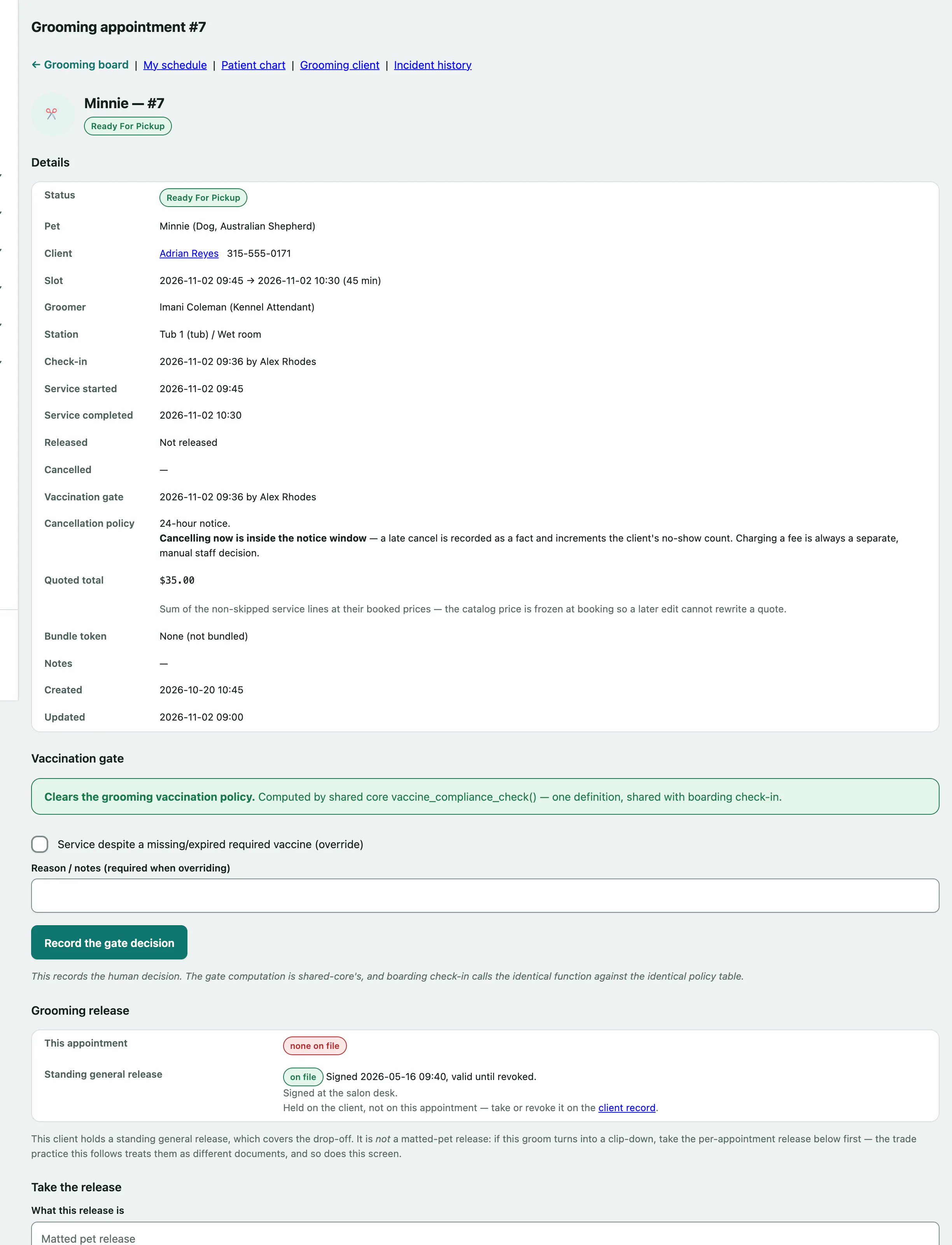
- When the pet arrives, select Check in (stamp arrival).
- When grooming starts, select Begin service.
- When the pet is done, select Ready for pickup.
- When the owner collects the pet, select Complete & release.
A pet that's already boarding isn't checked in; you'll see Begin service (already in-house — no check-in) instead.
Checking in needs booking permission (front desk and managers). Beginning, readying and completing a groom needs grooming-work permission, which groomers and managers have but front desk doesn't.
On the same screen you can also take a signed release, add or mark services, write service notes about the pet's coat and behaviour, upload before and after photos, and record an incident (see Record a grooming incident).
Cancel, reschedule or mark a no-show
These need booking permission.
- To cancel, choose a Reason under Cancel. If the cancellation is inside your notice period, Late Cancelled is already chosen.
- Select Cancel appointment.
A late cancellation or a no-show adds to the client's running count. It's never charged automatically. Mark no-show is under Actions while the appointment is still booked or confirmed.
To move it, go to Reschedule:
- Enter the New start, and change the Duration (minutes) or Groomer if needed.
- Select Reschedule.
If the new time clashes, tick Reschedule anyway if a groomer/station overlap is warned (the stay window is still a hard block) and try again. A groom added to a boarding stay must still fit inside the stay. Managers can also change the station under Move station.
Your own schedule
My Schedule shows only your own grooms for a day: a summary, your hours from the shift roster, and your queue.
- In the menu, open Grooming and select My Schedule.
- In My queue, select Start service in the Actions column when you start a groom, then Ready for pickup and Complete as you go.
If a pet that needs checking in hasn't been, the row says Not checked in yet and the front desk checks it in first. Without grooming-work permission the page is read-only.