
Boarding
Record a death in care
On this page
If a pet dies while it's checked in, record it on the stay's death-in-care record. The record stays editable as a draft, then you finalize it so the original account can't be changed.
Start the record
- On the stay's page, select Record death in care. It's under Actions, next to check-out.
- Check the Discovery date/time. It starts at the current time, so change it if the pet was found earlier. Choose who it was Discovered by.
- Describe the Circumstances of discovery.
- If an emergency transfer was tried, fill in Outside emergency transport (if attempted): tick Emergency transport was attempted and add the Facility and Transport date/time.
- Choose the Outcome: Found Deceased, Died Under Care, Died In Transport, Died At Emergency or Other.
- If you've already told the owner, fill in Owner notification: Notified at, Notified by and Notification method.
- Choose the Remains disposition and add any Disposition notes and Additional notes.
- Select Create death record (sets the stay to Died in care, marks patient deceased).
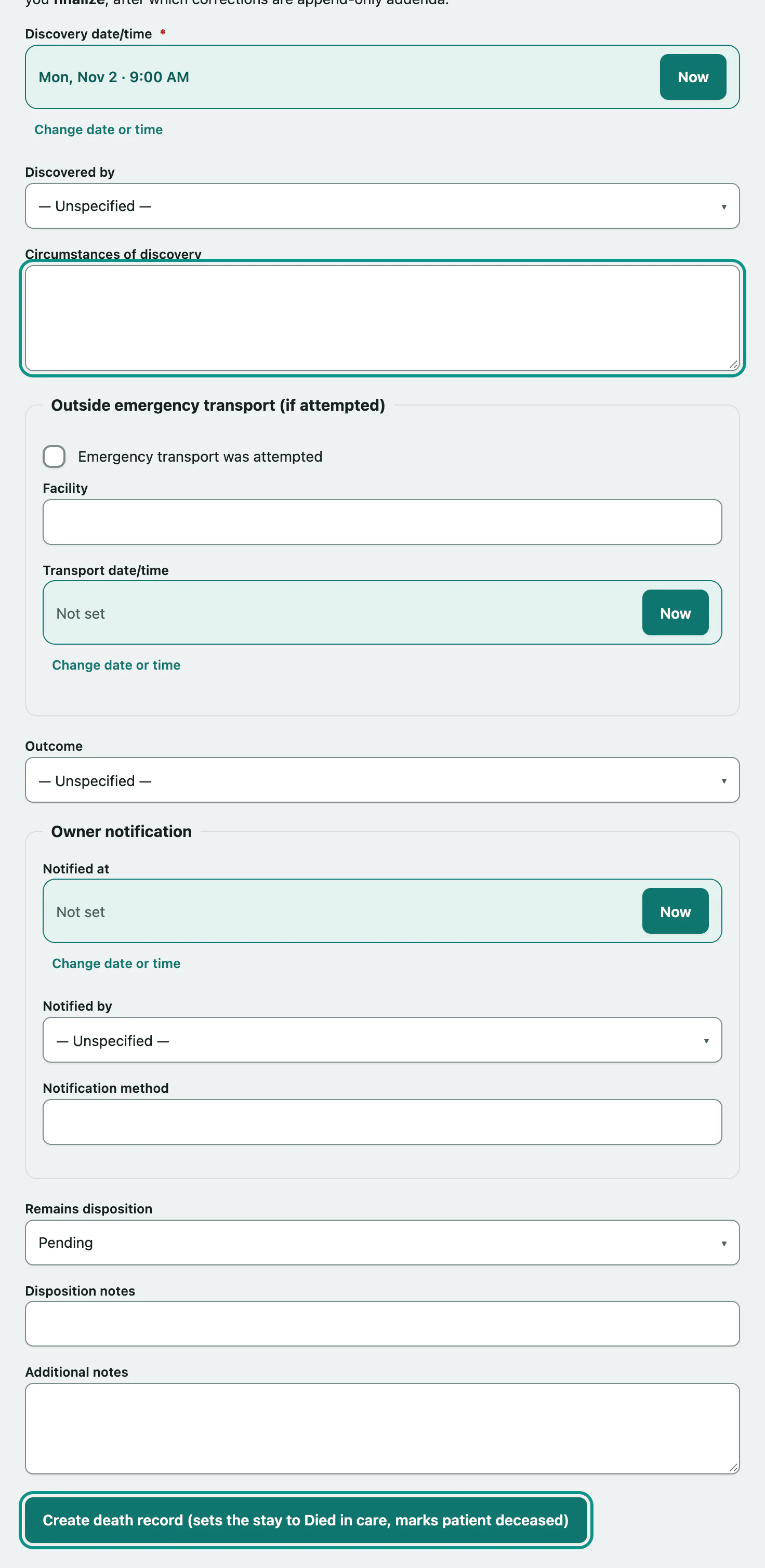
Creating the record does three things together: the stay's status becomes Died In Care, the pet is marked deceased on its patient record, and the draft record is saved. Marking the pet deceased also stops reminders going to the owner about that pet.
The Remains disposition options are Pending, Released To Owner, Private Cremation, Communal Cremation, Burial, Necropsy and Other. It starts at Pending; leave it there until the owner decides.
Edit the draft
Until it's finalized, the record shows Draft — editable until finalized. Change any fields under Edit record (in place — allowed until finalized), then:
- Select Save changes.
Notify the owner
A phone call first is best. If you've already spoken to the owner, record that in the Owner notification fields instead of sending anything. To send a message from Vivetra:
- Under Notify the owner, choose the Channel: Email (written condolence) or SMS (asks them to call). Only the channels the owner has contact details for are offered.
- Select Send notification & record it and confirm.
This sends a real message and records when, by whom and how. If it can't be delivered, you'll see an error; call the owner and record the contact by hand. You can only send this before the record is finalized.
Finalize the record
Do this once the account is complete.
- Under Finalize, select Finalize and lock record and confirm.
Correct a finalized record
- Under Append an addendum, write the correction in Addendum.
- Select Append addendum.
Addenda are listed with the date and author under Addenda. The original record is never changed.
Print the record
Select Print this record. The printout shows the record and addenda without any of the forms.
Who can do what
Anyone signed in can view a death record. Creating, editing, finalizing and adding addenda need permission to manage reservations, which front desk and practice managers have by default.