
Vet Practice · Vet Practice Billing
Set up services and prices
In Vivetra: Vet Practice Billing › Services & Prices
On this page
Services & Prices is your practice's price list. Each service or product you add here can be picked when you write an invoice or an estimate, so the same service is described and priced the same way every time.
Open it from Vet Practice Billing › Services & Prices in the menu. The screen is called Service Catalog. Only practice managers and the practice owner can see it.
Add a category
Categories group your list, for example Preventive, Surgery, Dentistry or Diagnostics. They're optional: items work fine without one.
- Under Add a category, enter a Name.
- Select Add category.
Sort order controls where the category appears. Lower numbers come first.
Add a service or product
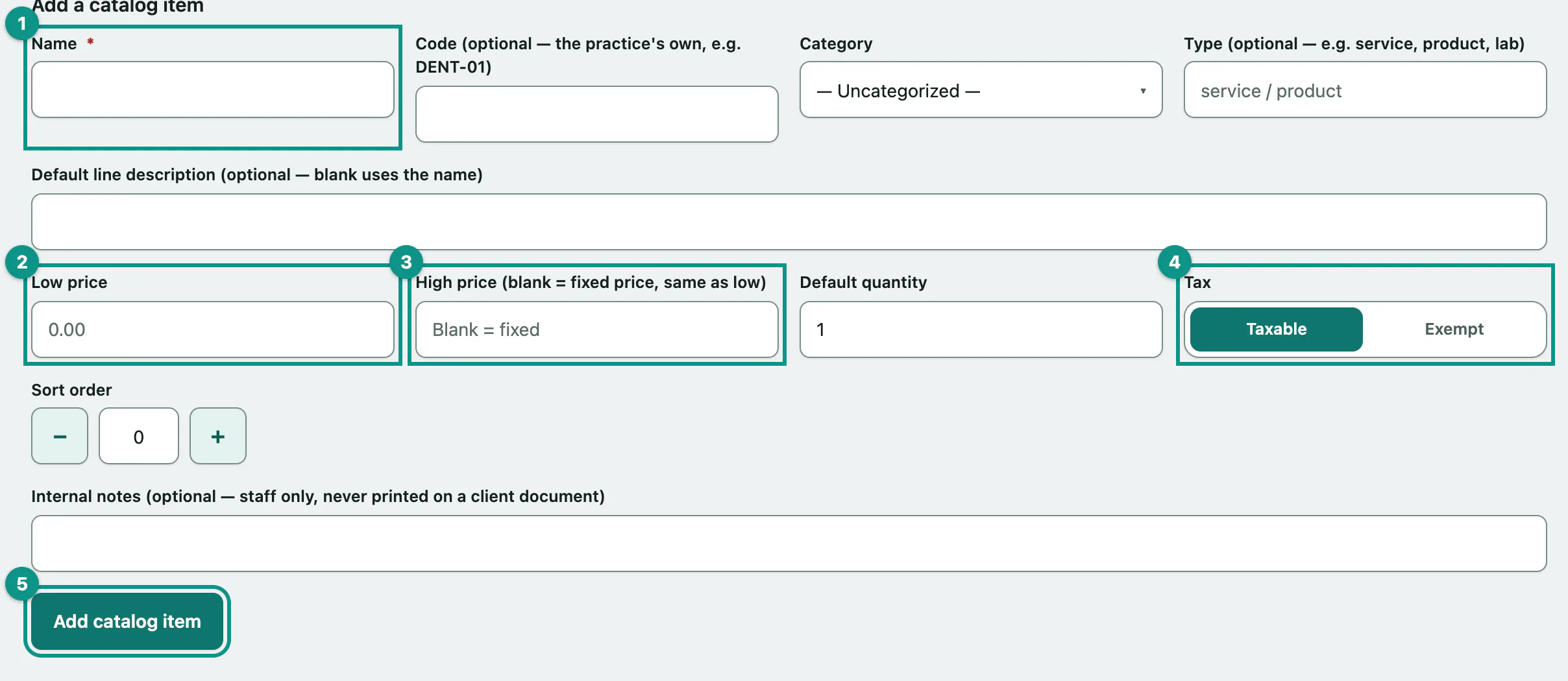
- Under Add a catalog item, enter the Name, such as "Rabies vaccine (1 yr)".
- Enter the Low price.
- For a service whose cost varies, enter a High price too. Leave it blank for a fixed price.
- Choose Taxable or Exempt in Tax.
- Select Add catalog item.
The other fields are optional:
| Field | What it's for |
|---|---|
| Code | Your own short code, like DENT-01. Shown next to the name when staff pick an item. |
| Category | Which group it's listed under. |
| Type | A label such as service, product or lab. |
| Default line description | The wording printed on the invoice line. Leave it blank to use the name. |
| Default quantity | How many to pre-fill, usually 1. |
| Sort order | Its position within its category. |
| Internal notes | For staff only. Never printed on anything an owner sees. |
Invoices are charged at the low price. Estimates use both, so the owner sees a range.
Change a price or retire an item
Every item is listed under Catalog items, and you edit it right in its row.
Change what you need in the item's row, such as the Low or High price, then:
- Select Save at the end of that row.
To stop offering something, set its State to Retired and select Save. Retired items aren't offered on new invoices or estimates, but the documents that already used them keep their record of it. Categories retire the same way.
The In use column shows how many invoices and estimates have used each item.
If saving doesn't work
| Message | What it means |
|---|---|
| Enter a name for the catalog item. | The name is empty. |
| A catalog item with that name already exists. | Each name can only be used once. Edit the existing item instead. |
| Another catalog item already uses that code. | Codes must be unique too. |
| The high price cannot be lower than the low price. For a fixed-price item, leave the high box blank. | Swap the prices, or clear the high one. |
| Default quantity must be a positive number (e.g. 1 or 2.5). | The quantity is zero, negative or not a number. |