
Client portal · Hospital
Pay a hospital bill and manage saved cards
In Vivetra: Bills & payments · Saved cards
On this page
Bills & payments lists every bill from the hospital, paid or not, and lets you pay an open one online. You can also keep a card on file so it's ready next time.
Pay a bill
- Select Bills & payments in the menu. Bills still to pay show Balance due.
- To keep the card you're about to use, tick Keep this card on file for next time.
- Select Pay $260.00 now (the button shows the bill's balance).
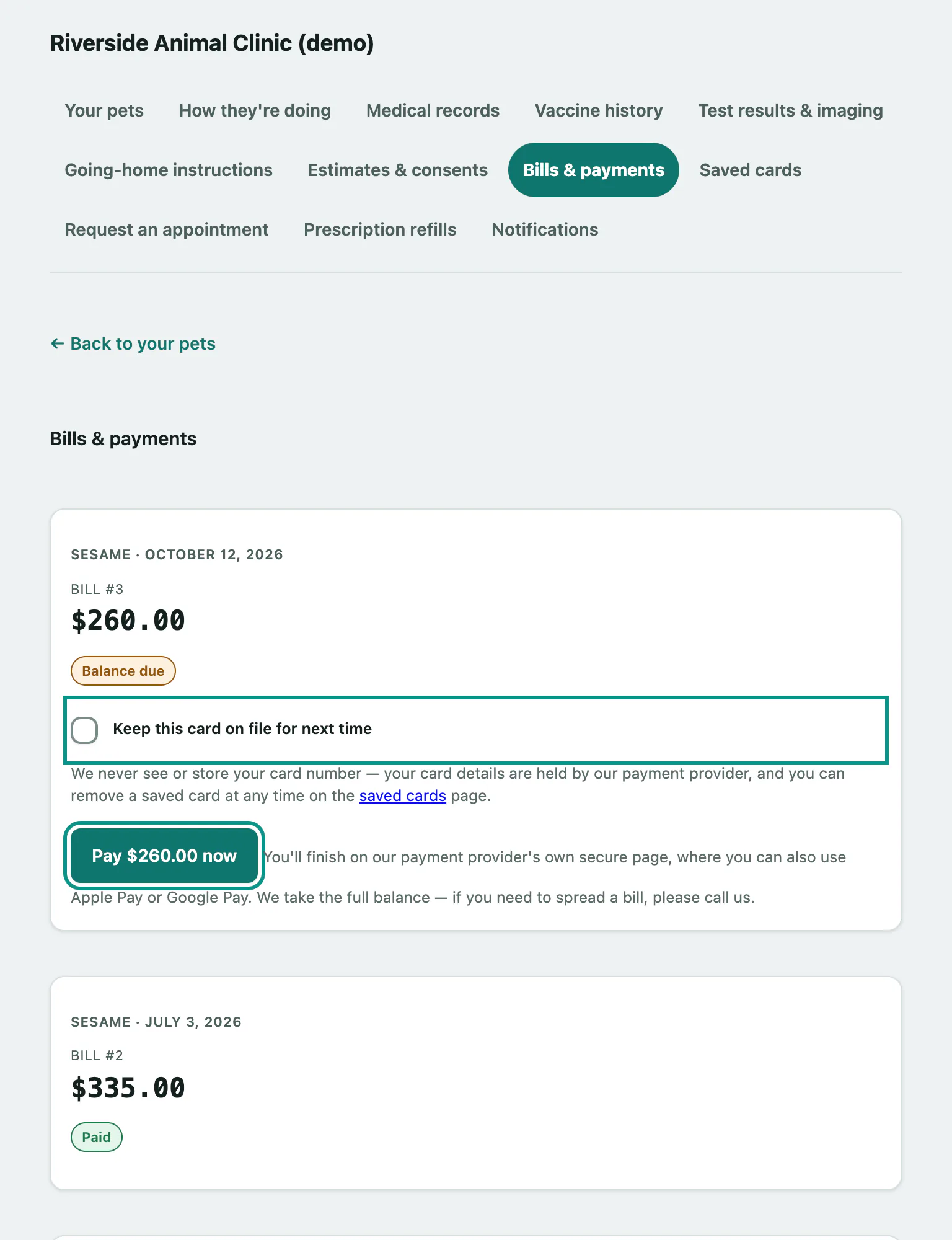
You finish paying on the payment provider's secure page. Depending on the hospital's settings, you can use Apple Pay or Google Pay there too. You then come back to Bills & payments, and the bill shows Paid once the payment has gone through. Online payment always takes the full balance. If you need to spread a bill, call the hospital.
Paid but the bill still shows Balance due? Select Already paid? Check status to check again.
| Message | What it means |
|---|---|
| That bill is already paid, or is no longer payable. | Nothing to pay. Reload the page. |
| We're not taking payments online at the moment — please give us a call. | The hospital has paused online payments. Pay by phone. |
| Too many attempts — please wait a few minutes and try again, or call us. | Wait a few minutes before trying again. |
Manage saved cards
The hospital never sees or stores your card number. Cards are held by the payment provider, and a saved card is only charged when you choose to pay a bill with it.
- Select Saved cards in the menu, or Manage the cards you keep on file → on Bills & payments.
- To add a card, select Add a card and enter it on the payment provider's page.
- To change which card is offered first, select Use this one first next to it. That card is then marked Default.
- To delete a card, select Remove next to it.
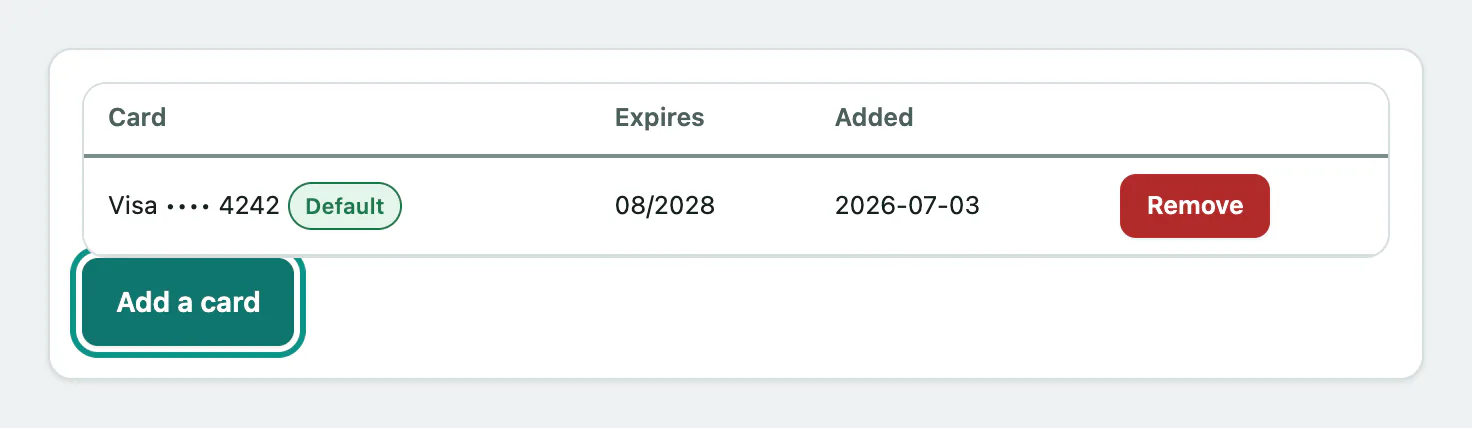
If Saved cards says keeping a card on file isn't available on your account, call the hospital.