
Boarding
Check a guest in and out
On this page
Each stay has its own page where you check the pet in at drop-off, tell the owner when it's ready, and check it out at pick-up. It's also where you cancel a booking, record a no-show or a deposit, and confirm the emergency details.
Open a stay by selecting it on the reservations board. The links at the top go to the Patient chart, the Guest owner and Incidents & belongings.
What's on the page
Details shows the stay at a glance: status, pet, owner, the scheduled and actual times, any overstay, the cancellation policy that applies, vaccination check, medical aftercare, the current kennel, household group, emergency details and deposit.
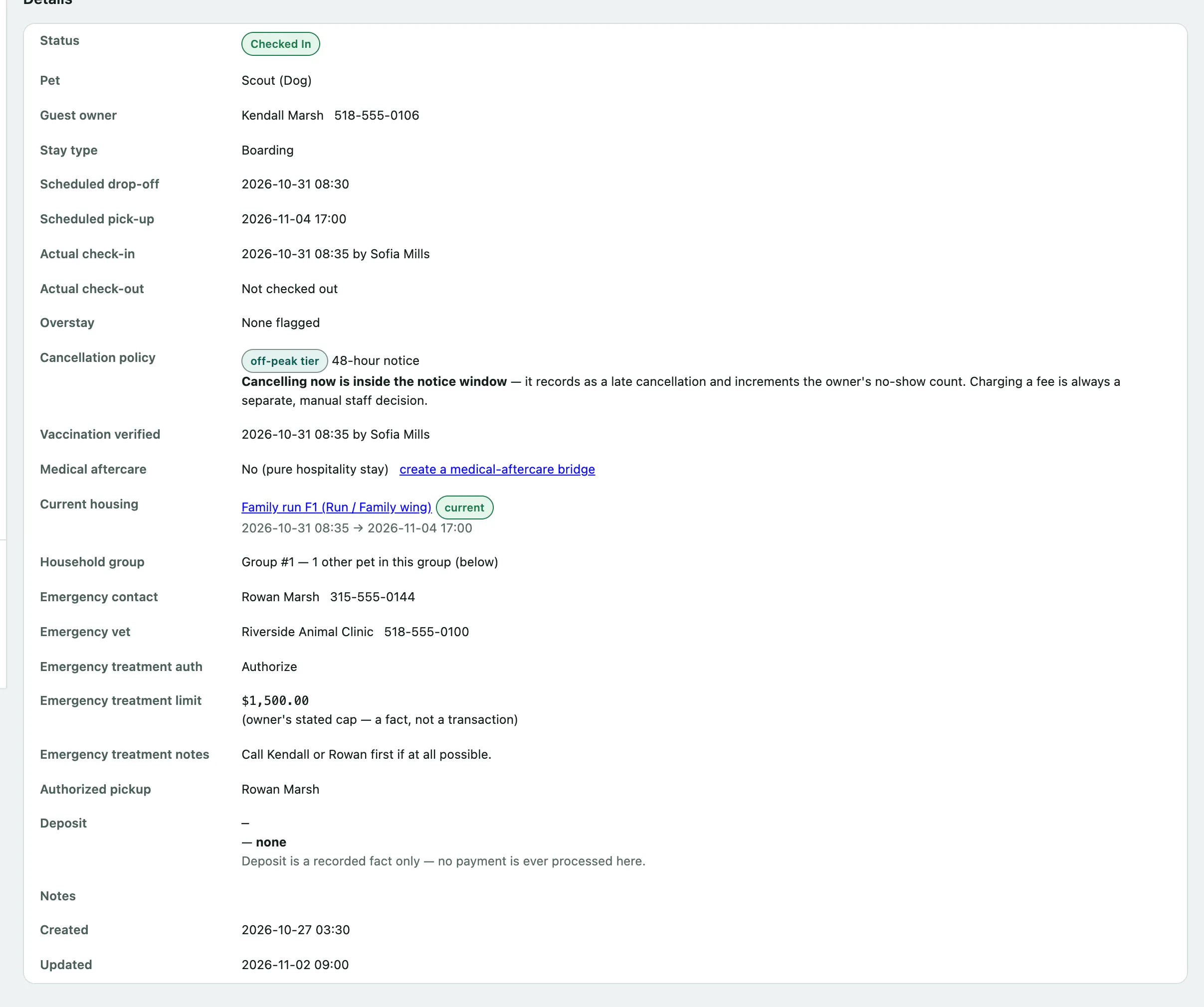
If the owner has missed bookings before, a pill next to their name shows how many no-shows or late cancellations are on record. A GUEST OWNER CAUTION FLAG banner appears when the owner has a caution flag.
Under Current housing, select assign a unit to put the pet in a kennel (see Manage rooms, kennels and cleaning).
Check the vaccines at drop-off
Staff who can verify vaccinations see Vaccination gate verification. The warnings about missing or expired vaccines are on the housing assignment screen; this records that a person checked.
- If you're admitting the pet even though a required vaccine is missing or expired, tick Admit despite a missing/expired required vaccine (override).
- Enter Reason / notes (required when overriding). You must give a reason when you override.
- Select Record vaccination verification.
An override shows as admitted despite gap (override) in the details.
Check in
A stay can be checked in while it's Confirmed.
- Under Actions, select Check in (stamp arrival, set checked in).
The arrival time and your name are recorded, and the status becomes Checked In. This is also a good moment to log what the owner left with the pet (see Record belongings and incidents) and confirm the emergency details below.
Tell the owner the pet is ready
- Select Mark ready for pickup (tell the owner).
The household gets a ready-to-collect notice on whichever channels they've turned on. It can only be sent once. Afterwards the page shows when it was marked ready and when the owner was notified. If it says no notice has gone out yet., check the delivery log in Automatic Messages (see Send automatic messages and mass alerts).
Check out
When the pet has anything on file that should go home with it, such as its own belongings or food and medication the owner supplied, the check-out form lists them under Goes home with the pet — tick what actually went back.
- Tick each item you've handed back in Goes home with the pet. Nothing is ticked for you.
- Select Check out (stamp departure, release the kennel, settle the checklist).
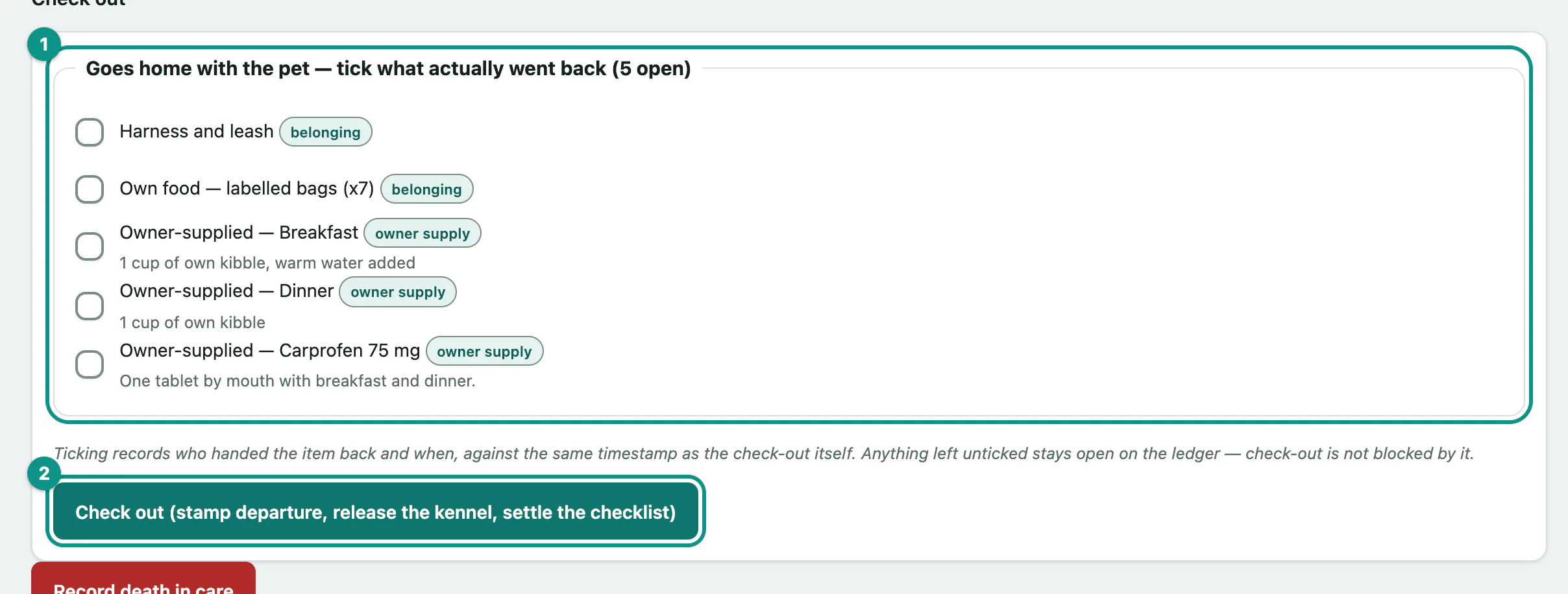
The departure time is recorded, the kennel is released and the status becomes Checked Out. Ticks record who handed the item back and when. Anything left unticked doesn't stop the check-out; it stays open on the stay and in Record belongings and incidents.
With nothing to hand back, the button reads Check out (stamp departure, set checked out).
Cancel a booking or record a no-show
Both are only possible while the stay is Confirmed.
No-show: select Mark no-show. This adds one to the owner's no-show count and, if your cancellation policy sets a no-show fee, offers it. It charges nothing and doesn't touch the deposit.
Cancel:
- Under Cancel, choose a Reason: Owner Cancelled, Rescheduled, Deceased or Other, and on most sites Late Cancelled.
- Select Cancel reservation.
If cancelling now falls inside your policy's notice window, a warning says so and Late Cancelled is already chosen. Change it if you're waiving the policy. A late cancellation adds to the owner's no-show count and offers the late-cancellation fee.
When a fee applies, a panel offers a button such as Raise the No Show Fee on this stay's invoice or Raise the Late Cancel Fee on this stay's invoice, which opens the stay's invoices (see Bill a boarding stay). You set the amount you actually charge. The notice window and fees come from Boarding Rates & Policy (see Set boarding rates, policies and add-ons).
Once a stay is checked out, cancelled, a no-show or died in care, its status can't change again. The page shows Terminal state — locked.
Record a deposit
Vivetra doesn't take card payments here; this records what happened.
- Under Deposit (record only — never a payment), enter the Amount.
- Choose its Status: None, Held, Applied, Forfeited or Refunded. Any status other than None needs an amount.
- Add a Note (how/when collected or returned — never card data).
- Select Save deposit record.
If a cancelled or no-show stay is holding a deposit, you can enter a Note (why / when) and select Mark deposit forfeited. Vivetra never forfeits a deposit by itself.
Confirm the emergency details
Check these with the owner at every drop-off.
- Under Emergency information, update the Emergency contact name and phone, emergency vet, Authorized pickup (who besides the owner may collect the pet), Emergency-treatment authorization, limit and notes. The fields are the same as when booking.
- Select Save emergency information.
This is the one form on the page that you can save while offline; it sends when you're back online.
Grooming during a stay
Staff who book grooming see Grooming on this stay, listing any grooms booked onto it. Select Add grooming to this stay to book one for a pet that's already here, without a second check-in (see Book and run grooming appointments).
Who can do what
Checking in and out, cancelling, deposits and emergency details need permission to manage reservations, which front desk and practice managers have by default. The vaccination check needs permission to verify vaccinations. Raising a fee needs permission to create invoices.