
Vet Practice · Vet Practice Billing
Create an estimate
In Vivetra: Vet Practice Billing › Vet Practice Estimates
On this page
An estimate is a quote you give an owner before a procedure, such as a dental or a spay. It shows a low and a high price, because the final cost often depends on what the vet finds. An estimate never charges anyone. When the owner agrees, you turn it into an invoice.
Open it from Vet Practice Billing › Vet Practice Estimates in the menu. Anyone can view estimates. Creating and changing them needs the estimates permission, which front desk, vets, vet techs and practice managers have by default.
Create a draft estimate
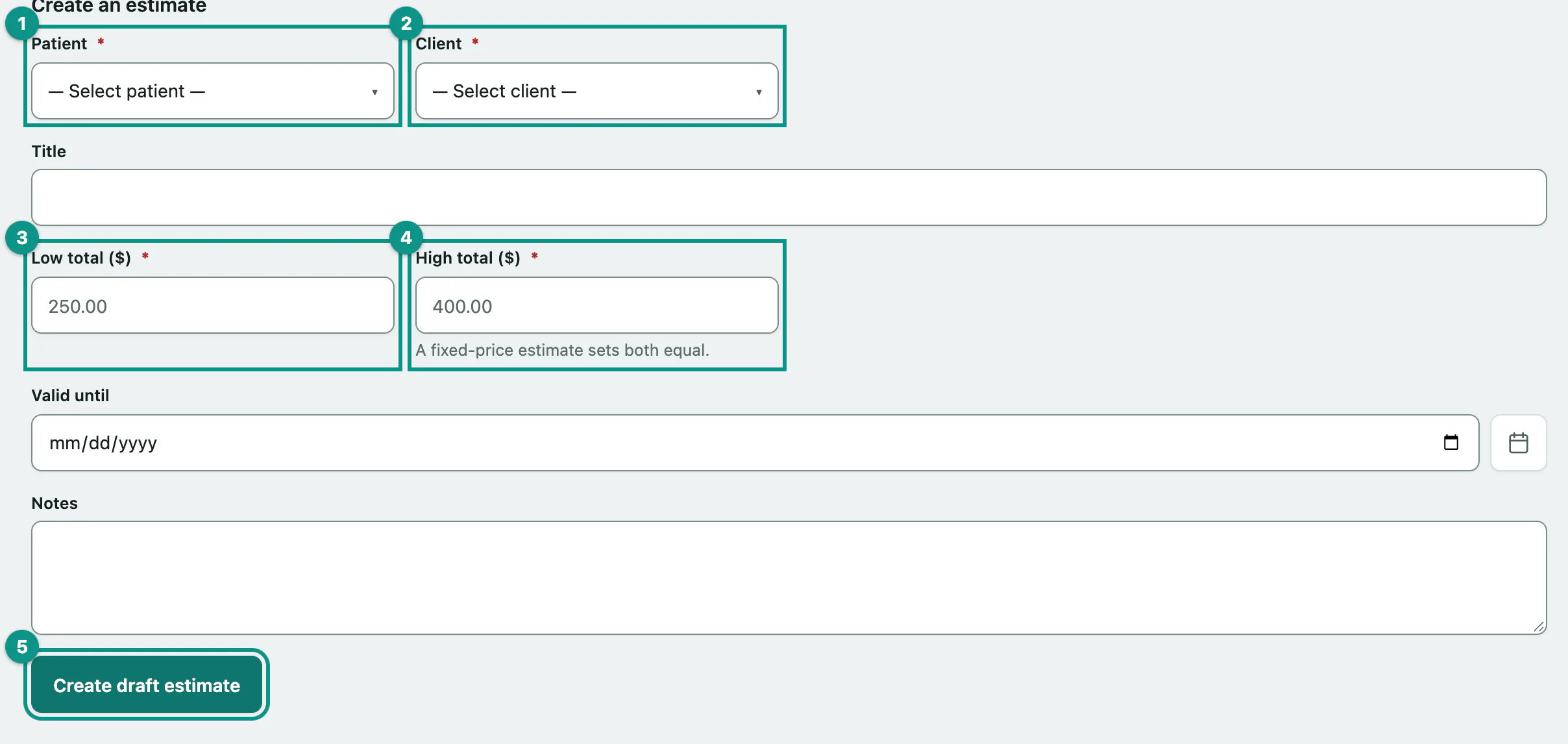
The Create an estimate form is at the bottom of the Estimates screen, below All estimates.
- Select Vet Practice Estimates in the menu.
- Choose the pet in Patient. You can type to search the list.
- Choose the owner in Client.
- Enter the lowest likely cost in Low total, for example 250.00.
- Enter the highest likely cost in High total. For a fixed price, enter the same amount in both.
- Select Create draft estimate.
Title, Valid until and Notes are optional. The title is what you'll see in the estimate list, so something like "Dental cleaning with extractions" helps.
The estimate opens as a Draft. To come back to it later, find it under All estimates and select View.
Add line items
A quick ballpark only needs the low and high totals. To break the estimate down into individual services, add line items while it's still a draft.
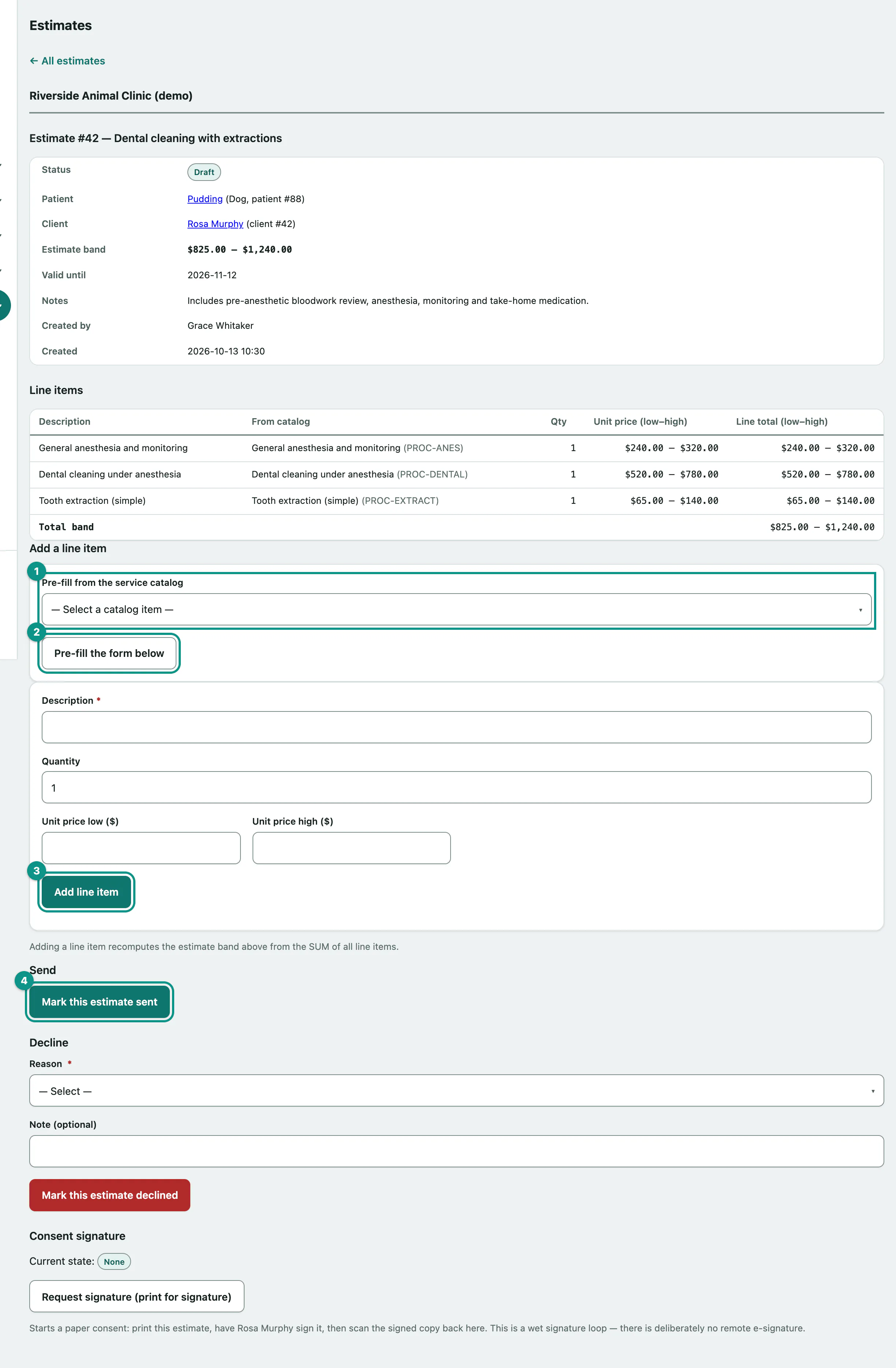
- Optionally, choose a service in Pre-fill from the service catalog and select Pre-fill the form below. The description, quantity and prices are copied in from your price list.
- Check or type the Description, Quantity, Unit price low and Unit price high. You can change anything that was pre-filled.
- Select Add line item.
The pre-fill copies the price list into the line at that moment. If your practice changes a price later, estimates you've already written keep their numbers. To set up the price list, see Set up services and prices.
Send, approve or decline
Vivetra doesn't email the estimate for you. Print it or show it to the owner, then record what happened. Each button only appears when it applies.
- Once the owner has the estimate, select Mark this estimate sent. Only a draft can be sent, and you can't add lines after this.
- If the owner agrees, select Mark this estimate approved. Only a sent estimate can be approved.
If the owner says no, record it under Decline. You can decline a draft or a sent estimate, so a verbal no on the spot counts too.
- Choose a Reason: Cost, Elected Euthanasia, Second Opinion or Other. You can add a Note (optional) too.
- Select Mark this estimate declined.
If the owner uses your client portal, they can see an estimate there once it's sent. If they've turned on notifications, sending it also tells them it's ready. The notification never includes the price.
Approved, declined and expired estimates are locked: you'll see A finalized estimate is read-only — no further lifecycle changes are available.
| Status | What it means |
|---|---|
| Draft | Still being written. You can add lines. |
| Sent | The owner has it. Waiting for an answer. |
| Approved | The owner agreed. Ready to turn into an invoice. |
| Declined | The owner said no. The reason is shown on the estimate. |
| Expired | No longer valid. |
Get the owner's signature
The Consent signature section records the owner signing the printed estimate. It's a paper signature: you print, they sign, and you scan the signed copy back in.
- Select Request signature (print for signature), then print the estimate and have the owner sign it.
- In Returned signed document, choose the scanned file.
- Select Record signed scan.
The current state shows next to Current state:: None, Awaiting, Signed or Cancelled. If the owner won't sign after all, select Cancel signature request.
You can't request a signature on a declined or expired estimate. Once a signed copy is on file you can't request another one on the same estimate, so if the plan changes, write a new estimate.
Turn an approved estimate into an invoice
- Open the approved estimate and select Convert this estimate to an invoice.
Vivetra creates a new draft invoice for the same owner and opens it. Each line item is copied at its low price. An estimate with no lines becomes one line at its low total. If the work cost more, add the extra charges on the invoice (see Create an invoice and take payment).
The estimate then shows Converted to invoice with a link, and each estimate can only be converted once. You need permission to create invoices as well as estimates to see this button.