
Records & admin · Admin
Add and manage staff
In Vivetra: Admin › Staff
On this page
Staff is where practice owners add people, set what they can do, and switch accounts off when someone leaves. Only practice owners see it in the menu.
Add a staff member
- Select Admin › Staff in the menu.
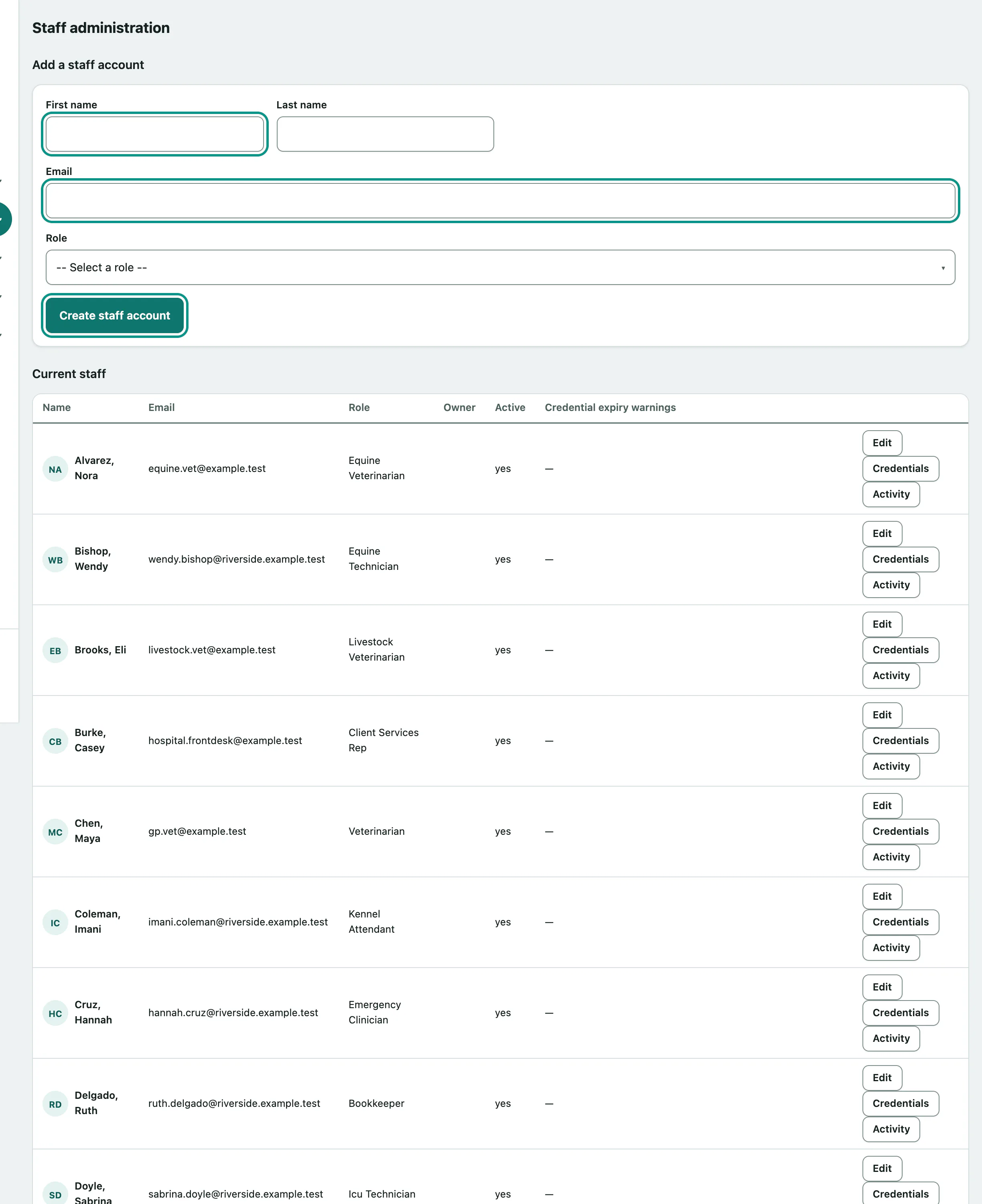
- Under Add a staff account, enter their First name and Last name.
- Enter their work Email. It's what they'll sign in with.
- Choose their Role. The role decides what they can see and do.
- Select Create staff account.
Vivetra shows a ONE-TIME TEMPORARY PASSWORD (shown here once, never shown again): and, where email is set up, emails it to them. Keep it until they've actually signed in: if it doesn't arrive, give it to them some other way you trust. The first time they sign in they have to choose their own password.
Current staff lists everyone with their role, whether they're an owner, whether they're active and any Credential expiry warnings. Each row has Edit, Credentials (see Track staff controlled-drug credentials) and Activity (see See what a staff member has done).
Change someone's role or permissions
- Select Edit on their row.
- Under Change role, choose the new Role and select Change role.
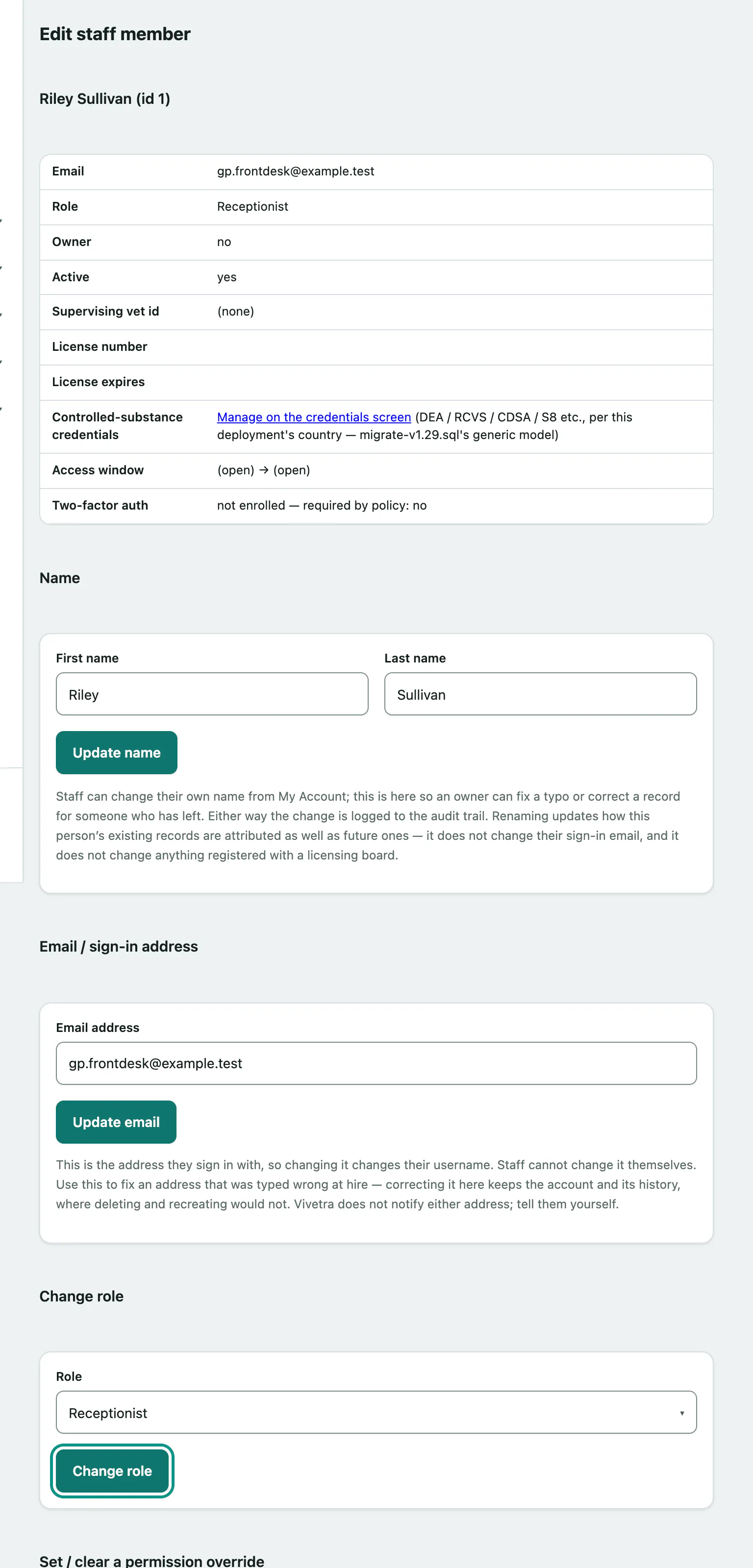
To give one person a single permission their role doesn't have, or take one away, use Set / clear a permission override. The line above it lists their current overrides, or says they use their role defaults.
- Choose the Permission key.
- Choose the Mode: Grant, Deny, or Clear (revert to role default).
- Select Apply override.
Every permission change is recorded in the Review the audit log.
The same screen lets you change their name and email, the Owner flag, and their Supervising veterinarian.
Give temporary access
For a locum or a student, set an Access window:
- Enter Access starts and Access ends.
- Select Update access window.
Help someone who can't sign in
-
Forgotten or never received their password:
- Select Reissue a temporary password.
The old password stops working straight away, they're signed out everywhere, any lockout is cleared, and they get a new one-time password. The original can never be looked up.
-
Lost their authenticator and their recovery codes:
- Select Reset two-factor authentication.
Their account goes back to not enrolled and their old recovery codes stop working. They then set up a new authenticator themselves.
When someone leaves
- Under Account access, select Deactivate this account.
They can't sign in any more, and everything they did stays on record. Select Reactivate this account if they come back.
Delete this account is only for an account created by mistake that nothing refers to. Otherwise, deactivate. You can't delete your own account or the last owner.