
Vet Practice
Enroll a pet on a wellness plan
In Vivetra: Vet Practice Billing › Wellness Plan Requests
On this page
Sign a pet up on one of your practice's wellness plans, see what the plan still covers, and approve plans clients ask for in the portal. Vivetra records the plan and counts the benefits used. It never charges the client: you take payment the way you normally do and note the outcome here.
Open the patient's chart and select Wellness plan under Related records. On an owner's record, each pet's On plan: or No active plan label opens the same screen.
Front desk staff, veterinarians, vet techs and practice managers can all use this screen. The plans themselves are set up by a practice manager (see Set up wellness plans).
Enroll a pet
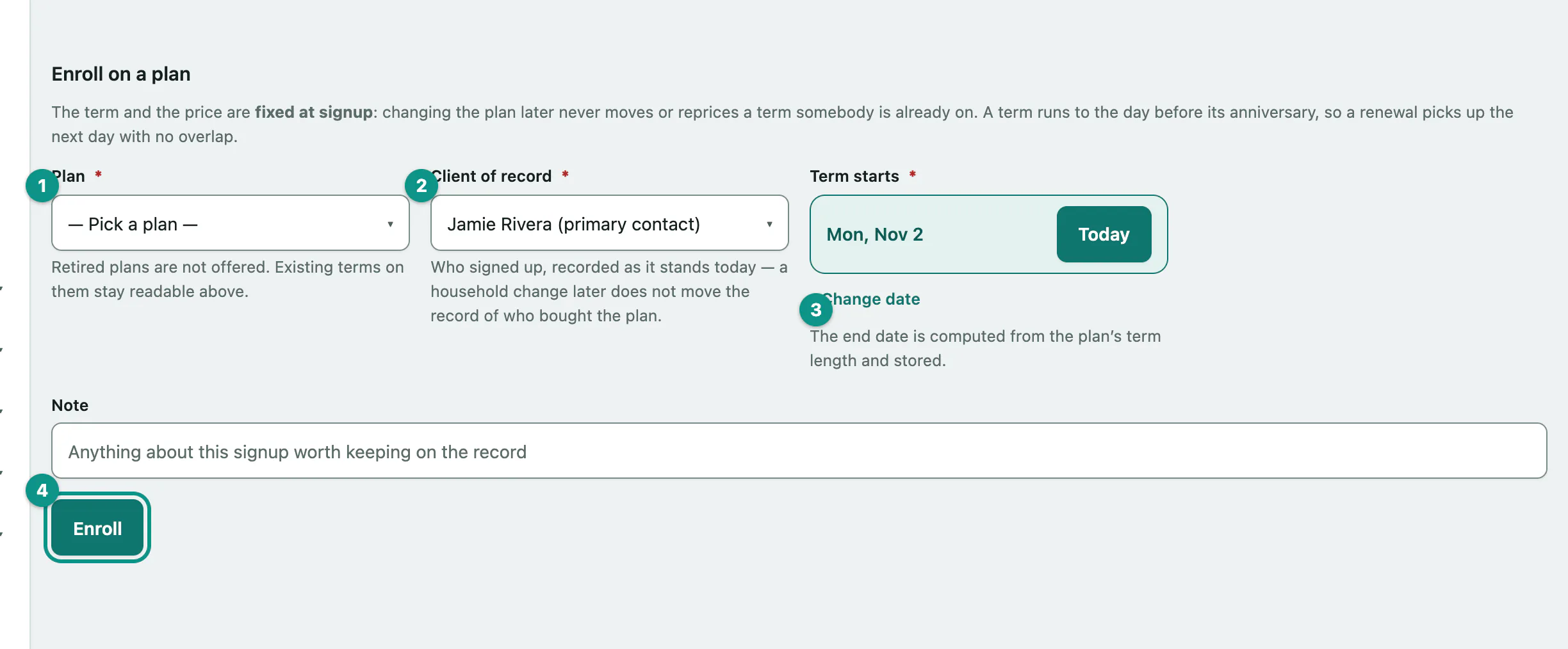
- Under Enroll on a plan, choose the Plan. Each plan shows its term length, price and species.
- Choose the Client of record who's signing up.
- Set Term starts.
- Select Enroll.
The end date is worked out from the plan's term length. A term runs to the day before its anniversary, so a 12-month term starting 1 March ends on the last day of February.
The term keeps the plan's price and length as they were on the day you enrolled. If the plan is repriced later, this pet's term doesn't change, and the Plan terms table shows both prices.
You'll get a warning, not a refusal, if the plan is for a different species or the pet already has a term that overlaps. Tick I have read the warnings above — enroll anyway. and select Enroll again if it's really what you mean. Retired plans aren't offered, and a pet marked deceased can't be enrolled.
Check what's been used
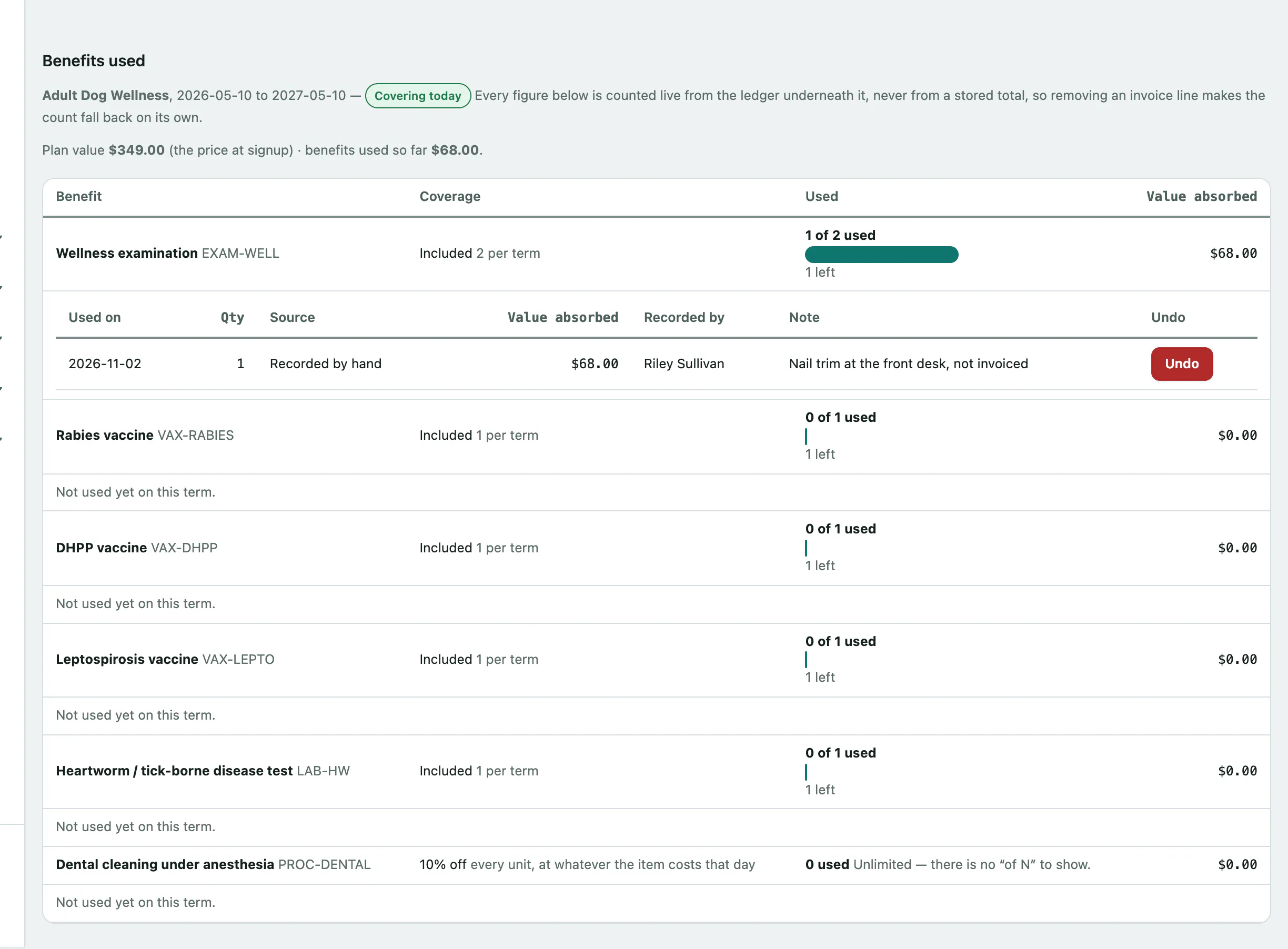
Benefits used shows each benefit on the plan and how much of it has been used this term, for example "1 of 2 used" with what's left. Unlimited benefits show only the number used. Under each one is a list of every use: the date, quantity, where it came from, the value absorbed and who recorded it.
When the pet has more than one term, select Open counter on a term in Plan terms to see its benefits.
Benefits are counted automatically when the service is billed on an invoice, so most of the time you don't need to do anything here. If Value used goes above the plan price, the screen says by how much. That's for information only: nothing is charged.
Record a use by hand
Use this when the plan covered something that never went on an invoice, like a nail trim done at the front desk.
- Under Record a use, choose the Benefit.
- Select Record use.
Quantity defaults to 1 and Used on can't be in the future. You can also link a Visit, add a Note, and set Value absorbed. Left blank, it's taken from today's catalog price.
If the use would go over what the plan includes, or falls outside the term, you'll see a warning and can confirm to record it anyway.
To remove a use you recorded by hand, select Undo on it. Uses that came from an invoice can't be undone here: remove the line from the invoice instead and the counter falls back by itself.
Record a payment
Vivetra doesn't take plan payments. After you've collected one in your own payment system, note what happened:
- Under Payment record, choose What your processor did: None, Paid, Partial, Past Due or Refunded.
- Select Save payment record.
You can add an Amount and a Note. Never type card details in the note.
Renew or close a term
To renew, check New term starts under Renew this term (it defaults to the day after the current term ends), then select Renew. The new term uses the plan's current price and length, and starts its own counter at zero. The old term is marked completed.
To close a term:
- Under Close this term, choose How it ended: completed, cancelled or lapsed.
- Select Close term and confirm.
Add a Reason if it helps. It's kept on the term and never shown to the client.
Approve plan requests from the portal
Clients can ask to join a plan from their portal. Their requests wait in Vet Practice Billing › Wellness Plan Requests.
- Select Wellness Plan Requests in the menu.
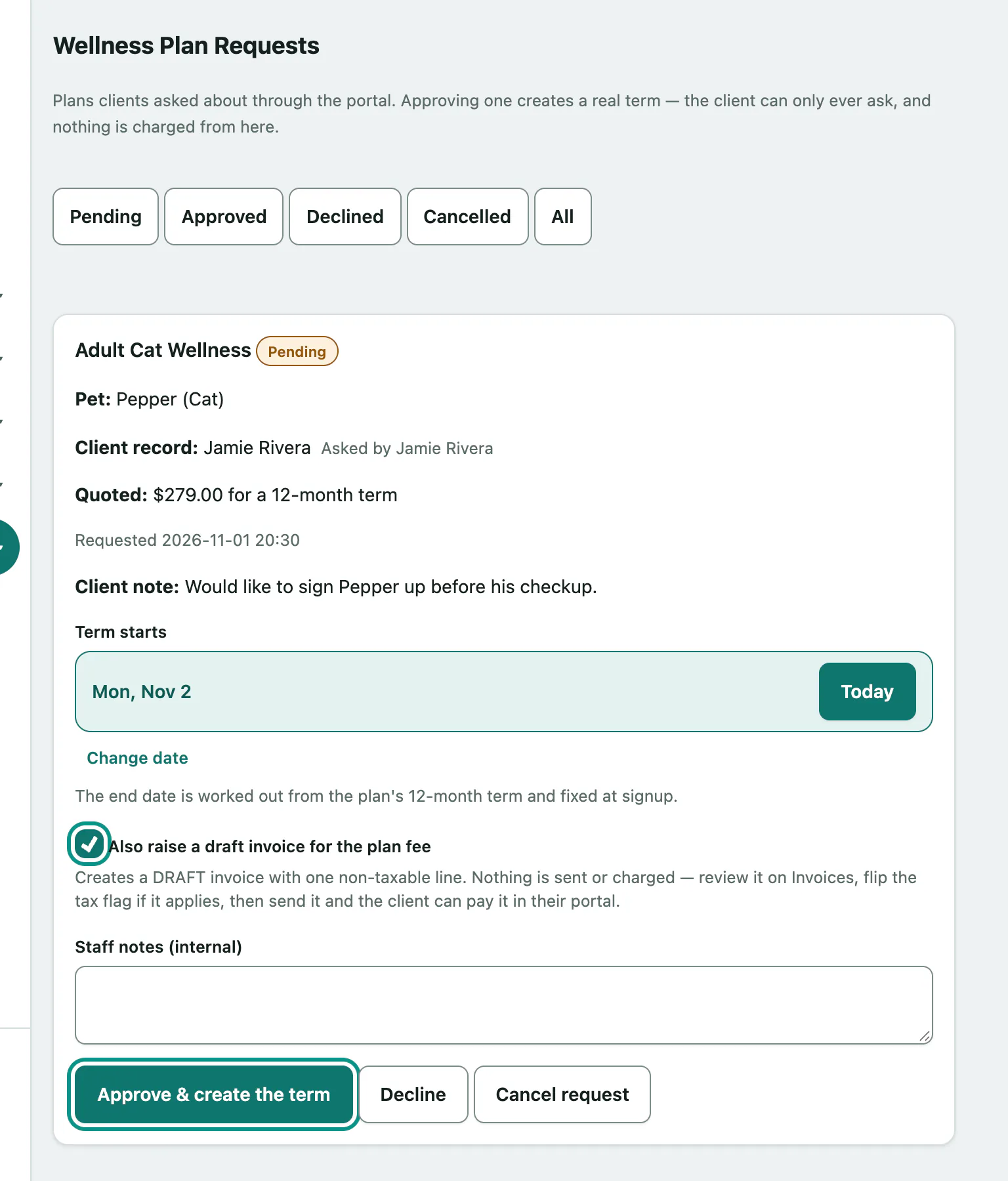
- On the Pending list, find the request. Each card shows the pet, the client, who asked, the quoted price and term, and any note from the client.
- Check Term starts. It defaults to today.
- Leave Also raise a draft invoice for the plan fee ticked if you want an invoice for the fee.
- Select Approve & create the term.
The term is created on the pet's wellness plan screen. The draft invoice isn't sent or charged: review it on Invoices, then send it and the client can pay it in their portal (see Create an invoice and take payment).
If the plan's price has changed since the client asked, choose under Enroll at whether to use The price they were quoted (the default) or Today's price. Only pick today's price if you've told the client.
Decline or cancel a request
- Decline: the client sees a short line asking them to give you a call. They never see your Staff notes (internal).
- Cancel request: closes the request.
A request for a retired plan or a pet marked deceased can't be approved. Decline it so the client knows to call.
The filters along the top show Approved, Declined, Cancelled or All requests. Anyone can view the list. Acting on it needs permission to enroll pets on plans, and raising the invoice also needs permission to create invoices.