
Boarding · Boarding Scheduling
Use the boarding waitlist
In Vivetra: Boarding Scheduling › Boarding Waitlist
On this page
The Boarding Waitlist holds requests for stays you couldn't fit when they were asked for. A request is a note to follow up, not a booking: nothing is held or reserved until you turn it into a reservation.
Requests arrive two ways: from Add to the waitlist when a unit is full on Assign Rooms, and from owners in the client portal when the dates they want are full. Anyone with reservation-management permission (front desk, practice manager) can work the list.
Find requests that now fit
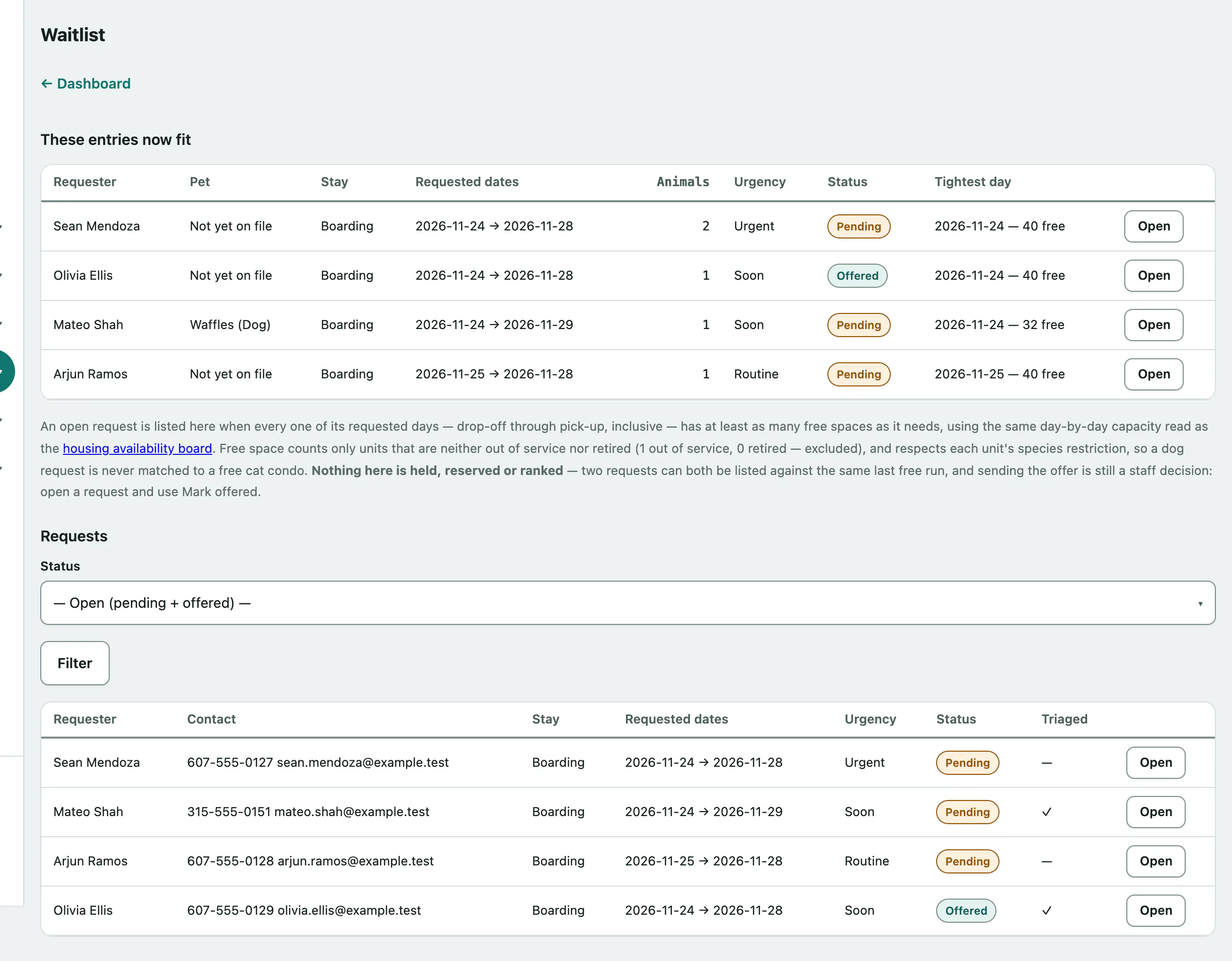
- In the menu, open Boarding Scheduling and select Boarding Waitlist.
These entries now fit lists every open request where each requested day, drop-off to pick-up, has enough free space. It uses the same day-by-day capacity as the availability view on Rooms & Kennels and respects each unit's species, so a dog is never matched to a free cat condo. Two requests can both be listed against the same last free run, so deciding who gets the offer is still up to you.
Below it, Requests lists open requests (pending and offered). Use Status to see Booked, Declined or Withdrawn ones instead.
Work a request
- Select Open on the request.
- Add a note under Staff notes (optional) and select Save triage. This stamps who reviewed it and when; you can re-run it any time, and the latest note replaces the last.
- When you've offered the owner a slot, select Mark offered. You can only mark it offered after triage.
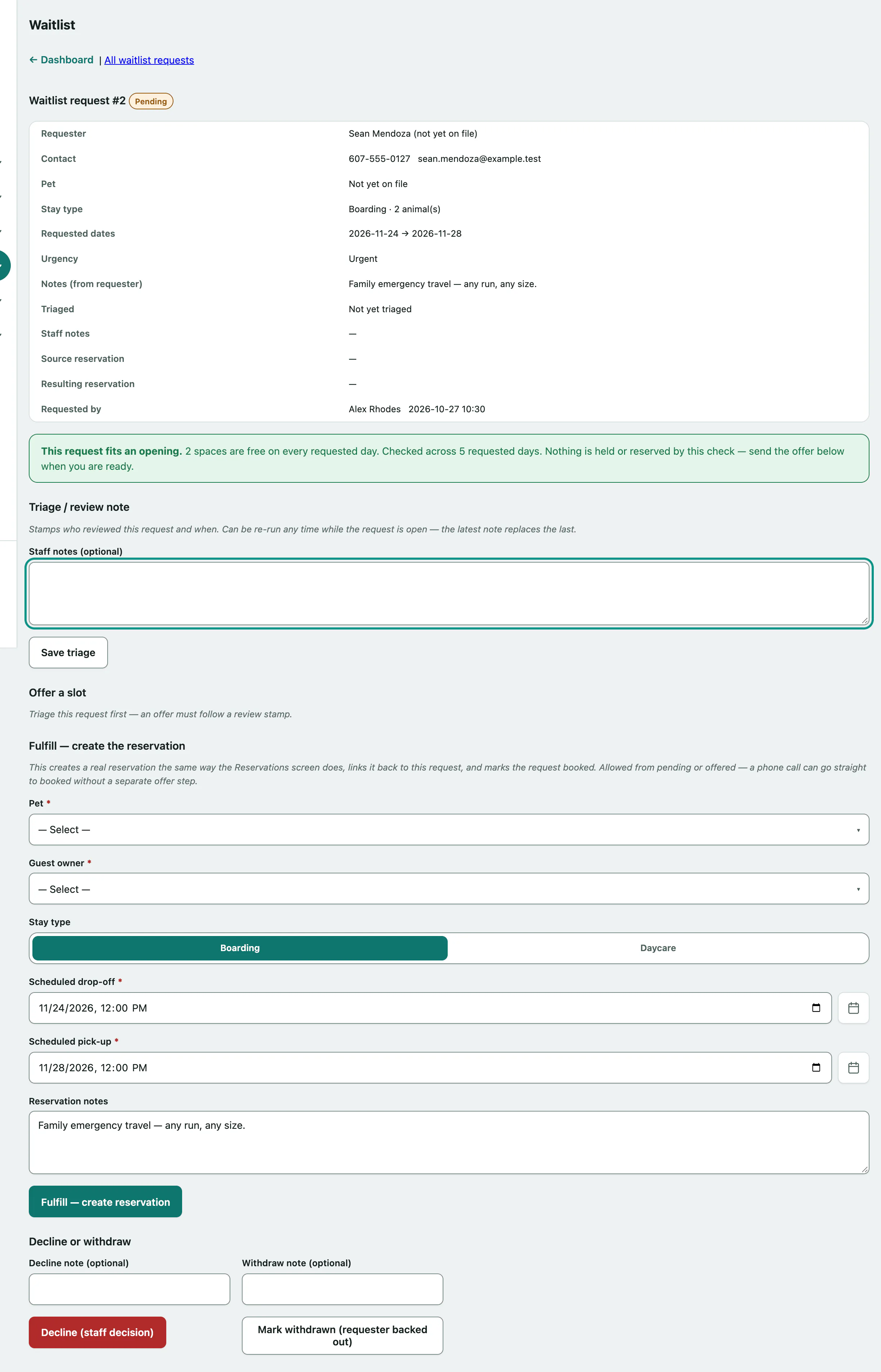
The request also tells you whether it fits an opening right now. No opening for these dates yet. is a reading of the floor, not a block.
Turn it into a reservation
When the owner says yes, fulfil the request. This creates a real reservation, the same way Reservations does, links it to the request and marks the request booked. You can do this from pending or offered, so a phone call can go straight to booked.
- Under Fulfill — create the reservation, check the Pet and Guest owner.
- Check the Scheduled drop-off and Scheduled pick-up, the Stay type and any Reservation notes.
- Select Fulfill — create reservation.
Then select View reservation → to carry on with the booking (see Book a boarding stay).
Close a request without booking
- If you're turning it down, add a Decline note (optional) and select Decline (staff decision).
- If the owner no longer needs it, add a Withdraw note (optional) and select Mark withdrawn (requester backed out).
Booked, declined and withdrawn requests are locked. No further action is available on them.