
Boarding
Send a stay report card
In Vivetra: Boarding › Report Card Templates
On this page
A report card is the note you send an owner during a stay: how their pet ate, who they played with, a couple of photos. Once published, it appears in the owner's client portal. Each stay gets one card per day.
Writing a card needs care-logging permission (veterinarian and practice manager). Setting up Report Card Templates needs boarding settings permission, usually the practice manager.
Write today's card
To open today's card, go to Boarding Scheduling › Reservations and select + add update on a stay that's checked in (see Book a boarding stay). The link only shows while the pet is checked in.
- Optionally add a Headline (optional), such as "A great day at the park".
- Add a Note (optional), then answer the template's questions and add any photos.
- Select Save draft to come back to it later, or Publish to put it on the owner's timeline.
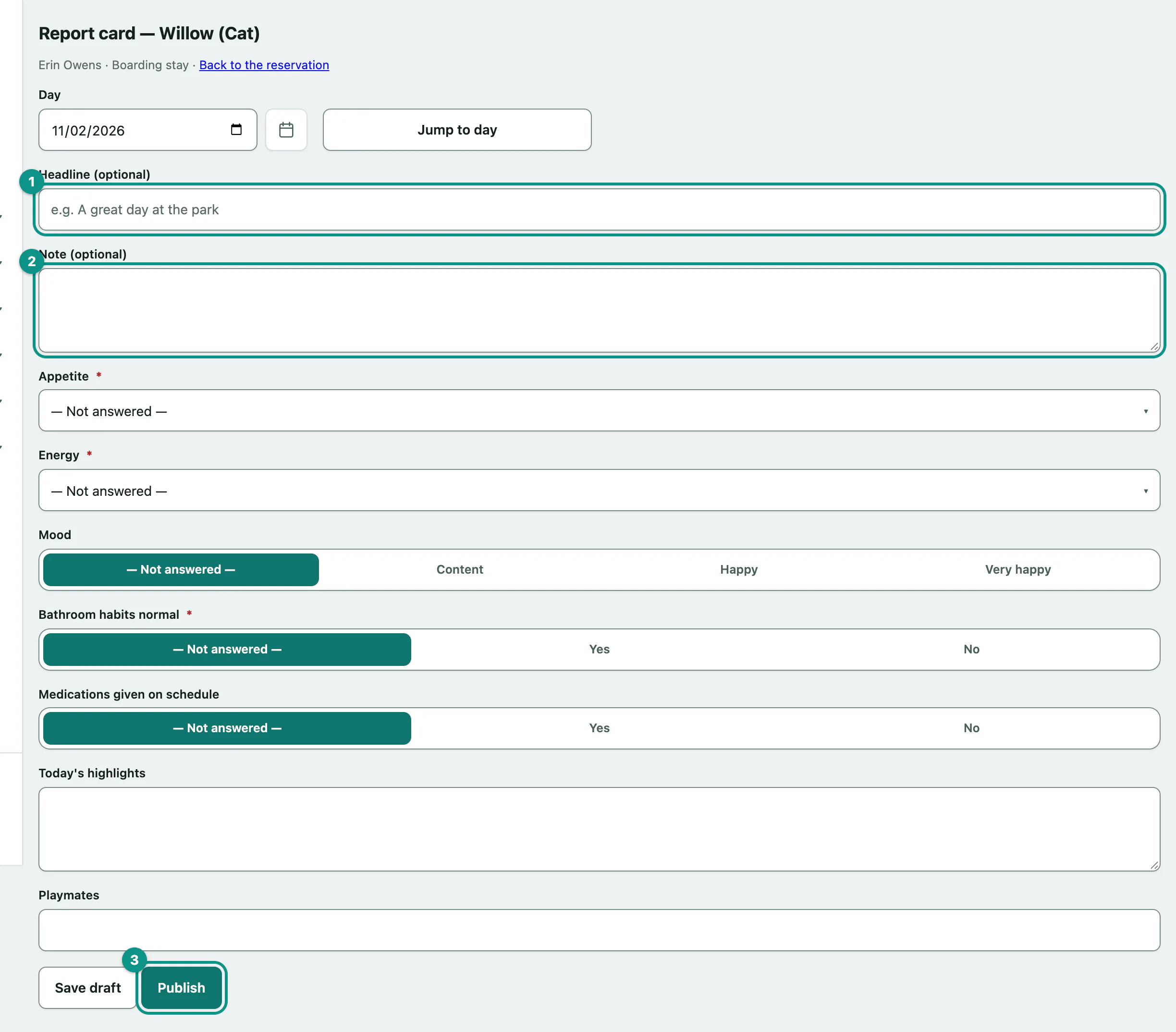
Questions marked with an asterisk are required. Photo questions take an image and an optional caption; you can remove a saved photo with Remove this photo.
To work on another day of the stay, pick the Day and select Jump to day.
Change or take down a published card
Edit the card and select Re-publish. To remove it from the owner's timeline, select Retract — take this off the client's timeline. It goes back to a draft. Retracting can't un-send a message that has already gone out.
Set up report card templates
A template decides what the card looks like in the portal (accent colour, heading, greeting, sign-off) and what it asks staff to fill in. Without one, cards still work: they show in Vivetra's own colours with just the headline, note and photos.
- In the menu, open Boarding and select Report Card Templates.
- Under Add a template, enter a Name. Only staff see it.
- Choose what it's Used for: Any visit (the fallback), Boarding stays, Daycare days or Grooming appointments.
- Select Add template.
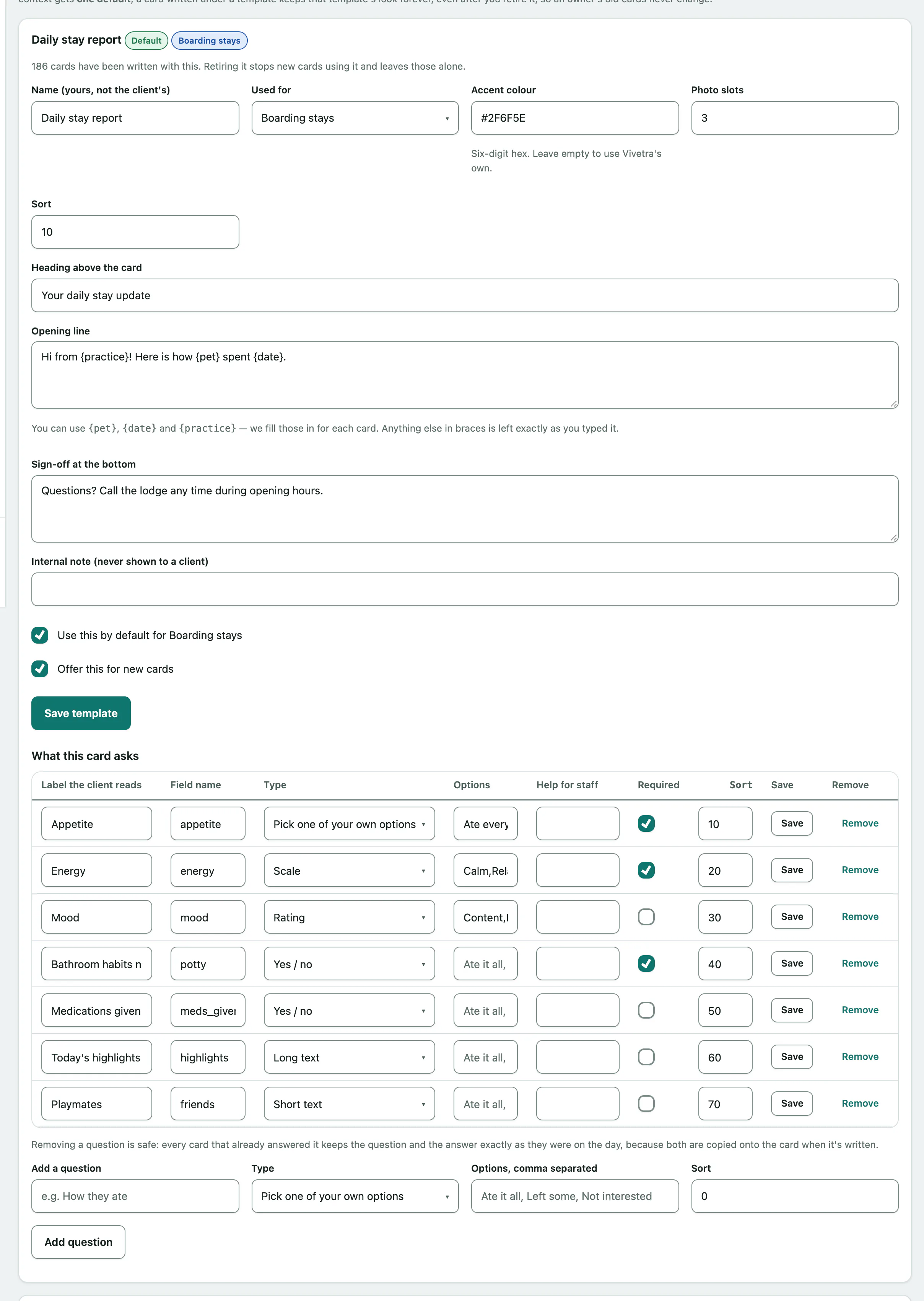
You can also set the Accent colour (a six-digit hex code, like #2E7D6B), the number of Photo slots and the Opening line. In the opening line, {pet}, {date} and {practice} are filled in for each card. Tick Use this by default for the context above to make it the default; each kind of visit has one default.
Once the template exists, its card also lets you set the Heading above the card, Sign-off at the bottom and an Internal note (never shown to a client). Select Save template after changing them.
Add questions
- On the template's card, under What this card asks, enter the question in Add a question, such as "How they ate".
- Choose its Type: Pick one of your own options, Rating, Scale, Yes / no, Short text, Long text or Photo.
- For a pick-one, rating or scale question, list the choices in Options, comma separated.
- Select Add question.
Existing questions can be edited in their row and saved, made required, or removed. Removing a question doesn't change cards already written; they keep the question and answer as they were.