
Vet Practice · Vet Practice Scheduling
Book an appointment
In Vivetra: Vet Practice Scheduling › Schedule
On this page
The Schedule shows every appointment for a day or a week, and the booking form underneath it is where you add a new one. Open it from Vet Practice Scheduling › Schedule in the menu.
The schedule
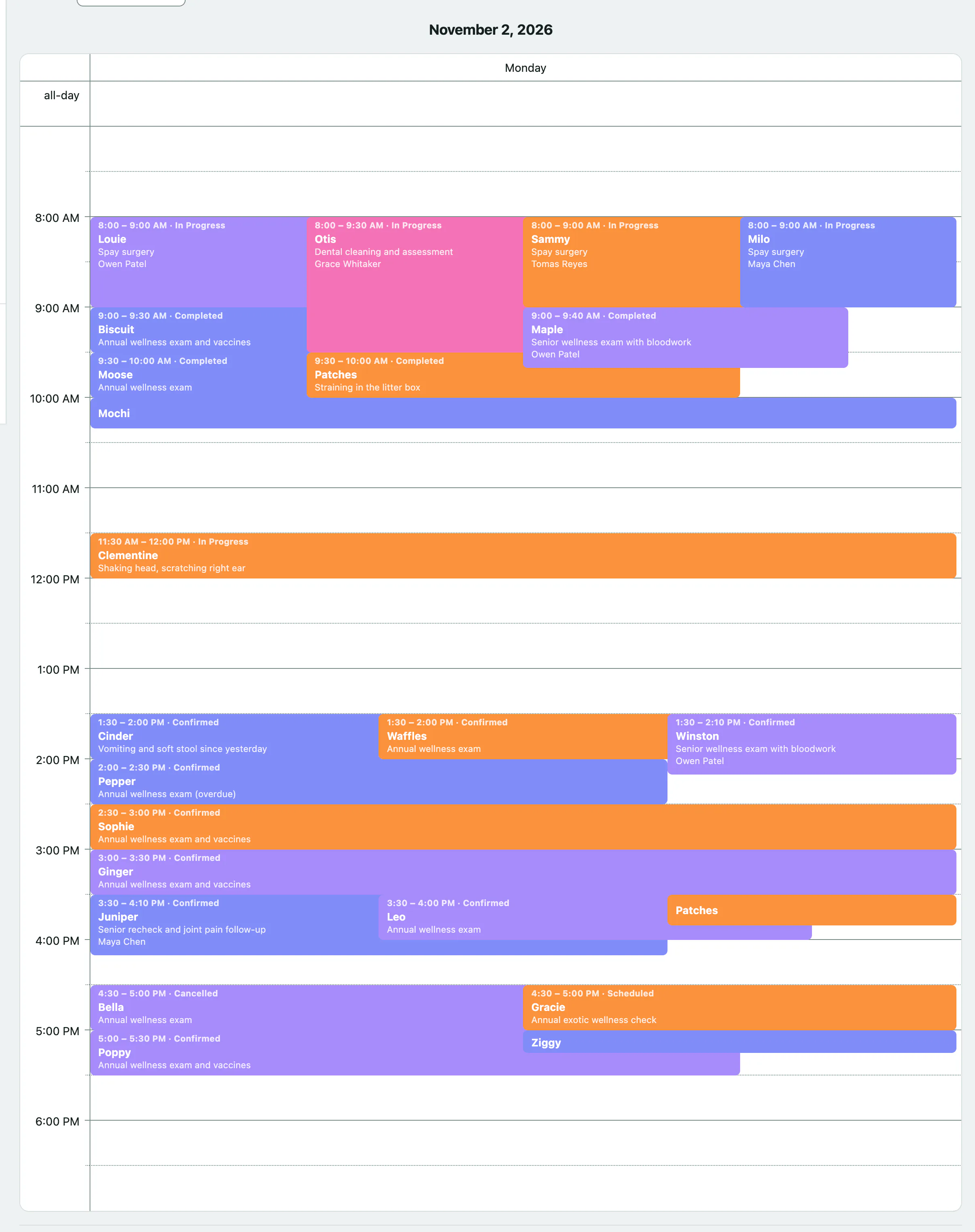
The schedule opens on today. Each appointment shows the patient's name and is coloured by provider; the key under the calendar says which colour is which.
- Day and Week switch between one day and a whole week.
- The links under the heading move back or forward a day (or a week), and Today or This week brings you back.
- To go straight to another date, pick it in Jump to date and select View.
- Provider narrows the calendar to one vet. Choose All providers to see everyone again.
If nothing is booked that day you'll see No appointments scheduled for this day. instead of the calendar.
Quick changes from the calendar
Select an appointment to see its patient, client, provider, location and reason. From there you can:
- Change the Status. A scheduled appointment can be marked confirmed or no-show, a confirmed one no-show, and one that's in progress completed.
- Select Open full record → for everything else, including cancelling (see Manage a booked appointment).
You can also drag an appointment to a new time to reschedule it, or drag its bottom edge to make it longer or shorter. This only works for appointments that are still scheduled or confirmed. A message at the bottom of the screen tells you whether the change was saved.
Book a new appointment
The Book a new appointment form is below the calendar. You need a patient and a client already on file; if either is missing, add them first (see Find or add an owner).
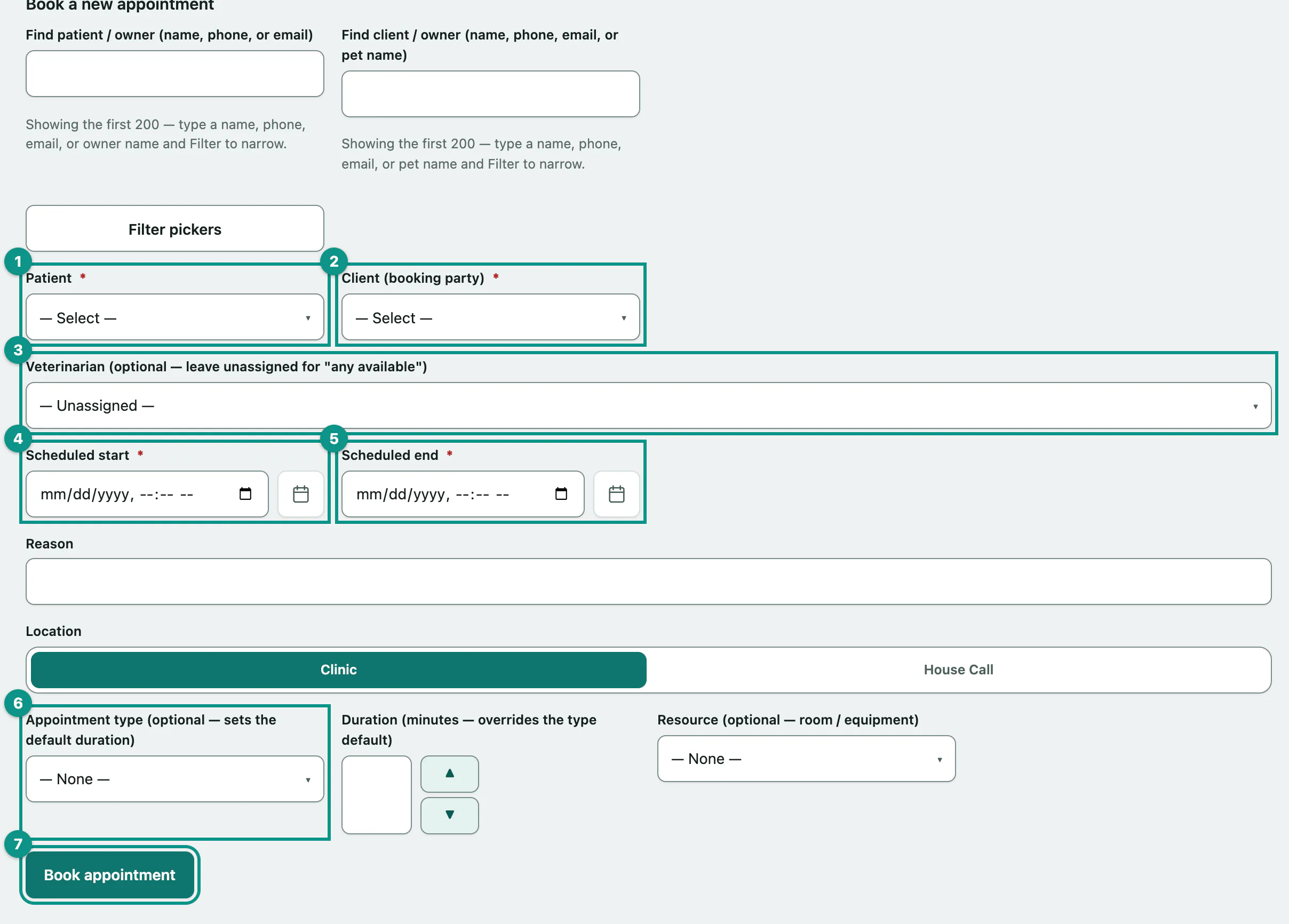
- In Patient, choose the pet.
- In Client (booking party), choose the person making the booking.
- If the pet should see a particular vet, choose them in Veterinarian (optional — leave unassigned for "any available"). Leave it on — Unassigned — if anyone can see them.
- Set the Scheduled start date and time.
- Set the Scheduled end date and time.
- Optionally choose an Appointment type (optional — sets the default duration). This fills in Duration (minutes — overrides the type default) with the type's usual length, which you can change.
- Select Book appointment.
The appointment opens on its own screen once it's booked.
The other fields are optional: Reason (shown on the calendar), Location (Clinic or House Call) and Resource (optional — room / equipment) if the visit needs a particular room or piece of kit. Your practice sets up appointment types, rooms and working hours in Set up appointment types and working hours.
Warnings when you book
Vivetra warns you rather than stopping you, because there are good reasons to double-book (a vet covering two rooms, an emergency on a day off).
| Message | What it means |
|---|---|
| Scheduling conflict: | The vet, the resource, or both already have an appointment overlapping that time. The clashing bookings are listed. |
| Outside working hours: | The time falls outside that vet's working hours. |
| Prepayment suggested: | This client has reached your practice's no-show limit. It may show the practice's suggested deposit. Nothing is charged; a deposit is recorded on the appointment's own screen. |
| Could not book: | Something on the form needs fixing, such as an end time before the start. The reason follows. |
After a conflict or working-hours warning, a tick box appears above Book appointment naming exactly what's wrong, for example I understand this veterinarian is double-booked — book anyway. Tick it and select Book appointment again to go ahead, or change the time.
Who can book
Front desk staff, vets and practice managers can book and change appointments. If you can see the schedule but not the booking form, your role can't book; ask your practice manager.