Shelter
Put adoptable animals and donations on your website
In Vivetra: Shelter › Website Widgets
On this page
Vivetra gives your shelter two pages anyone can open without signing in: a list of animals looking for a home, and a donation form. You link to them from your own website, or show them inside one of your own pages. Both are off until you turn them on.
Anyone signed in can see Website Widgets. Only the practice manager can change the settings; everyone else sees a note asking them to contact whoever manages the shelter's Vivetra account.
Find the addresses
- Select Website Widgets in the Shelter menu. The Public pages screen opens.
- Under Where these pages live, copy the address next to Animals looking for a home or Donation form. A page that's still turned off is marked off.
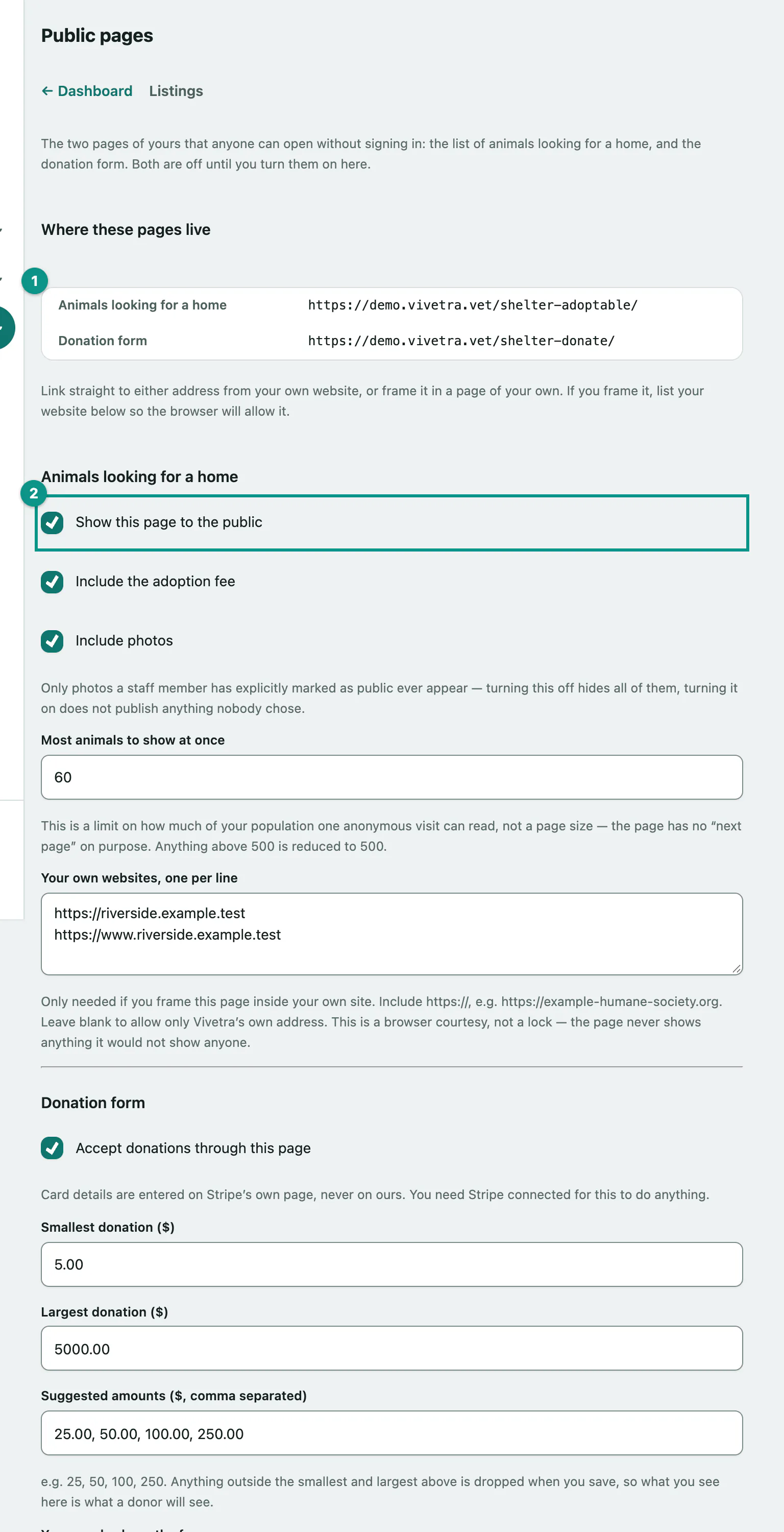
Link straight to either address, or frame it in a page of your own site. If you frame it, add your website under Your own websites, one per line so the browser allows it.
Turn on the animals page
- Under Animals looking for a home, tick Show this page to the public.
- Choose whether to Include the adoption fee and Include photos.
- Set Most animals to show at once. This caps how many animals one visit can see; there's no "next page". Anything above 500 is reduced to 500.
- Select Save. You'll see "Saved."
For Your own websites, one per line, include the https:// part, for example https://example-humane-society.org. Leave it blank to allow only Vivetra's own address.
What visitors see
The page lists every animal whose listing is published (see Publish adoptable listings), newest first, as long as its outcome hasn't been recorded and it isn't marked deceased. Each card shows the listing's public name, headline, species, breed, sex, age, the adoption fee if you chose to show it, the good-with and energy traits, any special needs, and the description. When animals of more than one species are listed, visitors can filter by species.
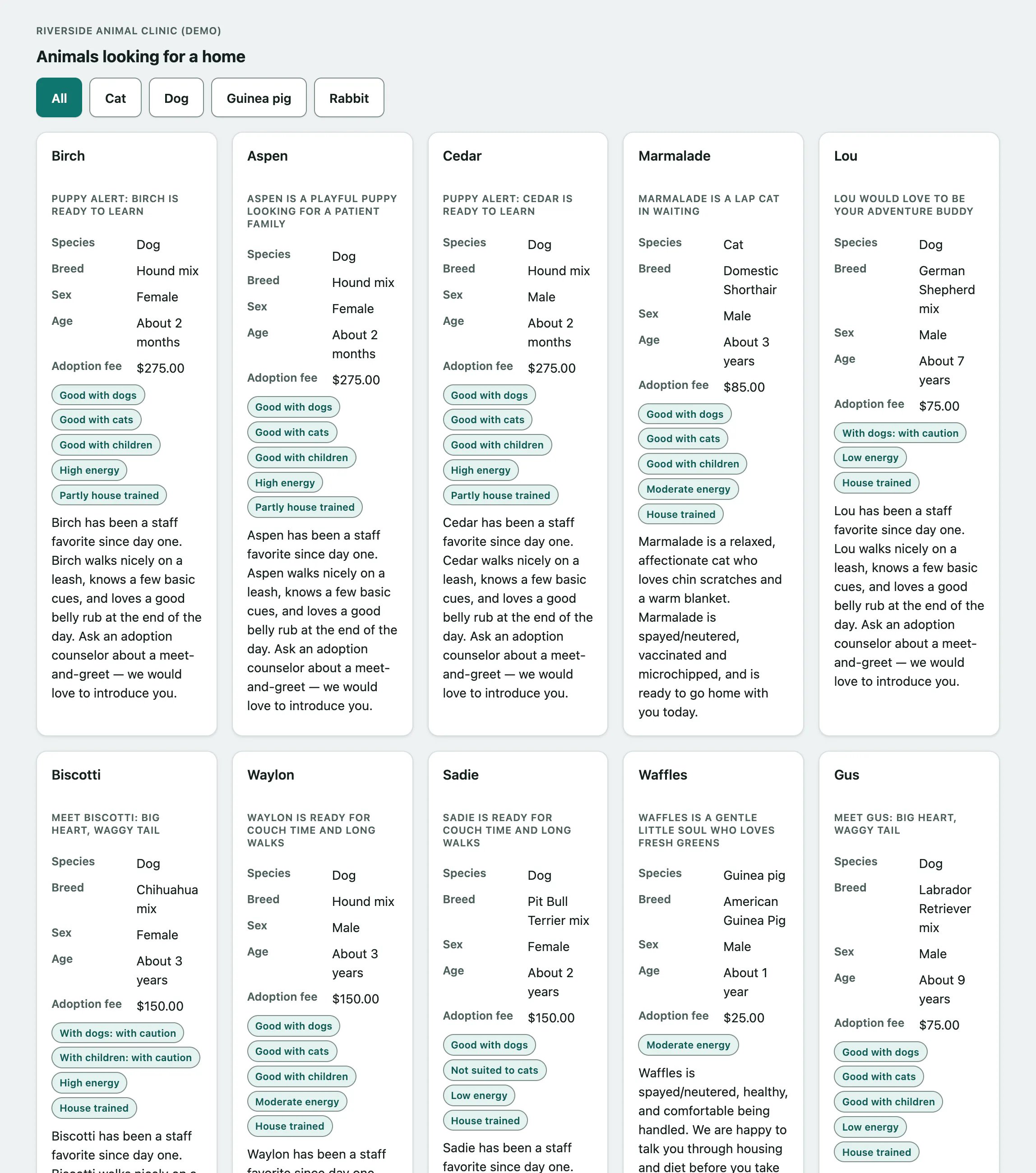
The page ends by asking visitors to contact your practice, with its name and phone number. While the page is turned off, visitors see "This page isn't available right now." instead.
Turn on donations
You need Stripe connected for donations to work. Card details are entered on Stripe's own page, never in Vivetra.
- Under Donation form, tick Accept donations through this page.
- Set the Smallest donation ($) and the other options in the table below.
- Select Save.
| Setting | What it does |
|---|---|
| Smallest donation ($) and Largest donation ($) | The range a donor can give. The smallest can't be more than the largest. |
| Suggested amounts ($, comma separated) | For example 25, 50, 100, 250. Amounts outside the range are dropped when you save. |
| Your words above the form | A short message shown above the form. |
| What a donation can go towards, one per line | For example "Medical fund". Leave it blank and donors aren't asked. |
| Offer “in honour of / in memory of” | Lets donors dedicate their gift to someone. |
| Let a donor withhold their name from your staff lists | Gives donors a box to stay anonymous. |
What donors see
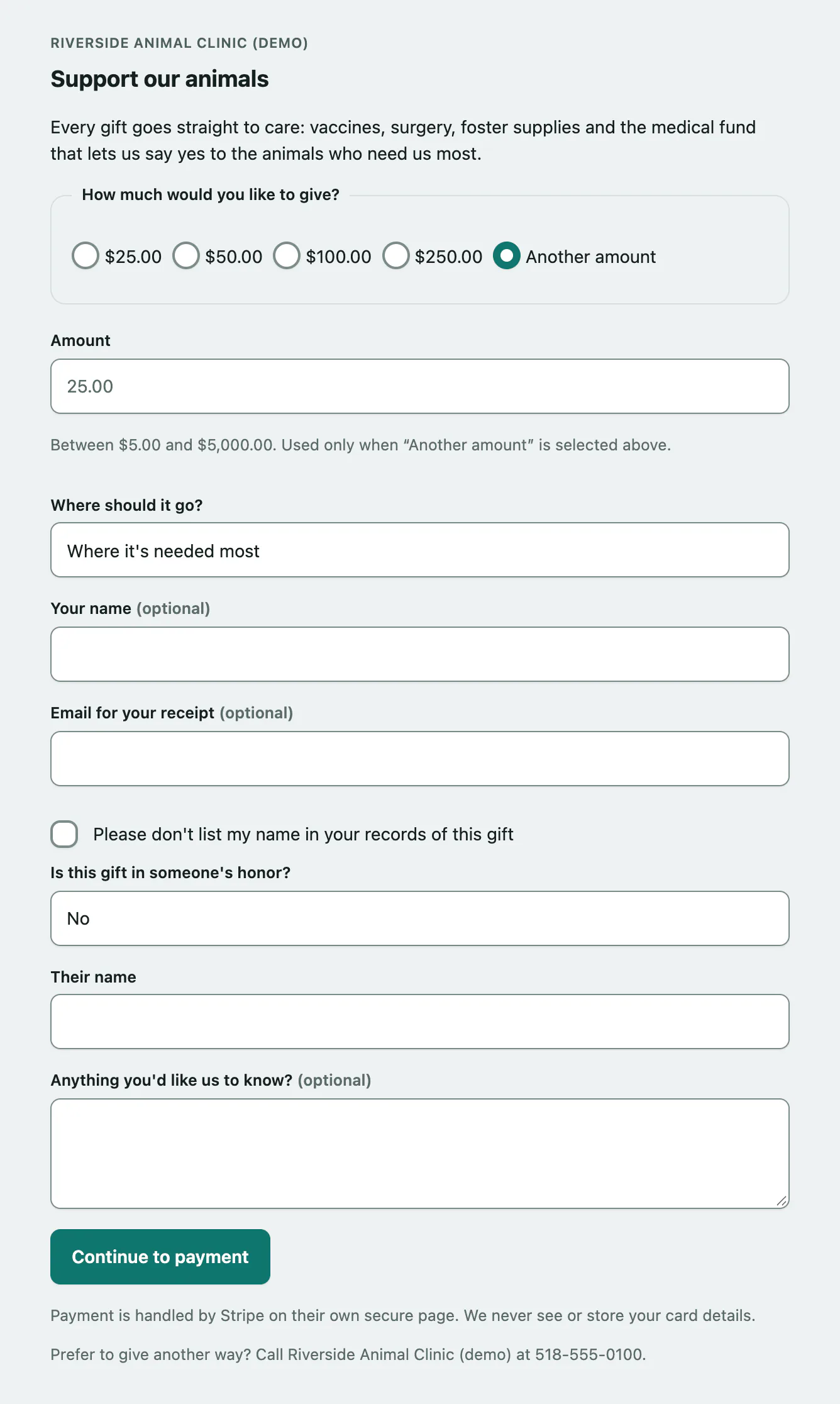
The form is headed "Support our animals". Donors pick a suggested amount or Another amount, and can choose where it goes, add their name and an email for the receipt, ask not to be named, dedicate the gift and leave a message. Continue to payment takes them to Stripe to pay. Afterwards they see a thank-you message, and Stripe emails them a receipt.