
Client portal · Boarding
Book a stay or a groom
In Vivetra: Book a stay or groom
Ask for a boarding stay, a daycare day or a grooming appointment from Book a stay or groom in the portal menu. You can put several pets, several dates and a groom during a stay into one request. Nothing is booked until someone at the facility has looked at it and confirmed.
Add a stay
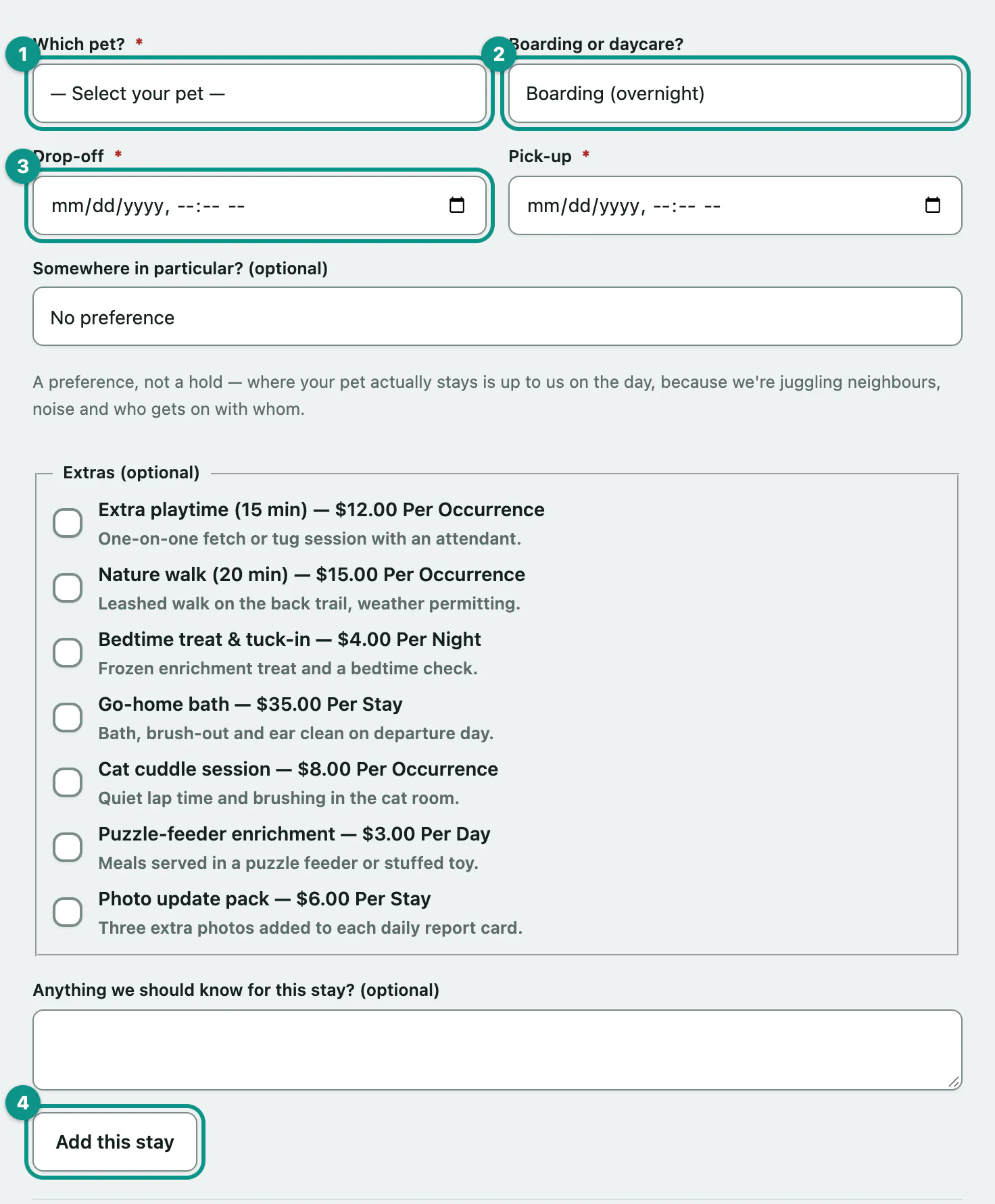
- Select Book a stay or groom in the portal menu.
- Under Add a stay, choose your pet in Which pet?.
- In Boarding or daycare?, choose Boarding (overnight) or Daycare (same day).
- Enter the Drop-off and Pick-up dates and times.
- Select Add this stay.
The form also has a few optional extras, depending on what your facility offers:
- Somewhere in particular? (optional): ask for A run, A suite or A cat condo. It's a preference, not a hold. Where your pet actually stays is decided on the day.
- Extras (optional): tick any add-ons you'd like. Each one shows its price.
- Anything we should know for this stay? (optional): a note for the team.
Repeat for each pet or each set of dates. Everything goes into the same request.
Add a groom
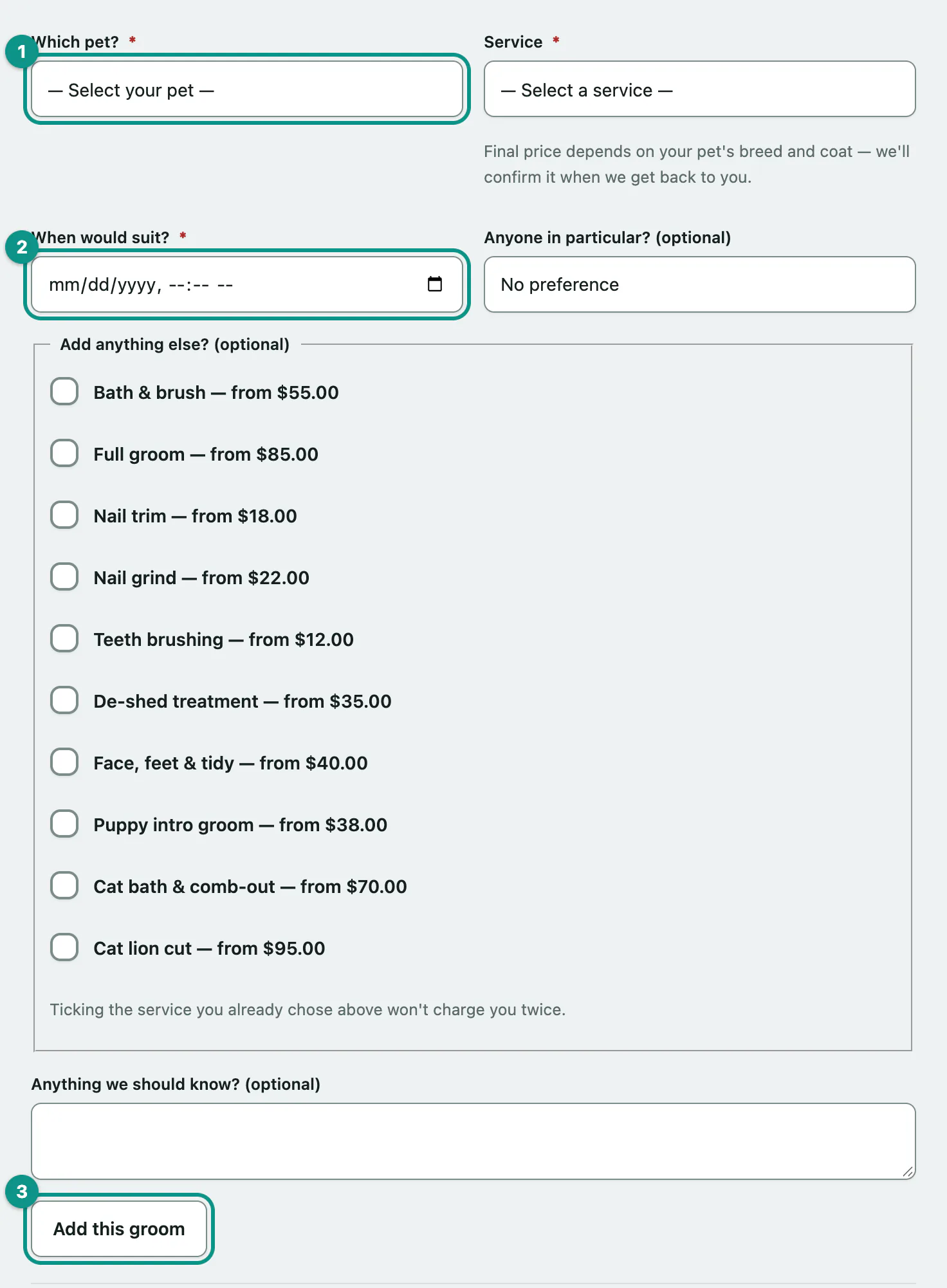
- Under Add a groom, choose your pet in Which pet?.
- Choose a Service. Each one shows a "from" price. The final price depends on your pet's breed and coat.
- Enter a time in When would suit?.
- Select Add this groom.
If you like, pick a groomer in Anyone in particular? (optional) and tick extra services under Add anything else? (optional). Ticking the service you already chose won't charge you twice.
Send your request
Everything you've added is listed under Your request, with an estimate for each item, an Estimated total and any Deposit needed to hold the booking.
- Check the items under Your request. Select Remove on anything you don't want, and add a note in Anything else we should know? (optional) if you need to.
- Select Send this request.
You'll see a confirmation that the request has arrived. It isn't confirmed yet: someone will look it over and get back to you. You can follow it on Your bookings.
Your request is kept as a draft until you send it, so you can leave and come back. To start over, select Clear this draft.
What each item's status means
| You see | What it means |
|---|---|
| Space available | There's room for those dates or that time right now. |
| Showing as full. | There's no room at the moment. You can still send the request, or select Join the waitlist for this if it's offered. |
| On the waitlist | That item is on the waitlist. The facility will call you if something opens up. |
| A warning about the dates | The facility isn't taking online bookings for those dates. |
Prices marked as needing confirmation usually mean the facility doesn't have your pet's breed or weight on file yet.
If you can't send it
If something is missing for one of your pets, such as an up-to-date vaccination or a signed agreement, a message explains what's needed and your request stays saved. Select Sort this out to go to your pets, fix it (see Send a vaccination record), then come back and send the same request.
If you see We're not taking online bookings at the moment, or no pets are listed, call the facility instead.
To see how busy the facility is before you choose dates, select See what's free at the bottom of the page (see Check what's available). For something that repeats, select Set up a regular booking (see Set up a regular booking).