
Vet Practice
Merge duplicate owners
In Vivetra: Vet Practice › Merge Duplicate Clients
When the same person has ended up with two owner records, merge them so their pets, appointments and invoices are all in one place. Only practice managers can merge owners.
A merge moves everything from one record (the losing record) onto the other (the surviving record). The losing record is deactivated, never deleted, and remembers which record it was merged into.
Before you start
Find both records on Owners and note each one's ID, shown under Record on the owner's page (see Work with an owner's record › Record details). Decide which one to keep. Usually that's the one with the correct name and contact details, because the losing record's details aren't copied across.
Preview the merge
- Select Merge Duplicate Clients in the Vet Practice group of the menu.
- Enter the ID of the record to keep in Surviving client ID (the record to keep).
- Enter the other ID in Losing client ID (merged away).
- Select Preview merge.
Nothing changes yet. Confirm the merge shows both records side by side, then What will move off the losing record: how many appointments, invoices, estimates, linked patients, tags and so on will move.
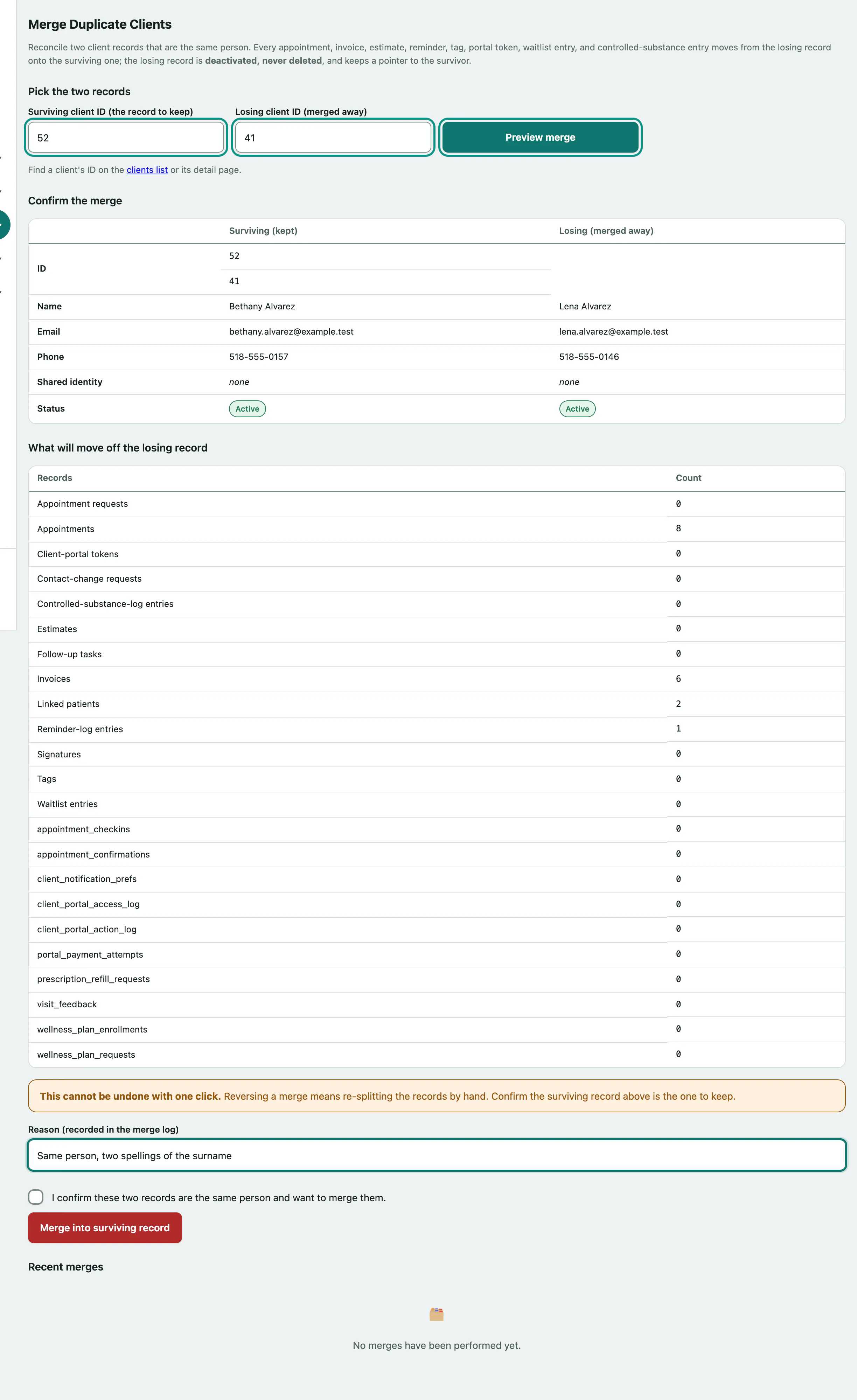
If both records are linked to the same pet, or share a tag, a note tells you the duplicates will be dropped rather than doubled.
Merge the records
- Optionally enter a Reason (recorded in the merge log), such as "same person, two spellings of the surname".
- Tick I confirm these two records are the same person and want to merge them.
- Select Merge into surviving record and confirm.
The surviving owner's record opens with everything from the other record on it.
If the merge is refused
| Message | What to do |
|---|---|
| A client cannot be merged into itself | You entered the same ID twice. |
| One of those client IDs does not exist. | Check the IDs on the owners' records. |
| One of those records has already been merged into another client. | Use the record it was merged into instead. |
| Both of these records hold their own client-portal invite or account. | Revoke portal access on the record you won't keep, then merge (see Work with an owner's record › Portal access). |
| Tick the confirmation box to merge | Tick the confirmation and select Merge into surviving record again. |
Recent merges
Recent merges lists the last 20 merges: when, the surviving and losing owners, who did it and the reason. Select a name to open that record.