
Vet Practice · Vet Practice Scheduling
Review online appointment requests
In Vivetra: Vet Practice Scheduling › Appointment Requests
On this page
Pet owners can ask for an appointment from the client portal. Those requests wait in Appointment Requests until someone at the practice approves, declines or follows up on them. Approving a request books a real appointment.
Open the requests
- Select Appointment Requests under Vet Practice Scheduling in the menu.
The list opens on Pending. The links along the top (Pending, Contacted, Approved, Declined, Cancelled and All) show requests in each state.
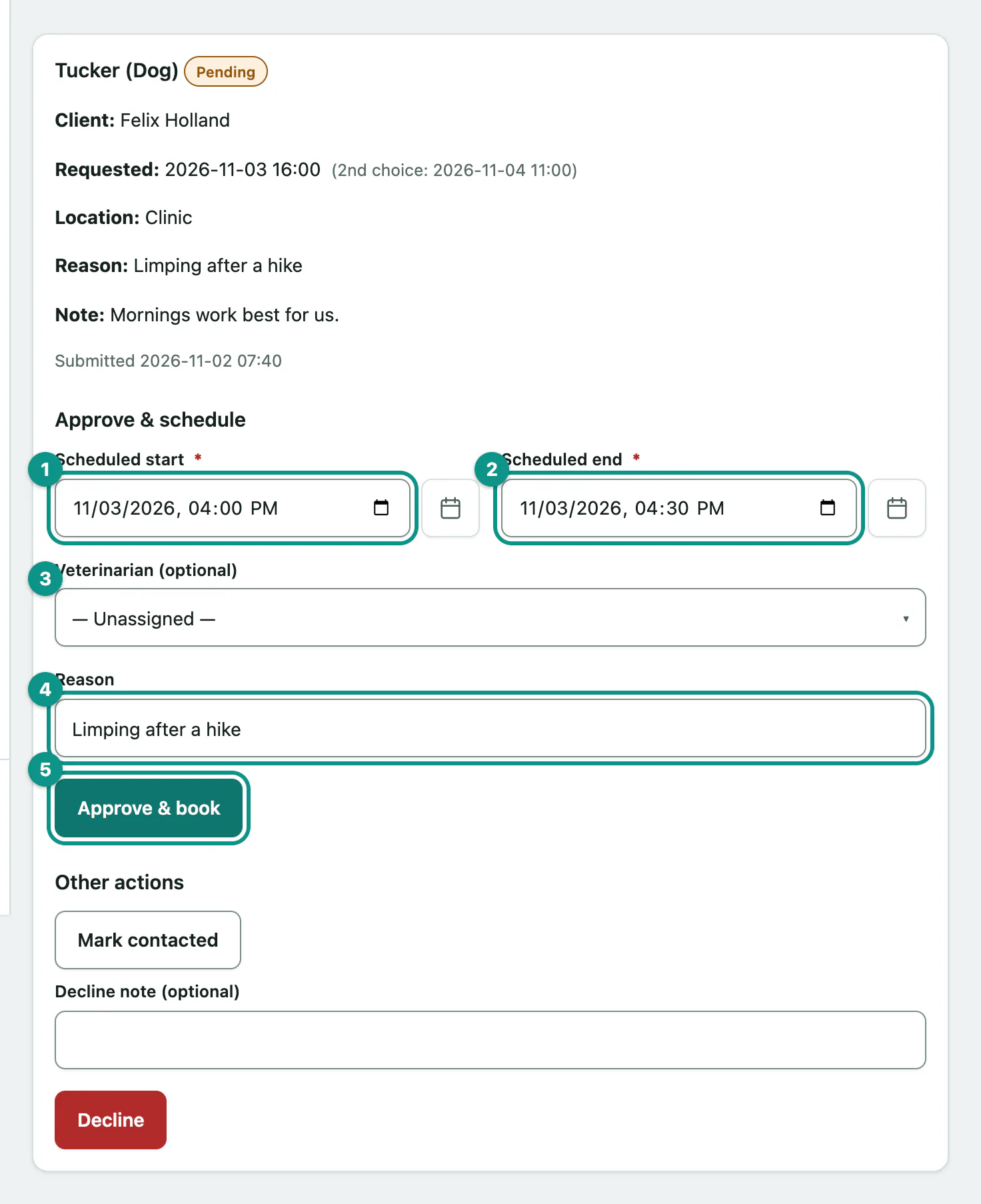
Each request card shows the pet, the client, the time they asked for (and a second choice, if they gave one), the location, their reason and any note. A Pet deceased label means the pet has since been marked deceased.
Approve and book a request
Agree a time with the client first, by phone or email.
- Under Approve & schedule, check the Scheduled start. It starts on the time the client asked for.
- Check the Scheduled end. It starts 30 minutes after the requested time.
- Optionally choose a vet in Veterinarian (optional), or leave it on — Unassigned —.
- Edit the Reason if you need to. It starts with the client's own words.
- Select Approve & book.
You'll see Request approved — the appointment has been booked. The card moves to Approved, where View booked appointment opens it (see Manage a booked appointment).
Approving doesn't message the client. Let them know the time yourself.
If the vet is already booked
If the vet you chose already has an appointment overlapping that time, the request isn't approved yet. Its card comes back with the times you entered and a warning. Change the time, or:
- Tick Book anyway — I know this overlaps another appointment for this veterinarian.
- Select Approve & book again.
Mark a request as contacted
If you've been in touch but haven't settled a time, select Mark contacted so the rest of the team knows. The request stays open, under Contacted, and you can still approve or decline it.
Decline a request
- Optionally type a reason in Decline note (optional), such as "Booked by phone instead."
- Select Decline.
A request for a pet marked deceased can't be approved, only declined.
Messages you might see
| Message | What it means |
|---|---|
| That request was already handled by someone else — refresh to see its current state. | A colleague approved or declined it while you were looking. |
| That request was just approved by someone else. | Two people approved it at the same moment. Only one appointment was booked. |
| That pet is no longer on the client's account (removed or deceased) — request left unhandled. | The pet was removed or marked deceased. Decline the request. |
| Enter a valid start and end time (end after start). | Fix the times and try again. |
Who can act on requests
Front desk staff, vets and practice managers can approve, decline and mark requests as contacted. Anyone else sees You can view requests but not act on them — approving, declining, and marking-contacted require the appointment-booking permission.