
Vet Practice · Vet Practice Billing
Create an invoice and take payment
In Vivetra: Vet Practice Billing › Vet Practice Invoices
On this page
An invoice is the bill for a visit. You create it for an owner, add what you charged, send it, and then record the payment. Open it from Vet Practice Billing › Vet Practice Invoices in the menu.
What you can do depends on your role. By default, front desk, vets and vet techs can create invoices, add lines and send them. Vets and practice managers can also give discounts, void invoices and record credits. Only practice managers can mark an invoice paid or take a card payment.
Create a draft invoice
The Create an invoice form is at the bottom of the Invoices screen.
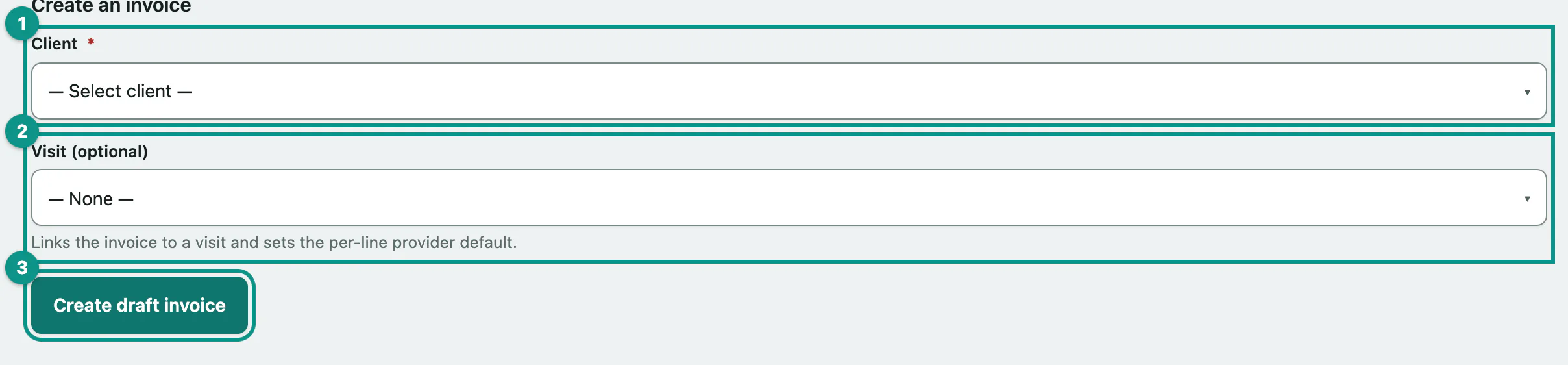
- Select Vet Practice Invoices in the menu.
- Choose the owner in Client.
- Optionally, choose the visit in Visit (optional). Linking a visit sets the vet for each line and lets wellness plan benefits apply.
- Select Create draft invoice.
The new invoice opens as a draft. To find it again, look under All invoices and select View.
If the owner approved an estimate first, you don't need this form: convert the estimate instead (see Create an estimate › Turn an approved estimate into an invoice).
Add line items
Each line is one thing you're charging for. You can add lines while the invoice is a draft or has been sent.
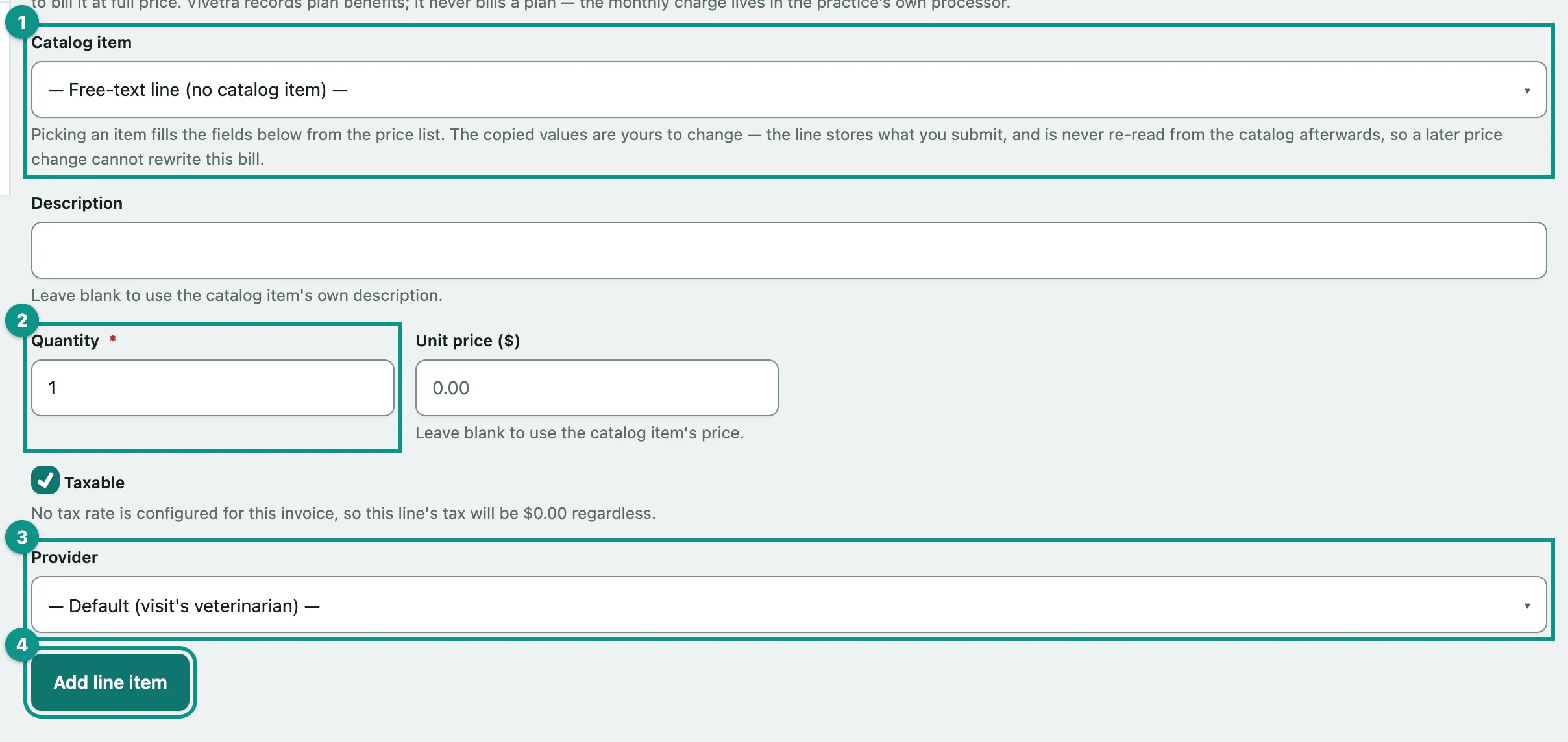
- Choose a service in Catalog item. The description, quantity, price and taxable box fill in from your price list. To charge something that isn't in the list, leave it on — Free-text line (no catalog item) —.
- Check the Quantity, and change the Unit price if you need to. Clear Taxable for a tax-exempt line.
- Optionally, choose who did the work in Provider. Left on — Default (visit's veterinarian) —, it uses the visit's vet.
- Select Add line item.
The provider decides whose revenue the line counts toward in Run financial reports.
Changing a price in Set up services and prices never changes an invoice you've already written.
Apply a discount
Under Discount you can take a percentage or a fixed amount off the whole invoice, before tax.
- Choose a Discount type: Percentage (%) or Flat amount. Then enter the Percentage or the Flat amount.
- Select Apply discount.
A new discount replaces the old one. To remove it, choose No discount (remove) and select Apply discount.
Send the invoice
Vivetra doesn't email invoices. Print it or hand it to the owner, then record that it went out.
- Select Mark this invoice sent.
Only a draft can be sent. Sending stamps the date and puts the invoice on the unpaid invoices report. If the owner uses your client portal, they can see it there too.
Take payment
If your practice has connected Stripe in Payment Settings, the invoice shows Collect payment. Nothing changes on the invoice until a payment actually succeeds, and then it's marked paid for you.
- To take a card over the phone or at the desk, select Collect card payment, enter the card details, then select the Charge button.
- To let the owner pay on their own device, select Create payment link, then Copy link and send it to them. Later, Check if the client paid looks it up.
For cash, check or a card machine outside Vivetra, record the payment yourself under Mark paid (called Mark paid another way when Stripe is connected).
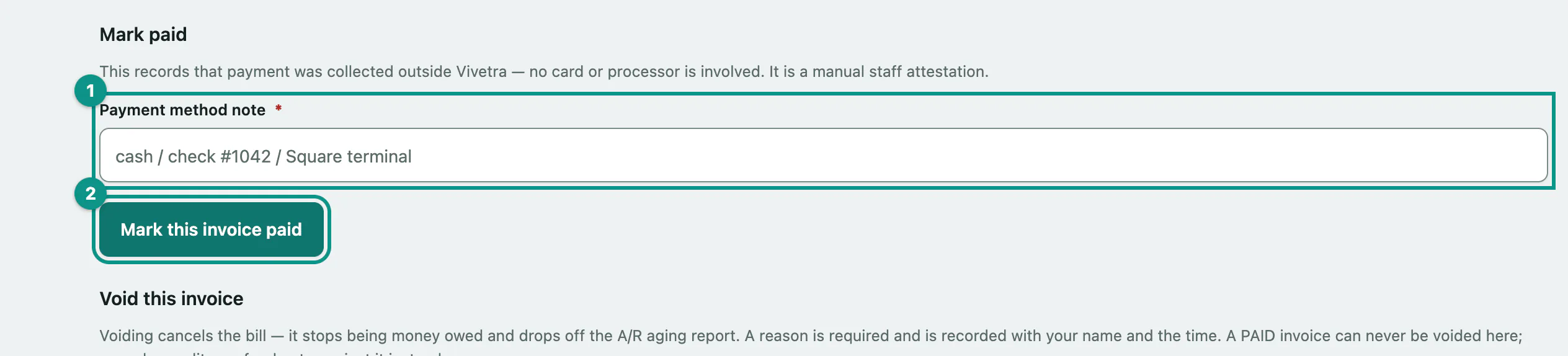
- In Payment method note, say how it was paid, for example "cash" or "check #1042".
- Select Mark this invoice paid.
Once an invoice is paid it's locked: A finalized invoice is read-only — its balance can no longer be re-attested or its lines changed.
Void an invoice
Void a draft or sent invoice that was raised in error. It stops being money owed and drops off the unpaid invoices report.
- Enter why in Reason, for example "duplicate of invoice #4".
- Select Void this invoice.
Your name, the time and the reason are recorded on the invoice.
Refunds and credits
There are two ways to give money back on a paid invoice.
If it was paid by card through Stripe, practice managers see Issue a Stripe refund. This really sends the money back to the owner's card. The Amount starts at the full total; lower it for a partial refund.
- Check the Amount, optionally choose a Reason (optional), and select Issue refund.
For a refund given another way, or a credit toward a future bill, use Record a credit or refund. This only records what happened; no money moves through Vivetra, and the invoice stays paid at its original amount.
- Choose the Kind: Refund (money returned) or Credit (toward a future balance). Enter the Amount and the Reason, and a Method note (how a refund was returned) for a refund.
- Select Record credit/refund note.
You can't credit more than the invoice total. Every note is listed under Credit & refund notes.
Invoice statuses
| Status | What it means |
|---|---|
| draft | Still being written. Not owed yet. |
| sent | Given to the owner and waiting for payment. |
| overdue | Sent more than 30 days ago and still unpaid. |
| paid | Payment recorded. Locked. |
| void | Cancelled. Locked. |