
Hospital
Bill a hospital stay
In Vivetra: Hospital › Hospital Invoices
On this page
A hospital invoice is the bill for a stay. Each one starts from an approved treatment-plan estimate: converting the estimate creates the invoice with its lines (see Build a treatment-plan estimate › Turn an approved estimate into an invoice). Here you add any further charges, take payment, and handle refunds and voids.
Front desk staff, veterinarians and practice managers can add charges. Taking payment, refunds, credits and voids are for the practice manager by default.
Find an invoice
- Select Hospital Invoices in the Hospital menu.
- To narrow All invoices, choose a Status: Draft, Sent, Paid or Void.
- Select View next to the invoice.
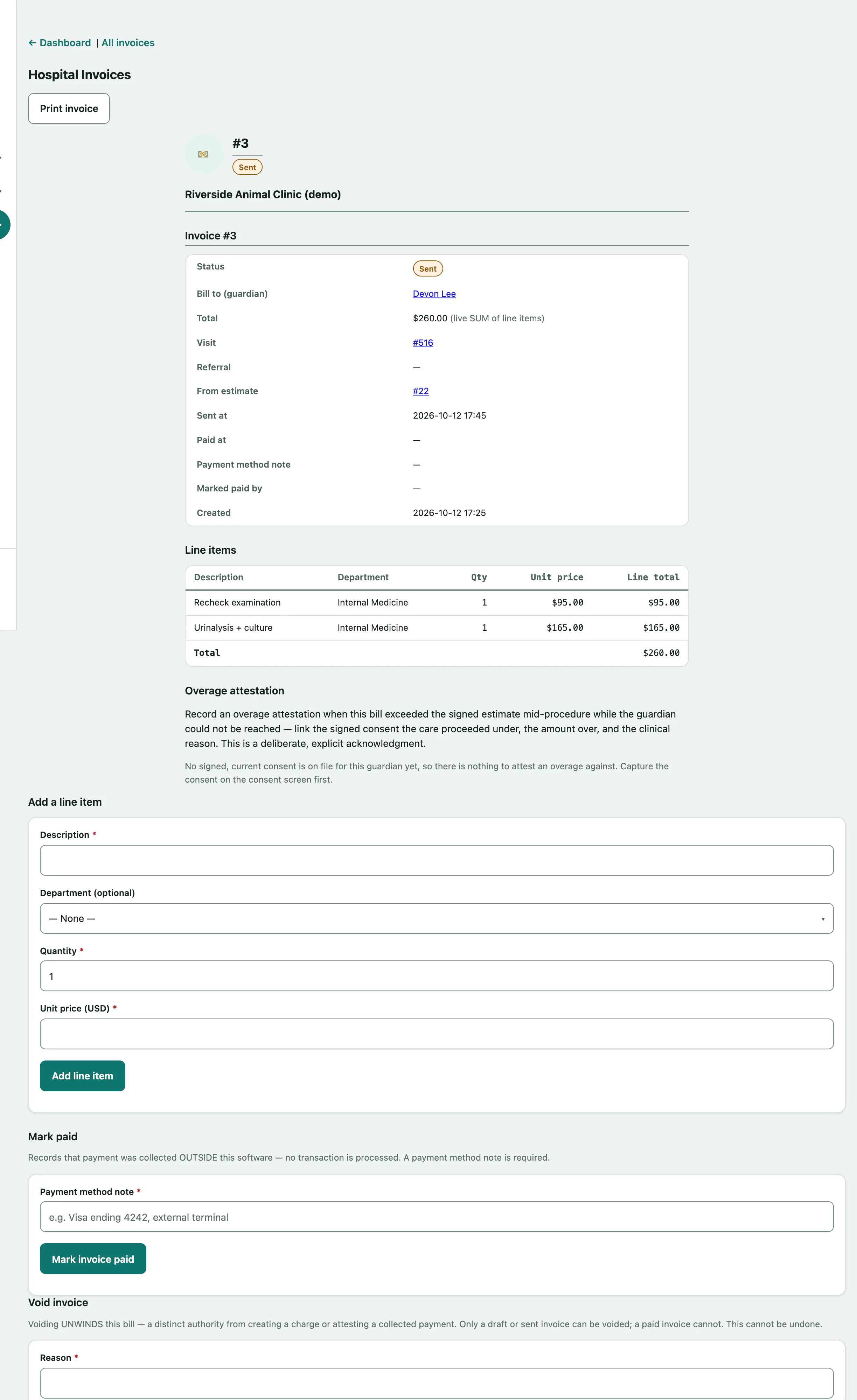
The invoice shows who it's billed to, the total, the visit, the referral and who referred the case, the estimate it came from, and when it was sent and paid. Select Print invoice for a paper copy.
Add a charge
You can add charges while an invoice is a draft or sent. The total is always the sum of the Line items.
- Under Add a line item, enter the Description.
- Check the Quantity and enter the Unit price.
- Select Add line item.
You can also pick a Department (optional) for the line.
Take payment
If your practice takes card payments through Stripe, Collect payment offers two ways. The invoice is only marked paid once the payment actually succeeds.
To take a card in the hospital or over the phone:
- Select Collect card payment, enter the card in the payment form that appears, then select the Charge button.
To let the owner pay themselves:
- Select Create payment link, then Copy link and send it to them by text or email. They pay on Stripe's own page.
Select Check if the guardian paid to see whether a payment link has been used.
Payment taken another way
If the owner paid at an external terminal, in cash or by cheque:
- Under Mark paid another way (or Mark paid), enter a Payment method note, such as "Visa ending 4242, external terminal". It's required.
- Select Mark invoice paid.
A paid invoice is locked: no more charges or payment changes.
Refunds and credits
For a card payment taken through Stripe, Issue a Stripe refund sends real money back to the owner's card.
- Check the Amount. It starts at the full total; lower it for a partial refund.
- Select Issue refund.
You can choose a Reason (optional) too.
To record a credit or refund you gave outside Vivetra:
- Under Record a credit or refund, choose the Kind: Refund (money returned) or Credit (toward a future balance).
- Enter the Amount and a Reason.
- Select Record credit/refund note.
The invoice stays paid at its original amount. The screen shows how much is left to credit, and Credit & refund notes lists every one recorded.
Void an invoice
Only a draft or sent invoice can be voided. A paid one can't.
- Under Void invoice, enter the Reason.
- Select Void this invoice.
When the bill went over the estimate
If the bill grew beyond the signed estimate during treatment while the owner couldn't be reached, record an overage attestation. It links the signed consent the care went ahead under, the amount over and the clinical reason.
- Under Overage attestation, choose the Consent this care proceeded under.
- Enter the Overage amount and the Clinical reason the plan grew.
- Select Record overage attestation (set-once).
An attestation can only be recorded once and can't be replaced. You need a signed consent on file for the owner first.
Bills with no owner on file
For an invoice raised before the owner was known, use Claim guardian of record once they're identified: choose an Existing guardian, or enter a new guardian's details, and select Claim guardian. This works at any status, including paid and void.