
Records & admin · Admin
Connect card payments
In Vivetra: Admin › Payment Settings
On this page
To take card payments from clients, connect your practice's own Stripe account under Payment Settings. The money goes straight to your Stripe account; Vivetra never holds it. Stripe's processing fee comes out of your Stripe balance, and Vivetra's fee is 1% per payment.
This needs payment-settings permission, which by default only practice owners have. Emergency access never covers it.
Connect Stripe
- Select Admin › Payment Settings in the menu.
- Select Connect with Stripe. Vivetra creates a Stripe account owned by your practice and opens Stripe's setup form.
Complete the form on Stripe's site. When you finish, Stripe sends you back to Vivetra.
Stripe checks your business before payments switch on. If it still needs details, select Continue Stripe setup to pick up where you left off.
Check the connection
Connection status tells you where things stand:
| Status | Means |
|---|---|
| Not connected | No Stripe account yet. |
| Setup unfinished | You started Stripe's form but didn't finish it. |
| Stripe is reviewing | Stripe is verifying your business. |
| Payouts are OFF — your money is not reaching your bank | Clients can still pay you, but Stripe is holding the money. Usually one verification item is outstanding; finish it in Stripe's form. |
| Connected and accepting payments | All set. |
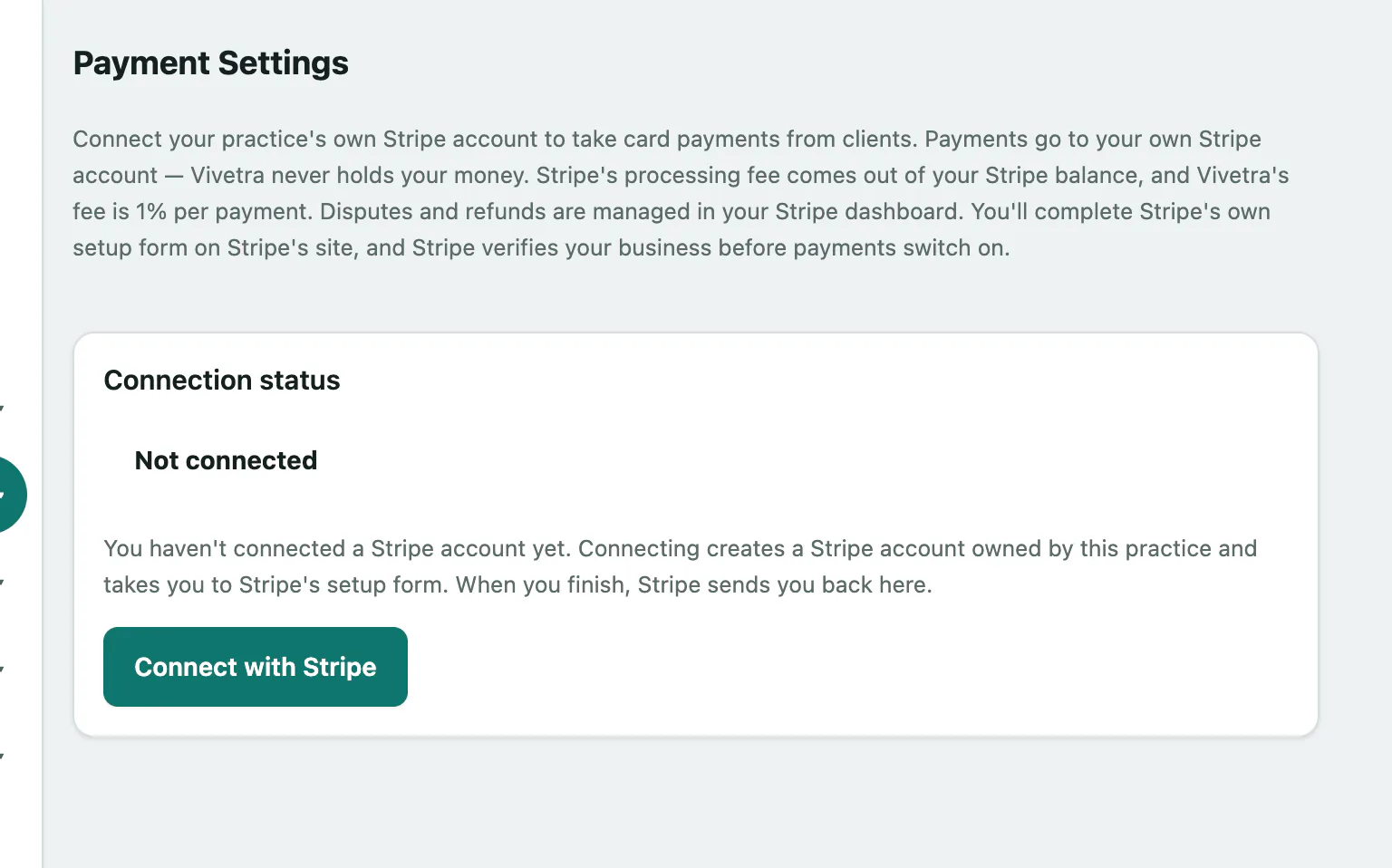
Below the status you'll see Accepting payments, Payouts to your bank and Setup form completed. If a payout to your bank fails, a notice says so with Stripe's reason. It clears by itself once a payout succeeds.
- Select Refresh status to fetch the latest from Stripe.
Payouts, refunds, disputes and Stripe's fees are all managed in your own Stripe dashboard, linked from this page.