
Shelter
Log behavior and assess an animal
In Vivetra: Shelter › Behavior Log
On this page
Record what you see an animal do, every day, in a sentence. Those daily observations build a running behavior record, and every so often you write a summary assessment over them.
This follows the ASV Guidelines for Standards of Care in Animal Shelters (2nd ed., 2022), which ask for behavior to be documented daily across ordinary interactions rather than through a one-off evaluation test.
Anyone signed in can read the log and past assessments. Recording observations and assessments needs the behavior permission, which the veterinarian and practice manager roles have by default. Without it, the screens are read-only.
The behavior log
Open Behavior Log from the Shelter menu. With no animal chosen, it's the shelter-wide view:
- Flagged — needs attention: every flagged observation in the shelter, most recent first.
- Recent activity: the latest unflagged observations, for context.
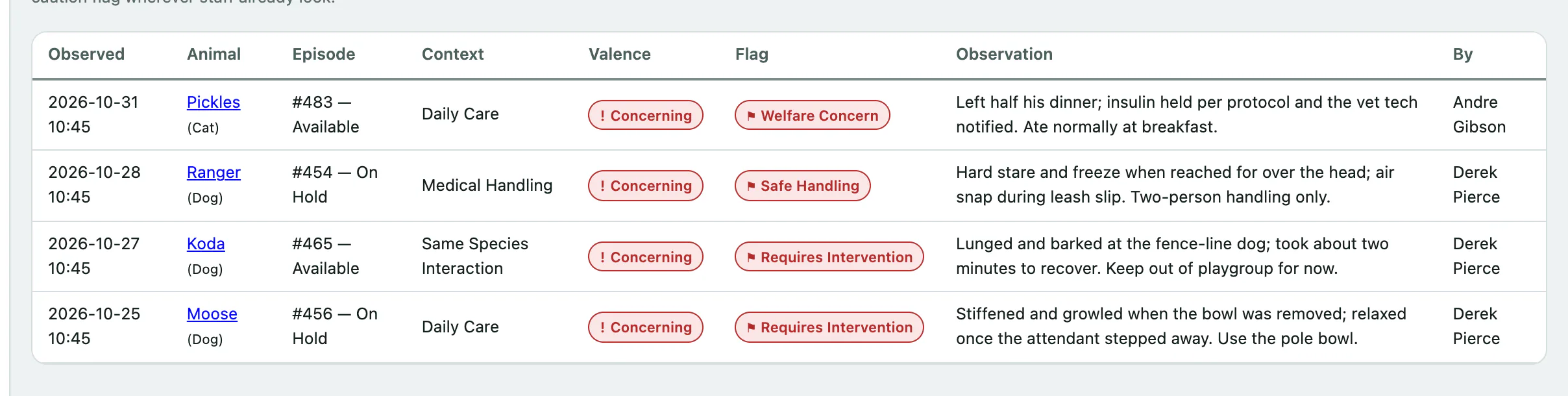
Select an animal's name in either list to open its log. You can also open it from the animal's intake with Behavior observations (see Record an intake).
On an animal's log you'll see:
- Subject: the animal, its current intake, and any active foster placement. Observations recorded while an animal is in foster are linked to that placement automatically.
- Trend — last 30 days: one cell per day with that day's counts: + positive, · neutral, ! concerning, and ⚑ for a day with a flagged entry. An empty cell means nothing was recorded that day. The strip only counts what staff wrote down; it doesn't score the animal.
- This animal's log — last 30 days: each observation with when, the context, how it went, the flag and who recorded it.
If the animal has a caution flag, a CAUTION / SAFETY FLAG banner shows at the top.
Record an observation
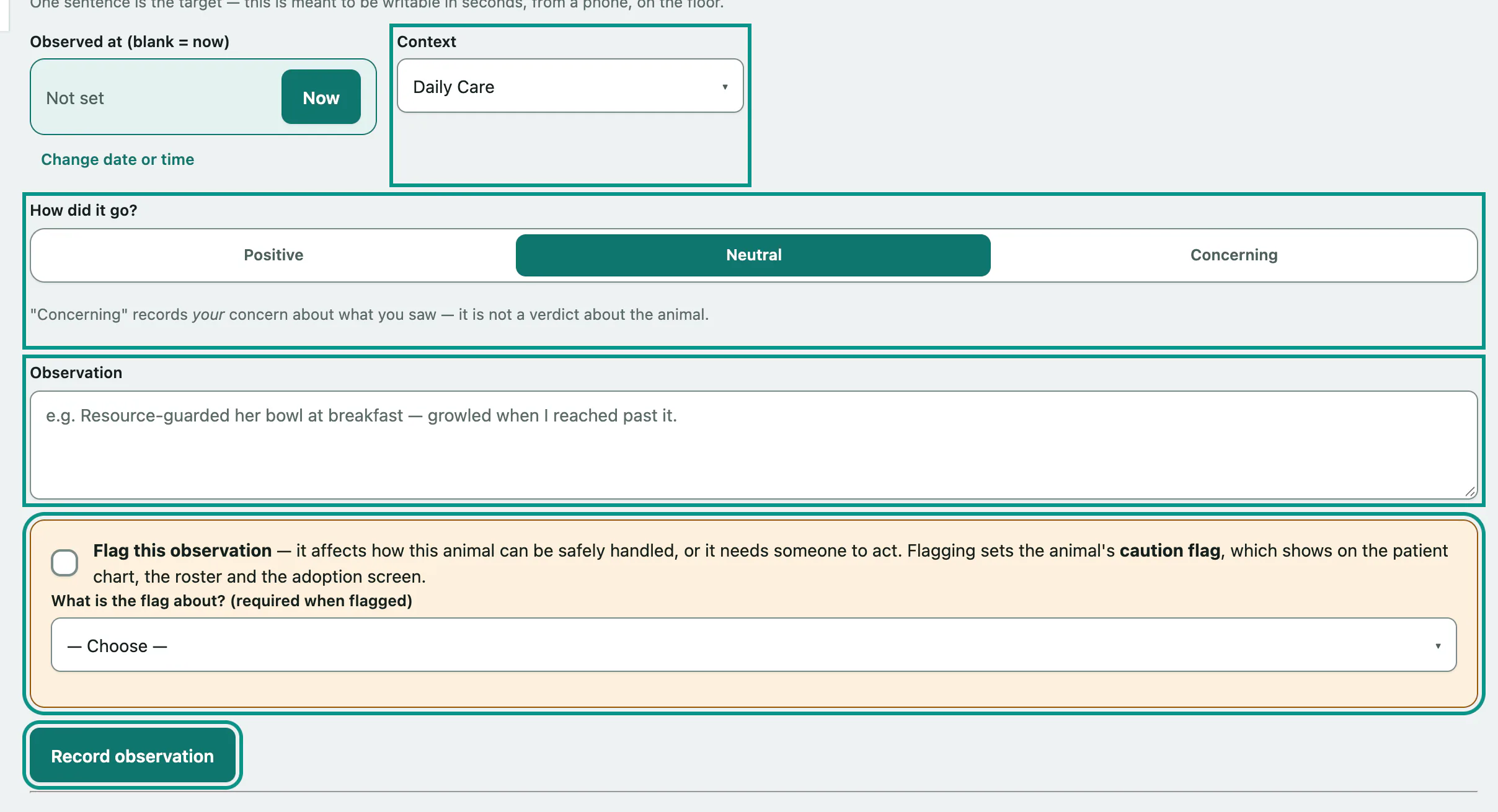
The aim is one sentence, written in seconds, from a phone if that's easiest.
- In Flagged — needs attention or Recent activity, select the animal's name.
- Choose the Context, such as Daily Care, Playgroup or Visitor Adopter Interaction.
- Choose How did it go?: Positive, Neutral or Concerning. "Concerning" records your concern about what you saw, not a verdict on the animal.
- Write the Observation, for example "Resource-guarded her bowl at breakfast — growled when I reached past it."
- If it affects safe handling or someone needs to act, tick Flag this observation and choose What is the flag about? (required when flagged): Safe Handling, Requires Intervention, Welfare Concern or Other.
- Select Record observation.
Leave Observed at (blank = now) empty to use the current time, or fill it in if you're writing it up later.
This form also works offline. If you lose signal on the kennel floor, it's saved on your device and sent when you're back online, with the time you pressed save.
Write a summary assessment
A summary assessment rolls up the observations since the last finalized summary and records your judgment.
- On the animal's behavior log, select Behavior assessment at the top.
The Behavior assessment — periodic summary screen opens. Prior assessments lists earlier ones. Observations since the last summary groups the observations not yet summarized by context, with counts for positive, neutral, concerning and flagged, and a Trend. A context needs at least 4 observations before it shows a trend. Flagged observations are listed in full under Flagged in this window.
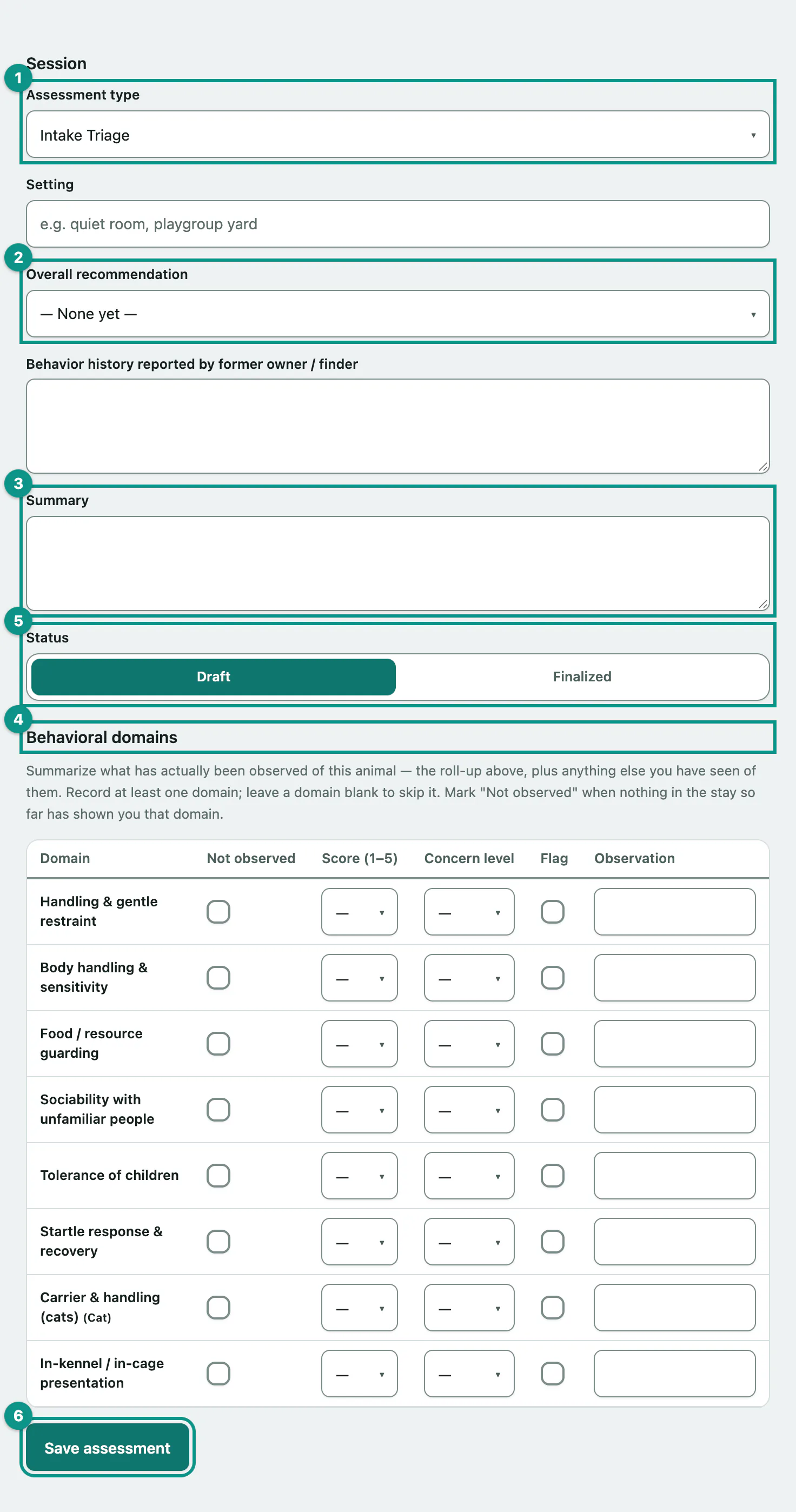
Then, under Record a summary assessment:
- Choose the Assessment type, such as Intake Triage, Playgroup, In Foster or Reassessment. Add the Setting if it helps.
- Choose an Overall recommendation, or leave it at — None yet —.
- Write the Summary. Use Behavior history reported by former owner / finder for anything the surrenderer or finder told you.
- Under Behavioral domains, fill in at least one domain: a Score (1–5), a Concern level, a short Observation, and the Flag box if it's a concern. Tick Not observed for a domain the stay hasn't shown you yet, and leave the rest blank to skip them.
- Set Status to Draft or Finalized.
- Select Save assessment.
Draft or finalized
| Status | What happens |
|---|---|
| Draft | The assessment is saved. The observations stay in the "since the last summary" window. |
| Finalized | The window's observations are stamped onto this assessment, so it's on record what the recommendation was based on, and the next summary starts from here. If any domain is flagged, the animal's caution flag is set. |
Saved assessments can't be edited, so record a new one if something changes.
Overall recommendations
Available All, Available Experienced Home, Available No Young Children, Available No Dogs, Available No Cats, Needs Behavior Modification, Foster To Evaluate, Further Evaluation Needed and Not Adoption Candidate.