
Hospital
Work a referral case
On this page
Each referral has its own page where you move it through its stages, assign it to a department and specialist, attach the records that came with it, and send reports back to the referring vet.
Open a referral from the inbox:
- In Referrals, select View next to the referral.
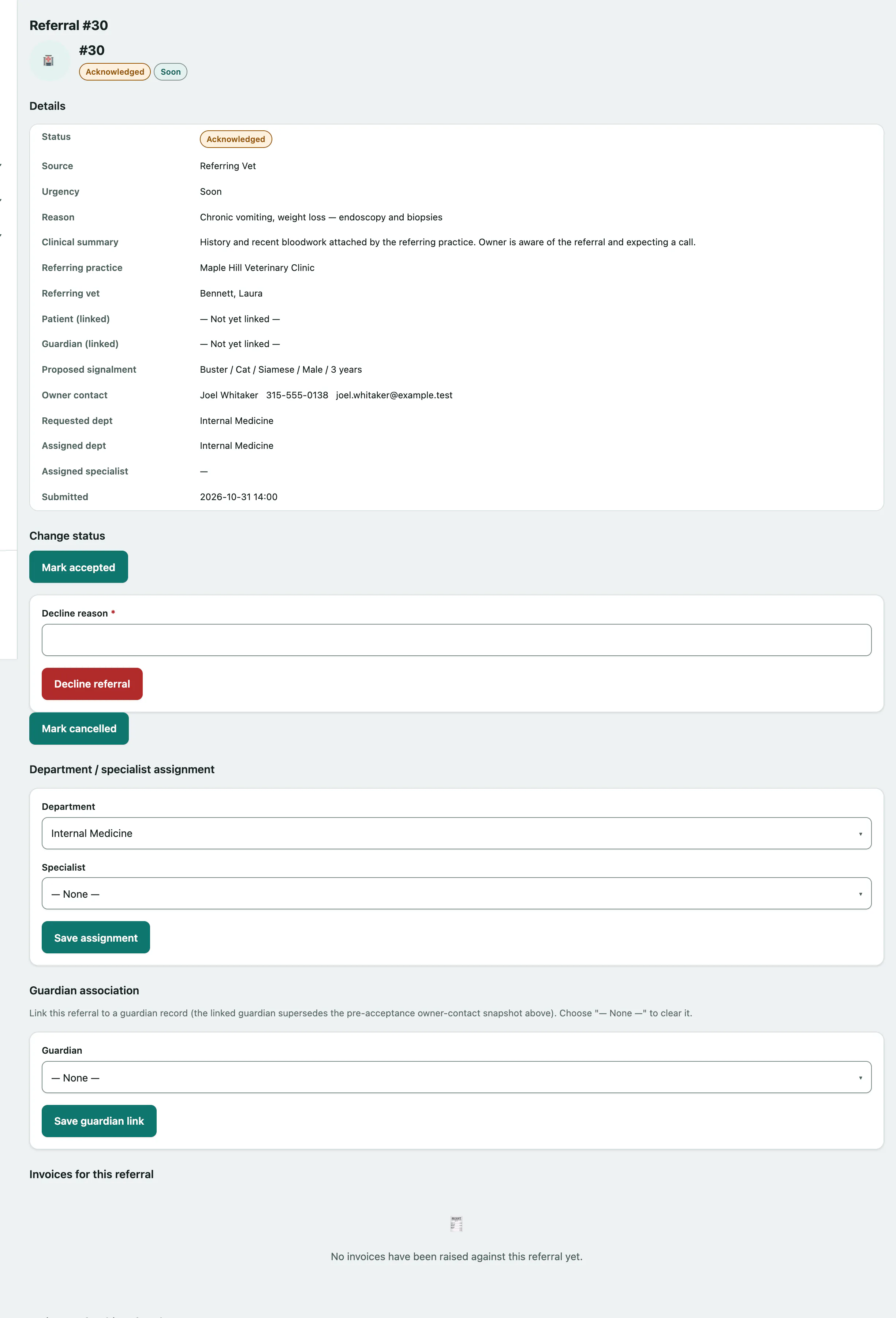
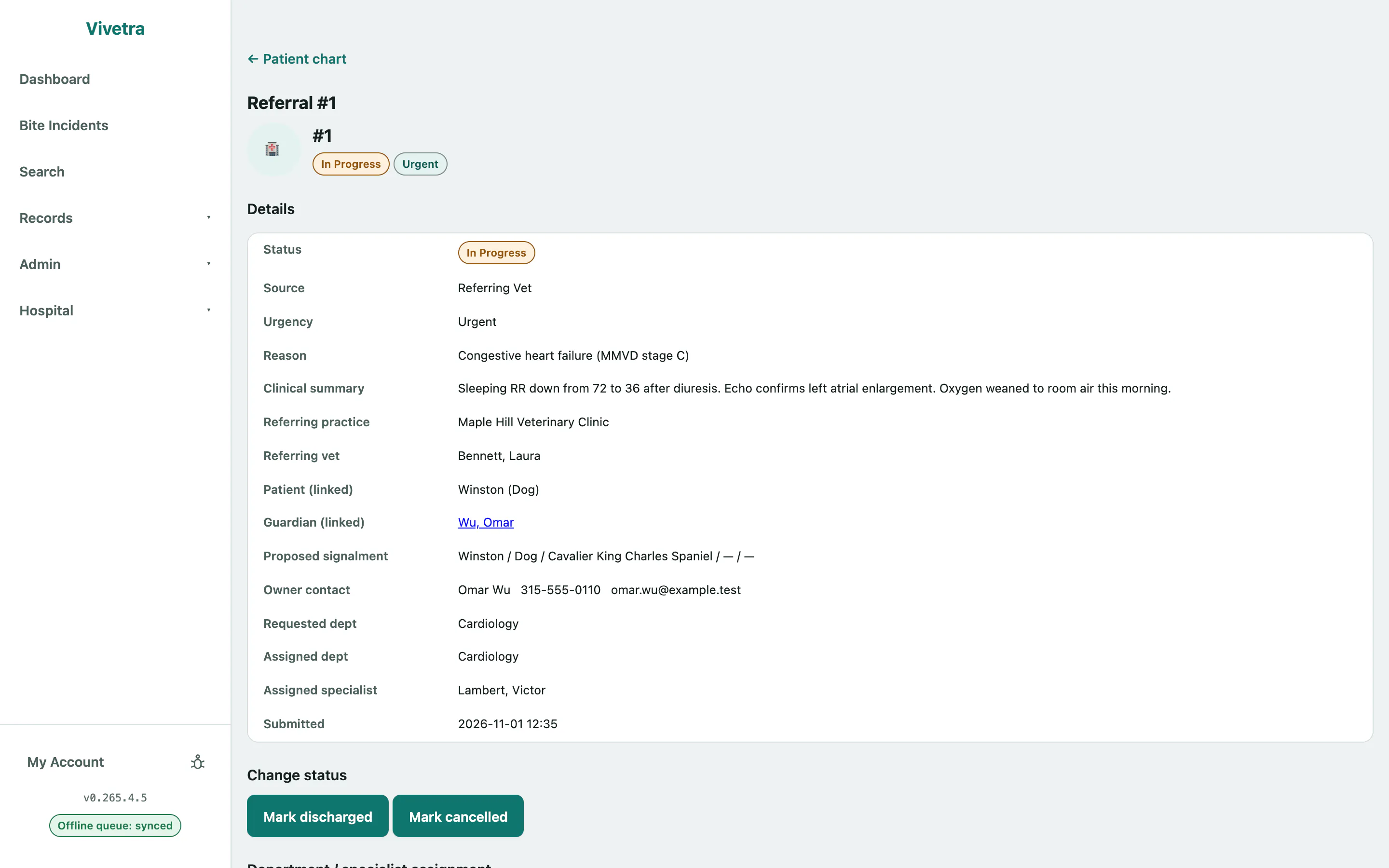
Details shows the status, source, urgency, reason, clinical summary, referring practice and vet, the linked patient and guardian, the proposed patient and owner details from intake, the requested and assigned department, the assigned specialist and when it was submitted.
Move a referral through its stages
A referral moves through these stages, and only forward:
| From | Can move to |
|---|---|
| Submitted | Acknowledged, declined or cancelled |
| Acknowledged | Accepted, declined or cancelled |
| Accepted | In progress or cancelled |
| In progress | Discharged or cancelled |
| Discharged | Closed |
Declined, cancelled and closed are final.
- Under Change status, select the button for the next stage, such as Mark acknowledged or Mark accepted.
To decline:
- Enter the Decline reason. It's required.
- Select Decline referral.
Changing status needs referral-management access, which veterinarians and practice managers have.
Assign a department and specialist
Assigning cases needs case-assignment access, which veterinarians have.
- Under Department / specialist assignment, choose the Department.
- Choose the Specialist.
- Select Save assignment.
Link the guardian
When the owner has a guardian record, link it so it replaces the contact details captured at intake (see Manage owners).
- Under Guardian association, choose the Guardian. Choose — None — to clear it.
- Select Save guardian link.
Attach the referral packet
Referral packet (attachments) holds the history, previous lab results and imaging that came with the referral, before the patient has a record here. Select a file name to view it, or download to save it.
- Under Attach a file, choose the Category: History, Lab Result, Imaging, DICOM or Other.
- Choose the File. You can drag it onto the field.
- Select Attach file.
You can add a Caption before attaching.
Files can be images (JPEG, PNG, GIF, WebP, HEIC or TIFF) or PDFs, up to 25 MB. A DICOM file has to be exported as an image or PDF first; the category is only a label. Opening attachments, like adding them, needs referral-management access.
Send a report to the referring vet
This is the professional letter back to the referring vet, separate from the owner's take-home instructions. Sending reports needs referral-reporting access, which veterinarians have.
- Under Send a discharge report to the referring vet, choose the Report type: Update, Discharge Summary or Final.
- Write the Report body.
- Select Send report to referrer.
The report is turned into a PDF and the referring vet is emailed a secure link to it in their portal. Reports back to the referrer shows each report's delivery result, the document, who wrote and sent it, and when the referring vet acknowledged it (Awaiting rDVM until they do). If delivery failed, the error is shown on the report.
Estimates and invoices
Estimates for this referral and Invoices for this referral list any raised against the case. Select a number to open one (see Build a treatment-plan estimate and Bill a hospital stay).